How to Schedule a Wallpaper Change in Windows 10

Use Windows 10’s built-in slideshow for interval rotation or schedule an exact daily wallpaper change with Task Scheduler and a short PowerShell script.
If File Explorer is slow in Windows 10, start by identifying what is actually lagging: opening Explorer itself, loading Quick access, generating thumbnails, searching, or opening one specific folder. The fixes below target those common causes without jumping straight to risky registry edits or broad network resets.
Windows 10 support note: Microsoft ended standard support for Windows 10 on October 14, 2025. Existing PCs still run, and the troubleshooting steps below remain useful, but Microsoft recommends moving to Windows 11 or using an eligible Extended Security Updates option if you must stay on Windows 10. See Microsoft's Windows 10 end-of-support guidance.
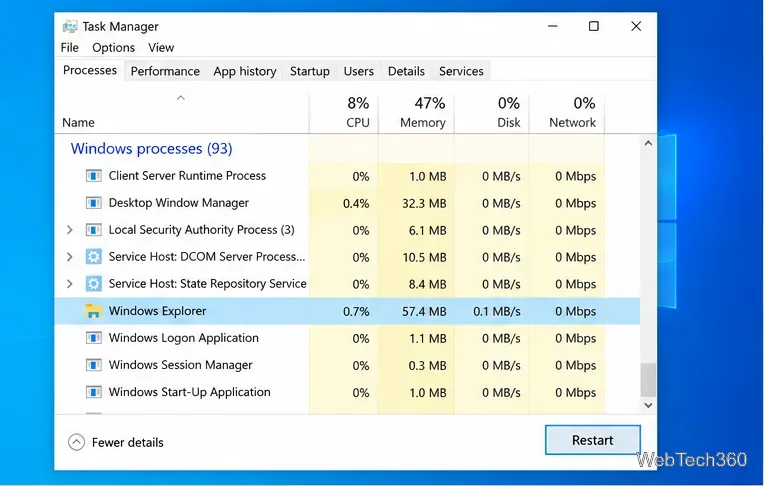
If Explorer became sluggish only recently, restart its process before changing settings.
The taskbar and desktop may briefly disappear while Explorer reloads. This does not delete files or close normal documents.
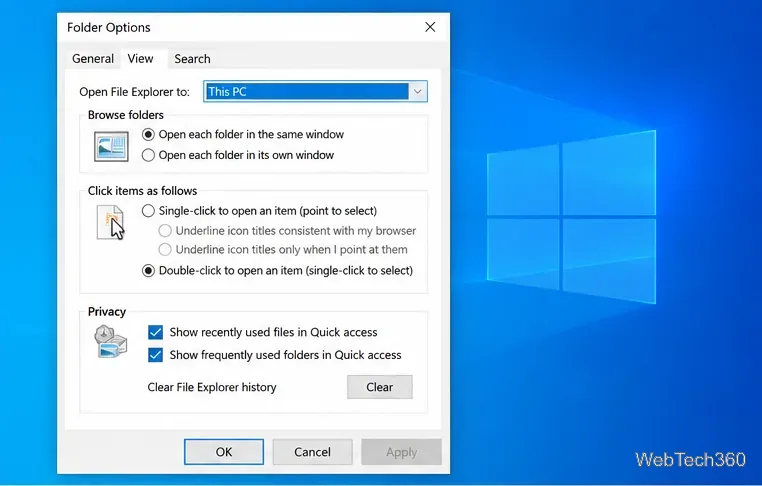
Quick access builds a view from recent files and frequently used folders. If Explorer pauses at startup, test a simpler landing page.
Microsoft documents the This PC and Quick access settings in its File Explorer guide.
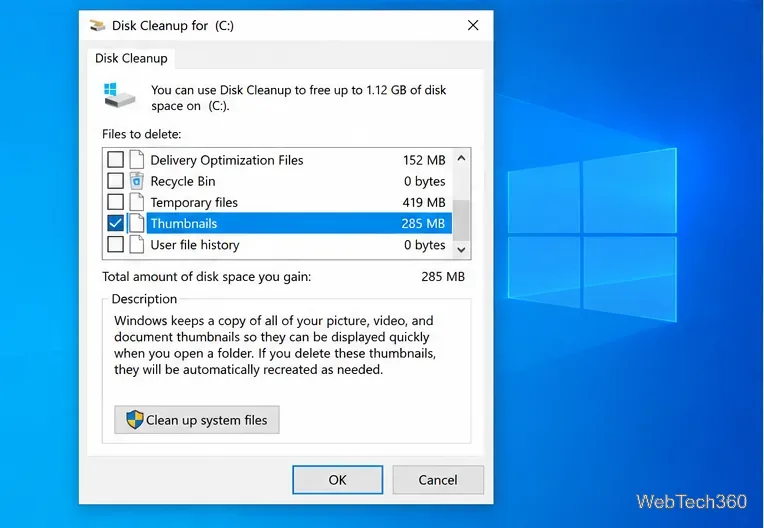
If folders containing photos or videos are slow and thumbnails appear gradually, clear the thumbnail cache so Windows can rebuild it.
The first revisit to an image-heavy folder may still take longer because Windows has to create fresh previews.
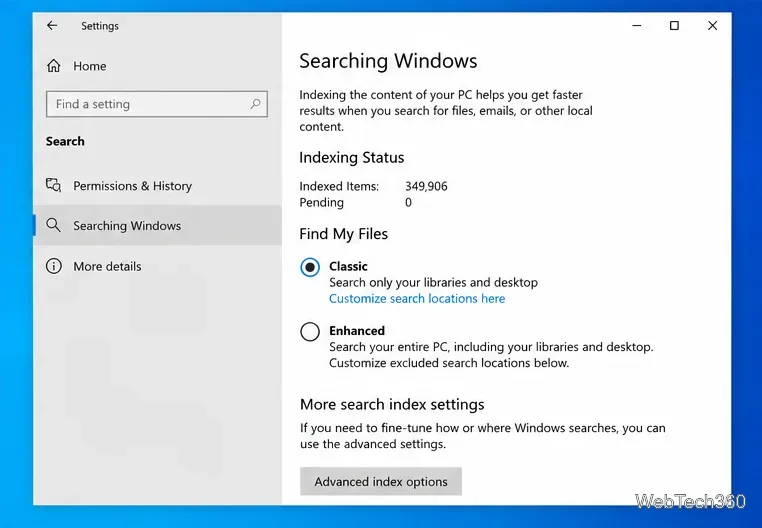
If File Explorer opens normally but searches, filters, or the green progress bar are unusually slow, the Windows Search index may need attention.
Microsoft says an index rebuild can take up to 24 hours on some systems, so do not judge the result immediately. Its Windows Search performance guidance also recommends reducing unnecessary indexed locations when the index is very large.
If just one folder is slow—especially a mixed Downloads-style folder containing images, videos, archives, and documents—Windows may be applying a content-specific template that forces extra metadata work.
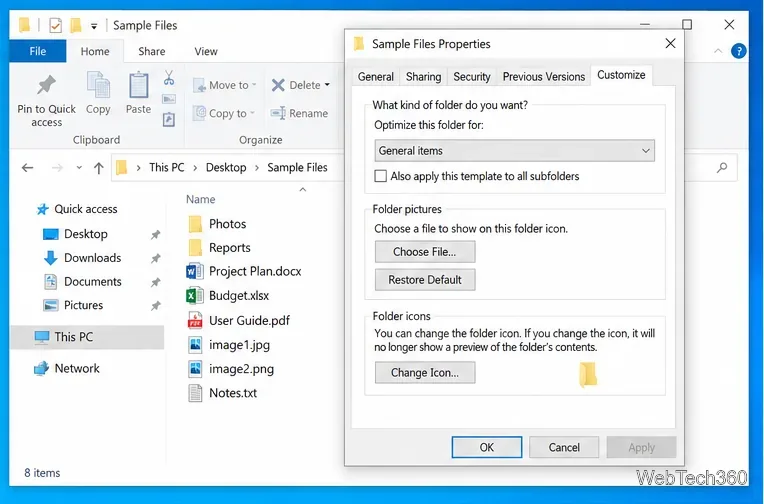
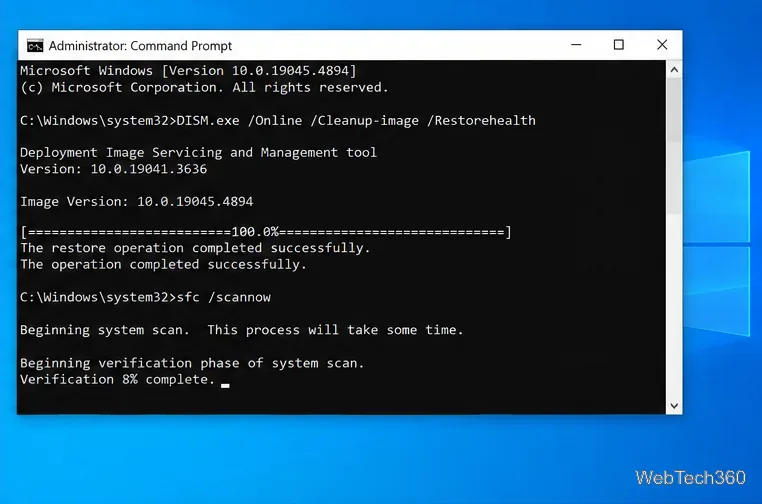
Use system repair tools if Explorer crashes, freezes across many folders, or other Windows components are also behaving incorrectly.
DISM.exe /Online /Cleanup-image /Restorehealth.sfc /scannow.Microsoft specifically recommends running DISM before SFC in its System File Checker instructions.
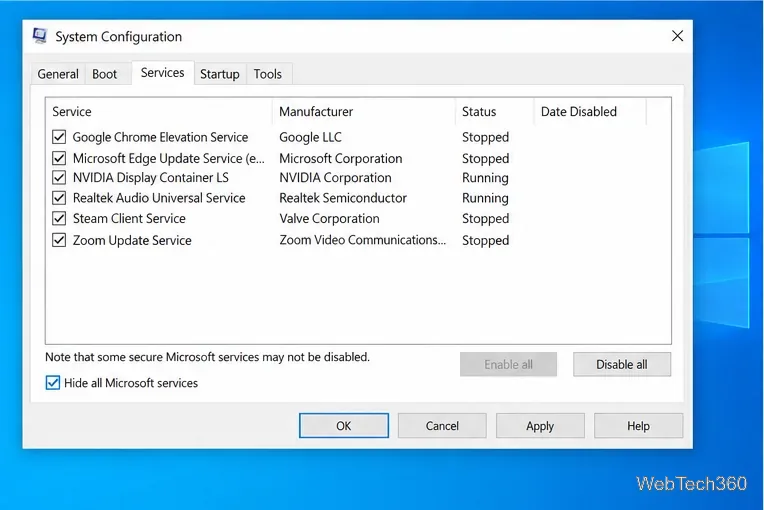
Archive tools, cloud-sync clients, security software, and other desktop apps can add Explorer extensions or background services. If the slowdown began after installing software, a clean boot can help isolate the conflict.
Open msconfig, choose the Services tab, check Hide all Microsoft services, disable the remaining nonessential services, then disable startup apps in Task Manager and restart. If Explorer becomes fast, re-enable items in batches until the culprit is identified. Record what you disable so you can restore the normal startup configuration afterward.
Follow Microsoft's full clean boot procedure rather than disabling Microsoft services manually.
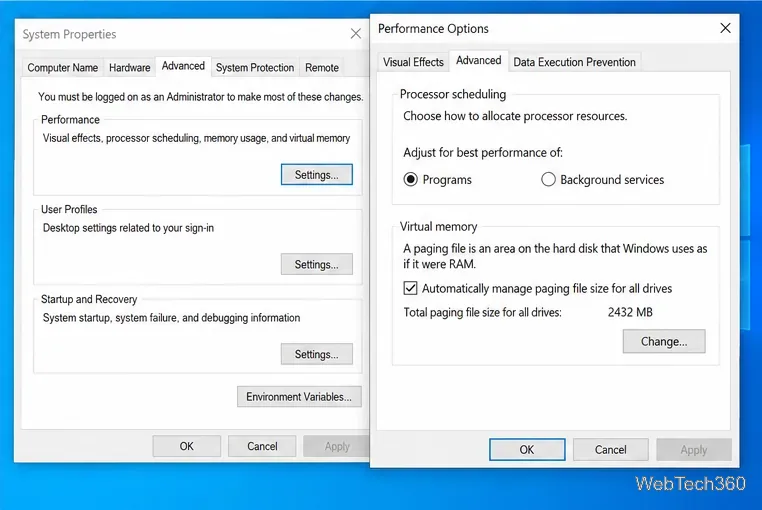
Microsoft's Windows 10 File Explorer troubleshooting also recommends leaving the paging file under Windows management. Press Win + R, run sysdm.cpl, then go to Advanced > Performance Settings > Advanced > Virtual memory and make sure Automatically manage paging file size for all drives is enabled.
Also check free space on the Windows drive. Very low storage can hurt overall responsiveness and leave less room for caches and updates. Microsoft includes both virtual-memory checks and Disk Cleanup in its File Explorer troubleshooting guidance.
Test a local folder such as C:\Windows or Documents. If local folders are fast but a mapped drive, NAS share, or disconnected network location is slow, troubleshoot the network path rather than resetting all of Explorer. If only OneDrive-backed folders lag, check sync status and whether files are available locally. Avoid registry cleaners and broad Winsock resets as general-purpose File Explorer fixes; they target different problems and can make troubleshooting harder.
For most Windows 10 systems, the highest-value order is: restart Explorer, bypass Quick access, clear thumbnails, check Search indexing, then move on to DISM/SFC and a clean boot if the issue persists.
Use Windows 10’s built-in slideshow for interval rotation or schedule an exact daily wallpaper change with Task Scheduler and a short PowerShell script.
Choose a built-in alert tone or WAV file for Windows 10 message notifications, test the change, and troubleshoot apps that keep playing another sound.
Arrange Windows 10 apps in top-and-bottom rows with the taskbar’s Show windows stacked command, or create a reusable two-zone layout with PowerToys FancyZones.
Keep each display at its recommended resolution, arrange Windows 10 monitors accurately, and use MouseUnSnag to cross mismatched edges and sticky corners.
Find whether your connected Wi-Fi uses WPA2, WPA3, or an older security mode in Windows 10 with Settings, Command Prompt, or Control Panel.
Automatically lock Windows 10 after inactivity with a screen saver timer and sign-in prompt, then check how sleep settings affect the result.
Add a persistent colored ring around your Windows 10 mouse pointer with PenAttention, or use built-in pointer tools and PowerToys for temporary highlights.
Keep the Xbox Game Bar Performance widget visible over other windows on Windows 10, with CPU, GPU, and RAM readings you can position and unpin.
Capture two or more Windows 10 displays in one OBS video. Add a Display Capture source for each monitor, fit the canvas, and test the layout.
Create a GUID on Windows 10 with [guid]::NewGuid() or New-Guid, reuse it in a script, and learn when to look up an existing identifier.








