How to Play Minecraft Offline on Windows 10: Java and Bedrock

Prepare Java or Bedrock on Windows 10 for offline single-player, enable the right Xbox setting, and back up your local Minecraft worlds.
If one Windows 10 taskbar icon flashes briefly, it may simply be an app asking for attention. If the taskbar keeps blinking, disappears and redraws, or the whole screen flickers, check whether the problem is an incompatible app or a display driver before changing system settings. Use the steps below in order, starting with the symptom that matches what you see.
Watch the rest of the desktop when the taskbar flashes. A single highlighted app button, while windows and the background remain steady, usually means that app needs you to respond. Select the icon, check for a dialog, message, sign-in prompt, or permission request, and resolve it. Some apps keep their button highlighted until you bring them forward.
If the taskbar, open windows, and other screen content blink together, open Task Manager with Ctrl + Shift + Esc. Microsoft uses this check to help separate display-driver trouble from an app conflict: if Task Manager flickers too, suspect the graphics driver; if it stays steady while the rest of the screen flickers, suspect an incompatible app. See Microsoft's screen-flickering troubleshooting guide for the same diagnostic.
For a brief graphics glitch, press Windows + Ctrl + Shift + B once to reset the graphics driver. The display may go dark momentarily or beep. If the flickering returns, continue below.
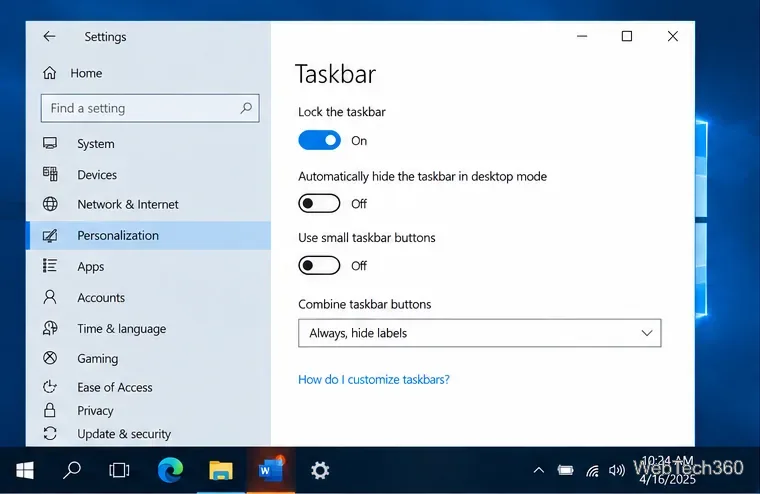
If Task Manager does not flicker, think about what changed shortly before the problem began. Taskbar customizers, themes, desktop docks, screen recorders, overlays, and recently updated apps can interfere with Windows Explorer or the display. Update the suspected app from its publisher, or temporarily uninstall it from Start > Settings > Apps > Apps & features. Restart and check whether the flicker stops before removing anything else.
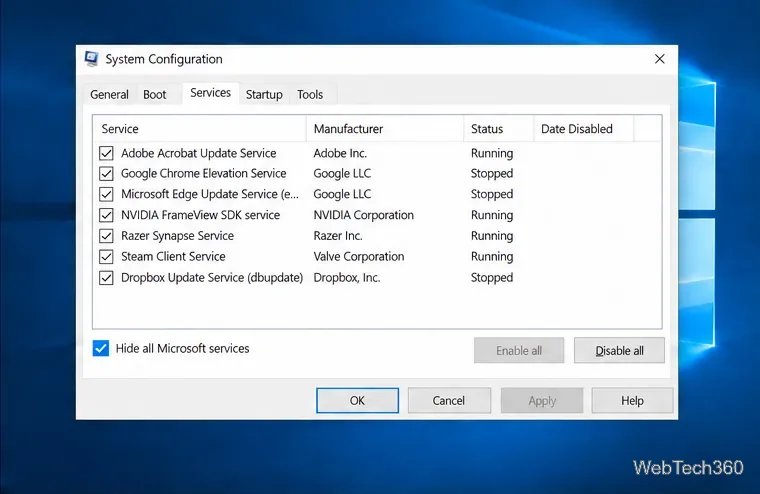
When the cause is unclear, use a clean boot to test background software. Sign in as an administrator, search Start for msconfig, and open System Configuration. On Services, select Hide all Microsoft services, then choose Disable all. Open Task Manager's Startup tab and disable startup apps, noting what you changed. Restart and check the taskbar. A clean boot is only a diagnostic state: if it fixes the issue, re-enable items in small groups to find the conflict, then restore normal startup. Follow Microsoft's clean-boot instructions to return services and startup apps to their usual state.
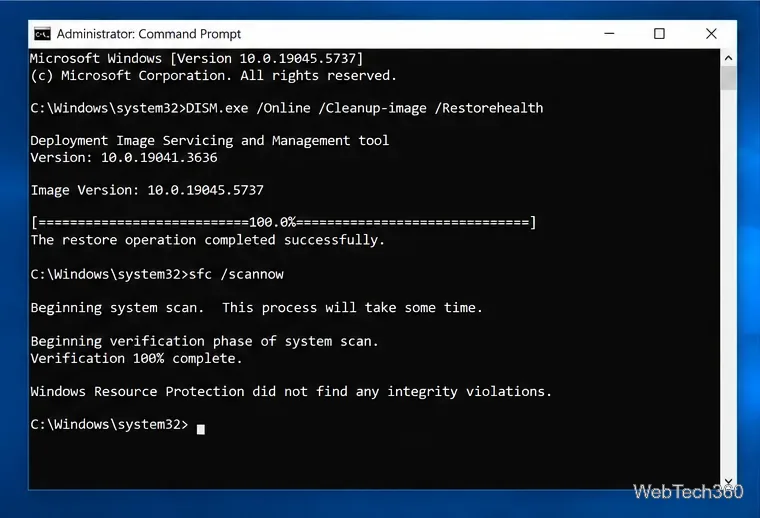
If the flashing continues even without third-party startup apps, run Microsoft's built-in image and file repairs. Search for Command Prompt, right-click it, choose Run as administrator, and approve the prompt. Run these commands one at a time, waiting for each to finish:
DISM.exe /Online /Cleanup-image /Restorehealth
sfc /scannow
DISM repairs the Windows component image that SFC uses; SFC then checks protected system files. Keep the Command Prompt open until each scan completes. Restart Windows and see whether the taskbar behaves normally. Microsoft documents this sequence in its System File Checker and DISM instructions. If the scans report that files could not be repaired, use the linked guidance rather than downloading replacement system files from an unofficial site.
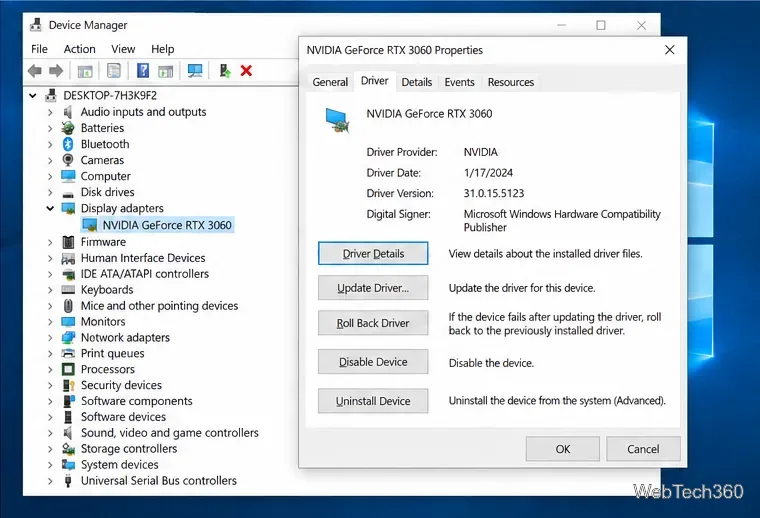
If Task Manager flickers along with the rest of the display, or the issue began after a graphics update, check the driver. Search Start for Device Manager, expand Display adapters, right-click the listed adapter, and select Properties. On the Driver tab:
The rollback option may be unavailable when Windows has no previous driver stored. Use the vendor's exact PC or adapter model when looking for a driver; avoid third-party driver-download utilities. Microsoft's driver steps for screen flicker explain when to roll back, update, or reinstall.
The old claim that this is specifically a Windows 10 version 1709 bug is too narrow to diagnose a current PC. Windows 10 support ended on October 14, 2025. Windows still runs, but Microsoft no longer provides general free feature updates, security fixes, or technical support. If your device is enrolled in Extended Security Updates or managed by an organization, install updates offered for that program; do not expect a regular feature update to fix every taskbar problem. Microsoft's Windows 10 end-of-support page explains the current options.
If the taskbar still flickers after these checks, note whether Task Manager flickers and whether a clean boot changes the behavior. Those two observations help narrow the next step to a graphics driver, an app, or a Windows profile issue without repeatedly uninstalling unrelated software.
Prepare Java or Bedrock on Windows 10 for offline single-player, enable the right Xbox setting, and back up your local Minecraft worlds.
Change a file type icon in Windows 10 while keeping its current default app. Follow the FileTypesMan steps, handle icon picker issues, and restore the original setting.
Set PhysX in NVIDIA Control Panel on Windows 10, understand Auto-select vs. CPU or GPU, and learn when to use Windows Graphics settings instead.
Compare six free office suites for documents, spreadsheets, and presentations, including browser-based collaboration and offline desktop options.
Turn on Notepad’s Status Bar to see the current line and column in Windows 10, troubleshoot a disabled option, and learn when you need a line-number gutter.
Display a custom Windows dialog with a short PowerShell command, Command Prompt, or a reusable .bat or .ps1 file, including a title, icon, and buttons.
Fix Windows 10 update error 0x80071160 with Microsoft’s troubleshooter, a safe update-cache reset, DISM and SFC repairs, and a careful manual-install check.
Create a Windows 10 UEFI installer with Microsoft’s Media Creation Tool or Rufus, then boot and install safely without wiping the wrong drive.
Stop individual Edge tabs from crowding the Windows 10 Alt+Tab switcher. Change one Multitasking setting, limit recent tabs, and check why the option may be missing.
Enable Adobe’s PDF thumbnail handler, correct File Explorer’s icon settings, rebuild the thumbnail cache, and check OneDrive files that are not stored locally.








