How to Play Minecraft Offline on Windows 10: Java and Bedrock

Prepare Java or Bedrock on Windows 10 for offline single-player, enable the right Xbox setting, and back up your local Minecraft worlds.
If Windows Photo Viewer rotates a picture but the change will not stick, Windows may be unable to write to that file. Check its Read-only attribute and folder write access first, then test a copy in a local folder such as Pictures. These checks help separate a file or location problem from a viewer problem.
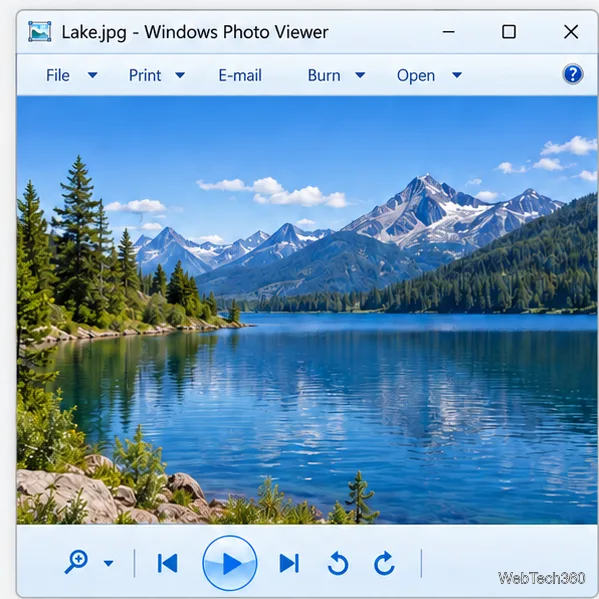
Start with scope: one picture failing usually points to that file or its location; several pictures from one folder point to folder access. If unrelated photos in writable folders fail across apps, skip to the Windows repair section.
In File Explorer, right-click the picture and choose Properties. On the General tab, under Attributes, clear Read-only if it is checked. Select Apply, then OK. Reopen the image in Photo Viewer, rotate it, then close and reopen the file to confirm the change stayed.
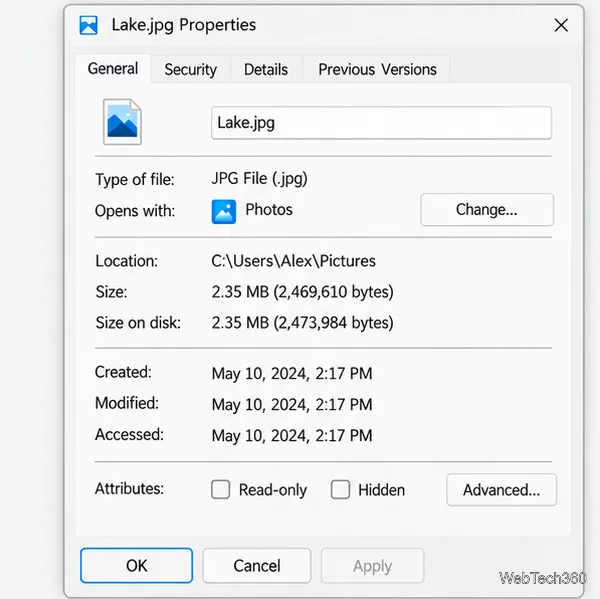
If the box is already clear, or Windows will not let you change it, continue to the permission and local-copy checks. Microsoft’s older Photo Viewer troubleshooting note identifies read-only files and missing write access as causes of a save error. Its update fix is specific to Windows 8, not Windows 10.
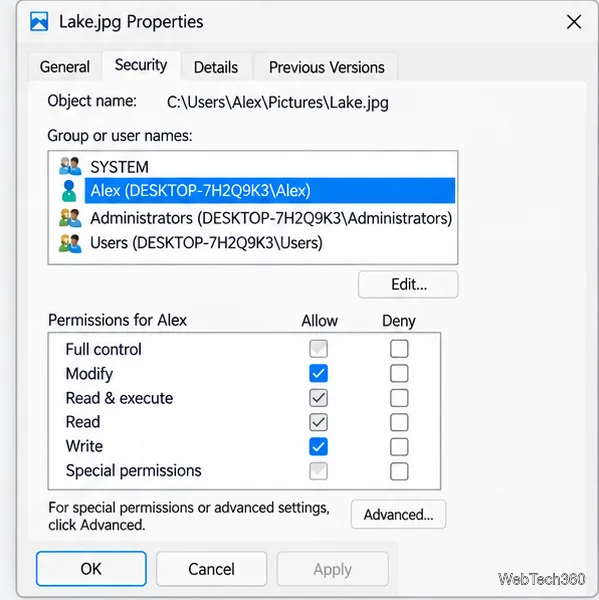
For a local file, open Properties > Security, select your Windows account, and review its permissions. Saving requires an allowed write permission; Modify includes the ability to change a file. A checked Deny entry can override an allowed permission.
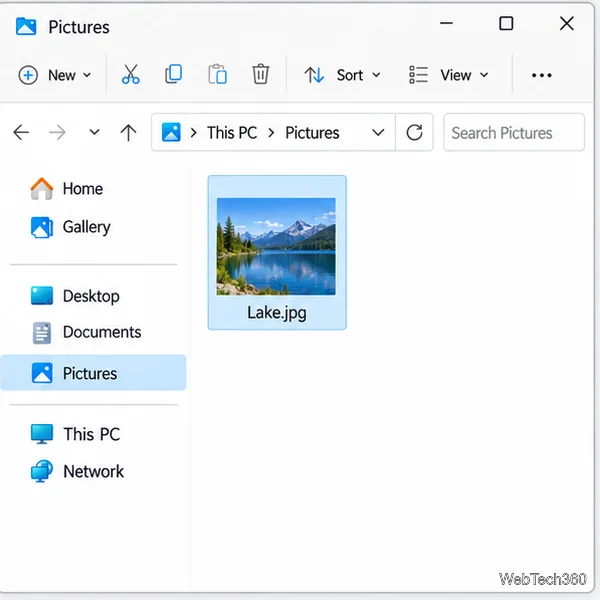
Copy—not move—the photo into Pictures or another folder you control. Open that copy in Photo Viewer and rotate it. Close the app, reopen the copied file from File Explorer, and check that it remains upright.
If the copy works, the original may be on a camera card, USB drive, protected folder, read-only share, or cloud location that is not available for local editing. Keep the original until you verify the copy. If the test copy also fails, try a second ordinary JPEG in Pictures to check whether the issue is limited to one image.
If only Photo Viewer fails, use Microsoft Photos or another editor that can save image files. In supported Photos versions, open the image, choose Edit image, then Crop & rotate. Use the left or right rotate control. Labels can vary by app version.
Microsoft’s Photos editing guide documents its rotate controls. Follow the labels in your installed version if its menus differ.
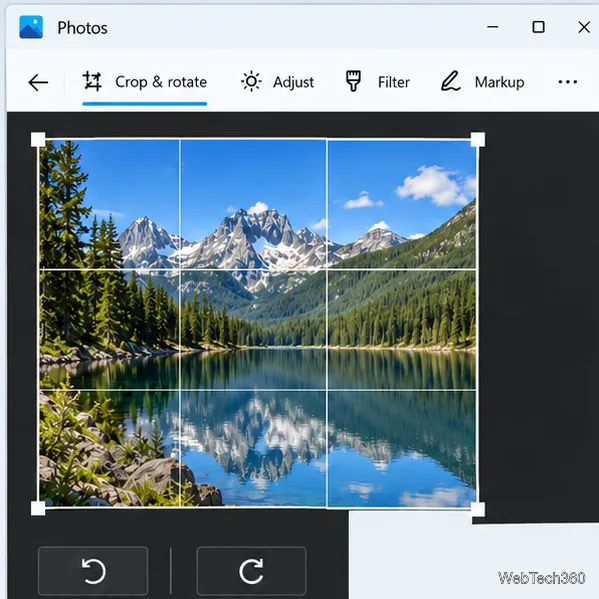
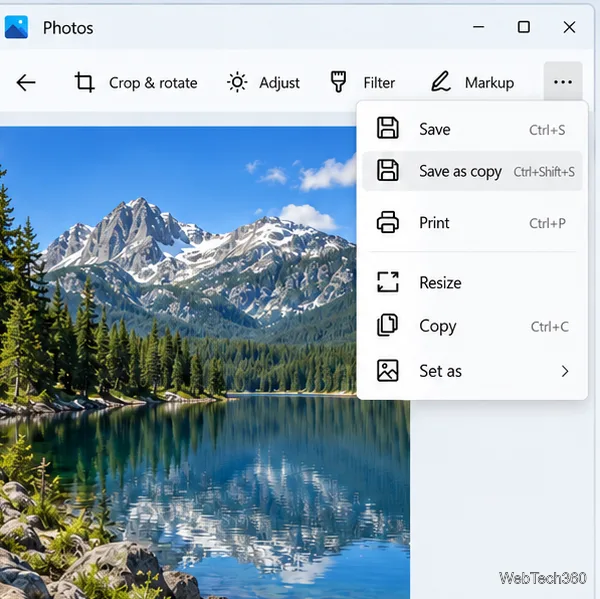
If a picture looks rotated in one app but not another, orientation metadata may be involved. Microsoft defines the EXIF PhotoOrientation flag as information describing how a photo should be rotated for display. Save a new copy from an editor that shows the correct orientation, then reopen it to verify. See Microsoft’s PhotoOrientation documentation.
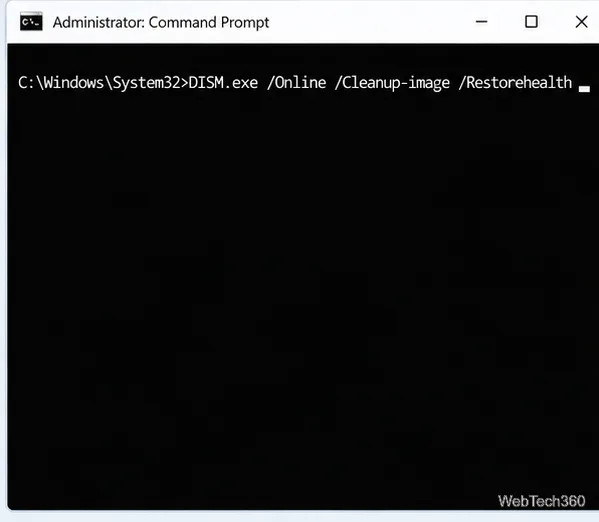
DISM and System File Checker are last resorts if multiple images in writable folders fail across Windows apps. They are unlikely to fix one file’s Read-only setting or permissions. Save your work and restart Windows before scanning.
DISM.exe /Online /Cleanup-image /Restorehealth and wait for it to complete successfully.sfc /scannow and wait until verification reaches 100%.Microsoft’s System File Checker instructions specify DISM before SFC. Do not close the command window while either scan is running.
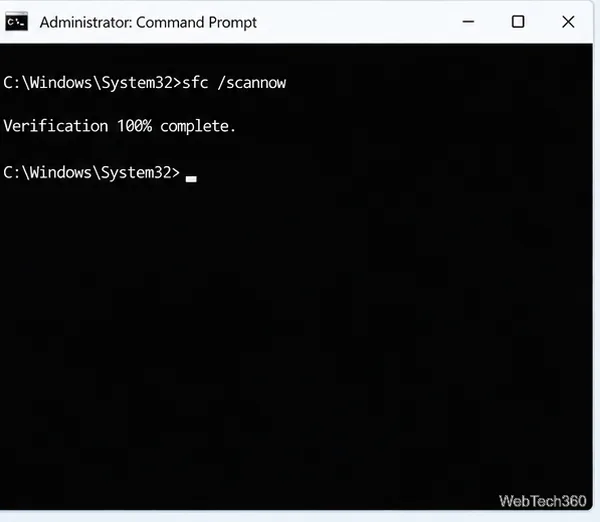
Always reopen the file from File Explorer after rotating. If a writable copy saves correctly in Photos but not in Photo Viewer, keep using the editor that works; system repairs cannot resolve every legacy viewer or image-format mismatch.
Prepare Java or Bedrock on Windows 10 for offline single-player, enable the right Xbox setting, and back up your local Minecraft worlds.
Change a file type icon in Windows 10 while keeping its current default app. Follow the FileTypesMan steps, handle icon picker issues, and restore the original setting.
Set PhysX in NVIDIA Control Panel on Windows 10, understand Auto-select vs. CPU or GPU, and learn when to use Windows Graphics settings instead.
Compare six free office suites for documents, spreadsheets, and presentations, including browser-based collaboration and offline desktop options.
Turn on Notepad’s Status Bar to see the current line and column in Windows 10, troubleshoot a disabled option, and learn when you need a line-number gutter.
Display a custom Windows dialog with a short PowerShell command, Command Prompt, or a reusable .bat or .ps1 file, including a title, icon, and buttons.
Fix Windows 10 update error 0x80071160 with Microsoft’s troubleshooter, a safe update-cache reset, DISM and SFC repairs, and a careful manual-install check.
Create a Windows 10 UEFI installer with Microsoft’s Media Creation Tool or Rufus, then boot and install safely without wiping the wrong drive.
Stop individual Edge tabs from crowding the Windows 10 Alt+Tab switcher. Change one Multitasking setting, limit recent tabs, and check why the option may be missing.
Enable Adobe’s PDF thumbnail handler, correct File Explorer’s icon settings, rebuild the thumbnail cache, and check OneDrive files that are not stored locally.








