How to Watch Emby on ChromeOS in Chrome
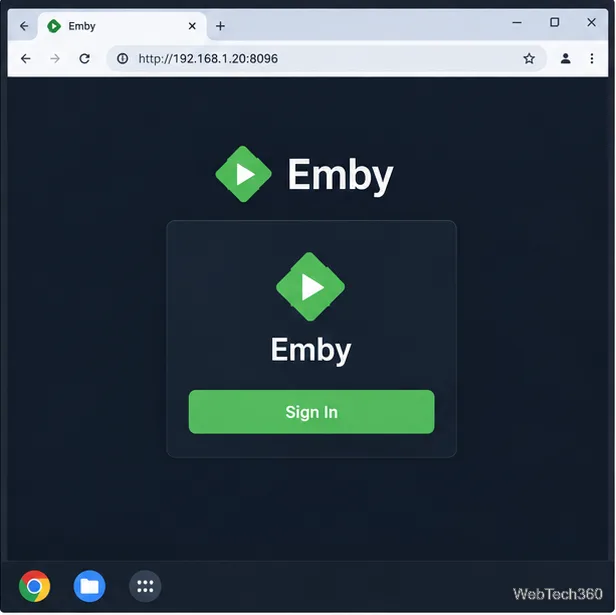
Open the Emby Web App on your Chromebook, sign in to your server, and play movies, shows, music, and photos without installing Linux.
You can block many ad and tracking requests on a Chromebook without installing a Chrome extension by changing the DNS servers for your Wi-Fi network. AdGuard Public DNS filters known ad and tracker domains before a page can load them. The basic setup is free and does not require an AdGuard account. It will reduce some ads, but DNS filtering cannot remove every ad, especially ads served from the same domain as the content.
DNS translates a site name into the address a browser needs to connect. A filtering DNS service can refuse requests to domains on its blocklists, so the browser never fetches content from those domains. On a Chromebook, the network setting applies to that saved connection and to apps that use its DNS resolver; it does not install a browser extension or clean up page elements after they load.
That distinction matters: ads embedded by the same service that provides a video or social feed may still appear. Blocking the shared domain could also break the site. AdGuard describes these limits in its DNS filtering guide.
The public default servers block ads and trackers. You can configure IPv4, IPv6, or both. If your Chromebook offers fields for both address types, set both so traffic using either network protocol reaches AdGuard.
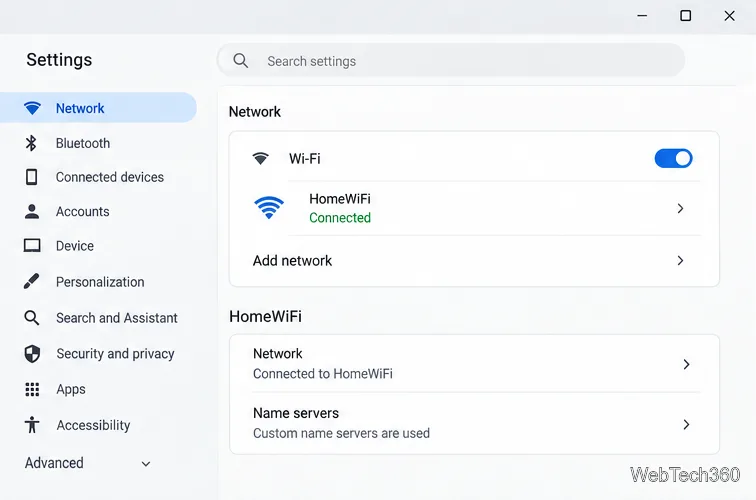
94.140.14.14 and 94.140.15.152a10:50c0::ad1:ff and 2a10:50c0::ad2:ffThese are AdGuard’s public default servers. Do not substitute the different addresses shown for a personal Private DNS device; those are account-linked settings. See AdGuard’s official public DNS setup page for the current server list.
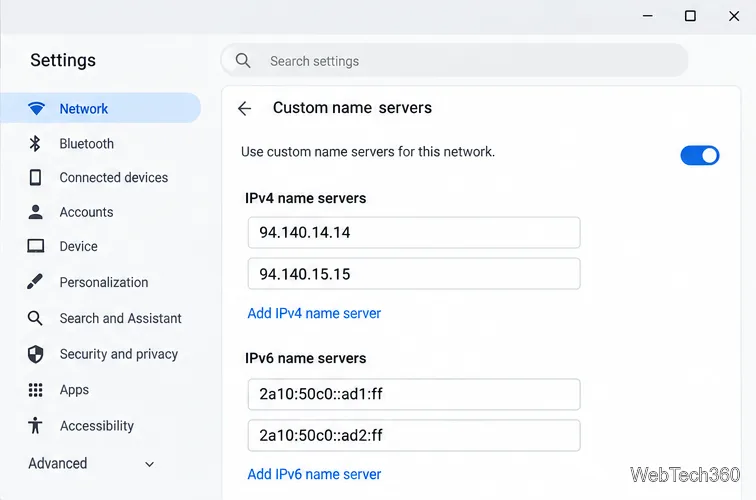
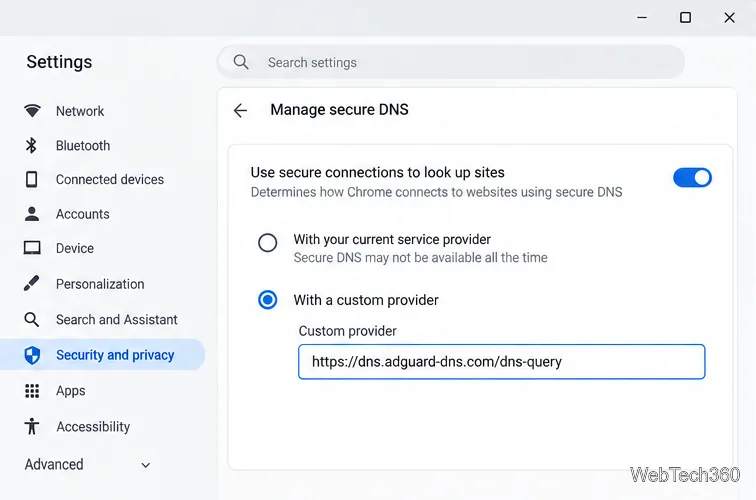
ChromeOS also has a Secure DNS setting. If it is set to a different custom provider, Chrome’s lookups may use that provider instead of the DNS servers configured for the Wi-Fi connection. To use AdGuard with encrypted DNS, open Settings → Security and privacy → Manage secure DNS, turn on Use secure connections to look up sites, choose With a custom provider, and enter https://dns.adguard-dns.com/dns-query. AdGuard lists this as its public DNS-over-HTTPS endpoint.
If you want the Wi-Fi name servers to handle DNS and are not setting up the encrypted endpoint, turn off Secure DNS or select a provider that matches your choice. Google notes that managed Chromebooks or devices with parental controls may not allow Secure DNS changes. Its Chrome Secure DNS help page explains the setting. Plain IP-based DNS is not encrypted; DNS-over-HTTPS sends lookups over an encrypted connection.
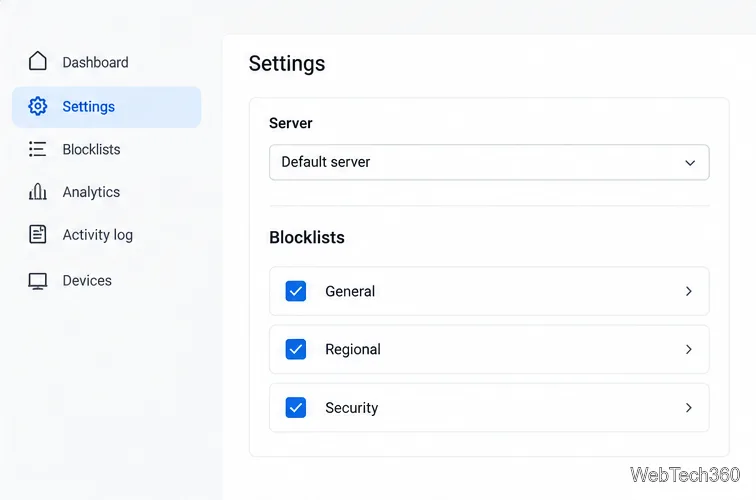
AdGuard Public DNS uses preset filtering and does not provide a personal blocklist dashboard. For device-specific rules, query logs, or selectable blocklists, use Private AdGuard DNS. Add a device in its dashboard and follow the connection method and addresses shown there. In the dashboard, the current path for filters is Servers → select a server → Blocklists. Start with the general ad and tracking list; add a regional list only when it fits the languages and sites you use. Avoid enabling every list at once, since overlapping rules can block sites you need. AdGuard explains the list categories in its blocklists guide.
To undo the change, return to the same network’s Name servers menu and choose Automatic name servers. If you changed Secure DNS, restore its previous provider or setting as well.
Open the Emby Web App on your Chromebook, sign in to your server, and play movies, shows, music, and photos without installing Linux.
Install Syncthing on a Chromebook, share a ChromeOS folder with Linux, connect another device, and keep the web interface private.
Enable Linux on your Chromebook, install Tor Browser with the Tor Project’s Flatpak launcher, connect to Tor, and understand what the setup protects.
Install Bitwarden on a Chromebook, save your first login, autofill websites, and learn when the optional Linux desktop app makes sense.
Install Firefox, Brave, Edge, or Opera on a Chromebook with Linux. Learn how to enable the Debian environment, choose a compatible package, and understand the limits.
Read EPUBs and PDFs in Google Play Books on your Chromebook, or install Foliate through Linux for a local reader that supports more formats.
Install VLC on a Chromebook from Google Play, play local files and network media, or set up the Linux desktop version when you need it.
Install Krita on a Chromebook with ChromeOS Linux and Flatpak, then launch the app, open shared artwork, and troubleshoot common setup limits.
Use Teams on a Chromebook through Chrome, sign in with a work or school account, install the optional web app, and resolve camera or microphone issues.
Set up ChromeOS Linux, choose the right VS Code Debian package for your Chromebook, and install the desktop editor with APT.