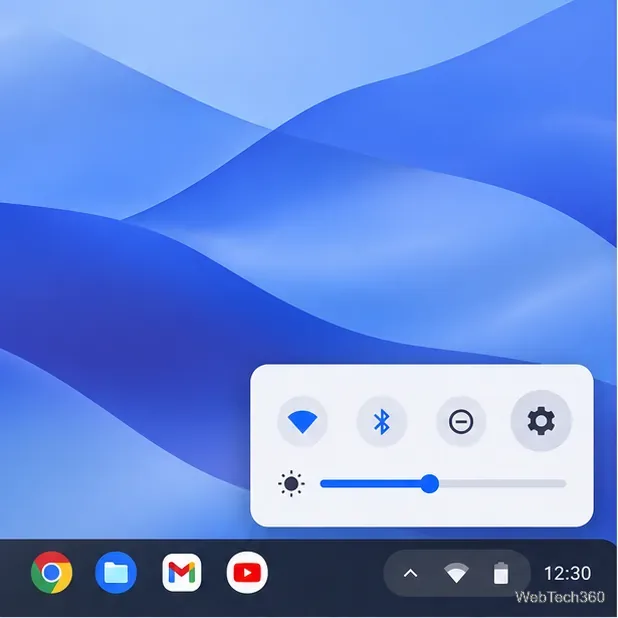
How to Watch Emby on ChromeOS in Chrome
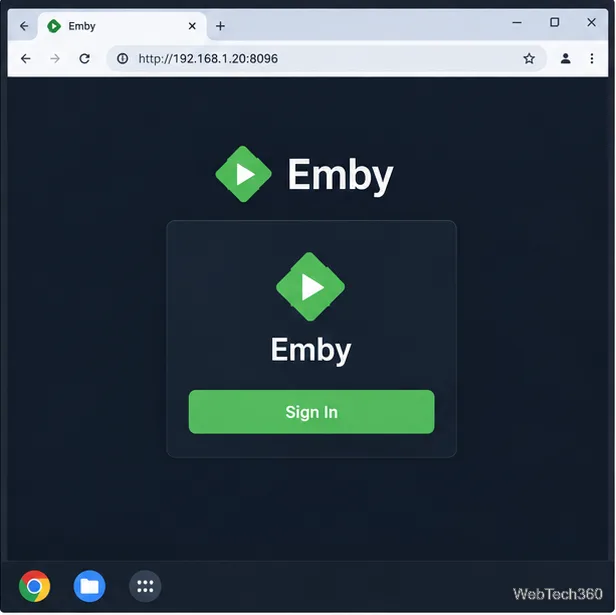
Open the Emby Web App on your Chromebook, sign in to your server, and play movies, shows, music, and photos without installing Linux.
Thunderbird offers an Android app and a full desktop app for Linux. If you prefer a mobile-style app, check Thunderbird for Android in Google Play; Google says the Play Store is available on only some Chromebooks, and app compatibility varies by model. See Google’s Chromebook app instructions to check whether your device supports Android apps. The steps below install the desktop version of Thunderbird on a Chromebook through ChromeOS’s Linux development environment. If Linux is unavailable or blocked on your device, try the Android app if it is compatible, or use your email provider’s website.
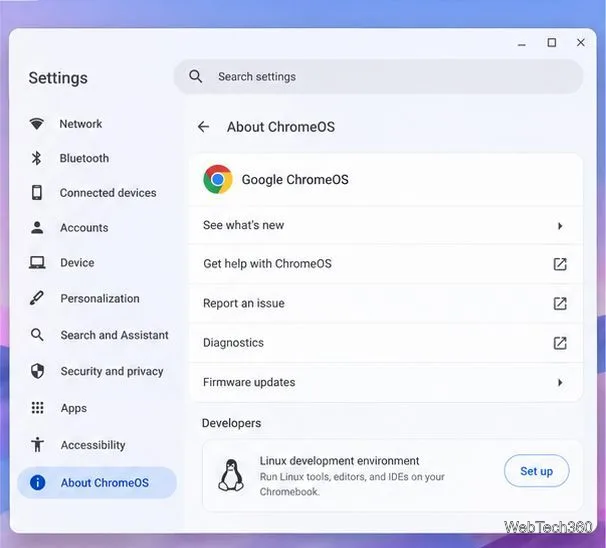
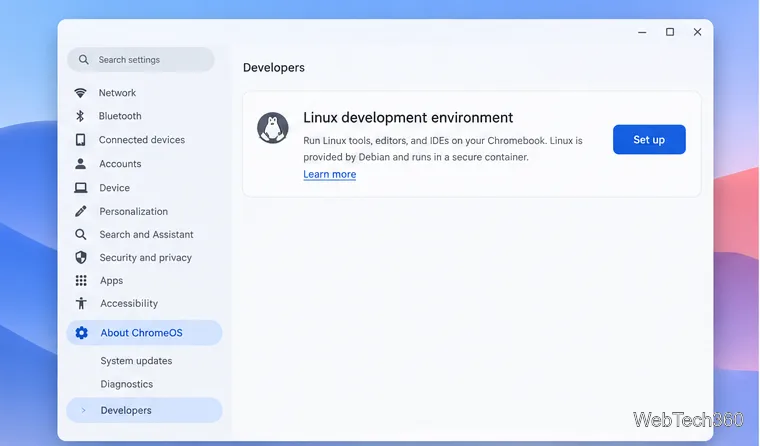
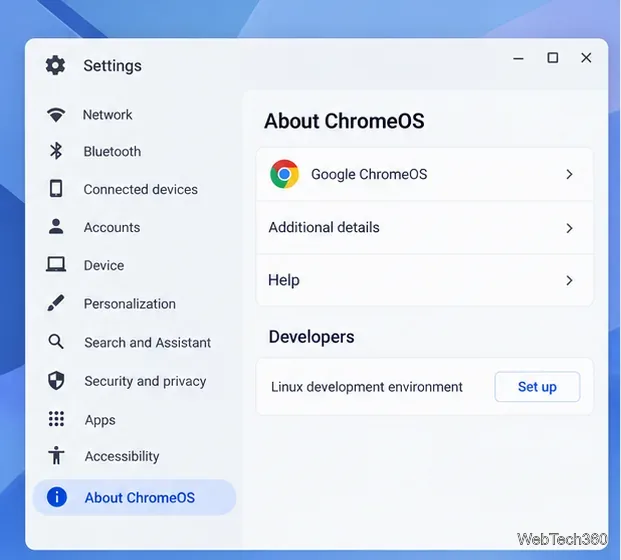
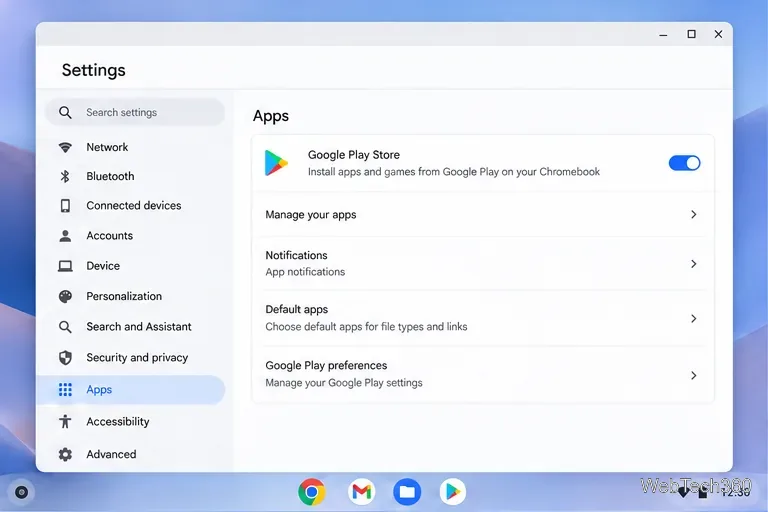
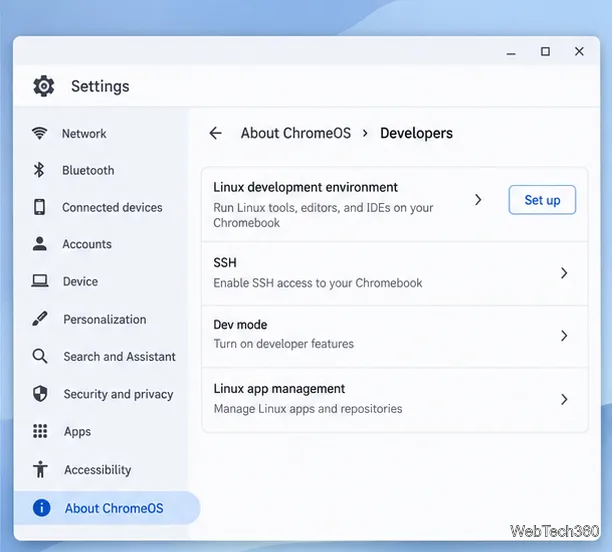
Make sure your Chromebook supports Linux and has enough free storage for the Linux environment, Thunderbird, and its mail data. You do not need to enable ChromeOS Developer Mode: that is a separate setting. Turn on only the Linux development environment. Google notes that Linux may be restricted on managed Chromebooks and that setup can take 10 minutes or more.
Google’s Chromebook Linux setup guide describes the same path. The terminal gives you a Debian environment where you can install Linux applications.
In the Terminal window, update the Debian packages first. Review any confirmation prompt before accepting it:
sudo apt-get update && sudo apt-get dist-upgradeInstall Flatpak and add the Flathub repository, then install Thunderbird. Run each command separately and wait for it to finish before entering the next one:
sudo apt-get install flatpak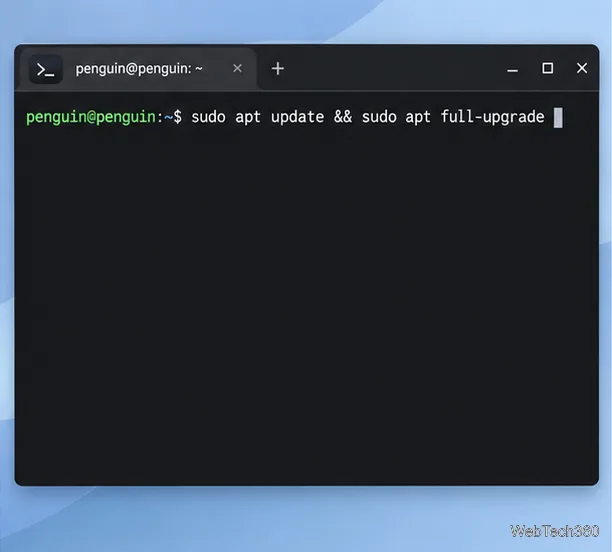
sudo flatpak remote-add --if-not-exists flathub https://dl.flathub.org/repo/flathub.flatpakrepo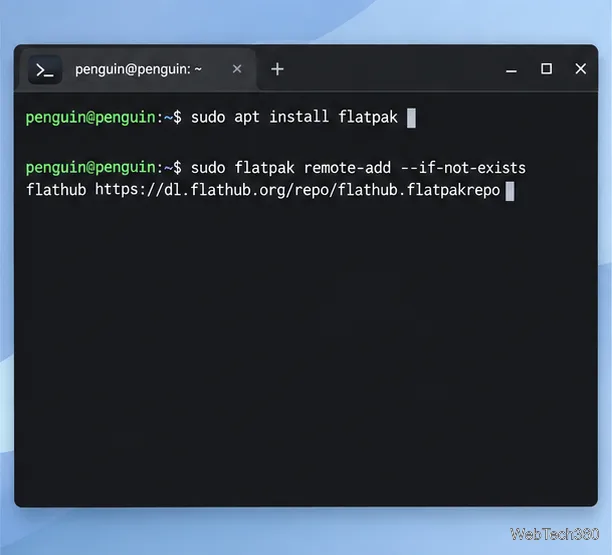
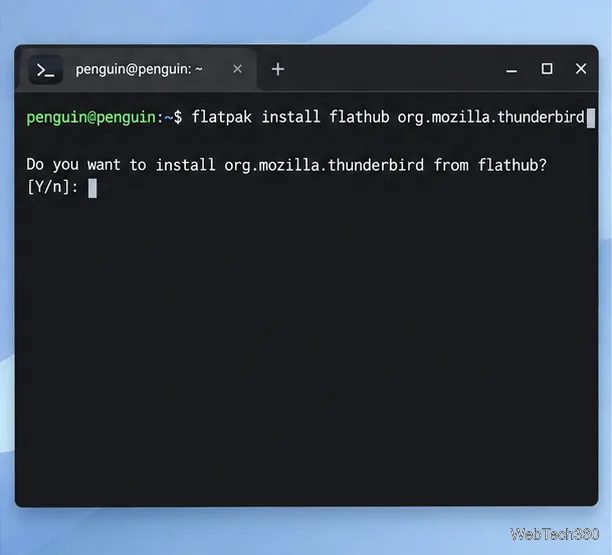
flatpak install flathub org.mozilla.thunderbirdWhen Flatpak asks to proceed, review the listed app and runtime, then confirm. Mozilla documents this install command and explains that Linux distribution packages can receive updates later than Thunderbird’s Flatpak release. You can verify the app listing on Thunderbird’s Flathub page.
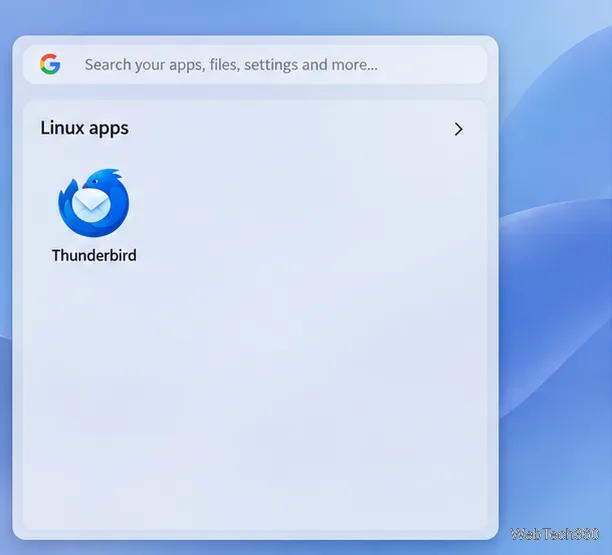
Open the Chromebook Launcher, expand Linux apps, and select Thunderbird. On first launch, the Account Hub asks for your full name and email address. Enter both, then select Continue. The initial screen does not ask for your password; Thunderbird first looks up compatible server settings for your email provider.
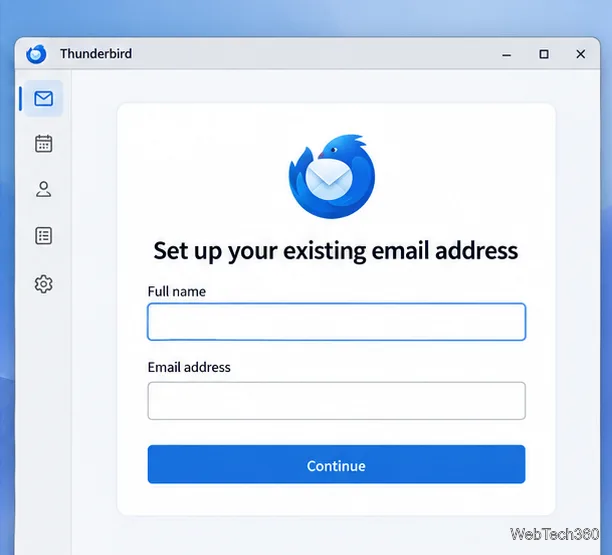
Check the detected account settings and continue with the suggested configuration. IMAP is usually the right choice when you want the same mailbox and folders to stay in sync on multiple devices. If your provider uses OAuth, current Thunderbird versions open the provider’s sign-in page in ChromeOS’s default browser. Confirm that it is your provider’s page, sign in there, complete any multi-factor authentication, and return to Thunderbird. The exact prompts vary by provider.
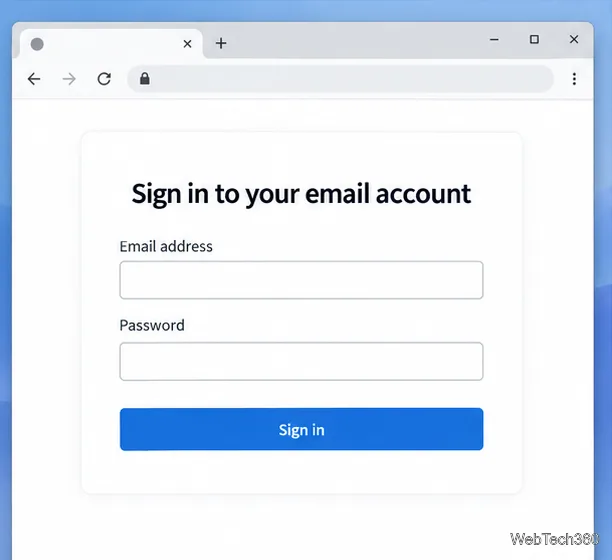
After authorization, Thunderbird may offer to connect calendars or address books as well. Choose the services you want, then finish setup. Open Inbox to read messages. The first synchronization can take a while if the mailbox contains many messages or large attachments.
Select Manual configuration and enter the incoming mail server, outgoing SMTP server, ports, connection security, and username supplied by your email provider. Do not guess these values: incorrect server or encryption settings can prevent messages from sending or arriving. Mozilla’s manual account configuration guide explains the fields. If your provider requires an app password for a mail client, follow that provider’s official instructions rather than disabling multi-factor authentication.
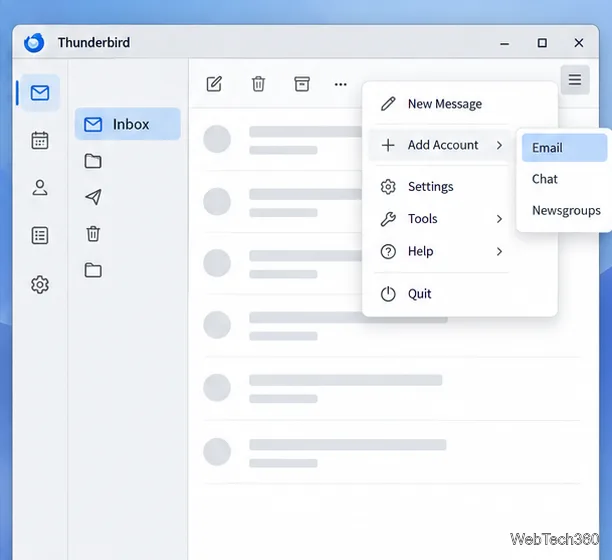
To connect a second mailbox, open Thunderbird’s application menu and choose Add Account > Email, then repeat the account setup. Some older Thunderbird versions label this option New Account. The account menu is available from the main mail window:
Thunderbird stores its profile and downloaded mail inside the Linux environment. Before removing or replacing that environment, make a Chromebook Linux backup: open Settings > Advanced > Developers > Linux > Back up and restore, then select Back up. Google’s backup and restore instructions cover saving Linux apps and files. If the app does not appear after installation, restart the Chromebook and check the Launcher’s Linux apps group; if Linux setup is missing on a managed device, ask its administrator about the restriction.
Open the Emby Web App on your Chromebook, sign in to your server, and play movies, shows, music, and photos without installing Linux.
Install Syncthing on a Chromebook, share a ChromeOS folder with Linux, connect another device, and keep the web interface private.
Enable Linux on your Chromebook, install Tor Browser with the Tor Project’s Flatpak launcher, connect to Tor, and understand what the setup protects.
Install Bitwarden on a Chromebook, save your first login, autofill websites, and learn when the optional Linux desktop app makes sense.
Install Firefox, Brave, Edge, or Opera on a Chromebook with Linux. Learn how to enable the Debian environment, choose a compatible package, and understand the limits.
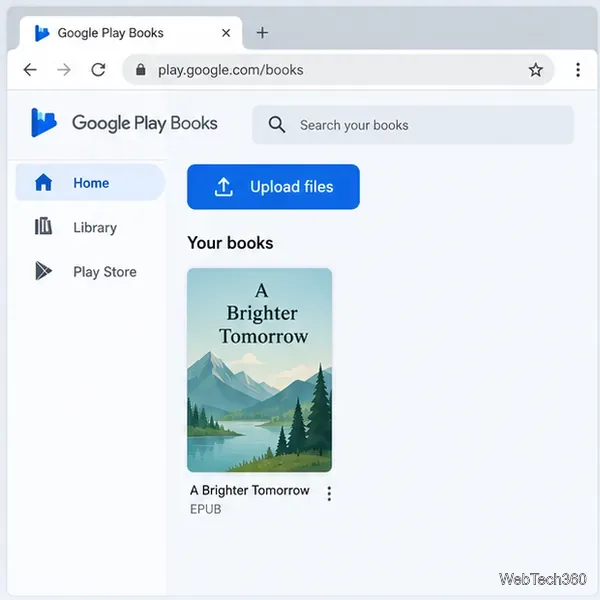
Read EPUBs and PDFs in Google Play Books on your Chromebook, or install Foliate through Linux for a local reader that supports more formats.
Install VLC on a Chromebook from Google Play, play local files and network media, or set up the Linux desktop version when you need it.
Install Krita on a Chromebook with ChromeOS Linux and Flatpak, then launch the app, open shared artwork, and troubleshoot common setup limits.
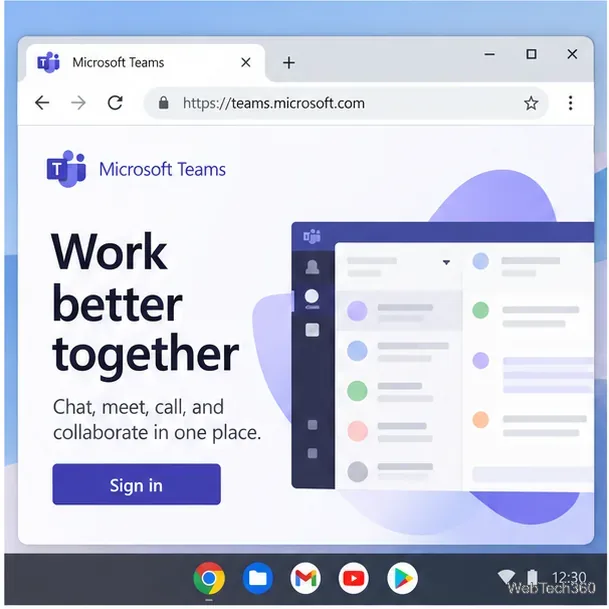
Use Teams on a Chromebook through Chrome, sign in with a work or school account, install the optional web app, and resolve camera or microphone issues.
Set up ChromeOS Linux, choose the right VS Code Debian package for your Chromebook, and install the desktop editor with APT.