How to Install and Use Telegram on a Chromebook

On a Chromebook that supports Android apps, the simplest way to install Telegram is through Google Play. If your device does not offer the Play Store, or you prefer Telegram Desktop, you can use ChromeOS’s Linux development environment and install the desktop client from Flathub. Telegram Web is another option when you do not want to install an app.

Choose the route your Chromebook supports. Google notes that Android app availability varies by Chromebook and that work or school administrators may restrict Google Play. Linux support can also be unavailable or managed. For official app information, see Telegram’s apps page.

Install the Android app from Google Play

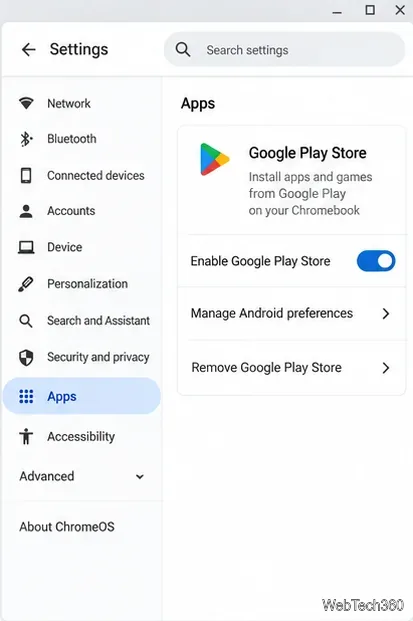
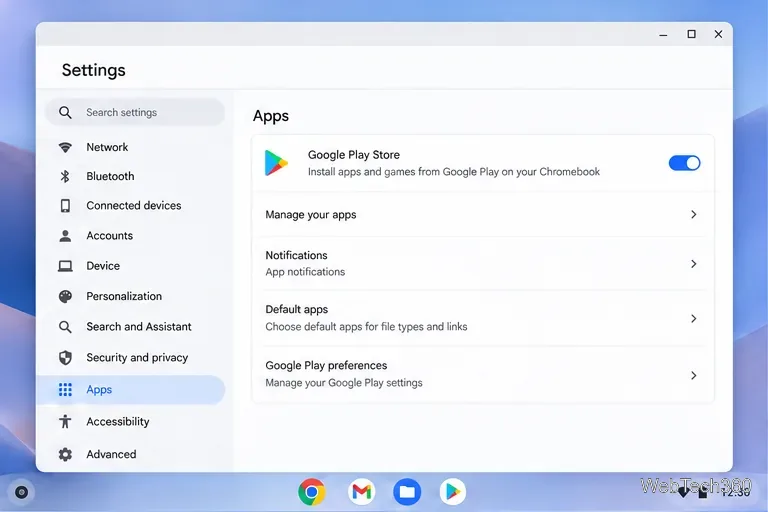
  1. Enable Google Play if needed. Update ChromeOS, then open Settings and go to Apps > Manage Google Play preferences. Follow the setup prompts. If that option is missing, Google Play may not be supported on your model or may be blocked by an administrator. Google’s Chromebook Android app instructions explain the current setup path.
Chromebook Settings Apps screen with the Google Play Store preference enabled.
Enable Google Play on a supported Chromebook before searching for apps.
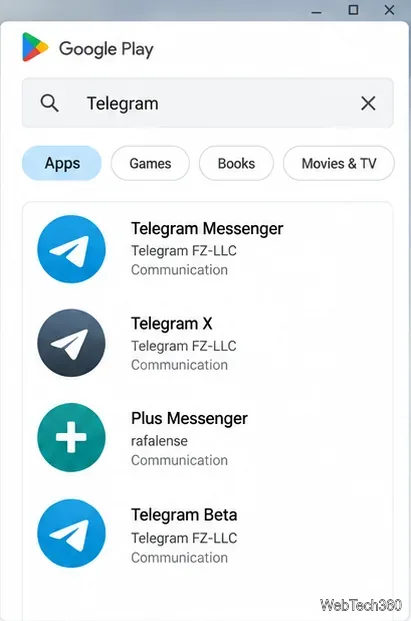
  1. Find the right Telegram listing. Open Play Store, search for “Telegram,” and choose Telegram Messenger by Telegram FZ-LLC. Check the publisher before installing; similarly named apps and Telegram clients are separate products.
Google Play search results for Telegram Messenger and similarly named apps.
Check the publisher on the Telegram listing before installing.
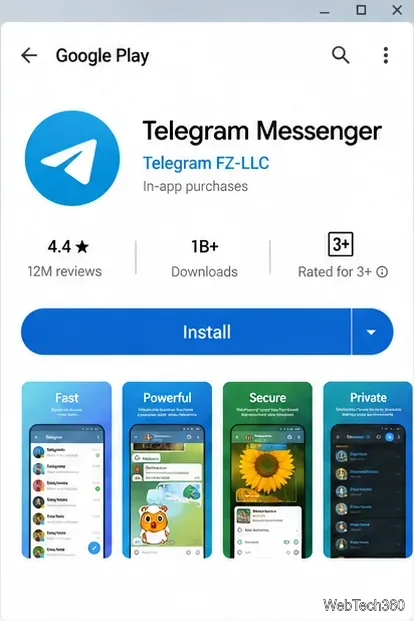
  1. Select Install. When installation finishes, open the Chromebook Launcher and start Telegram. You may need to resize the Android app window to make it comfortable on a larger screen.
Google Play listing for Telegram Messenger with an Install button.
Install the Telegram Messenger app published by Telegram FZ-LLC.
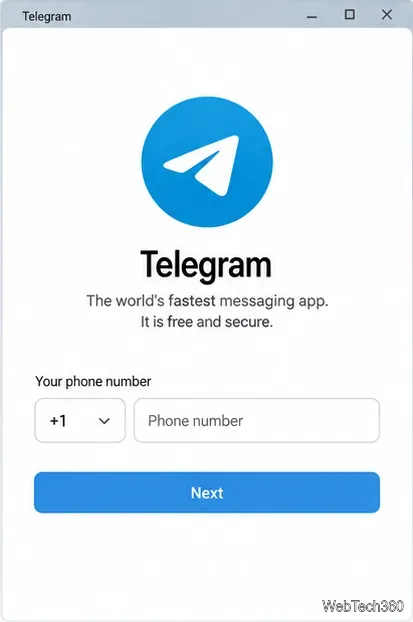
  1. Enter the phone number associated with your Telegram account, including its country code, and continue. Type the login code Telegram sends using the delivery method shown in the app. Never share a sign-in code with another person.
Telegram Android sign-in screen with country code and phone number fields.
Enter the phone number linked to your Telegram account to sign in.

If Play Store does not offer Telegram, use Linux only if your Chromebook supports the Linux development environment.

Install Telegram Desktop with Linux and Flatpak

ChromeOS Linux runs in a Debian environment. It takes more setup than Play Store and works only on supported, unmanaged devices. See Google’s Linux setup guide for details.

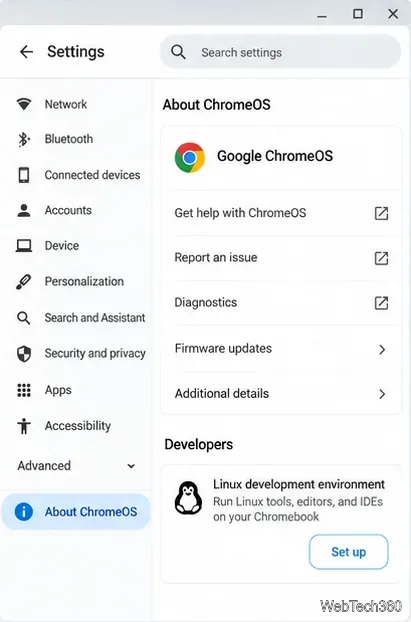
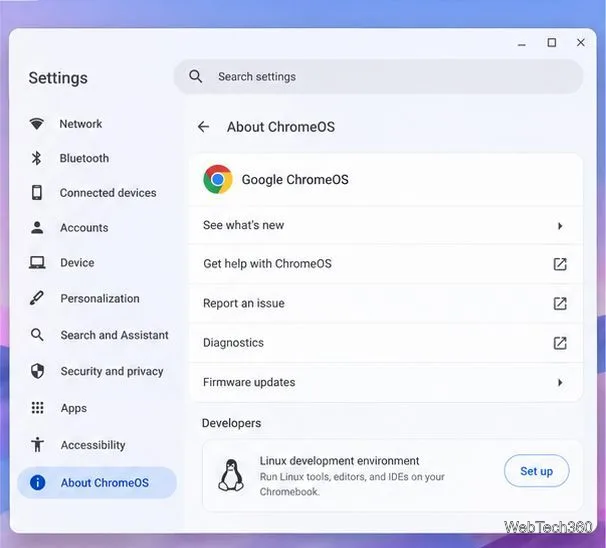
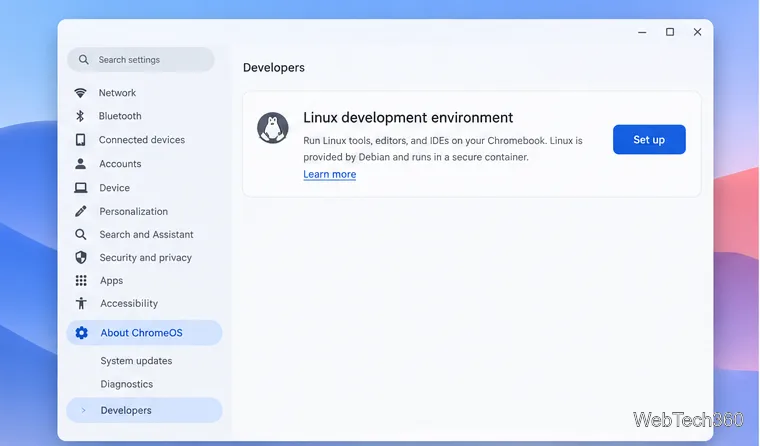
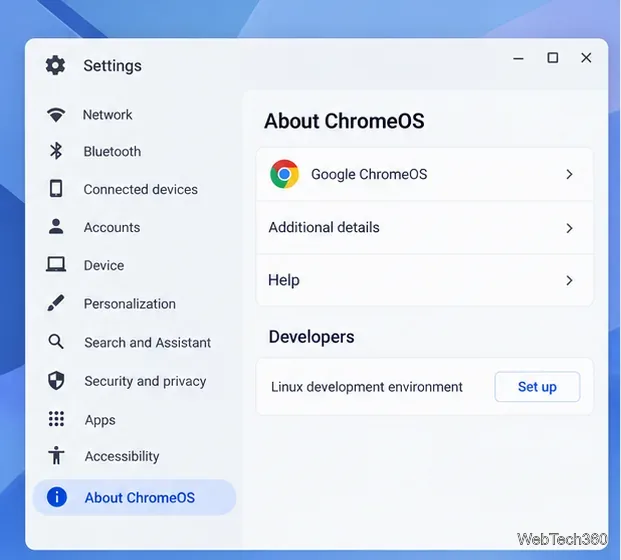
  1. Turn on Linux. Open Settings, select About ChromeOS > Developers, then choose Set up beside Linux development environment. Follow the prompts and wait for the Terminal app to open. Setup can take several minutes.
ChromeOS Settings page showing Linux development environment and a Set up button.
Enable Linux from About ChromeOS and Developers when the option is available.
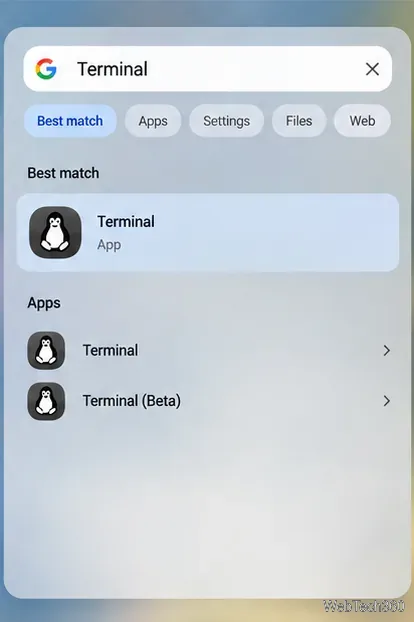
  1. Open the Linux terminal. Search the Launcher for Terminal, open it, and select the penguin container if prompted. Run the package commands below; approve the installation if Terminal asks.
Chromebook Launcher search results showing the Terminal app.
Open Terminal and select the penguin Linux container.
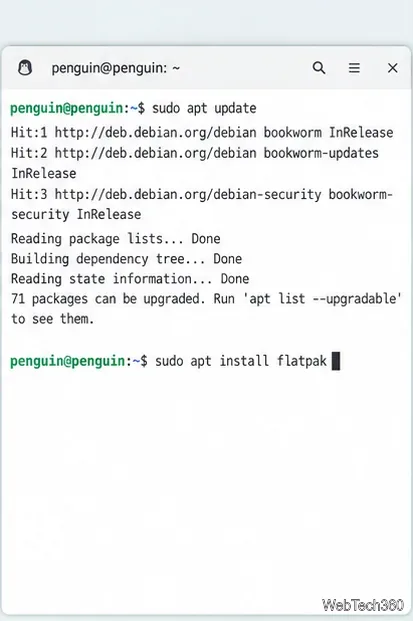
sudo apt update
sudo apt install flatpak
Linux Terminal with sudo apt update and sudo apt install flatpak commands.
Update package lists and install Flatpak in the Linux container.
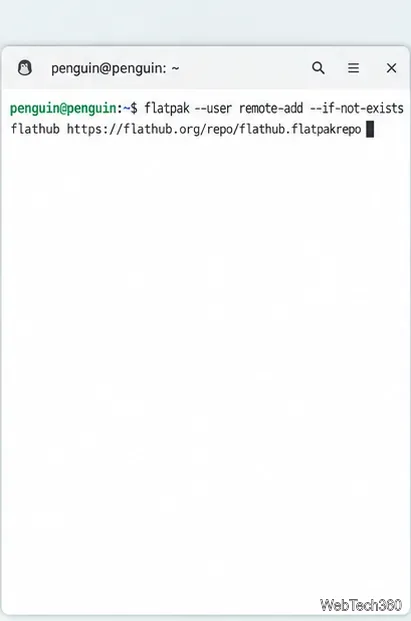
  1. Add Flathub for your Linux user. Flathub hosts the Telegram Desktop package. Add the remote with this command:
flatpak --user remote-add --if-not-exists flathub https://flathub.org/repo/flathub.flatpakrepo
Linux Terminal showing the command to add Flathub for the current user.
Add Flathub as the user-level source for Linux apps.
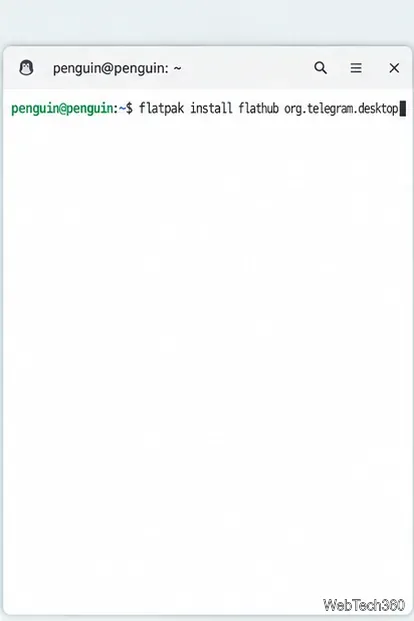
  1. Install Telegram Desktop. Use the Flathub app ID org.telegram.desktop and the same per-user installation scope:
flatpak install --user flathub org.telegram.desktop

When the command completes, find Telegram Desktop in the Launcher. The Flathub Telegram Desktop page identifies the package and links to the project’s website and source.

Linux Terminal showing the Flatpak install command for org.telegram.desktop.
Install Telegram Desktop from Flathub with its package ID.
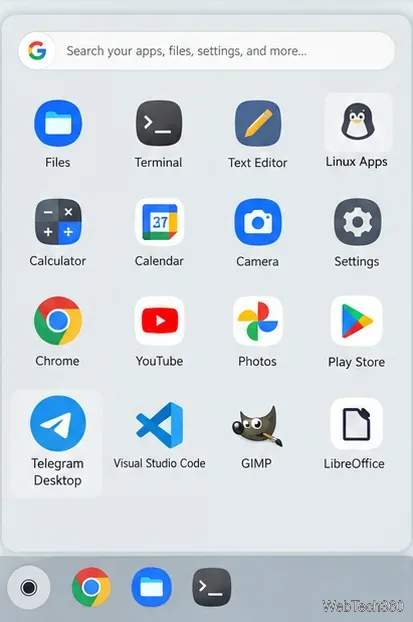
  1. Launch the app. Select Telegram Desktop in the Launcher. If it does not appear, close and reopen the Launcher after installation, or start it from Terminal with flatpak run --user org.telegram.desktop.
Chromebook Launcher with Telegram Desktop listed among installed apps.
Launch Telegram Desktop from the Chromebook app Launcher.

Sign in and start chatting

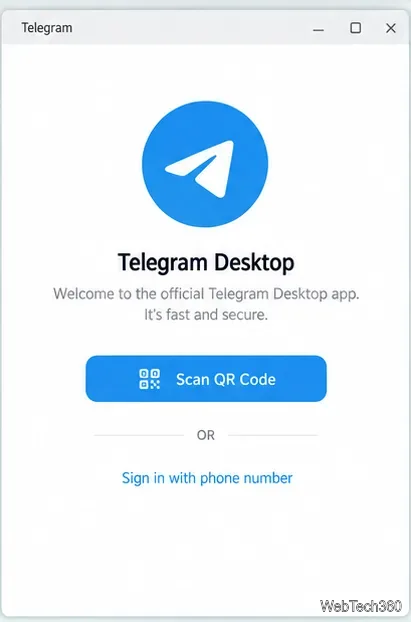
Telegram Desktop offers QR-code sign-in or a phone-number option. For QR sign-in, keep Telegram open on a phone or another signed-in device, scan the code shown on the Chromebook, and approve the new session. Telegram’s QR login documentation confirms that an existing signed-in app must scan and accept the code. If you use the phone-number option, enter the number on your account and follow the verification steps on screen.

Telegram Desktop sign-in window offering QR code and phone number options.
Sign in to Telegram Desktop by scanning its QR code or entering your phone number.

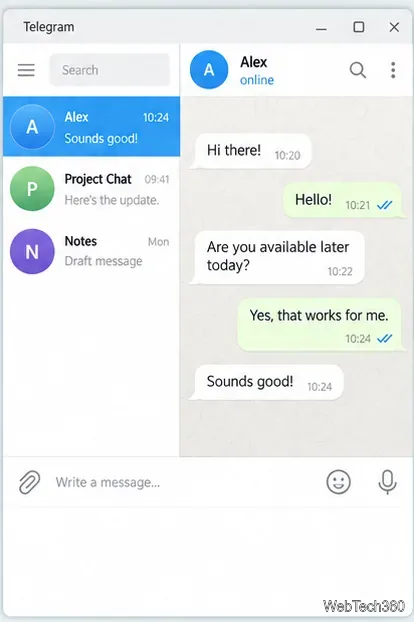
After sign-in, regular cloud chats and media are available across your Telegram devices. Secret Chats are different: Telegram says they are device-specific and do not sync to the cloud, so a Secret Chat started on your phone will not appear in Telegram on the Chromebook. See the Telegram FAQ for details.

Telegram Desktop conversation window with generic sample chats and messages.
Telegram Desktop shows the chat list and an open conversation after sign-in.

Fix common installation problems

  • Play Store is missing: Check the Android app support for your Chromebook model and whether a school or work administrator manages the device. Do not download an APK from an unfamiliar site to bypass a restriction.
  • Linux setup is missing: The Chromebook model, ChromeOS configuration, or administrator policy may not allow the Linux development environment. Use Telegram Web at web.telegram.org if neither app route is available.
  • Flatpak cannot find the app: Confirm that the Flathub command completed in the penguin container, then retry the install command with --user. Keep the package ID exactly as org.telegram.desktop.

Google Play is simpler; Linux is an alternative when you want the desktop client.

Leave a Comment

How to Watch Emby on ChromeOS in Chrome
How to Watch Emby on ChromeOS in Chrome

Open the Emby Web App on your Chromebook, sign in to your server, and play movies, shows, music, and photos without installing Linux.

How to Set Up Syncthing on a Chromebook

How to Set Up Syncthing on a Chromebook

Install Syncthing on a Chromebook, share a ChromeOS folder with Linux, connect another device, and keep the web interface private.

How to Use Tor Browser on a Chromebook

How to Use Tor Browser on a Chromebook

Enable Linux on your Chromebook, install Tor Browser with the Tor Project’s Flatpak launcher, connect to Tor, and understand what the setup protects.

How to Use Bitwarden on ChromeOS: Install, Save, and Autofill

How to Use Bitwarden on ChromeOS: Install, Save, and Autofill

Install Bitwarden on a Chromebook, save your first login, autofill websites, and learn when the optional Linux desktop app makes sense.

How to Install and Use Alternate Browsers on a Chromebook

How to Install and Use Alternate Browsers on a Chromebook

Install Firefox, Brave, Edge, or Opera on a Chromebook with Linux. Learn how to enable the Debian environment, choose a compatible package, and understand the limits.

How to Read E-Books on a Chromebook: Play Books and Foliate

How to Read E-Books on a Chromebook: Play Books and Foliate

Read EPUBs and PDFs in Google Play Books on your Chromebook, or install Foliate through Linux for a local reader that supports more formats.

How to Install and Use VLC on a Chromebook

How to Install and Use VLC on a Chromebook

Install VLC on a Chromebook from Google Play, play local files and network media, or set up the Linux desktop version when you need it.

How to Set Up Krita on a Chromebook

How to Set Up Krita on a Chromebook

Install Krita on a Chromebook with ChromeOS Linux and Flatpak, then launch the app, open shared artwork, and troubleshoot common setup limits.

How to Use Microsoft Teams on a Chromebook

How to Use Microsoft Teams on a Chromebook

Use Teams on a Chromebook through Chrome, sign in with a work or school account, install the optional web app, and resolve camera or microphone issues.

How to Install Visual Studio Code on a Chromebook

How to Install Visual Studio Code on a Chromebook

Set up ChromeOS Linux, choose the right VS Code Debian package for your Chromebook, and install the desktop editor with APT.