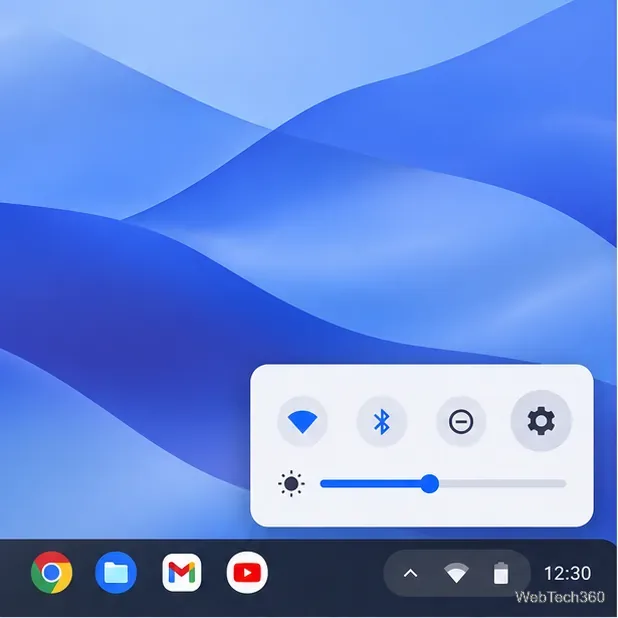
How to Watch Emby on ChromeOS in Chrome
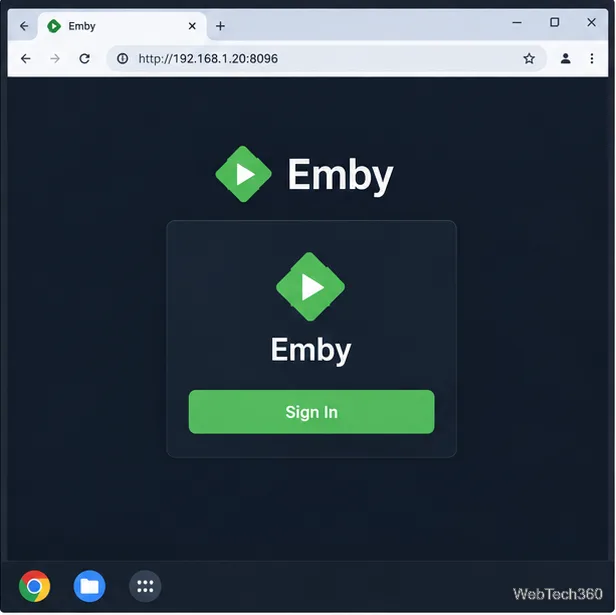
Open the Emby Web App on your Chromebook, sign in to your server, and play movies, shows, music, and photos without installing Linux.
Use Discord on a Chromebook in Chrome by opening the official web client and signing in; no installation is required. If the device supports Google Play, the Android app is another option. Linux is an advanced route, and ChromeOS does not support cameras in Linux apps, so it cannot handle video calls.
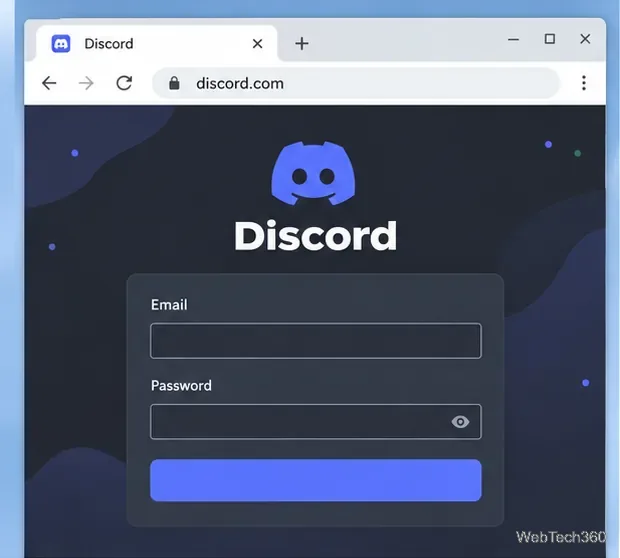
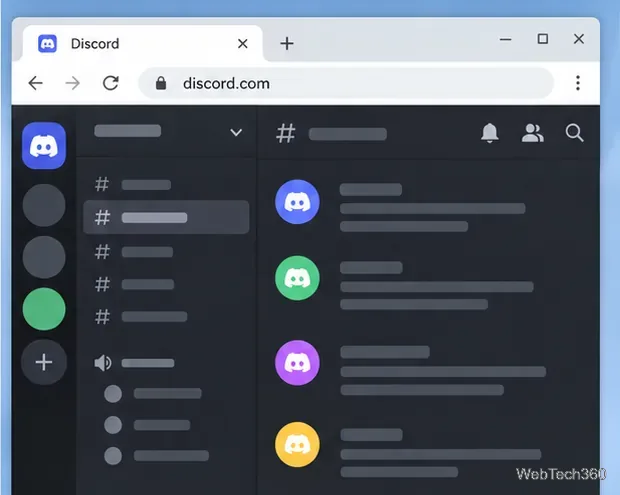
Discord explains browser sign-in options in its account login guide.
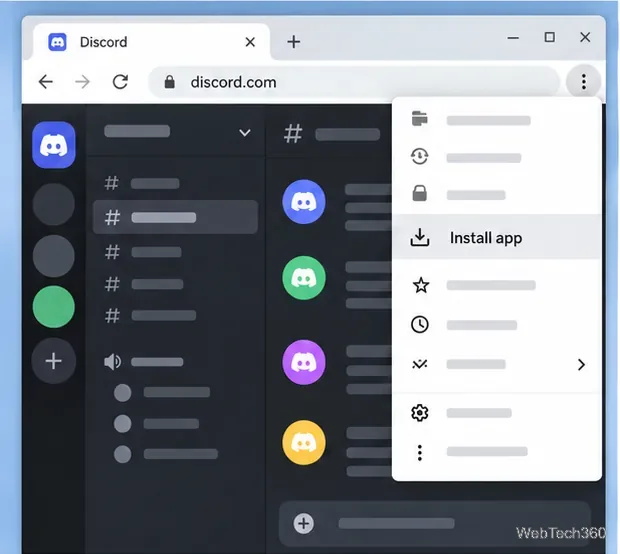
For a Launcher icon, open Chrome’s More menu and choose Cast, save, and share > Install page as app. Follow the prompts if available; some sites show an Install icon in the address bar. Discord still works in a regular tab if Chrome does not offer installation. See Google’s web app instructions.
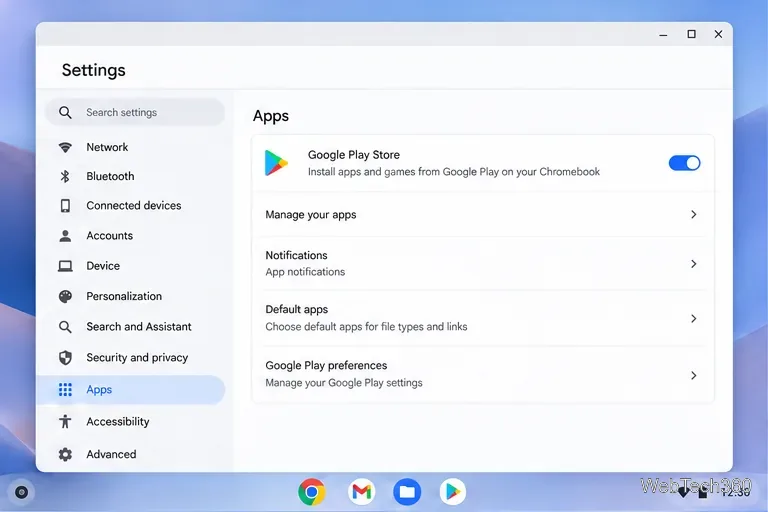
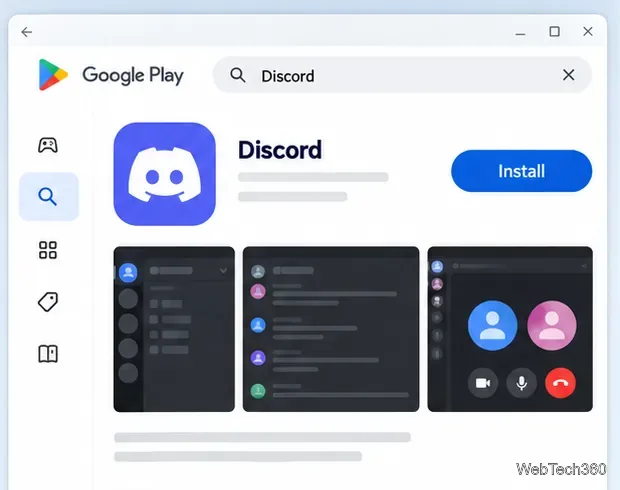
Choose Android if Play Store is available on the Chromebook. Some work and school devices are restricted by their administrator.
Google covers compatibility and app resizing in its Android app guide.
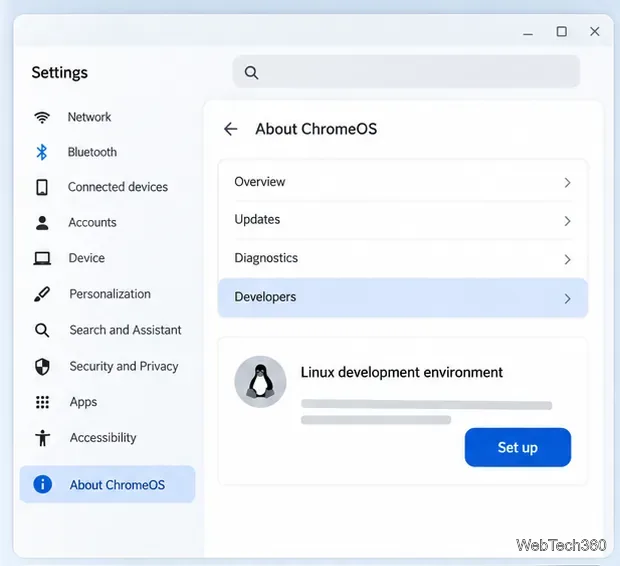
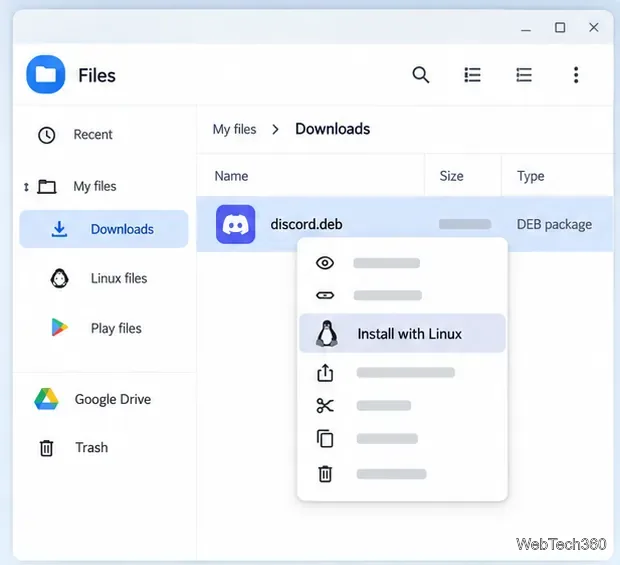
Discord offers a Linux desktop build on its official download page, but it is an advanced option and not ideal for video calls.
The Files menu and package compatibility vary by device and ChromeOS version. If installation fails, return to the web or Android option rather than using an unofficial package. Google says cameras are not supported in Linux, and explains microphone access in its Linux setup guide.
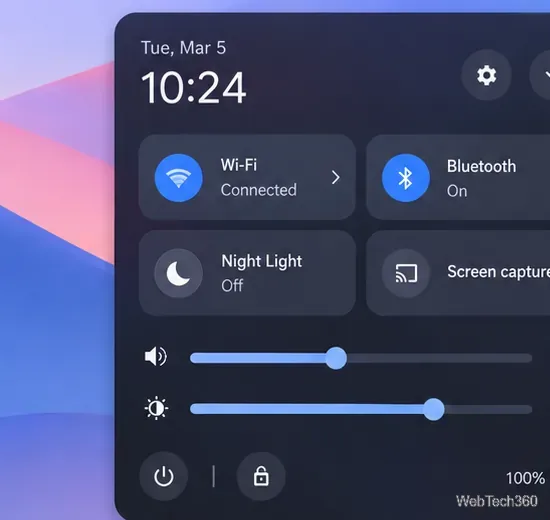
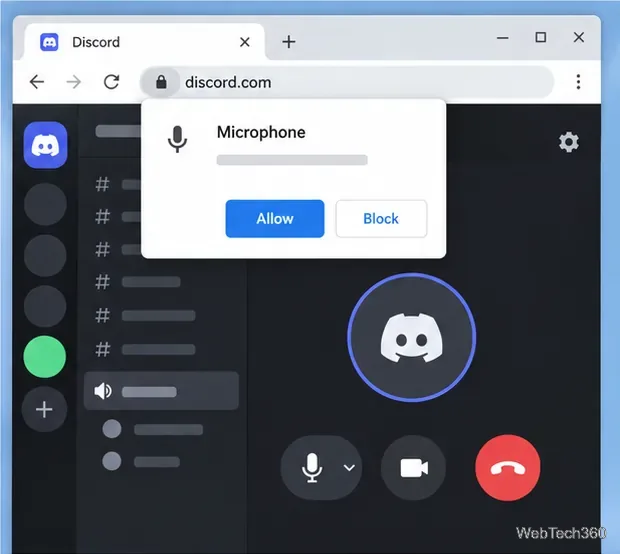
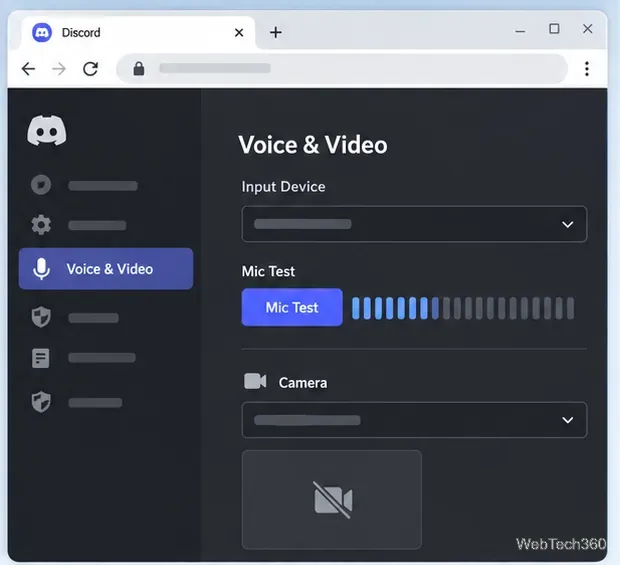
If text chat works but voice or video does not, check permissions at both ChromeOS and browser level:
If permissions still fail, consult Discord’s Chrome microphone instructions and Google’s Chromebook privacy controls guide. On a managed device, ask the administrator.
For most users, Chrome is the easiest option. Choose Android for an app window if Play Store is available. Use Linux only if you need the desktop build and accept its device-specific limits. Your Discord account works across the clients.
Open the Emby Web App on your Chromebook, sign in to your server, and play movies, shows, music, and photos without installing Linux.
Install Syncthing on a Chromebook, share a ChromeOS folder with Linux, connect another device, and keep the web interface private.
Enable Linux on your Chromebook, install Tor Browser with the Tor Project’s Flatpak launcher, connect to Tor, and understand what the setup protects.
Install Bitwarden on a Chromebook, save your first login, autofill websites, and learn when the optional Linux desktop app makes sense.
Install Firefox, Brave, Edge, or Opera on a Chromebook with Linux. Learn how to enable the Debian environment, choose a compatible package, and understand the limits.
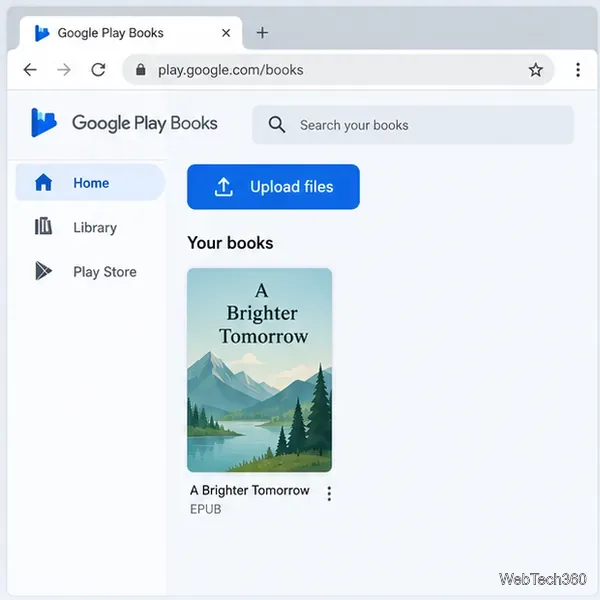
Read EPUBs and PDFs in Google Play Books on your Chromebook, or install Foliate through Linux for a local reader that supports more formats.
Install VLC on a Chromebook from Google Play, play local files and network media, or set up the Linux desktop version when you need it.
Install Krita on a Chromebook with ChromeOS Linux and Flatpak, then launch the app, open shared artwork, and troubleshoot common setup limits.
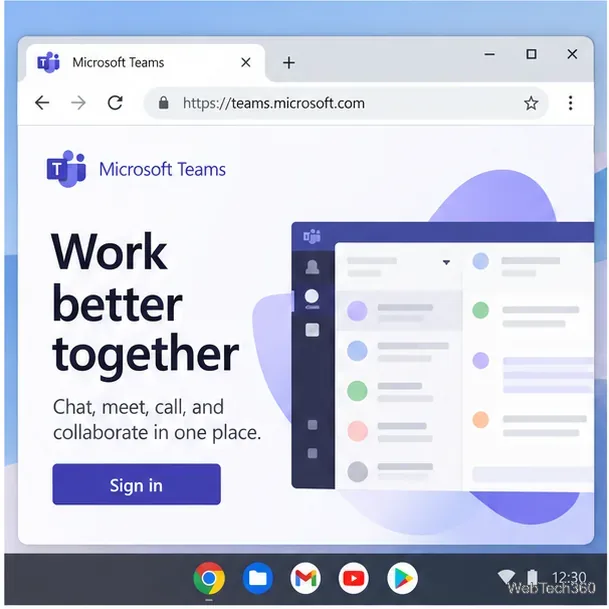
Use Teams on a Chromebook through Chrome, sign in with a work or school account, install the optional web app, and resolve camera or microphone issues.
Set up ChromeOS Linux, choose the right VS Code Debian package for your Chromebook, and install the desktop editor with APT.