How to Watch Emby on ChromeOS in Chrome
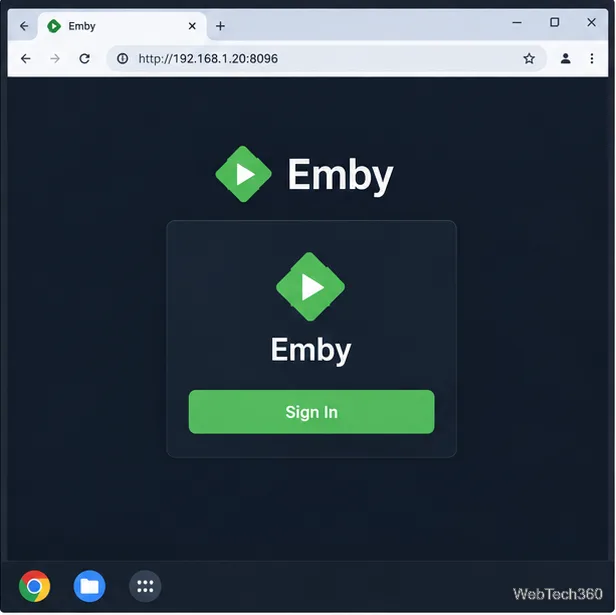
Open the Emby Web App on your Chromebook, sign in to your server, and play movies, shows, music, and photos without installing Linux.
You can use the desktop version of LibreOffice on many Chromebooks by enabling ChromeOS’s Linux development environment and installing the suite from Debian’s APT repository. After installation, Writer, Calc, Impress, and the other LibreOffice apps launch from the Chromebook Launcher. Your Chromebook must support Linux apps, and a work or school administrator may restrict the feature.
Connect to the internet and check that the Chromebook has enough free storage for a Linux environment and office applications. Linux setup downloads a Debian environment and can take 10 minutes or more. Google’s Linux setup guide explains device support and notes that some managed Chromebooks cannot enable Linux.
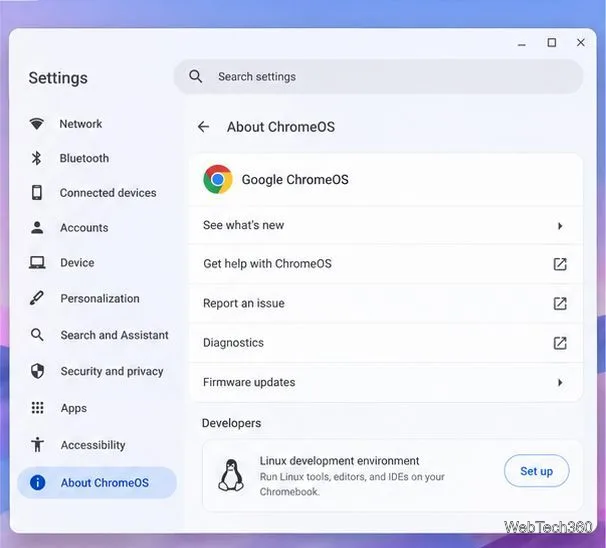
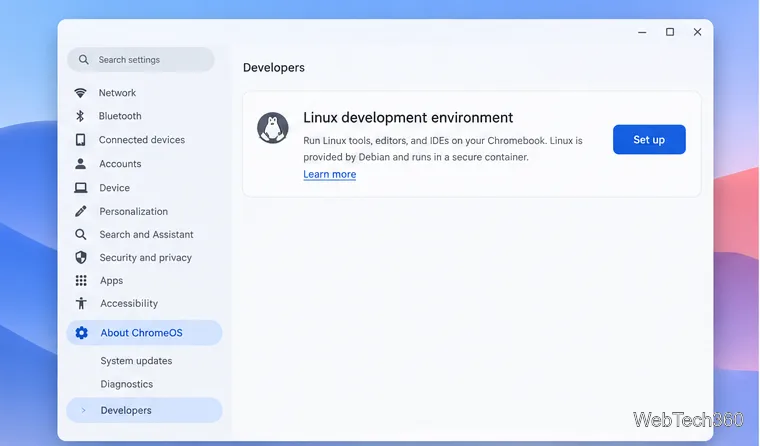
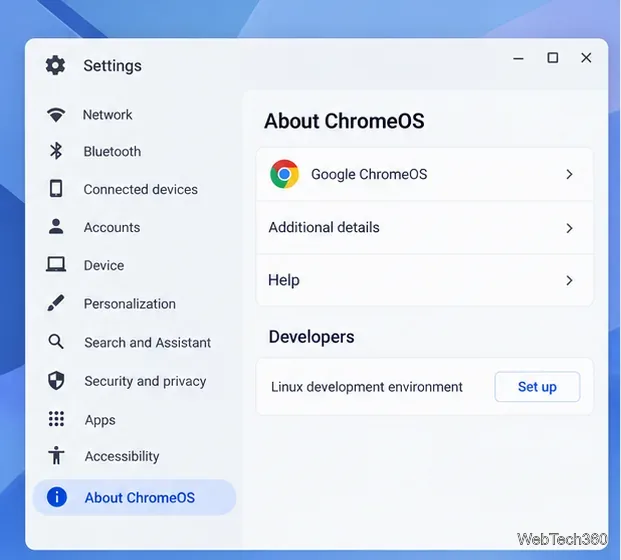
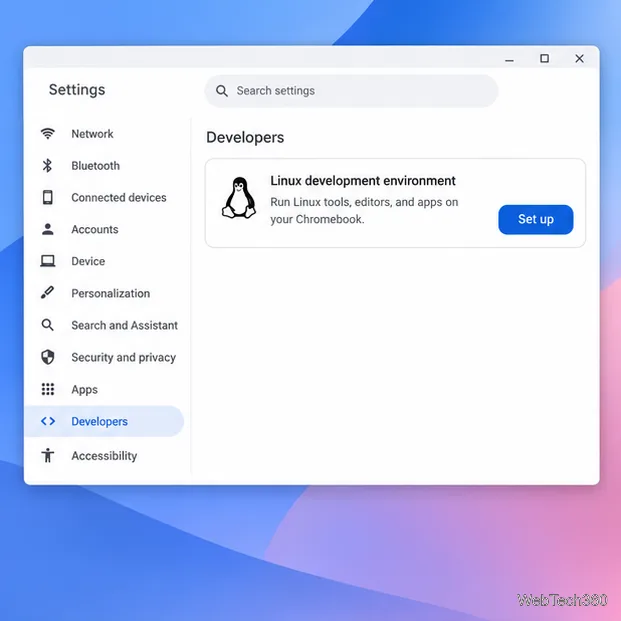
Select the time at the bottom right of the screen, open Settings, and go to About ChromeOS > Developers. Next to Linux development environment, choose Set up (some versions show Turn on). Follow the prompts. When setup finishes, ChromeOS opens Terminal. Google’s current menu labels are documented in its Chromebook Linux instructions.
If Terminal did not open automatically, launch it from the app launcher and select the default penguin container if asked. That is the Debian environment where the LibreOffice package will be installed.
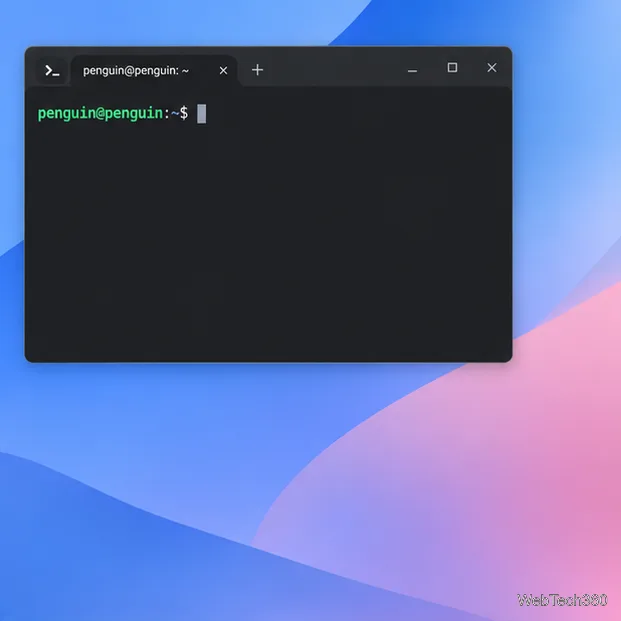
In Terminal, run this command and press Enter:
sudo apt update
Wait until it returns to the command prompt. This refreshes the list of available packages; it does not install LibreOffice by itself. ChromeOS’s Linux setup documentation uses APT for installing software in the Debian container.
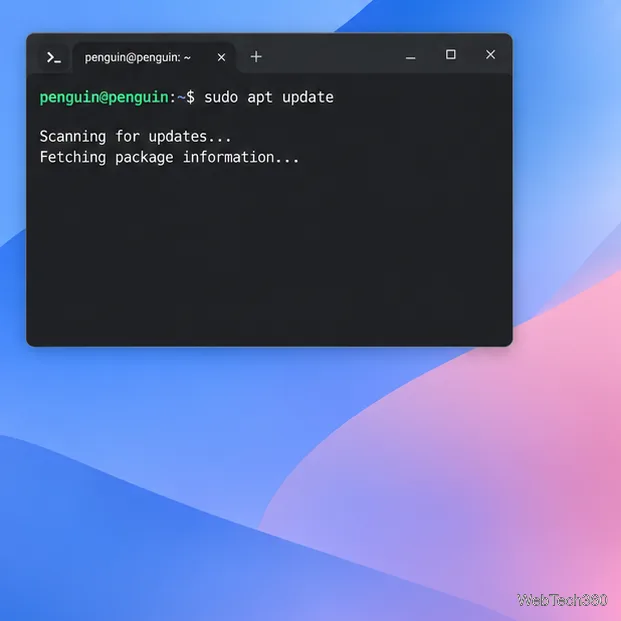
Run:
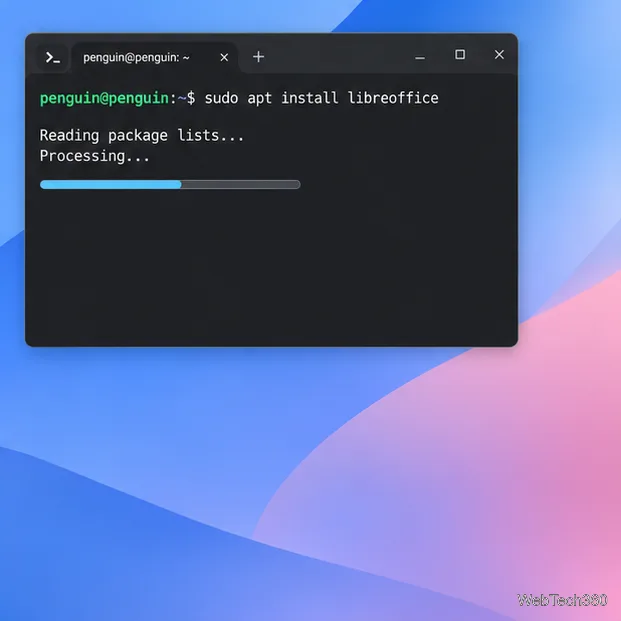
sudo apt install libreoffice
Press Enter. If APT asks whether to continue, type Y and press Enter. Leave Terminal open while it downloads and installs the package and its dependencies. The libreoffice package is listed in Debian’s official package catalog.
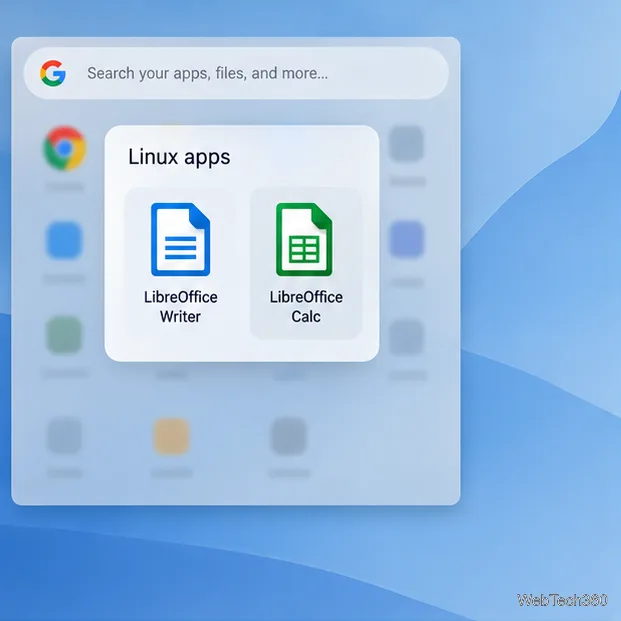
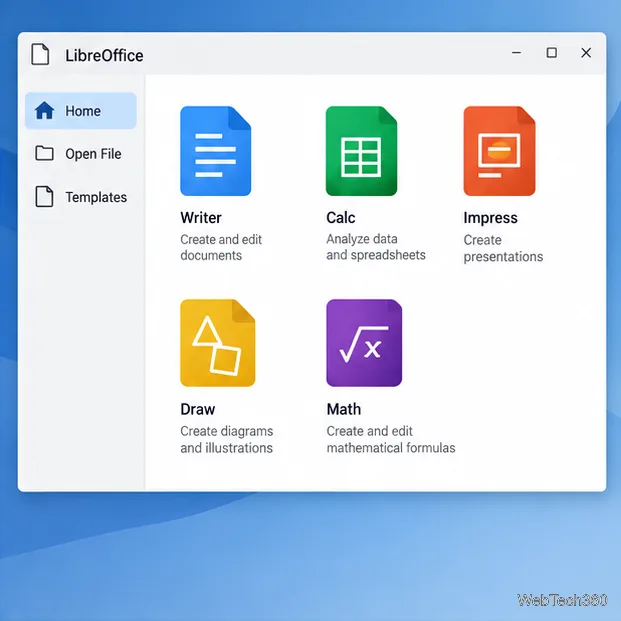
Open the Launcher and look for Linux apps. Choose LibreOffice Writer for documents, Calc for spreadsheets, or Impress for presentations. You can also start from LibreOffice’s Start Center and select Writer, Calc, Impress, Draw, Base, or Math. ChromeOS places graphical Linux apps in the Launcher after installation.
Open the ChromeOS Files app. For a straightforward copy, drag a file or folder into Linux files. To leave it in its original folder, right-click the folder and choose Share with Linux. Shared folders are available inside Linux under /mnt/chromeos, as described in the ChromeOS Linux file-sharing guide.
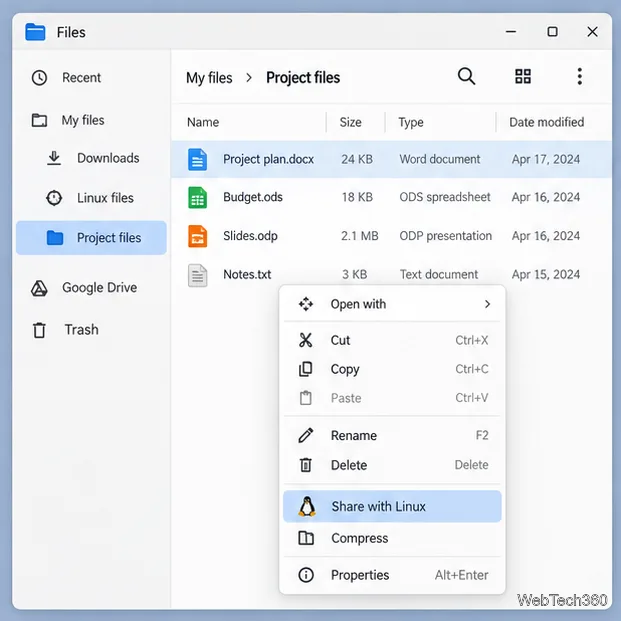
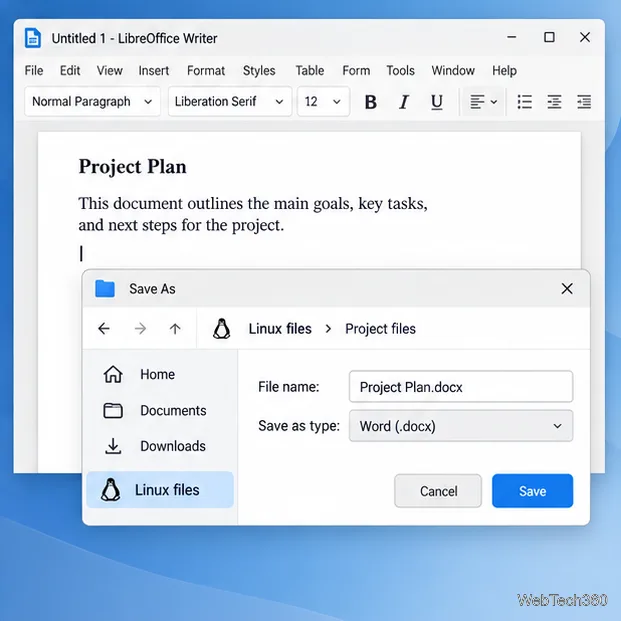
In LibreOffice, choose File > Open and browse to Linux files or the shared folder. LibreOffice normally saves in OpenDocument formats such as .odt, .ods, and .odp. To send a copy to a Microsoft Office user, choose File > Save As and select the matching Word, Excel, or PowerPoint format, such as .docx, .xlsx, or .pptx. Check the selected file type before saving.
LibreOffice can open and save Microsoft Office formats, but complex layouts or advanced features may not transfer exactly. Review the saved copy before sharing it; the official format compatibility notes describe known conversion differences. Save into Linux files or a shared folder to make the result easy to find in ChromeOS.
sudo apt update, and wait for it to finish before running the install command. If storage is low, free space in the Files app and try again.The APT method is the simplest route for most users. It installs the version available from the Debian repositories configured for the Chromebook, which may not be the newest LibreOffice release. If you need a specific release, start with the official LibreOffice download page and follow its Linux installation instructions.
Open the Emby Web App on your Chromebook, sign in to your server, and play movies, shows, music, and photos without installing Linux.
Install Syncthing on a Chromebook, share a ChromeOS folder with Linux, connect another device, and keep the web interface private.
Enable Linux on your Chromebook, install Tor Browser with the Tor Project’s Flatpak launcher, connect to Tor, and understand what the setup protects.
Install Bitwarden on a Chromebook, save your first login, autofill websites, and learn when the optional Linux desktop app makes sense.
Install Firefox, Brave, Edge, or Opera on a Chromebook with Linux. Learn how to enable the Debian environment, choose a compatible package, and understand the limits.
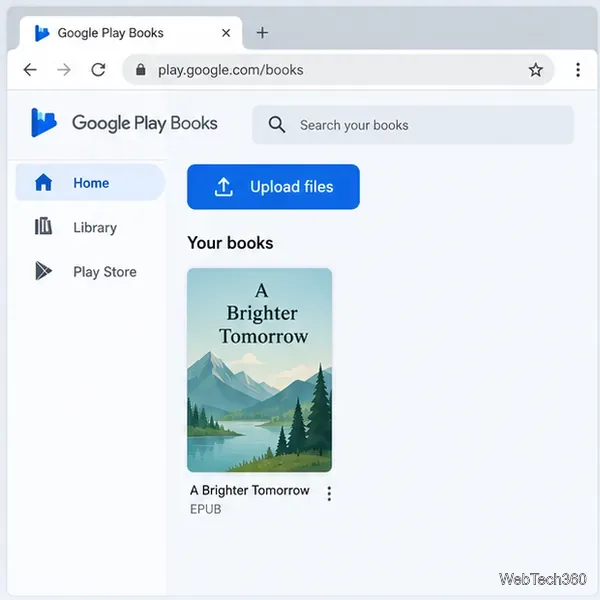
Read EPUBs and PDFs in Google Play Books on your Chromebook, or install Foliate through Linux for a local reader that supports more formats.
Install VLC on a Chromebook from Google Play, play local files and network media, or set up the Linux desktop version when you need it.
Install Krita on a Chromebook with ChromeOS Linux and Flatpak, then launch the app, open shared artwork, and troubleshoot common setup limits.
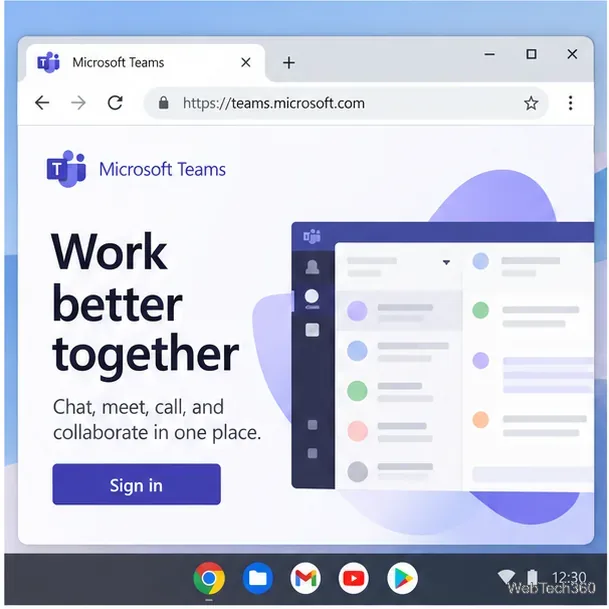
Use Teams on a Chromebook through Chrome, sign in with a work or school account, install the optional web app, and resolve camera or microphone issues.
Set up ChromeOS Linux, choose the right VS Code Debian package for your Chromebook, and install the desktop editor with APT.