How to Watch Emby on ChromeOS in Chrome
Open the Emby Web App on your Chromebook, sign in to your server, and play movies, shows, music, and photos without installing Linux.
You can use Signal on a Chromebook by enabling ChromeOS’s Linux development environment, installing Signal Desktop from Signal’s official Debian repository, and linking it to the Signal account on your Android phone or iPhone. Signal Desktop for Linux is supported on 64-bit amd64 (x86_64) systems, so this method will not work on an ARM Chromebook.
This setup runs Signal as a Linux app, not as a ChromeOS web app. Signal requires the desktop installation to be linked to a registered mobile device before you can send and receive messages from it. The steps below use Signal’s current Debian package instructions.
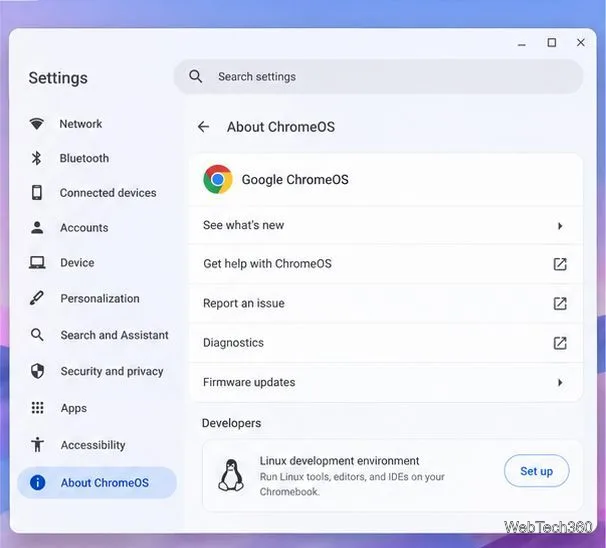
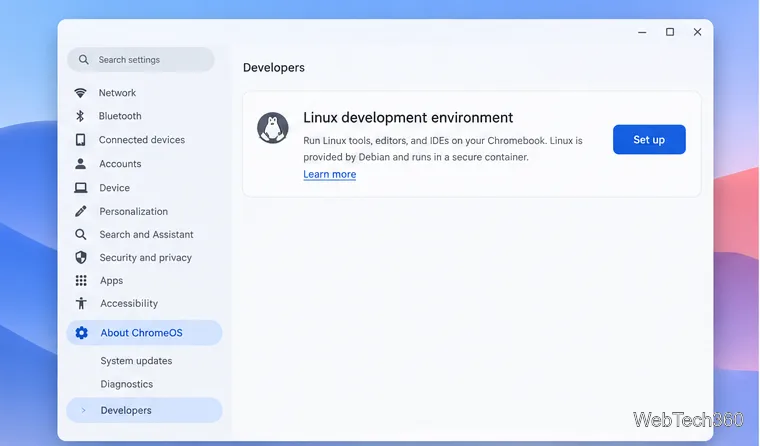
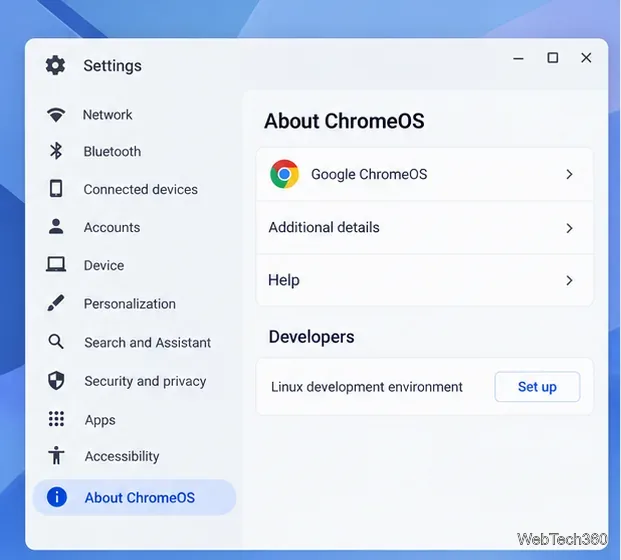
Check that your Chromebook supports Linux. Work or school Chromebooks may have the feature disabled by an administrator. Also check the Linux container’s processor architecture: open Terminal and run dpkg --print-architecture. Continue only if the result is amd64. Signal’s current Linux requirements list amd64 (x86_64) distributions only.
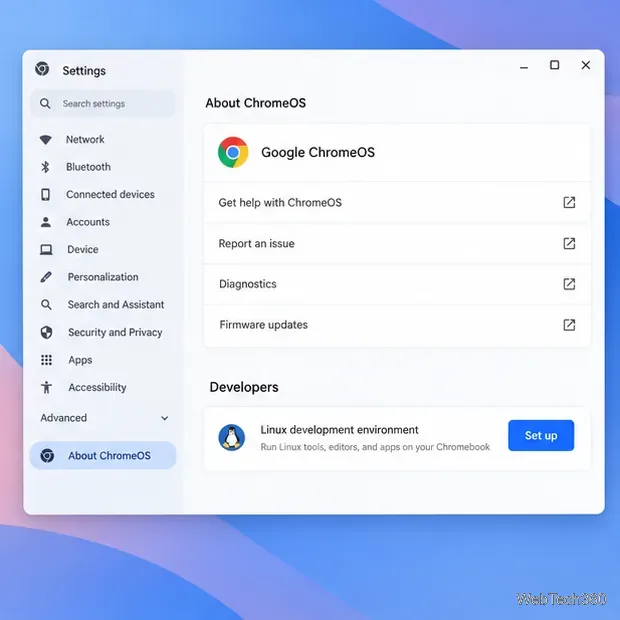
Setup can take 10 minutes or longer. When it finishes, ChromeOS opens a Terminal window with a Debian environment. You can reopen it later from the Launcher by searching for Terminal. Google’s Linux setup guide for Chromebooks has the current menu path and troubleshooting notes.
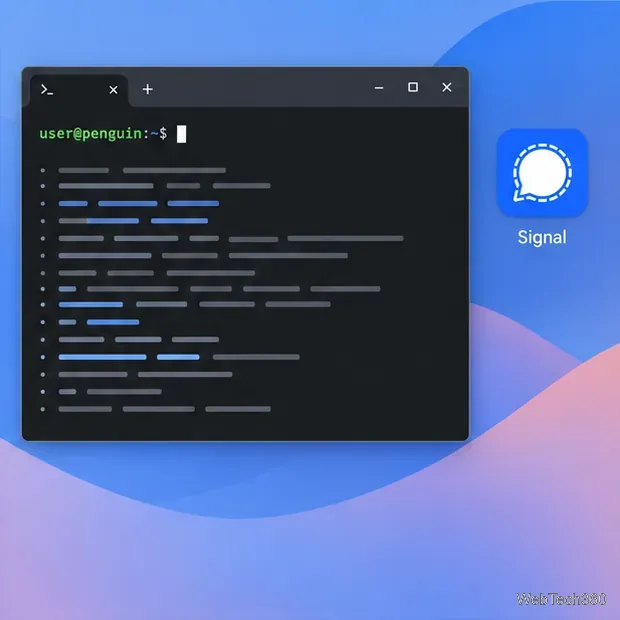
In Terminal, add Signal’s official signing key and APT repository, then install the desktop app. The following commands follow Signal’s official Linux installation instructions. Run them in order, one line at a time:
sudo apt update
sudo apt install curl gnupg
curl https://updates.signal.org/desktop/apt/keys.asc | gpg --dearmor > signal-desktop-keyring.gpg
cat signal-desktop-keyring.gpg | sudo tee /usr/share/keyrings/signal-desktop-keyring.gpg > /dev/null
curl -o signal-desktop.sources https://updates.signal.org/static/desktop/apt/signal-desktop.sources
cat signal-desktop.sources | sudo tee /etc/apt/sources.list.d/signal-desktop.sources > /dev/null
sudo apt update && sudo apt install signal-desktop
Review each prompt in Terminal and enter your Linux password if requested. Once installation completes, open the Launcher and select Signal. The official Signal page documents a Debian package and an AppImage; the Debian package is the straightforward choice for ChromeOS’s Debian container.
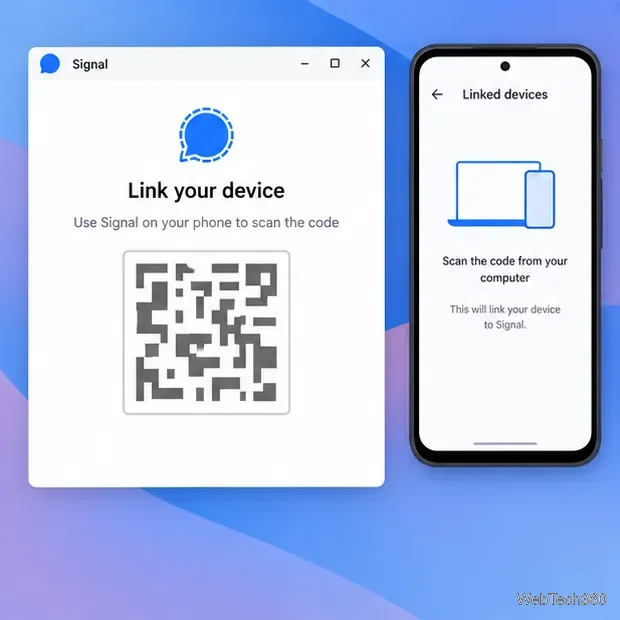
When Signal Desktop opens for the first time, it displays a linking screen with a QR code. Keep that screen open. On your phone, open Signal and go to Settings > Linked devices > Link a new device. Your phone may ask you to unlock it with its passcode or biometrics.
Signal says linked devices can sync your chats and the last 45 days of media from your phone. Only scan a code displayed by Signal Desktop that you opened yourself; a linking QR code can authorize another device on your account. See Signal’s Linked Devices instructions for the phone-specific steps and history-transfer details.
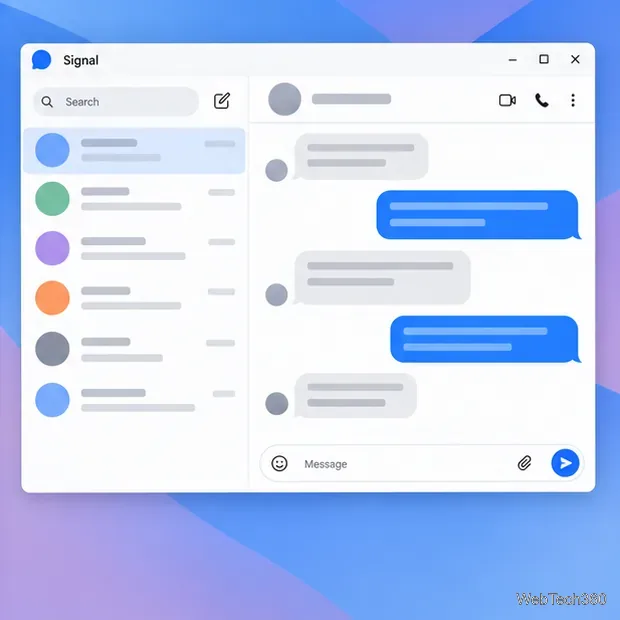
After linking, your conversations load in the Chromebook’s Signal window. You can use the desktop app to read and send messages while the phone remains your primary Signal device. An account can have up to five linked devices. Signal says the phone must come online at least once every 30 days, and a linked device can be unlinked after 45 days of inactivity.
Because you installed Signal through APT, update it from Terminal with sudo apt update && sudo apt install signal-desktop. Signal’s desktop update guide explains how Linux updates are handled.
If you want to use voice features, ChromeOS provides a setting to allow Linux apps to access the microphone. Open Settings and find the Linux development environment’s microphone permission. Google currently lists cameras as unsupported for Linux apps on Chromebook, so Signal video calls may not work in this setup even when messaging does.
sudo apt update again. If the architecture command returns arm64 or another value instead of amd64, Signal’s official Linux package is not supported on that Chromebook.With Linux enabled and the phone linked, Signal Desktop gives you a practical way to chat from a Chromebook using Signal’s supported Linux package. The key requirements are an amd64 Chromebook with Linux support and an active Signal account on a phone.
Open the Emby Web App on your Chromebook, sign in to your server, and play movies, shows, music, and photos without installing Linux.
Install Syncthing on a Chromebook, share a ChromeOS folder with Linux, connect another device, and keep the web interface private.
Enable Linux on your Chromebook, install Tor Browser with the Tor Project’s Flatpak launcher, connect to Tor, and understand what the setup protects.
Install Bitwarden on a Chromebook, save your first login, autofill websites, and learn when the optional Linux desktop app makes sense.
Install Firefox, Brave, Edge, or Opera on a Chromebook with Linux. Learn how to enable the Debian environment, choose a compatible package, and understand the limits.
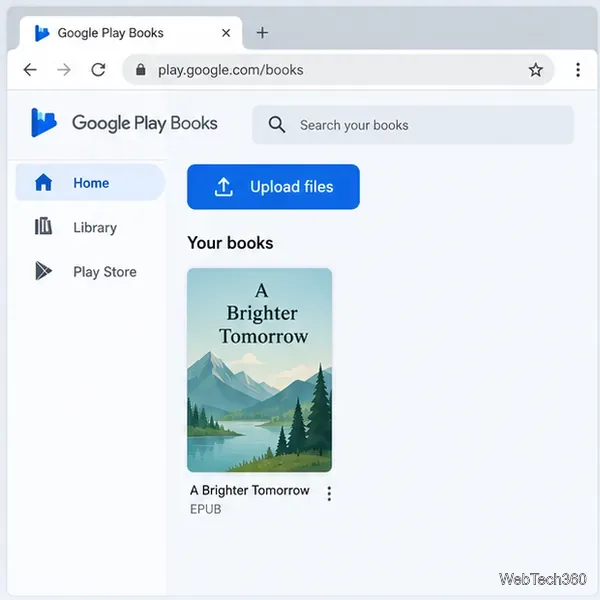
Read EPUBs and PDFs in Google Play Books on your Chromebook, or install Foliate through Linux for a local reader that supports more formats.
Install VLC on a Chromebook from Google Play, play local files and network media, or set up the Linux desktop version when you need it.
Install Krita on a Chromebook with ChromeOS Linux and Flatpak, then launch the app, open shared artwork, and troubleshoot common setup limits.
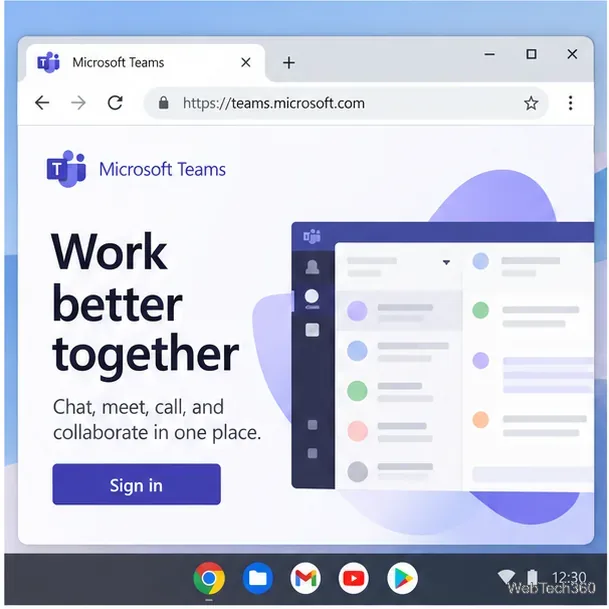
Use Teams on a Chromebook through Chrome, sign in with a work or school account, install the optional web app, and resolve camera or microphone issues.
Set up ChromeOS Linux, choose the right VS Code Debian package for your Chromebook, and install the desktop editor with APT.