How to Overclock a Monitor: A Safe, Step-by-Step Tutorial
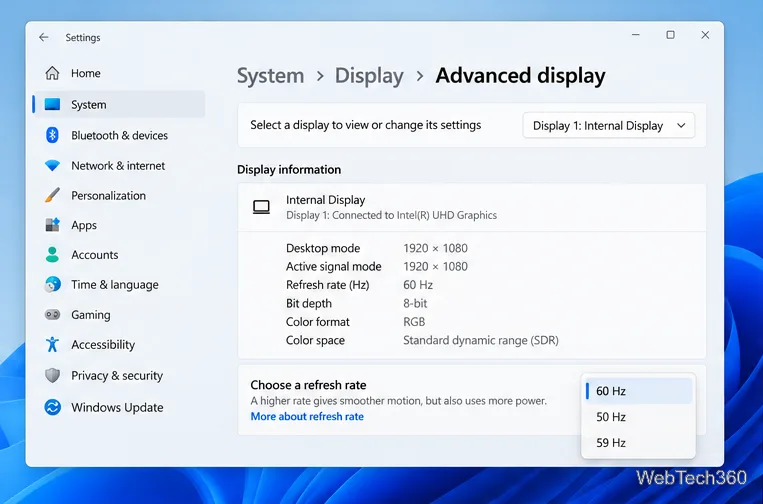
Learn how to test a higher monitor refresh rate with NVIDIA, AMD, or CRU, verify stability, and restore your original settings if the display goes blank.
If you are comparing 2K vs. 4K monitors, the practical choice is usually between a QHD 2560 × 1440 screen and a UHD 3840 × 2160 screen. Choose QHD for a strong mix of sharpness, high refresh rates, and manageable gaming demands. Choose 4K when fine detail, text clarity, or extra desktop workspace matters more and your computer can drive it comfortably.
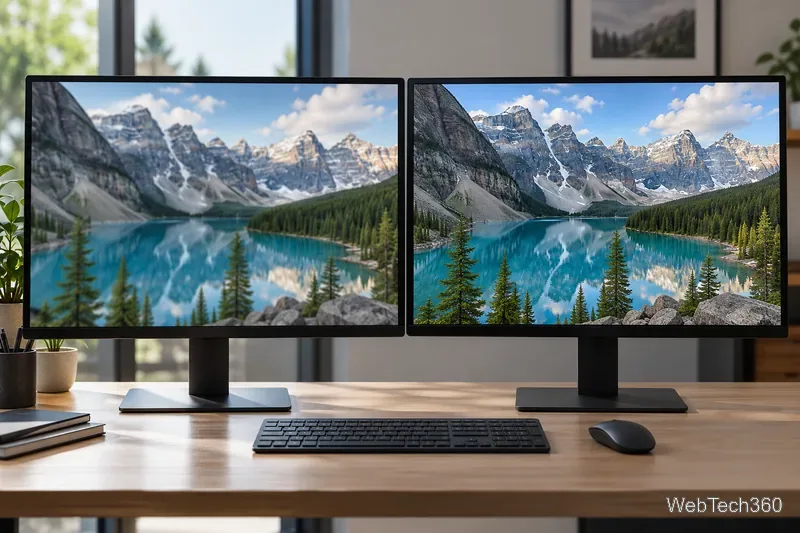
Monitor listings use these labels loosely. In PC shopping, “2K” commonly means QHD (2560 × 1440), also called 1440p. Strictly, Digital Cinema Initiatives defines 2K cinema content as 2048 × 1080. The common PC meaning is useful shorthand, but it is not the formal cinema definition.
Likewise, a consumer 4K monitor is usually UHD (3840 × 2160). Digital cinema’s DCI 4K is 4096 × 2160. For this comparison, QHD and UHD are the relevant pair. The Digital Cinema Initiatives specification defines the cinema formats, while the ITU’s UHD guidance uses 3840 × 2160 for 4K UHD.
| Common PC listing | Resolution | Approx. total pixels |
|---|---|---|
| QHD / “2K” / 1440p | 2560 × 1440 | 3.69 million |
| UHD / “4K” / 2160p | 3840 × 2160 | 8.29 million |
A UHD display has about 2.25 times as many pixels as QHD. It is four times the pixel count of Full HD (1920 × 1080), not four times the pixel count of QHD.
Resolution tells you how many pixels the panel has; pixel density tells you how tightly they are packed. On a 27-inch monitor, QHD works out to roughly 109 pixels per inch (PPI), while UHD is about 163 PPI. At 32 inches, the approximate figures are 92 PPI and 138 PPI. These are calculations from the listed dimensions and diagonal size, so exact panel measurements can vary slightly.
At the same size, 4K text, fine lines, and detailed photos can look smoother. But a 27-inch QHD screen is already crisp for many desk setups, and moving farther away reduces how much extra detail you can notice. A larger 32-inch QHD monitor gives you a bigger image, while 32-inch 4K adds both workspace and density.
Higher pixel density can make menus and text look small at 100% scaling. You can enlarge interface elements with operating-system scaling while keeping the display at its native resolution. Microsoft recommends using a display’s marked resolution and provides scale controls in Windows Display settings. Running a monitor below native resolution can make text less sharp.
Games have to render each frame at the chosen resolution. Moving from QHD to UHD means processing 2.25 times as many pixels per frame, which can raise GPU demand. The real frame-rate difference varies by game, graphics settings, and hardware, so there is no universal GPU cutoff. Check performance for the games you play at the resolution and quality you want.
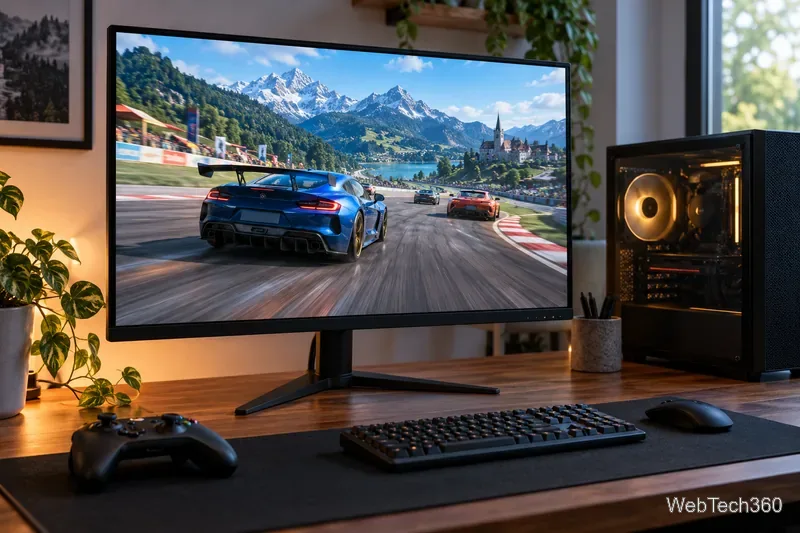
QHD is a practical choice if you want high refresh rates without buying the most powerful graphics card available. A 4K monitor can still be worthwhile for single-player games or if your system can sustain your target frame rate, but resolution alone does not guarantee smooth motion. Compare refresh rate, variable refresh rate (VRR), response behavior, and image quality as well. Microsoft’s refresh-rate guide notes that available rates depend on the display and connected hardware.
Also check the graphics card, monitor input, and cable specifications together. The maximum resolution and refresh rate that work depend on the complete connection, color depth, and any compression features. VESA’s DisplayPort bandwidth examples show that high-resolution, high-refresh configurations require the appropriate standard and link capacity.
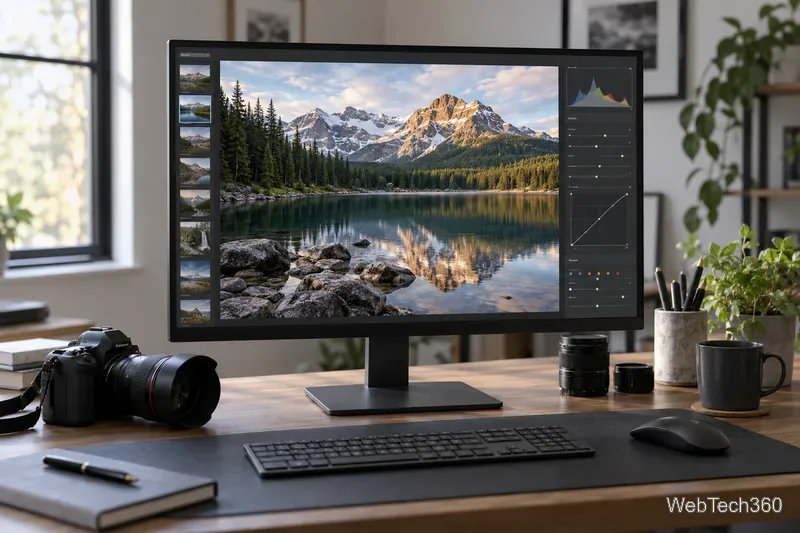
For photo editing, detailed illustration, video timelines, or several windows side by side, UHD offers a larger pixel canvas. It is also a natural fit when you regularly watch native 4K video. Still, resolution is only one part of image quality: check color coverage and calibration for creative work, and contrast, brightness, and HDR performance for movies. A 4K label alone does not promise accurate color or good HDR.
Before buying, compare the monitor’s native resolution and size, your preferred text scale, the games or media you use, and the full resolution-and-refresh specifications for your computer’s video output. If those checks favor performance and price, QHD is the sensible choice. If you will use the extra detail and have the hardware for it, 4K is worth the upgrade.
Learn how to test a higher monitor refresh rate with NVIDIA, AMD, or CRU, verify stability, and restore your original settings if the display goes blank.
Learn how to GPU stress test safely, what to monitor, how long to run a test, and which current tools are best for checking graphics card stability.
Compare the best CPU and RAM stress-test tools, including OCCT, Prime95, MemTest86, Intel PDT, and HWiNFO, plus practical safety tips.
Learn how to underclock or undervolt a GPU with MSI Afterburner, plus Radeon Adrenalin options, stability checks, and safe rollback steps.
Choose a VPN for a Linksys router by checking firmware support first. Compare NordVPN, Surfshark, Proton VPN, and CyberGhost for a smoother setup.
Use the tv.youtube.com/start code to activate YouTube TV on a smart TV or console, and learn how it differs from regular YouTube TV-code pairing.
Set up ExpressVPN on a router with current Fortify steps, legacy router guidance, and manual OpenVPN instructions, plus key security caveats.
Compare 1440p QHD and 4K UHD monitors by sharpness, scaling, gaming performance, and work use to choose the resolution that fits your setup.