How to Overclock a Monitor: A Safe, Step-by-Step Tutorial
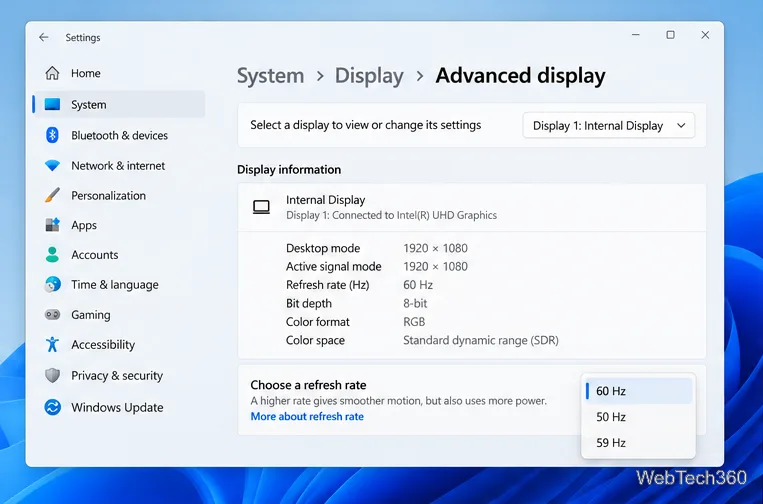
Learn how to test a higher monitor refresh rate with NVIDIA, AMD, or CRU, verify stability, and restore your original settings if the display goes blank.
The easiest current way to install ExpressVPN on a router is to use Fortify (GL-MT6000), which has ExpressVPN integrated into the router software. If you already own Aircove or a supported older Asus, Linksys, or Netgear router, you still have options. Other compatible routers can use manual OpenVPN configuration.
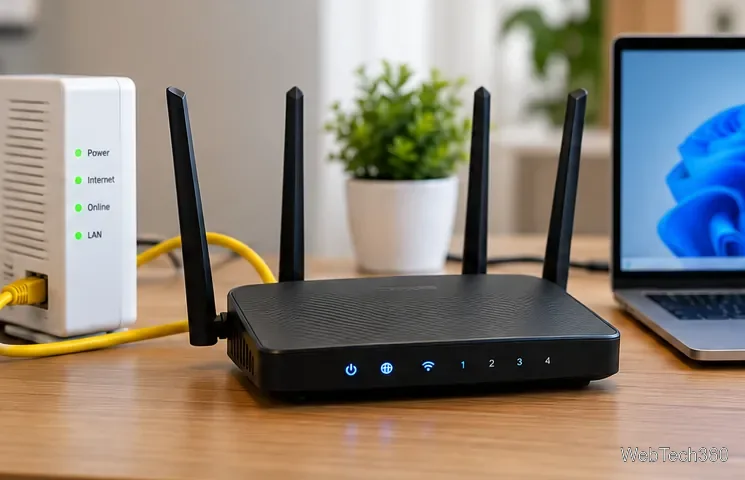
ExpressVPN's router lineup has changed, so identify your setup before downloading firmware.
| Setup | Best for | Important note |
|---|---|---|
| Fortify (GL-MT6000) | New router setups | ExpressVPN's current home-router offering; an active subscription is required. |
| Aircove / Aircove Go | Existing owners | Retired from sale. Security updates are scheduled through 2027 for Aircove and 2028 for Aircove Go. |
| Older Asus, Linksys, Netgear | Existing compatible hardware | The last ExpressVPN router firmware is still available, but security updates for these models have ended. |
| Manual OpenVPN | Compatible routers without the router app | More technical and does not include the full router-app feature set. |
See ExpressVPN's official setup guides and router FAQ for current model-specific instructions.
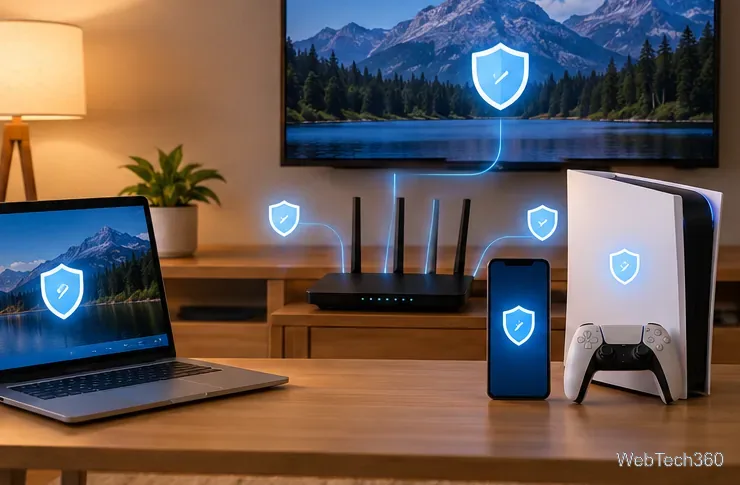
Fortify is the simplest supported route because you do not flash ExpressVPN firmware yourself. ExpressVPN's current setup uses the local router admin panel at 192.168.8.1.
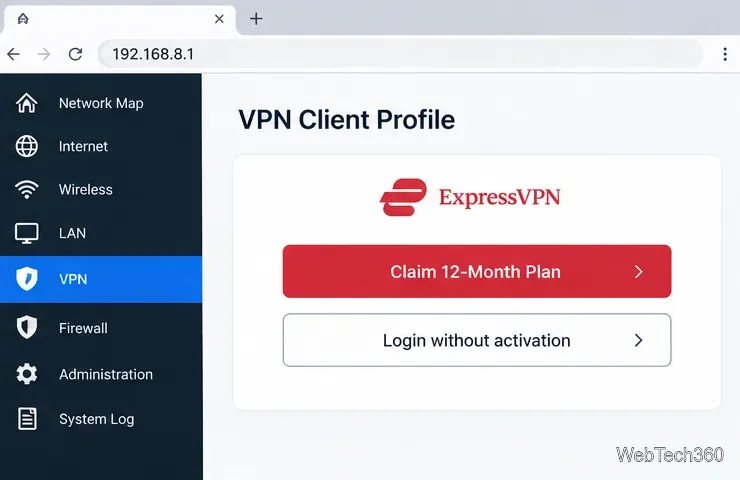
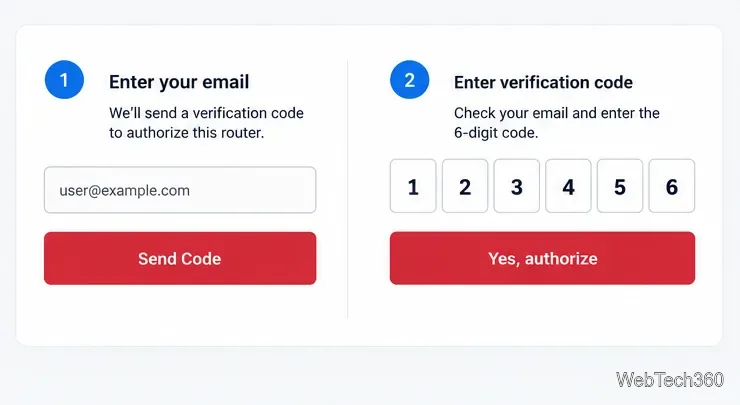
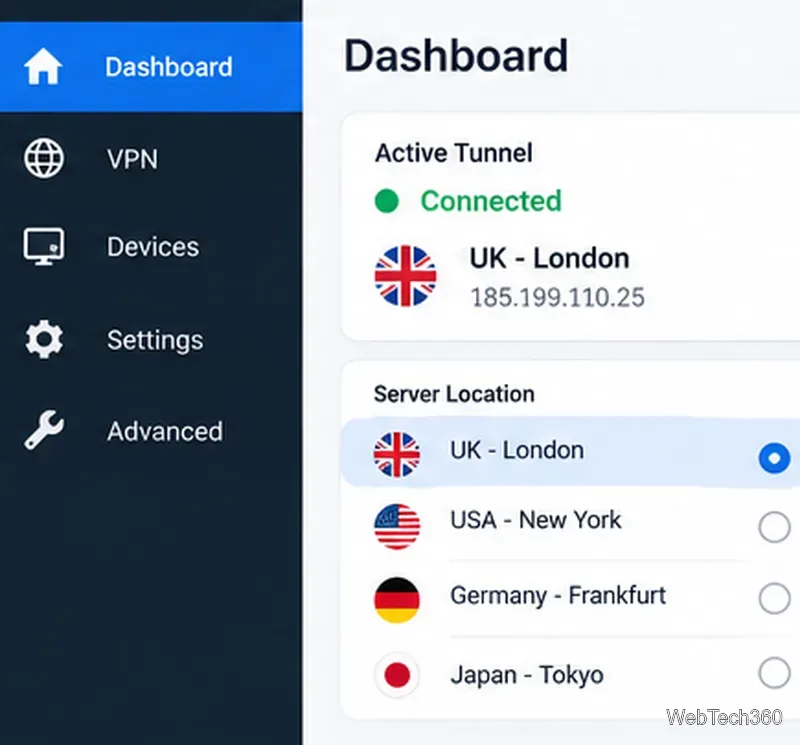
These steps follow ExpressVPN's Fortify setup guide. Fortify's ExpressVPN integration currently uses WireGuard rather than Lightway.
ExpressVPN still provides downloadable firmware for specific older models. Check the exact model and hardware revision on the official router support page before downloading anything.
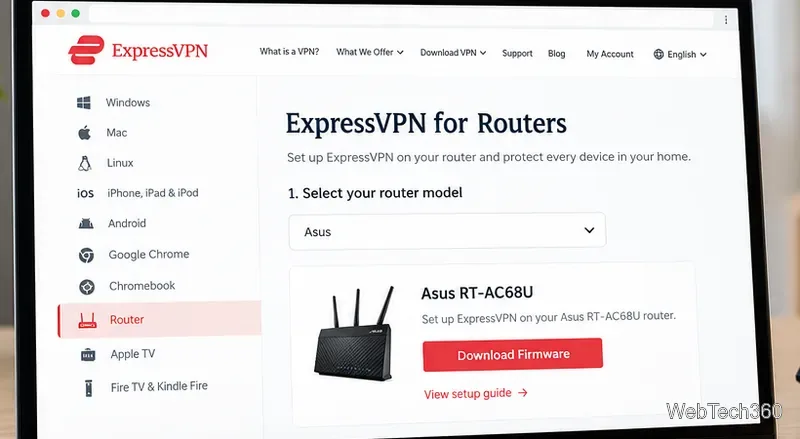
The process is straightforward: download the firmware for the exact model, connect directly to that router, open its manufacturer admin page, and use the manual firmware-update function to upload the ExpressVPN file. Installing custom router firmware can replace settings such as your Wi-Fi network name and password, so record them first.
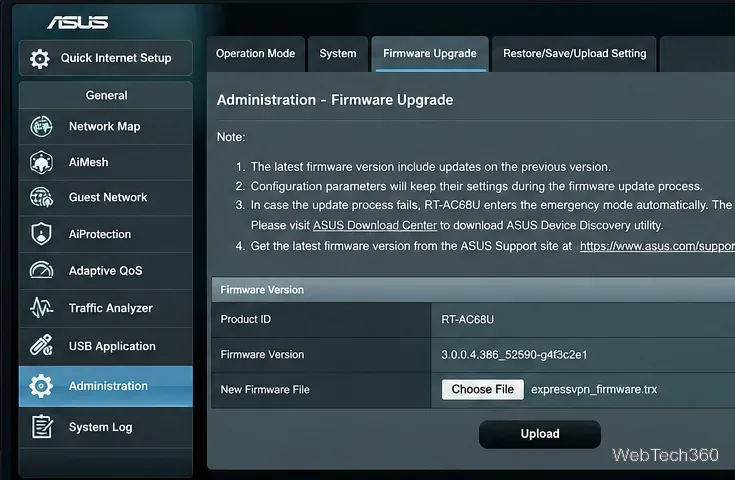
Security warning: ExpressVPN says security updates have ended for all supported Asus, Linksys, and Netgear models running its legacy router firmware. For a new setup, prefer actively maintained hardware rather than buying one of these old models specifically for ExpressVPN.
If your router supports ExpressVPN's manual OpenVPN configuration, sign in to the ExpressVPN setup portal, choose Advanced setup, open Manual Configuration, and download the .ovpn file for the location you want. Keep the manual-configuration username and password shown there; they are separate from your router admin credentials.
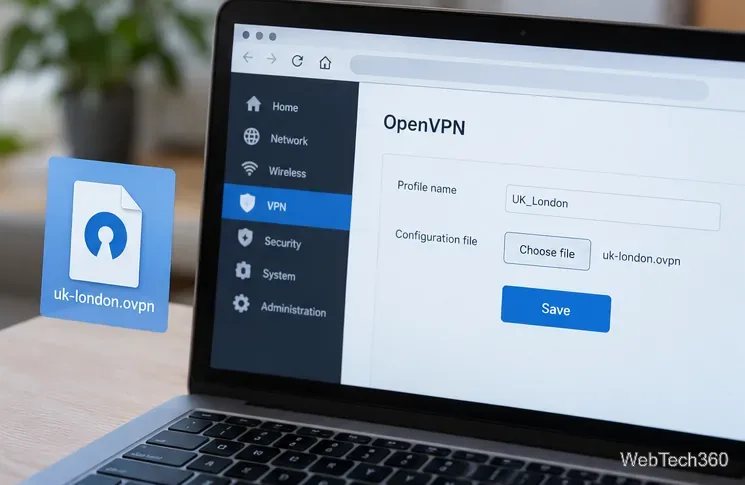
In the router's VPN client settings, create an OpenVPN profile, import the .ovpn file, enter the ExpressVPN manual credentials when requested, save the profile, and connect. Menus differ by router firmware, so follow the matching ExpressVPN guide for your model. ExpressVPN notes that manual OpenVPN does not provide the same security and privacy features as its app and is not optimized for streaming.
Ignore older tutorials that recommend PPTP or L2TP. ExpressVPN no longer supports PPTP or L2TP manual configurations; OpenVPN is the supported manual protocol in its current router guides.
For most new installations, Fortify is the cleanest ExpressVPN router setup. Aircove remains useful for existing owners, while legacy third-party firmware should be treated as an aging option because its security updates have ended.
Learn how to test a higher monitor refresh rate with NVIDIA, AMD, or CRU, verify stability, and restore your original settings if the display goes blank.
Learn how to GPU stress test safely, what to monitor, how long to run a test, and which current tools are best for checking graphics card stability.
Compare the best CPU and RAM stress-test tools, including OCCT, Prime95, MemTest86, Intel PDT, and HWiNFO, plus practical safety tips.
Learn how to underclock or undervolt a GPU with MSI Afterburner, plus Radeon Adrenalin options, stability checks, and safe rollback steps.
Choose a VPN for a Linksys router by checking firmware support first. Compare NordVPN, Surfshark, Proton VPN, and CyberGhost for a smoother setup.
Use the tv.youtube.com/start code to activate YouTube TV on a smart TV or console, and learn how it differs from regular YouTube TV-code pairing.
Set up ExpressVPN on a router with current Fortify steps, legacy router guidance, and manual OpenVPN instructions, plus key security caveats.
Compare 1440p QHD and 4K UHD monitors by sharpness, scaling, gaming performance, and work use to choose the resolution that fits your setup.