How to Overclock a Monitor: A Safe, Step-by-Step Tutorial
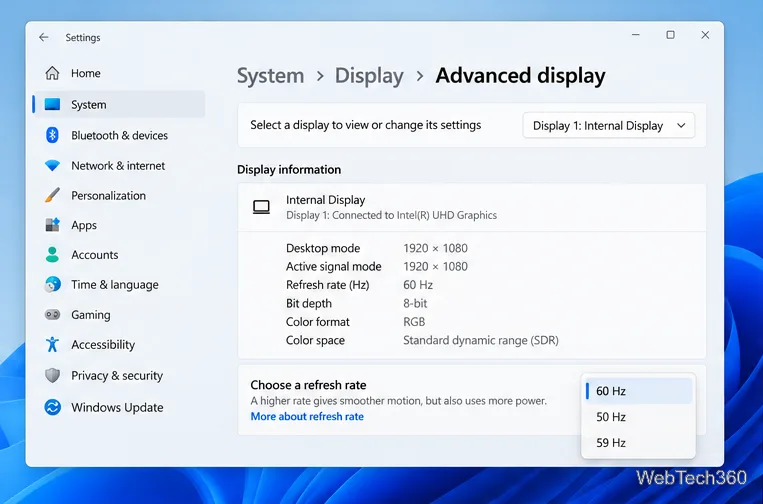
Learn how to test a higher monitor refresh rate with NVIDIA, AMD, or CRU, verify stability, and restore your original settings if the display goes blank.
Quick answer: the tv.youtube.com/start code is used to sign in to the YouTube TV app on a TV. Open YouTube TV on your smart TV, streaming device, or game console, display the activation code, then open tv.youtube.com/start on a phone, tablet, or computer. Enter the code, choose the Google Account connected to your YouTube TV membership, and approve the connection.
YouTube TV and the standard YouTube app use different sign-in methods. If you only want to pair the regular YouTube app with your phone, you usually do not need tv.youtube.com/start.
| Goal | Use this method |
|---|---|
| Activate YouTube TV on a television | Scan the QR code or use tv.youtube.com/start and enter the activation code. |
| Sign in to the regular YouTube app on a TV | Scan the QR code or use yt.be/activate. |
| Pair the regular YouTube app on a phone with a TV code | On the TV, choose Settings > Add a device; on the phone, use Cast > Add a device. |
Using the wrong page is a common reason a valid-looking code appears not to work.
Launch the YouTube TV app and choose the sign-in option. The TV should display a QR code and/or an activation code. Google’s current instructions allow either scanning the QR code or entering the displayed code on another device.
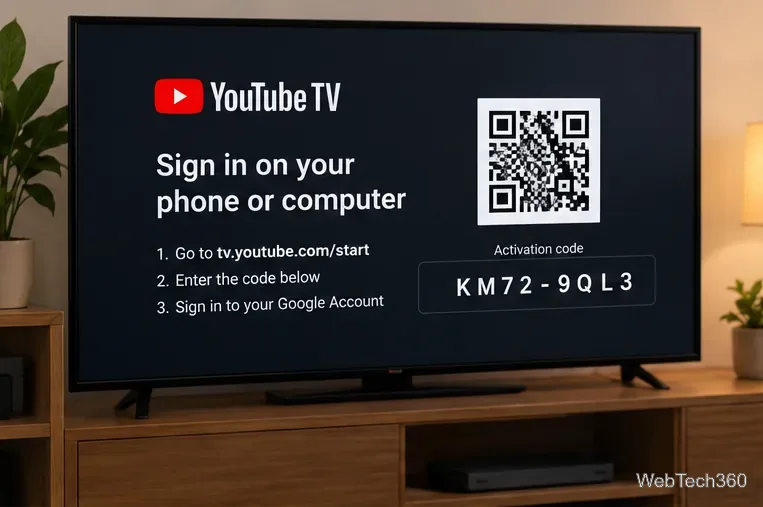
On your phone, tablet, or computer, open a browser and go to tv.youtube.com/start. You can instead scan the QR code shown on the TV if that is quicker.
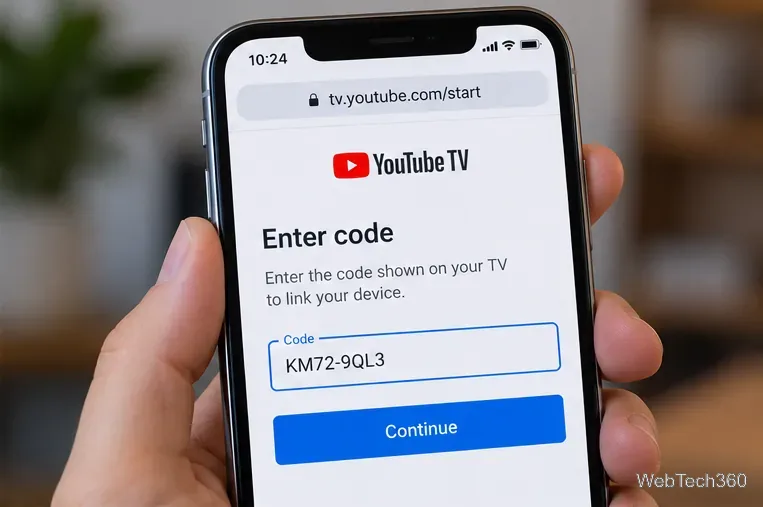
Type the code exactly as shown and select Continue. If the code is rejected after sitting on the screen for a while, it may have expired. Google recommends going back and reloading the TV sign-in screen to generate a fresh code, then entering the new one.
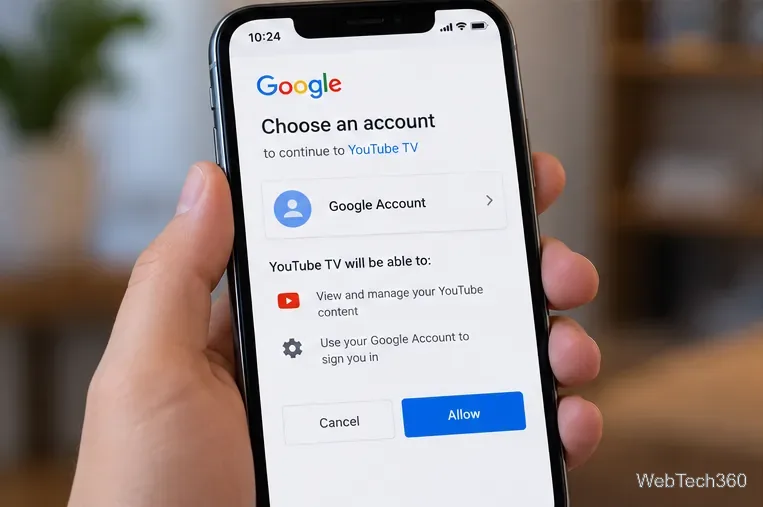
Select the Google Account associated with your YouTube TV Base Plan, then choose Allow when prompted. If you use several Google Accounts, choosing the wrong one can sign you in without giving you access to the membership you expect.
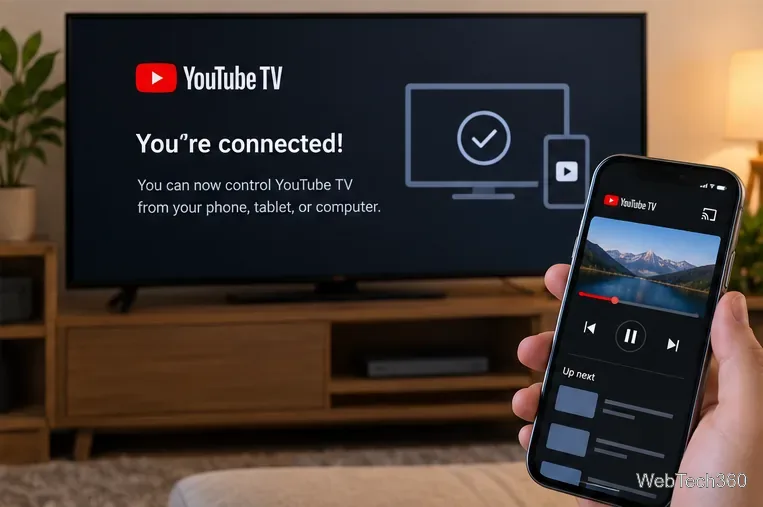
After approval, the TV app should finish signing in. You can browse with the TV remote, and supported devices can also cast or control playback from another device.
The standard YouTube app uses a different account sign-in flow. YouTube’s current instructions say to scan the QR code shown on the TV or open yt.be/activate and enter the code there. See the official YouTube sign-in instructions.
For a separate TV code that links a phone or tablet as a controller, open YouTube on the TV and choose Settings > Add a device. A blue, numbers-only code appears. In the YouTube app on the phone or tablet, tap Cast > Add a device, enter that code, and tap Link. Google says this method can work even when the phone and TV are not on the same Wi-Fi network; TV-code pairing is not available from a computer. See YouTube’s official device-linking guide.
YouTube TV is currently available throughout the United States, and location requirements apply to the service. For current coverage details, see YouTube TV’s official availability information.
In YouTube TV on your television, open your profile and choose Sign Out. To remove an account from the device, use Switch account and select Remove. Google lists the current controls in its YouTube TV sign-in and sign-out guide.
If you linked the regular YouTube app with a TV code, remove the pairing from Settings > Linked devices on the TV or from Settings > General > Watch on TV on the phone. You will need a new code if you pair the devices again later.
Learn how to test a higher monitor refresh rate with NVIDIA, AMD, or CRU, verify stability, and restore your original settings if the display goes blank.
Learn how to GPU stress test safely, what to monitor, how long to run a test, and which current tools are best for checking graphics card stability.
Compare the best CPU and RAM stress-test tools, including OCCT, Prime95, MemTest86, Intel PDT, and HWiNFO, plus practical safety tips.
Learn how to underclock or undervolt a GPU with MSI Afterburner, plus Radeon Adrenalin options, stability checks, and safe rollback steps.
Choose a VPN for a Linksys router by checking firmware support first. Compare NordVPN, Surfshark, Proton VPN, and CyberGhost for a smoother setup.
Use the tv.youtube.com/start code to activate YouTube TV on a smart TV or console, and learn how it differs from regular YouTube TV-code pairing.
Set up ExpressVPN on a router with current Fortify steps, legacy router guidance, and manual OpenVPN instructions, plus key security caveats.
Compare 1440p QHD and 4K UHD monitors by sharpness, scaling, gaming performance, and work use to choose the resolution that fits your setup.