iMessage Is Signed Out on iPhone: How to Fix It

Fix the iMessage Is Signed Out error on iPhone by checking Apple Account sign-in, activation, connectivity, and settings—without erasing your messages.
The best note-taking app for iPad depends on what you need to capture. Google Keep handles quick lists, Notability suits handwritten notes, Otter turns speech into transcripts, Standard Notes prioritizes privacy, and Craft is built for structured documents. Pick by workflow: a meeting transcript and an Apple Pencil notebook are different jobs.
First consider Apple Notes, which already supports Apple Pencil handwriting, audio recording and transcription, document scanning, tags, Smart Folders, and collaboration. It may be enough for everyday notes. See Apple’s current iPad Notes guide.
| App | Best for | Trade-off |
|---|---|---|
| Google Keep | Lists and reminders | Google account sync |
| Notability | Handwriting and PDFs | Some tools are plan-dependent |
| Otter | Meeting transcripts | Virtual capture needs the right setup |
| Standard Notes | Private text notes | Account recovery is limited |
| Craft | Long-form, mixed-media notes | Plan limits vary |
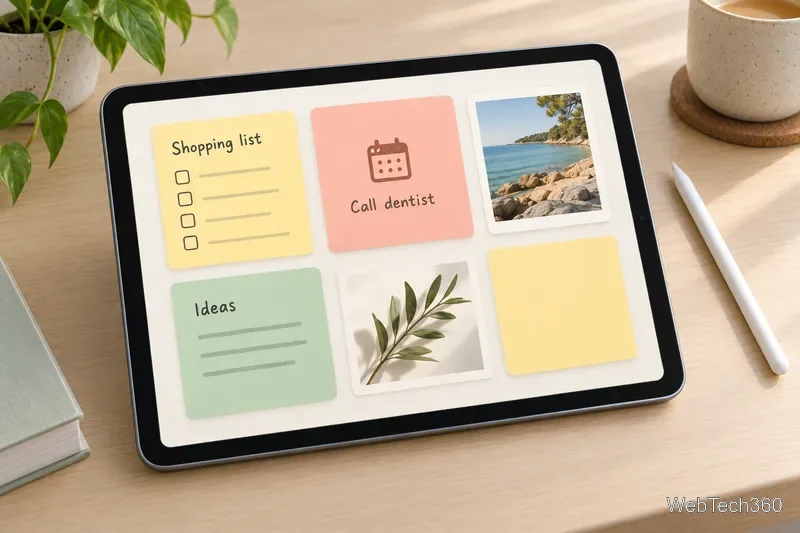
Keep is for quick capture rather than deep research. It supports typed notes, checklists, drawings, images, and audio, plus timed reminders. Colors, labels, and pins make small collections easy to scan. Shared notes let other people add items, which is handy for shopping or a short project.
Keep syncs through your Google account, not iCloud. Choose it if you already use Google and want notes across your devices. Its Help Center covers notes, drawings, labels, pins, and reminders.
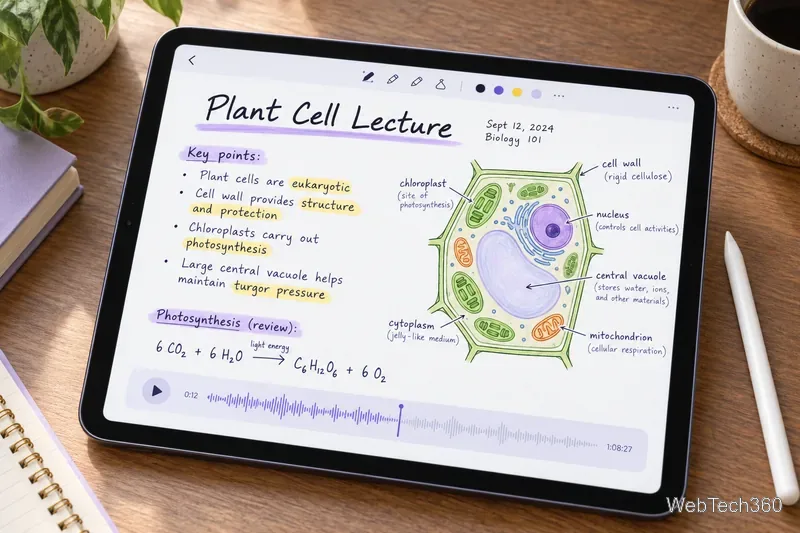
Use Notability for Apple Pencil writing, diagrams, PDF annotation, and lecture notes. Audio recordings can stay linked to annotations, so you can replay a moment while reviewing the page. This makes it useful when you need to combine what an instructor says with what you write down.
Notability Cloud sync is available, but tools such as AI summaries, transcription, and handwriting or math conversion depend on the current plan. Check the in-app plan details before relying on a specific feature. See the official setup guide and subscription FAQ.
Otter is a transcription tool, not a handwriting-first notebook. Its mobile app can record in-person conversations and create transcripts. Live transcription requires an internet connection and microphone permission, and clarity depends on the room and recording position.
For virtual meetings, use Otter Notetaker rather than assuming iPad Safari can capture sound playing on the same device. Apple audio restrictions can mean the browser records only your voice, especially if you are wearing headphones. Check that your plan and meeting setup support the workflow, and notify participants when you record. Otter explains mobile recording limits and how Notetaker joins scheduled meetings.
Standard Notes is a good fit for journals, reference notes, and personal writing when privacy matters more than elaborate page design. It encrypts note content end to end, syncs across devices, and supports offline use. Tags help organize a growing collection.
Encryption also makes account access your responsibility: Standard Notes says it cannot reset a forgotten password and recover encrypted notes for you. Keep your credentials safe and read its security and feature overview, offline guidance, and password recovery explanation. Editors and extras depend on the plan.
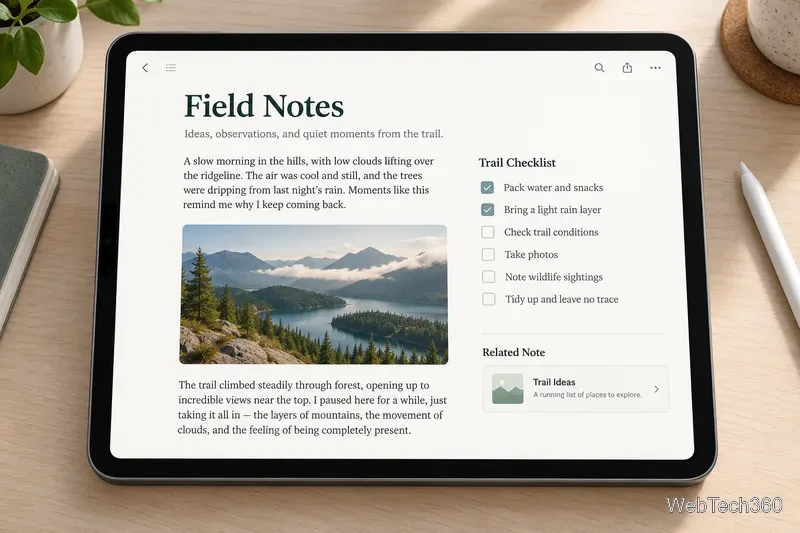
Craft works well when a note grows into a document. Build pages from blocks, add images and checklists, and link related notes. That structure suits project briefs, research, trip plans, and a personal knowledge base. Craft supports Apple devices and a web app, with offline writing described on its writing page.
It takes more setup than Keep, so it may be too much for simple reminders. Check the current plan details for document, storage, and sharing limits before moving a large archive.
All five have a free way to start, but their limits differ. Prices and offers can vary by country and storefront, so compare the plan shown on your iPad before subscribing. You do not need an Apple Pencil to type, make lists, or organize documents; check compatibility if handwriting is important.
No. A keyboard or touch input works for typed notes and lists. Apple Pencil is helpful for handwriting and sketches; check compatibility with your iPad model. Apple explains handwriting in Notes.
Start with Notability for handwritten notes and PDF markup. Choose Otter if you mainly need searchable transcripts of spoken lectures. Apple Notes may be enough for typed notes, handwriting, scans, and audio.
Fix the iMessage Is Signed Out error on iPhone by checking Apple Account sign-in, activation, connectivity, and settings—without erasing your messages.
Turn off your iPhone VPN in the app or Settings, confirm it disconnected, and stop automatic reconnections without deleting your account.
Learn how to encrypt your iPhone with a strong passcode, protect iCloud and computer backups, and secure your data if your phone is lost or stolen.
Learn how to clear Safari and Chrome cache on iPhone, manage app storage safely, and understand when clearing cached data actually helps.
Learn how to fight Gym Battles in Pokémon GO, pick effective attackers, use Charged Attacks and dodges, and claim a Gym after defeating its defenders.
Explore classic Cydia tweaks for jailbroken iPads, from SwipeSelection to Quasar, with compatibility warnings and modern alternatives.
Stop Apple Music signup prompts in the Music app. Learn where to find Show Apple Music on iOS and what turning it off does—and does not—change.
Set up a Shortcuts automation to text Mom when your iPhone battery gets low. Follow four steps, plus delivery checks and privacy tips.
Save posts on X in a few taps. Learn where to find the Bookmark button on iPhone, Android, and desktop, plus how to view, remove, and organize saved tweets.
Turn on AR mode in Pokémon GO during a wild encounter, find AR settings, and fix camera or device compatibility issues.








