Home
» IOS
»
Action Button 2.0? Best Customizations for Your New iPhone 18 Pro
Action Button 2.0? Best Customizations for Your New iPhone 18 Pro
“Action Button 2.0” is not an Apple product name. As of September 14, 2026, Apple’s official iPhone 18 Pro specifications simply call it the Action button. The useful news is that the button already supports a broad set of actions: Silent Mode, Focus, Camera, Visual Intelligence, Flashlight, Voice Memo, Recognize Music, Translate, Magnifier, Controls, Shortcut, and Accessibility.
This guide uses the officially announced iPhone 18 Pro and iPhone 18 Pro Max as the verified baseline. Apple’s September launch materials and technical specifications cover those models, which run iOS 27. If you are using a different iPhone 18 model or a later software revision, confirm the available choices in Settings because options can vary by device, language, region, installed apps, and software version.
The best Action Button setup is not the one with the most automation. It is the one that reliably removes friction from something you already do. A good configuration should be easy to remember, save at least a step or two, and work predictably when you need it. If you keep forgetting what the button does, trigger the wrong action, or rarely use it, the setup is too complicated or simply not matched to your routine.
What should a good Action Button setup accomplish?
Judge the result by three practical questions. First, does the button reach something you use often? Second, does it reduce the number of taps or the time needed to start the task? Third, do you get the expected result almost every time without having to stop and remember how the workflow works?
Goal
A strong result looks like
When to change it
Speed
A frequently used task starts with one press-and-hold
You still open Settings, Control Center, or an app out of habit
Predictability
The same gesture produces an obvious result
You trigger the wrong mode or forget what is assigned
Frequency
You use the assignment several times during a normal week
It goes unused for days while another task is more repetitive
Low friction
Permissions and confirmations are minimal for the task
The shortcut regularly stops for prompts or missing access
How do you set up the Action Button on iPhone 18 Pro?
Apple’s documented interaction is straightforward: you press and hold the Action button to run the assigned action. Apple does not document a new “Action Button 2.0” system of double-click, triple-click, or multiple pressure levels for iPhone 18 Pro. The customization still starts in Settings.
1. Find the physical Action button
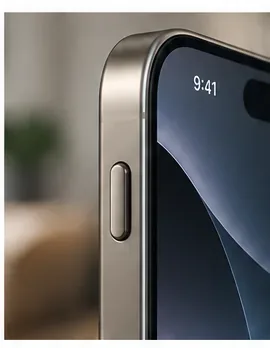
The Action button is on the left edge of iPhone 18 Pro, above the volume buttons. This matters because the first quality test is physical: can you reach it comfortably with the hand you normally use? If reaching the button feels awkward, assign something important but not something you need every few minutes.
The Action button sits on the left edge above the volume controls. A useful assignment should match how easily you can reach this position in daily use.
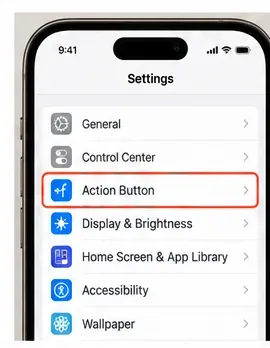
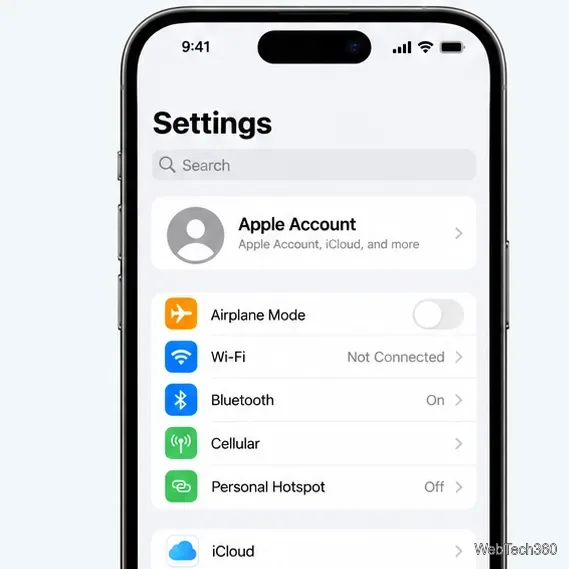
2. Open Settings and choose Action Button
Go to Settings > Action Button. Apple’s support guide says the customization screen presents actions that you can move through. Silent Mode is the default behavior on supported models.
Open Settings and select Action Button. This is the control center for changing the button’s assignment.
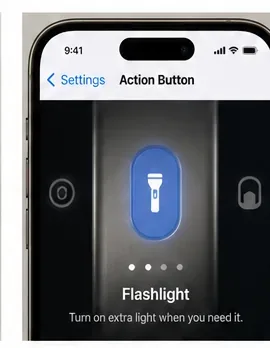
3. Swipe to the action you want
Swipe through the available actions until the one you want is selected. Some actions expose additional choices below the main selection. Apple specifically notes that Controls, Shortcut, and Accessibility require you to select a specific option; otherwise, the Action button does nothing.
Swipe through the Action Button choices and select the function you want. Simple toggles such as Flashlight work well when you value immediate, predictable behavior.
4. Use Shortcut when one built-in action is not enough
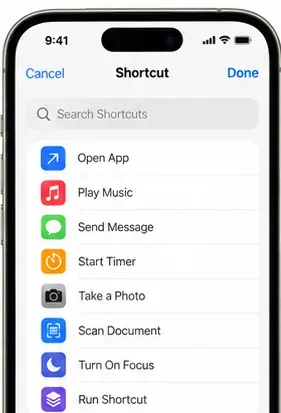
For more flexibility, choose Shortcut, tap the selector below it, and choose a shortcut from your library. Apple documents this exact path in the Shortcuts User Guide for the Action button.
A Shortcut assignment can turn the Action button into a launcher for a workflow. The exact list reflects the shortcuts available in your own library.
Which Action Button customization is best for most people?
A small Shortcut menu is the most flexible choice if you genuinely use three or four actions often. Apple’s Shortcuts app includes a Choose from Menu action that can present a predefined list and run a different branch depending on what you select. That makes it possible to turn the Action button into a compact launcher instead of dedicating it permanently to one function.
For example, a simple menu could contain Work Focus, Start Timer, Voice Note, and Open Scanner. Keep the menu short. The benefit disappears if you create a list so long that opening Control Center or searching for the app would have been faster.
Quality check: use your menu for three days. If you consistently choose the same item, remove the menu and assign that function directly. A direct assignment is faster than a menu when one task dominates.
Is Focus the best setup for work or study?
Often, yes. Focus is one of the cleanest Action Button assignments because the outcome is obvious: the selected Focus turns on, helping filter notifications and distractions according to the Focus configuration you already created.
This is a strong choice for people who regularly move between work, study, personal time, or quiet periods. It is less compelling if your Focus schedules already activate automatically at the right times. In that case, the Action button is more valuable for something that still requires manual effort.
Success sign: you stop opening Control Center to change Focus manually. Change it if automation already handles Focus reliably and the button becomes redundant.
Should photographers assign Camera to the Action Button?
Not automatically on iPhone 18 Pro. The phone already has a dedicated Camera Control, so assigning Camera to the Action button can duplicate a hardware control you already have. That duplication can still be useful if you prefer the left-side button or if the Camera option available in your software lets you reach a preferred capture mode more comfortably.
For many iPhone 18 Pro owners, however, the Action button is more valuable when it performs a non-camera task while Camera Control remains dedicated to photography. The best choice depends on which button you can reach faster and whether the assignment actually shortens your path to the camera behavior you use most.
When is Voice Memo a better choice than a complex Shortcut?
Choose Voice Memo when capture speed matters more than versatility. If you frequently record personal ideas, reminders, melodies, pronunciation practice, or field notes, a direct recording action is easier to trust than a multi-step shortcut.
The quality standard is simple: after pressing and holding the button, you should immediately know that recording has started or that the relevant recording interface is active. If you regularly need to add text, select a destination, attach a location, or perform several follow-up actions, a Shortcut may be more appropriate.
Who should use Recognize Music?
Recognize Music is a good assignment for people who frequently want to identify songs playing nearby or on the iPhone. Apple’s Action Button guide identifies this function as using Shazam recognition.
It is a specialized choice, which is exactly why it can be excellent. A button does not need to solve ten problems; it needs to solve one recurring problem quickly. If you identify music only once a month, use a more frequent task instead.
Is Translate worth putting on the button?
Translate is useful when language switching is part of your normal day. Travelers, multilingual households, language learners, and people who regularly speak with customers or colleagues in another language may benefit from immediate access.
Do not assume every translation capability is identical in every region or language. Apple notes that availability of intelligent features can vary by language and region. Test the exact languages and conversation workflow you rely on before making Translate your permanent assignment.
When is Visual Intelligence the right choice?
Visual Intelligence is designed to help you learn more about places and objects around you, and Apple lists it as an Action button option that requires Apple Intelligence. It can be valuable when your routine involves identifying objects, interpreting signs, exploring places, or asking questions about what the camera sees.
The limitation is availability. Apple Intelligence features can depend on device support, language, region, and software availability. If the function is unavailable or inconsistent for your location and language, assign something that works locally and predictably instead.
Why Controls can be better than a Shortcut
Controls is a good middle ground. It lets the Action button access a chosen control without requiring you to build and maintain a custom workflow. Use it when the control you want is already available and a one-purpose assignment is enough.
A Shortcut is better when you need multiple steps, branching logic, app actions, or a menu. Controls is better when you want a simple system action with less maintenance. The best result is usually the simpler option that achieves the same outcome.
When should you use Accessibility?
Accessibility can be the most important Action Button assignment when fast access to an accessibility feature meaningfully improves how you use the phone. Apple allows the Action button to launch an accessibility feature, and Magnifier is also available as its own Action Button option.
If this is your use case, prioritize reliability over experimentation. Test the action from the Lock Screen, from within your most-used apps, and in the environments where you depend on it. If a Shortcut adds unnecessary prompts, use the direct Accessibility assignment instead.
Is Flashlight too simple to be a “best” customization?
No. Simple can be better. Flashlight is a strong assignment if you use it repeatedly at night, around the house, in parking areas, or while working with equipment. The result is immediate and easy to verify.
The limitation is opportunity cost: Flashlight is already easy to reach from the Lock Screen and Control Center. If those routes are fast enough for you, reserve the Action button for something harder to access.
Should you leave Silent Mode on the Action Button?
Silent Mode remains a sensible default if you switch between ring and silent frequently. It is easy to understand and difficult to forget. The downside is that modern Focus modes can already manage many notification situations more precisely, so Silent Mode may not be the highest-value use of a programmable hardware button.
Keep it if you use it often. Replace it if you almost never change the ringer state manually.
What are the best Action Button setups by user type?
User type
Best first choice
Why
Main trade-off
Busy professional
Focus or a short Shortcut menu
Reduces repeated mode switching and routine setup
A menu adds one more choice after pressing the button
Student
Focus, Timer shortcut, or Voice Memo
Supports study sessions and quick capture
Choose one primary behavior if the menu becomes distracting
Traveler
Translate or Visual Intelligence
Useful for signs, objects, and language tasks
Availability can vary by language and region
Creator
Voice Memo or a custom Shortcut
Captures ideas without hunting for an app
Complex shortcuts may require permissions or prompts
Accessibility-focused user
Accessibility or Magnifier
Fast direct access can matter more than versatility
Reliability should take priority over multi-step automation
Minimalist
Flashlight, Silent Mode, or Focus
Immediate result with almost no maintenance
Less flexible than Shortcuts
How do you build a smarter Action Button without overcomplicating it?
If one direct function is not enough, start with a menu rather than a large automation. In Shortcuts, create a shortcut with Choose from Menu, add three or four labels that match actions you genuinely use, and place the relevant actions under each branch. Then assign that shortcut through Settings > Action Button > Shortcut.
Only add conditional logic after the basic version proves useful. Apple’s Shortcuts documentation explains that an If action can run different branches depending on a condition available when the shortcut runs. That is powerful, but every condition creates another place for a workflow to behave differently than you expected.
A useful rule is: one direct action first, a short menu second, conditional automation third. Move to the next level only when the previous level is clearly limiting you.
What mistakes make the Action Button less useful?
Choosing novelty over frequency: an impressive shortcut is wasted if you rarely need it.
Building a huge menu: if you must scan eight choices every time, the shortcut is no longer quick.
Duplicating Camera Control without a reason: iPhone 18 Pro already has Camera Control, so use the Action button for Camera only when it genuinely improves your ergonomics or camera workflow.
Forgetting required selections: Apple says Controls, Shortcut, and Accessibility need a specific choice configured below the main action.
Ignoring permissions: shortcuts and app actions may need permission to access apps or data. Apple notes that actions using another app can require you to grant access.
Assuming “2.0” means new press gestures: Apple’s current documentation describes press-and-hold for the assigned action, not a new multi-click Action Button system.
How long should you test a setup before changing it?
Give a new assignment about three normal days. That is usually enough to see whether you remember it, whether it saves time, and whether it behaves predictably. Keep a simple mental score: How many times did you use it? How many times did you trigger the wrong thing? Did you still reach for the old method?
If you used it repeatedly and stopped thinking about the button, the setup is working. If you forgot about it, simplify or choose a more frequent task. If the shortcut works but feels slow because of menus and confirmations, reduce the number of steps.
Bottom line: what is the best “Action Button 2.0” setup?
There is no official Apple feature called Action Button 2.0 on the iPhone 18 Pro. What Apple does provide is a mature Action button with a wide range of built-in functions plus access to Controls, Accessibility, and Shortcuts.
For most people, the best starting point is either a single frequent action such as Focus, Voice Memo, Translate, or Flashlight, or a small Shortcut menu with three or four genuinely useful choices. The right configuration is the one you can activate without thinking, understand immediately, and keep using after the novelty of a new phone wears off.
Verified September 14, 2026. Apple’s currently published iPhone 18 technical specifications used here are for iPhone 18 Pro and iPhone 18 Pro Max. Feature availability can vary by software version, language, region, device configuration, installed apps, and permissions.