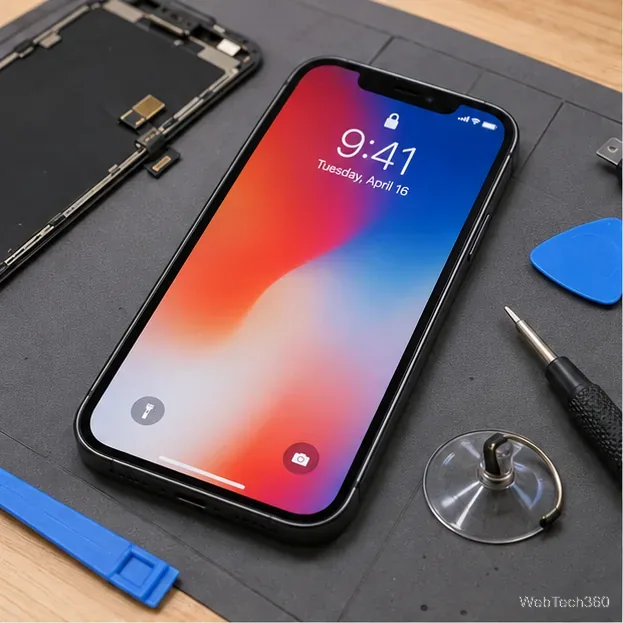
If Face ID stopped working right after an iPhone screen replacement, do not assume it is permanently disabled. On current iPhones, the first things to check are whether the repair still needs software calibration, whether the TrueDepth camera is obstructed or damaged, and whether Face ID needs to be set up again. A screen replacement by itself is not a reason to start transplanting sensors or attempting delicate hardware work.
Apple now provides Repair Assistant for supported repairs. For display repairs, Apple currently lists iPhone 12 models and later as supported. If your iPhone shows Finish Repair in Parts & Service History, complete that process before trying deeper troubleshooting.
1. Check Parts & Service History
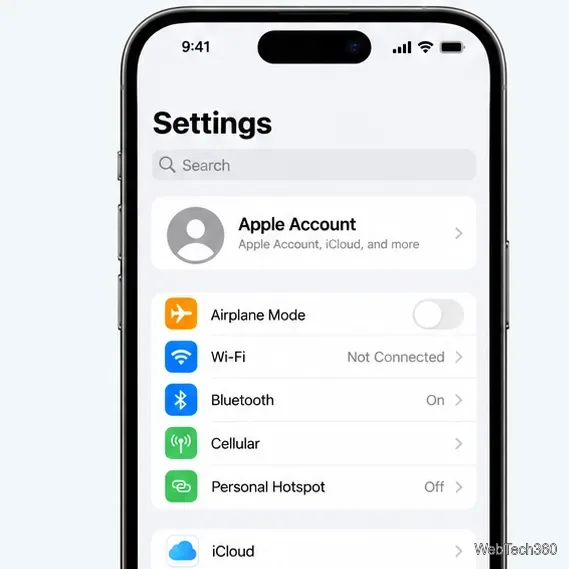
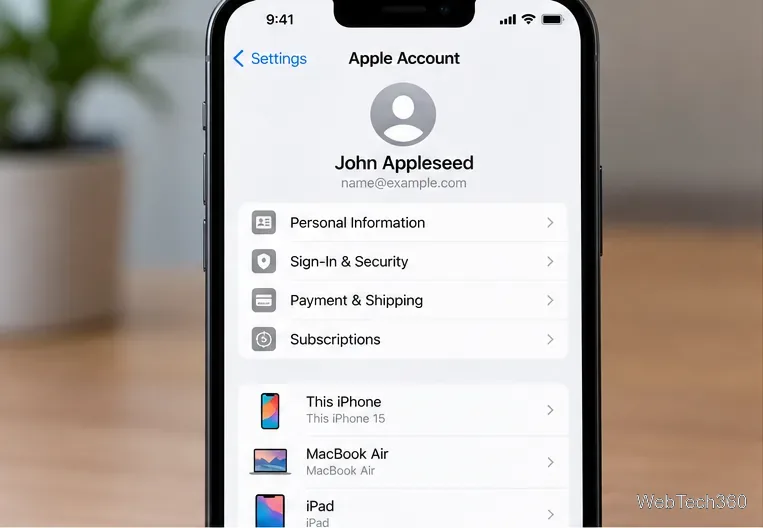
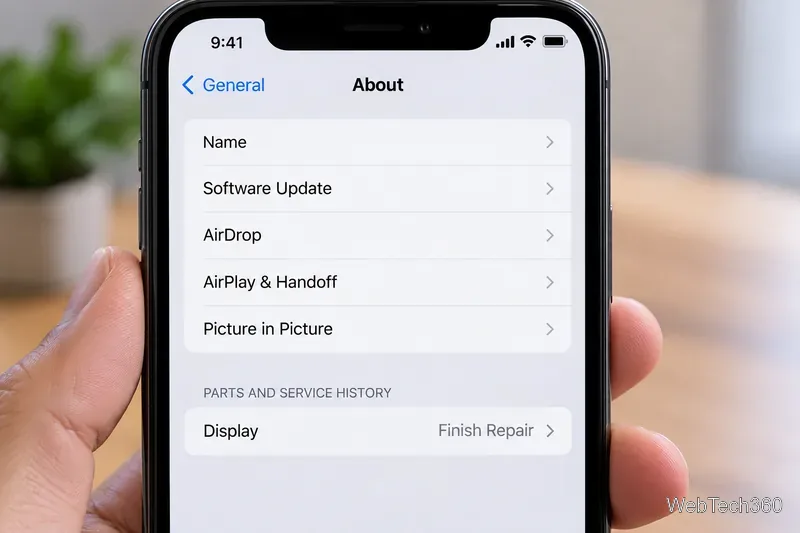
Start by updating the iPhone to the latest available version of iOS. Then open Settings > General > About and look for Parts & Service History. Apple documents this section for repaired iPhones and explains the status labels in its iPhone Parts and Service History guide.
The most useful labels after a display replacement are:
- Finish Repair: the replacement part has not completed Apple's calibration process.
- Genuine: the repair was completed using a genuine Apple part and Apple's calibration process.
- Used: on supported models, the part was previously installed in another iPhone.
- Unknown: the part may be nongenuine, may not be functioning as expected, or may not have been verified and linked to the iPhone.
2. Finish the repair with Repair Assistant
If you see Finish Repair, complete this step before resetting Face ID. Apple says the iPhone must have the latest iOS version, be connected to Wi-Fi, and have more than 20 percent battery.
- Open Settings > General > About.
- Tap Parts & Service History.
- Tap Restart & Finish Repair.
- Follow the onscreen instructions and allow the iPhone to restart.
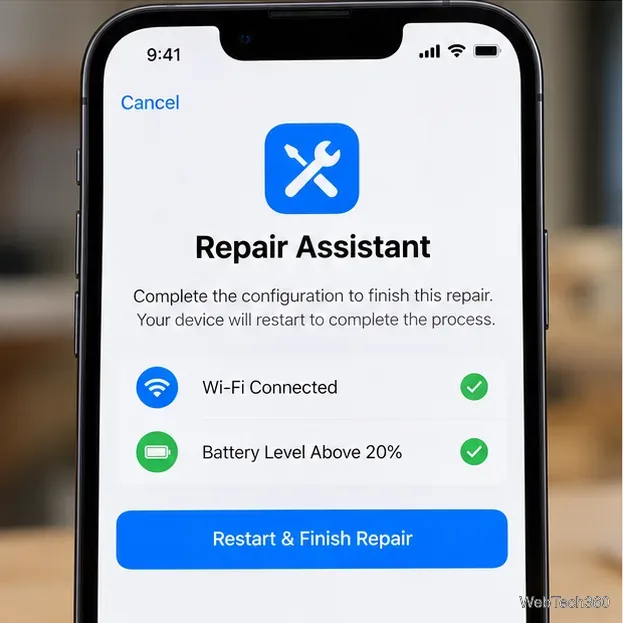
If Repair Assistant does not finish, confirm the Wi-Fi connection, battery level, and iOS version, then restart the iPhone and try again. If a repair shop installed the part, contact that shop as well. Apple notes that a previously used part can be protected by Activation Lock, which may prevent the repair from being completed until the lock is removed.
3. Check the TrueDepth camera area
Face ID relies on the TrueDepth camera system, not just the visible display. A screen protector, case edge, adhesive, dirt, or a repair-related problem around the front camera area can interfere with Face ID. Remove anything covering the sensor area and clean the top of the display carefully.
Apple's current Face ID troubleshooting instructions also recommend checking Face ID settings, restarting the device, and making sure your face is fully visible to the TrueDepth camera.
If the iPhone reports that Face ID has been disabled, the front camera is not working, or Face ID setup repeatedly fails immediately after the screen repair, the problem may be hardware-related. Do not try to realign or modify the TrueDepth laser system yourself. Apple warns that improper repair or nongenuine components in that system can interfere with safety mechanisms. A trained technician should inspect the device.
4. Reset Face ID after the repair is complete
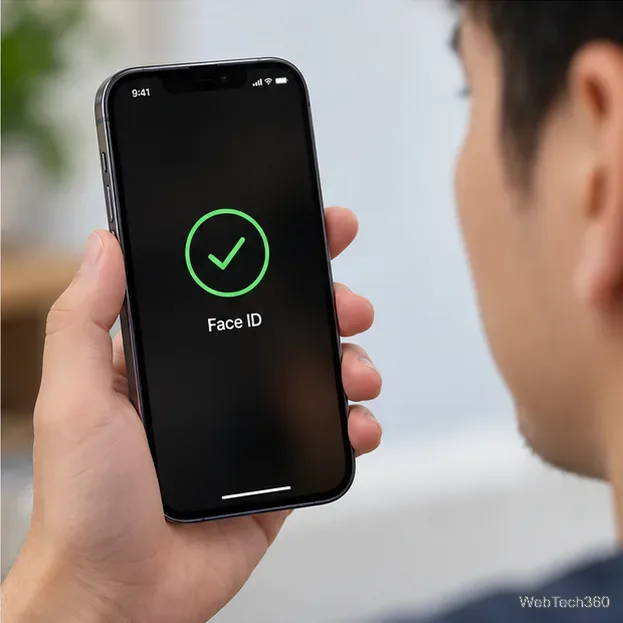
Once Parts & Service History no longer shows an unfinished repair and the TrueDepth camera area is clear, reset Face ID:
- Open Settings > Face ID & Passcode.
- Enter your passcode and tap Reset Face ID.
- Tap Set Up Face ID and complete the face scan again.
When you should return to the repair provider
Go back to the repair provider if Face ID worked before the screen replacement but cannot be set up afterward, especially if Repair Assistant cannot complete or the iPhone reports a TrueDepth camera problem. A display status of Unknown is also worth discussing with the provider. Apple says nongenuine displays can have compatibility and performance issues; its genuine iPhone display guidance recommends trained technicians and genuine parts for the most reliable result.
The key point is to separate unfinished calibration from TrueDepth hardware damage. If you see Finish Repair, run Repair Assistant first. If calibration is complete but Face ID still cannot be configured, standard Face ID troubleshooting is reasonable; persistent failure after the repair is a service issue rather than something a software toggle can reliably fix.