How to Add a Contact on WhatsApp (iPhone and Android)

To add a contact on WhatsApp, open Chats, tap the new-chat button, choose New contact, and enter the person’s name and phone number. Finish with Done on iPhone or Save on Android. You can also save a number directly from an existing conversation or group.

Make sure the number belongs to the person’s WhatsApp account. For an international contact, enter the country code along with the number. The screens and labels may vary slightly by app version.

How to add a WhatsApp contact on iPhone

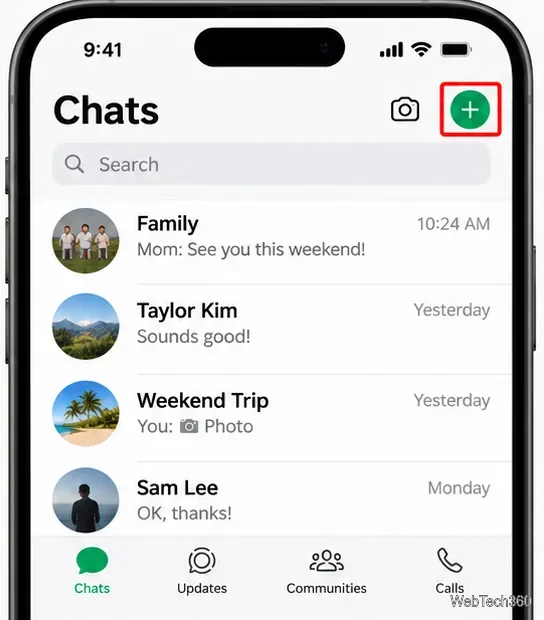
  1. Open WhatsApp and go to Chats. Tap the new-chat icon near the upper-right corner.
iPhone WhatsApp Chats view with the upper-right new-chat button outlined in red
From Chats, tap the new-chat button to open the contact picker.
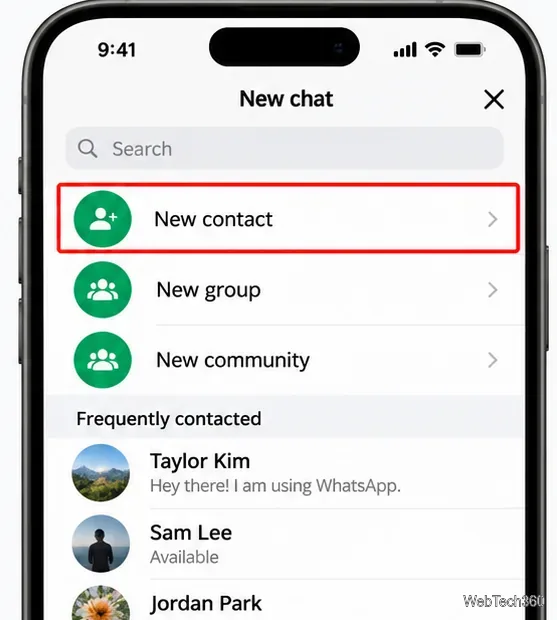
  1. Choose New contact. Look for it near the top of the new-chat screen, above your existing contacts.
iPhone WhatsApp New chat screen with New contact highlighted above the contact list
Select New contact rather than choosing an existing conversation.
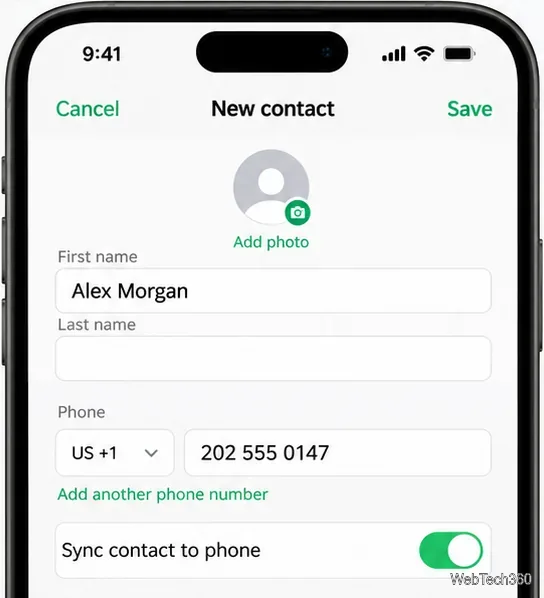
  1. Enter the contact’s details. Add a recognizable name and the correct phone number. If available, turn on Sync contact to phone to add the contact to your iPhone’s address book too.
iPhone New contact form showing a name, international phone number and Sync contact to phone switch
Enter the number with the appropriate country code and choose whether to sync it to the phone.
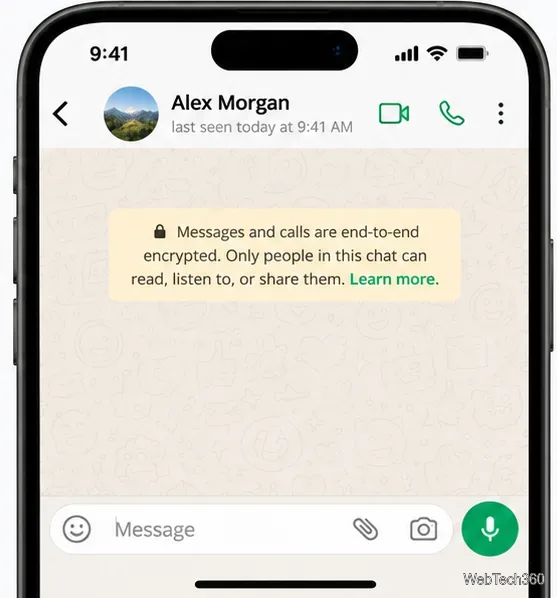
  1. Tap Done to finish. Find the saved name in WhatsApp and open the chat if the number is registered on the service.
iPhone WhatsApp conversation header displaying the saved name Alex Morgan above the message field
Once saved, a registered WhatsApp contact can appear by name in the chat.

If you prefer to use the iPhone Contacts app, you can save the name and number there first. WhatsApp needs the appropriate contacts permission to read and display that phone-book entry.

How to add a WhatsApp contact on Android

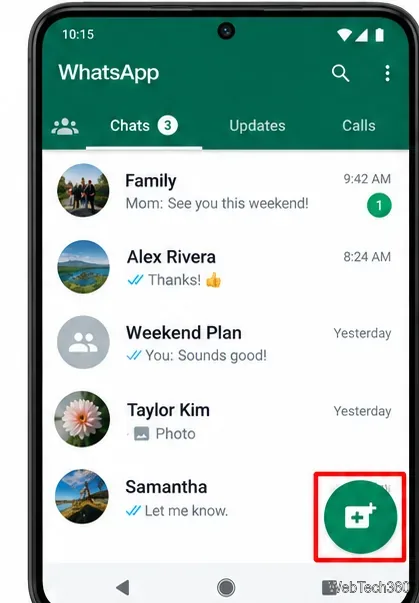
  1. Open WhatsApp and select Chats. Tap the new-chat button, generally near the bottom of the screen.
Android WhatsApp Chats screen with the green new-chat button highlighted at the bottom right
Use the green new-chat button on Android to open the contact selection screen.
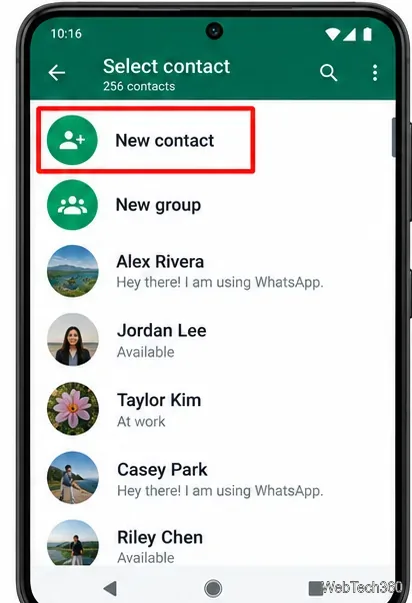
  1. Tap New contact. It appears above the list of people you can message.
Android WhatsApp Select contact screen with New contact highlighted at the top
Choose New contact to open the form for a new person.
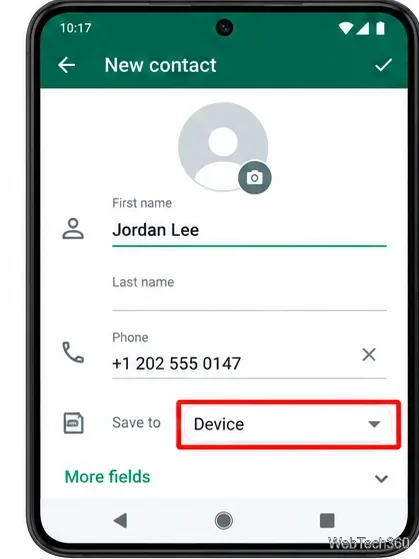
  1. Fill in the name and number. Check the country code. If you see a Save to menu, choose Phone to sync with your Android address book; other available locations may keep the contact within WhatsApp.
  2. Tap Save. Return to Chats and search for the saved name to begin a conversation.
Android New contact form containing a phone number and a highlighted Save to selector
Check the Save to destination before saving if you also want the number in your phone contacts.

Add a number from a chat or group

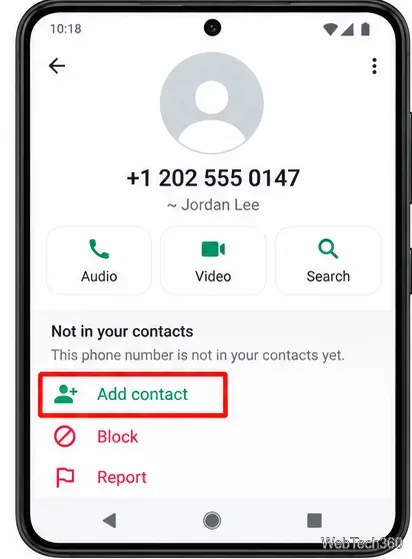
If you already have a conversation with an unsaved number, there’s no need to retype it. On iPhone, open the chat, tap the number at the top, then choose Create new contact and tap Done. On Android, open the chat, tap Add where offered, complete the details, and tap Save. Depending on the screen, you may first need to open the number’s contact information.

Android WhatsApp contact information view for an unsaved number with Add contact highlighted
An unsaved number in an existing conversation can be added from its contact information screen.

To save someone from a group, open the group, tap the person’s profile photo next to a message, and use the add-or-save contact option. WhatsApp also supports saving group members through the group’s contact-management controls on supported versions.

You can also add someone using their WhatsApp contact QR code. The official QR code instructions explain how to scan it and select Add to Contacts.

Should you save the contact to WhatsApp or your phone?

WhatsApp supports contacts stored in your WhatsApp account without requiring every new entry to appear in your phone’s address book. The Sync contact to phone control, or the corresponding Android save-location choice, determines whether the contact is also stored on your device. This is different from the older assumption that every contact created inside WhatsApp automatically becomes a device contact.

WhatsApp-only contacts can be available across linked devices and restored to your WhatsApp account. If you need that person in your phone dialer or another contacts app, turn on syncing or save the entry to your phone. See WhatsApp’s explanation of contact upload and storage.

What if the new contact doesn’t appear?

  • Double-check the number. Include the correct international dialing code. If the person registered WhatsApp with another number, saving the wrong one will not find their account.
  • Check access on iPhone. Open Settings > Apps > WhatsApp > Contacts. Limited Access can prevent WhatsApp from seeing an entry saved in the iPhone address book; select the relevant contact or Full Access as appropriate. WhatsApp explains the options in its contacts permissions guide.
  • Check access on Android. In your phone’s Settings, open Apps > WhatsApp > Permissions > Contacts and allow access if you want WhatsApp to read device contacts. Android menu names depend on the phone manufacturer.
  • Consider whether the person uses WhatsApp. If their number has no WhatsApp account, you may see an invitation option instead of an available chat. You can save a phone number even if that person hasn’t joined WhatsApp.

For device-specific steps, refer to the official WhatsApp contact guide for iPhone and WhatsApp contact guide for Android. You don’t need to grant access to your entire address book just to save a WhatsApp-only contact, but you do need the appropriate permission for contacts saved in the phone’s address book to show up in WhatsApp.

Leave a Comment

iMessage Is Signed Out on iPhone: How to Fix It

iMessage Is Signed Out on iPhone: How to Fix It

Fix the iMessage Is Signed Out error on iPhone by checking Apple Account sign-in, activation, connectivity, and settings—without erasing your messages.

How to Turn Off VPN on iPhone (App and Settings)

How to Turn Off VPN on iPhone (App and Settings)

Turn off your iPhone VPN in the app or Settings, confirm it disconnected, and stop automatic reconnections without deleting your account.

How to Encrypt an iPhone and Protect Sensitive Information

How to Encrypt an iPhone and Protect Sensitive Information

Learn how to encrypt your iPhone with a strong passcode, protect iCloud and computer backups, and secure your data if your phone is lost or stolen.

How to Clear Cache on iPhone: Safari, Chrome, and Apps

How to Clear Cache on iPhone: Safari, Chrome, and Apps

Learn how to clear Safari and Chrome cache on iPhone, manage app storage safely, and understand when clearing cached data actually helps.

How to Fight Gym Battles in Pokémon GO: Attacks, Dodges, and Taking Control

How to Fight Gym Battles in Pokémon GO: Attacks, Dodges, and Taking Control

Learn how to fight Gym Battles in Pokémon GO, pick effective attackers, use Charged Attacks and dodges, and claim a Gym after defeating its defenders.

Best Cydia Tweaks and Apps for Your Jailbroken iPad: Classic Picks

Best Cydia Tweaks and Apps for Your Jailbroken iPad: Classic Picks

Explore classic Cydia tweaks for jailbroken iPads, from SwipeSelection to Quasar, with compatibility warnings and modern alternatives.

How to Turn Off the Apple Music Splash Screen on iPhone

How to Turn Off the Apple Music Splash Screen on iPhone

Stop Apple Music signup prompts in the Music app. Learn where to find Show Apple Music on iOS and what turning it off does—and does not—change.

Let Mom Know Your iPhone Battery Is Low With an Automatic Text

Let Mom Know Your iPhone Battery Is Low With an Automatic Text

Set up a Shortcuts automation to text Mom when your iPhone battery gets low. Follow four steps, plus delivery checks and privacy tips.

How to Bookmark a Tweet on X (Twitter) on Any Device

How to Bookmark a Tweet on X (Twitter) on Any Device

Save posts on X in a few taps. Learn where to find the Bookmark button on iPhone, Android, and desktop, plus how to view, remove, and organize saved tweets.

How to Enable AR Mode in Pokémon GO on iPhone or Android

How to Enable AR Mode in Pokémon GO on iPhone or Android

Turn on AR mode in Pokémon GO during a wild encounter, find AR settings, and fix camera or device compatibility issues.