iMessage Is Signed Out on iPhone: How to Fix It

Fix the iMessage Is Signed Out error on iPhone by checking Apple Account sign-in, activation, connectivity, and settings—without erasing your messages.
If you mean the spendable balance in Wallet, that’s Apple Cash; Apple Pay itself is a payment service, not a top-up account. Without a debit card, use an eligible prepaid card or receive Apple Cash from someone you trust. Credit cards and gift cards cannot add money to Apple Cash.
Apple Cash is available only in the 50 United States, the District of Columbia, and Puerto Rico. For standard person-to-person payments, Apple says you must be 18 or older and a U.S. resident. A family organizer can set up Apple Cash Family for a child or teen. Check Apple’s Apple Pay and Apple Cash overview if you need to confirm which service applies to your situation.
An eligible prepaid card is the self-service route. It must be supported for Apple Pay and Apple Cash funding; a card appearing in Wallet does not guarantee it can add money. Store gift cards, even when in Wallet, do not qualify.
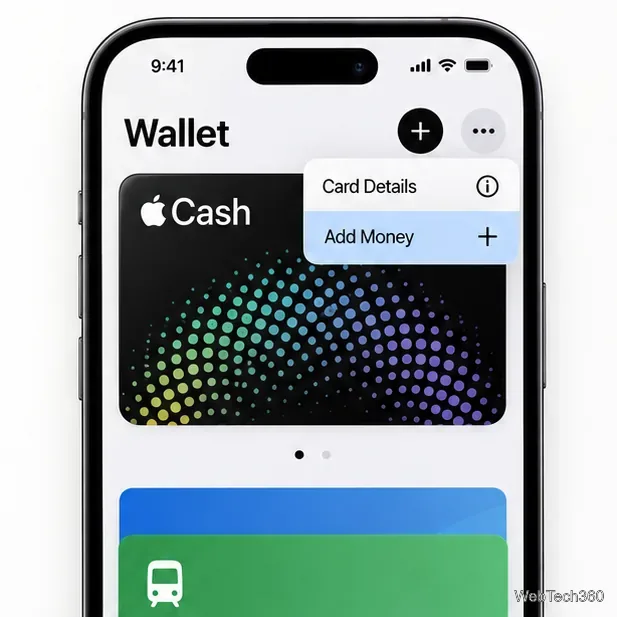
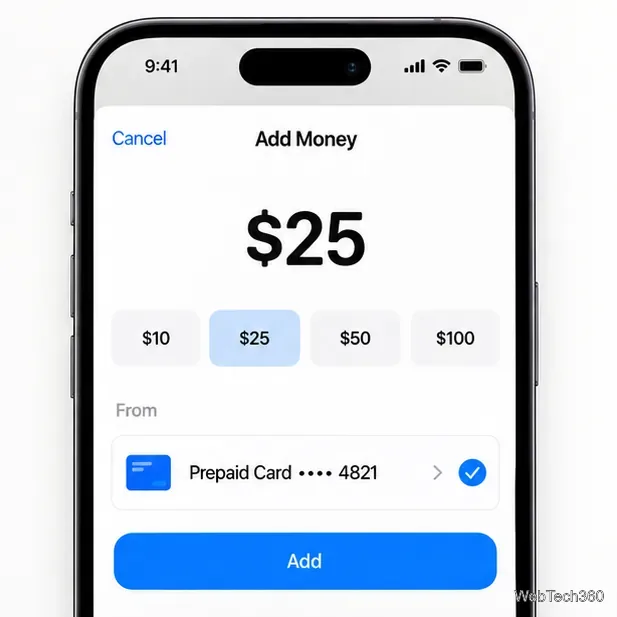
See Apple’s Add Money instructions and current limits. If a card is rejected, ask its issuer about eligibility instead of repeatedly retrying it.
If you have no eligible card, ask someone you know to send Apple Cash from their balance or eligible payment method. You do not need a debit card to receive it, but Apple Cash must be set up and you must meet Apple’s location and account requirements. Apple recommends person-to-person payments only with people you know.
To send a request from an iPhone:
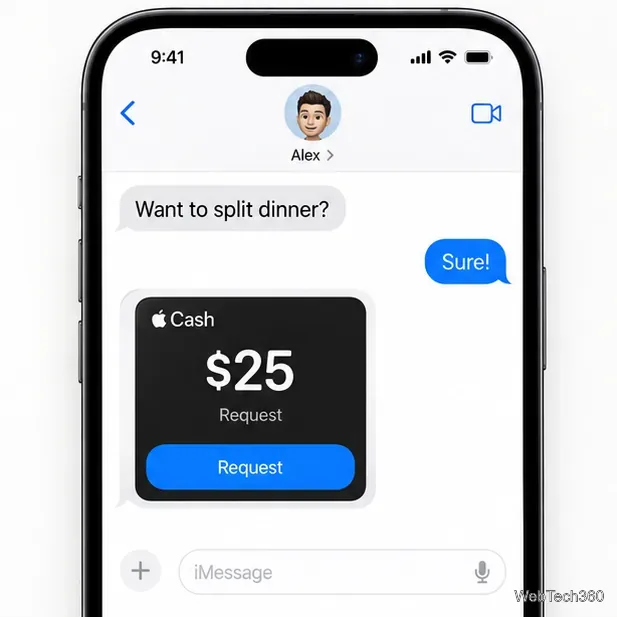
The sender completes the payment on their device. With automatic acceptance on, funds go to your balance; with manual acceptance, open the message and tap Accept within seven days. If Apple Cash is not set up, follow the prompt or turn it on in Settings under Wallet & Apple Pay. Apple may require two-factor authentication or identity verification.
Open Wallet and tap your Apple Cash card. The balance and recent transactions appear there; connect to Wi-Fi or cellular data for an up-to-date balance. On iPad, open Settings, tap Wallet & Apple Pay, then Apple Cash. A received payment should appear in the transaction list. If it is missing, ask the sender to check the transaction status and confirm they sent it to the right Apple Account contact.
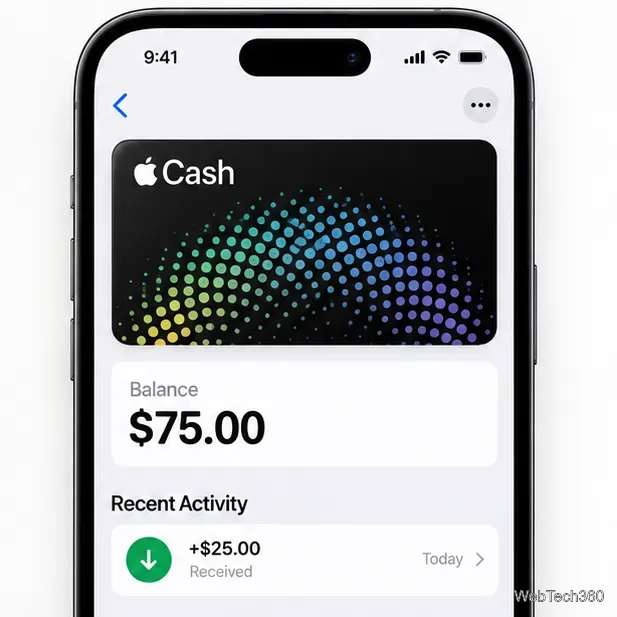
For current setup and troubleshooting steps, use Apple’s official guides for setting up Apple Cash, sending and receiving money, and fixing Apple Cash payment issues. If neither a supported prepaid card nor a person-to-person payment is available to you, Apple Pay has no separate cash balance to top up without an eligible funding method.
Fix the iMessage Is Signed Out error on iPhone by checking Apple Account sign-in, activation, connectivity, and settings—without erasing your messages.
Turn off your iPhone VPN in the app or Settings, confirm it disconnected, and stop automatic reconnections without deleting your account.
Learn how to encrypt your iPhone with a strong passcode, protect iCloud and computer backups, and secure your data if your phone is lost or stolen.
Learn how to clear Safari and Chrome cache on iPhone, manage app storage safely, and understand when clearing cached data actually helps.
Learn how to fight Gym Battles in Pokémon GO, pick effective attackers, use Charged Attacks and dodges, and claim a Gym after defeating its defenders.
Explore classic Cydia tweaks for jailbroken iPads, from SwipeSelection to Quasar, with compatibility warnings and modern alternatives.
Stop Apple Music signup prompts in the Music app. Learn where to find Show Apple Music on iOS and what turning it off does—and does not—change.
Set up a Shortcuts automation to text Mom when your iPhone battery gets low. Follow four steps, plus delivery checks and privacy tips.
Save posts on X in a few taps. Learn where to find the Bookmark button on iPhone, Android, and desktop, plus how to view, remove, and organize saved tweets.
Turn on AR mode in Pokémon GO during a wild encounter, find AR settings, and fix camera or device compatibility issues.








