iMessage Is Signed Out on iPhone: How to Fix It

Fix the iMessage Is Signed Out error on iPhone by checking Apple Account sign-in, activation, connectivity, and settings—without erasing your messages.
You can change your WhatsApp phone number without starting over. Use the built-in Change number feature to move your account to a new number while keeping your existing groups, settings, and chats on the same phone. You will need to verify the new number. If you are also switching phones, the order of operations matters.
Make these checks before you begin:
If your phone is being replaced too, keep the old phone and its chats available until the migration is complete. Do not erase the old device prematurely.
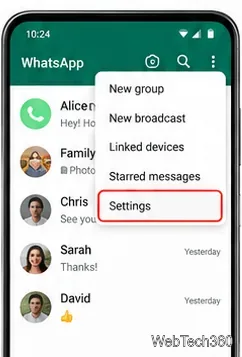
Open WhatsApp Settings. On Android, open the three-dot menu and select Settings. On iPhone, tap the Settings tab or your profile, depending on your app layout.
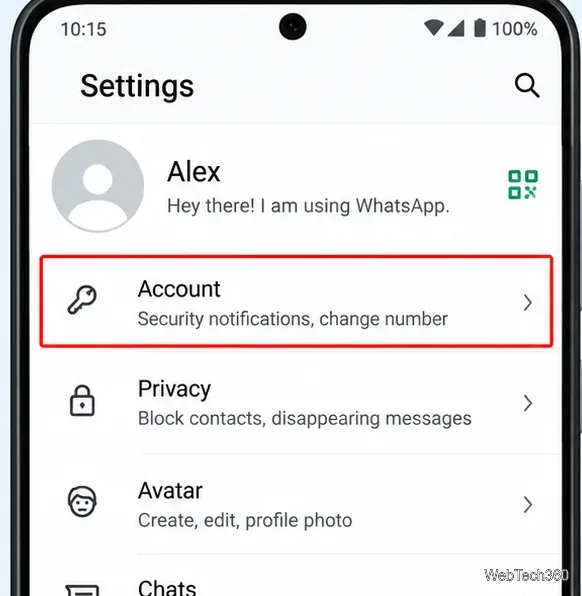
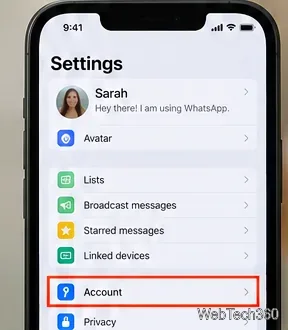
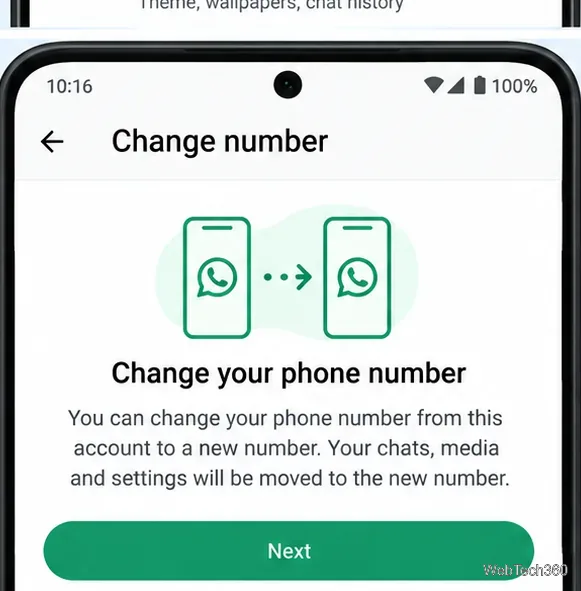
Go to Account > Change number. This is the option for transferring an existing account, not creating a second account.
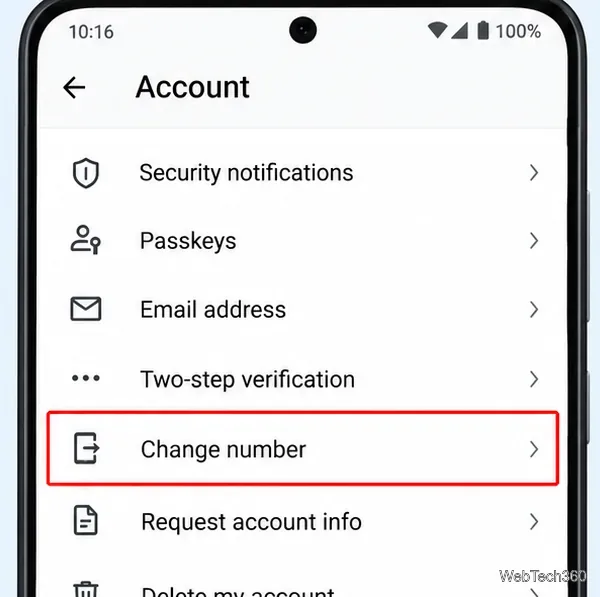
Tap Next. Read the explanation about moving your account information, groups, and settings.
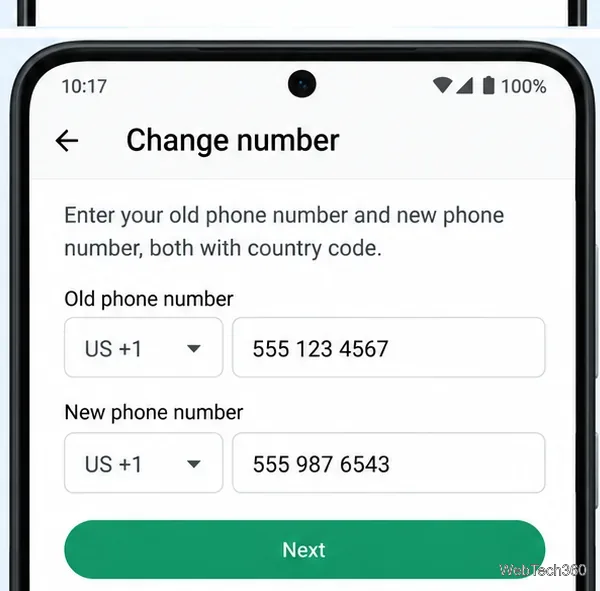
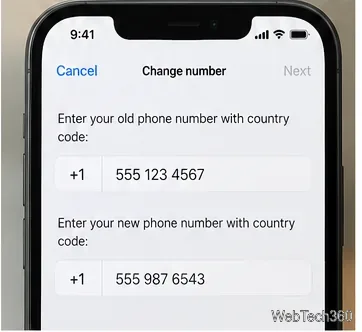
Enter both numbers. Type the currently registered number in Old phone number and the replacement in New phone number. Use the full international format, including the correct country code, and double-check each entry before tapping Next.
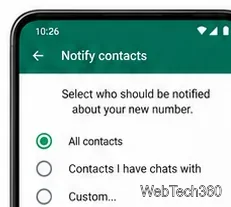
Choose whether to notify contacts. Turn on Notify contacts if you want WhatsApp to inform everyone in your contacts, only contacts you have chats with, or selected people. If you leave it off, your group chats are still notified automatically.
Finish and verify the new number. Tap Done and follow the registration prompts. Enter the verification code you receive on the new number, or use an available verification method shown by WhatsApp. Never share a verification code with another person.
These instructions follow WhatsApp's official Change number guide. Menu placement can vary slightly between Android, iOS, and app versions.
When you change numbers using this feature, WhatsApp transfers your account information to the new number, including your profile, privacy settings, individual and group chats, and group membership. On the same phone, your existing chat history remains available. The WhatsApp account attached to the old number is removed.
Group chats receive an automatic notice. For other contacts, the notification depends on the choice you made during setup. People may still need to save your new number in their phone's address book. Contacts you have blocked remain blocked and are not notified of the number change.
Changing your number does not make an old cloud backup valid for the new number. WhatsApp ties backups to the phone number used when they were created, so create a fresh backup after the change if you rely on cloud recovery. See WhatsApp's explanation of what changes with your number.
Do not install WhatsApp on your new phone and register the replacement number first if you need your old chats. Instead, change the account number on your old phone first. Next, create a backup associated with the new number or use WhatsApp's supported chat-transfer method for your device combination. Then install WhatsApp on the new phone, register the new number, and restore or transfer chats as instructed.
Cloud-backup services and transfer options differ between Android and iPhone, especially when moving between operating systems. Check WhatsApp's official changing-phones instructions before wiping or trading in the old device.
For additional checks, use the official WhatsApp troubleshooting guide. The safest sequence is to change your number on your primary phone, verify it, make a new backup, and only then move devices if necessary.
Fix the iMessage Is Signed Out error on iPhone by checking Apple Account sign-in, activation, connectivity, and settings—without erasing your messages.
Turn off your iPhone VPN in the app or Settings, confirm it disconnected, and stop automatic reconnections without deleting your account.
Learn how to encrypt your iPhone with a strong passcode, protect iCloud and computer backups, and secure your data if your phone is lost or stolen.
Learn how to clear Safari and Chrome cache on iPhone, manage app storage safely, and understand when clearing cached data actually helps.
Learn how to fight Gym Battles in Pokémon GO, pick effective attackers, use Charged Attacks and dodges, and claim a Gym after defeating its defenders.
Explore classic Cydia tweaks for jailbroken iPads, from SwipeSelection to Quasar, with compatibility warnings and modern alternatives.
Stop Apple Music signup prompts in the Music app. Learn where to find Show Apple Music on iOS and what turning it off does—and does not—change.
Set up a Shortcuts automation to text Mom when your iPhone battery gets low. Follow four steps, plus delivery checks and privacy tips.
Save posts on X in a few taps. Learn where to find the Bookmark button on iPhone, Android, and desktop, plus how to view, remove, and organize saved tweets.
Turn on AR mode in Pokémon GO during a wild encounter, find AR settings, and fix camera or device compatibility issues.








