iMessage Is Signed Out on iPhone: How to Fix It

Fix the iMessage Is Signed Out error on iPhone by checking Apple Account sign-in, activation, connectivity, and settings—without erasing your messages.
You cannot manually change, choose, or reset your WhatsApp security code. WhatsApp generates the code automatically for each end-to-end encrypted one-on-one chat. It may change when you or your contact reinstall WhatsApp, move to another phone, or add or remove a linked device. There is no button that rotates it on demand.
If you saw “Your security code with this contact changed,” you usually do not need to do anything. You can verify the new code before sharing sensitive information. Here is what the code means, when it changes, and how to check it.
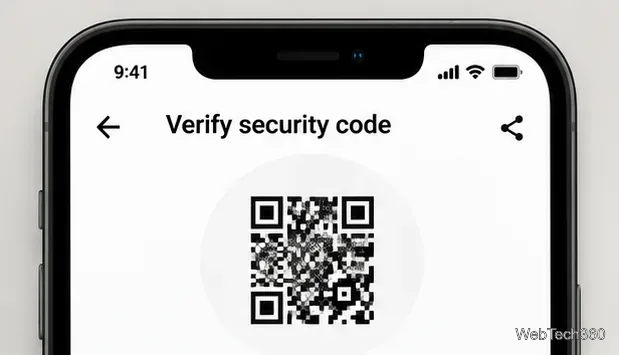
Each one-on-one encrypted chat has a code you can view as a QR code or a 60-digit number. You and the other person can compare it to help confirm that your messages and calls are end-to-end encrypted. It is a visible representation used for verification, not the secret encryption key itself. WhatsApp explains this in its WhatsApp’s guide to security code changes.
This code is not the six-digit registration code WhatsApp sends when you sign in, your two-step verification PIN, or the key/password for an encrypted chat backup. Changing one of those credentials does not give you manual control over a chat’s security code.
WhatsApp may generate a different code after changes to the devices associated with either person in a conversation, including:
These are possible triggers, not a supported “reset security code” procedure. Your contacts will not necessarily all receive an alert: security notifications depend on their settings and devices. A changed code by itself does not prove that an account has been compromised.
The useful action is usually to verify the new code, rather than trying to force another change. The flow is similar on Android and iPhone, although labels and screen layouts can vary with the WhatsApp version.
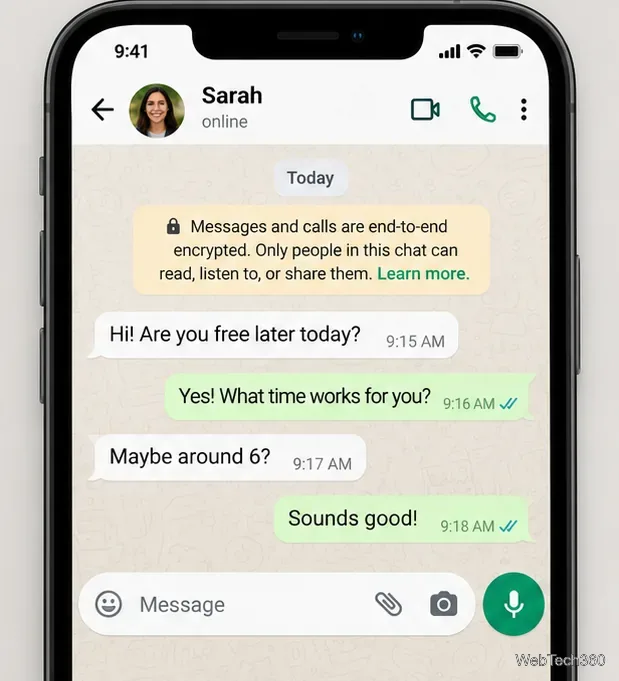
Open WhatsApp and select the conversation with the person you want to verify. Tap the contact’s name at the top to open their information screen. Security codes are associated with individual encrypted conversations, not a single universal number in your profile.
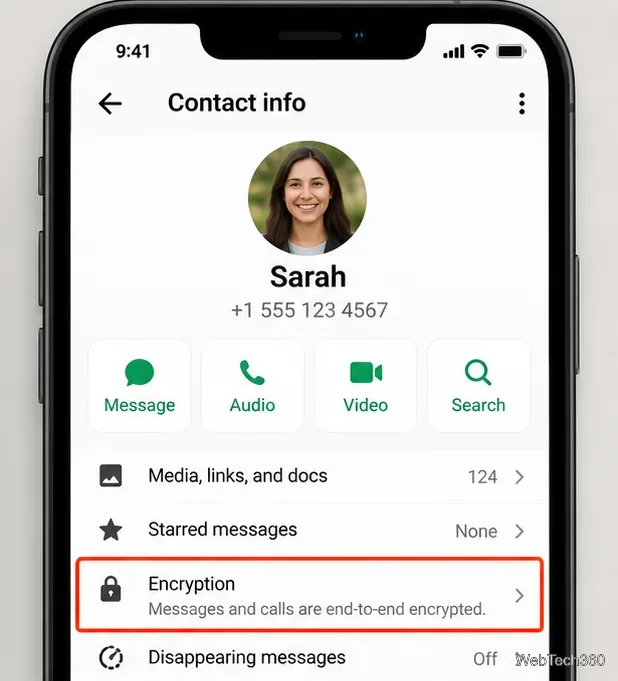
On the contact information page, choose Encryption. Depending on your version, WhatsApp may check the conversation automatically or show an option to verify manually.
If you are together, use the live QR-code verification option on your phones. If you are apart, compare the complete 60-digit numbers through another trusted communication channel. Do not use the example QR image below for verification; use the code displayed inside your actual chat. You can follow WhatsApp’s end-to-end encryption guide for further verification details.
Confirm that you are both looking at the correct contact and account. If someone recently switched devices, reinstalled the app, or changed linked devices, open the current chat again and recheck. If the mismatch remains unexplained, confirm your contact’s identity through a channel you already trust before sending sensitive information.
Generally, no. Reinstalling or temporarily registering your account on a second phone is disruptive and may put your chat history at risk. Registering WhatsApp as your primary account on another phone signs you out of the previous one. A second phone is not a harmless shortcut to a user-controlled security-code reset.
If you genuinely need to change phones, back up or transfer your chats first and follow WhatsApp’s official phone-transfer guidance. You can review WhatsApp’s encrypted-backup information if you use encrypted backups. Do not switch phone numbers solely to manipulate a security-code notification.
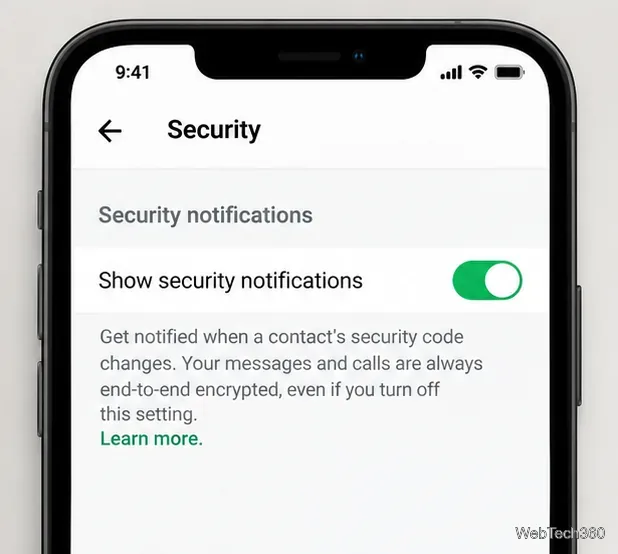
To control alerts, open WhatsApp Settings → Account → Security notifications, then enable or disable Show security notifications. On some versions, the option is labeled for the specific phone or computer. Repeat the setting on any linked device where you want alerts. This affects notifications you receive; it does not turn off encryption, stop security codes from changing, or control notifications that other people choose to receive.
First, ask whether your contact recently changed phones, reinstalled WhatsApp, or adjusted their linked devices. Then verify the code as described above. If you suspect someone has taken over your own account, review linked devices, secure access to your phone number, and follow WhatsApp’s account-recovery instructions. Never share a WhatsApp registration code or two-step verification PIN with anyone who asks for it.
Bottom line: You cannot directly change a WhatsApp chat’s security code. Let WhatsApp handle changes automatically, and use its verification screen and optional notifications to check that you are talking to the intended person.
Fix the iMessage Is Signed Out error on iPhone by checking Apple Account sign-in, activation, connectivity, and settings—without erasing your messages.
Turn off your iPhone VPN in the app or Settings, confirm it disconnected, and stop automatic reconnections without deleting your account.
Learn how to encrypt your iPhone with a strong passcode, protect iCloud and computer backups, and secure your data if your phone is lost or stolen.
Learn how to clear Safari and Chrome cache on iPhone, manage app storage safely, and understand when clearing cached data actually helps.
Learn how to fight Gym Battles in Pokémon GO, pick effective attackers, use Charged Attacks and dodges, and claim a Gym after defeating its defenders.
Explore classic Cydia tweaks for jailbroken iPads, from SwipeSelection to Quasar, with compatibility warnings and modern alternatives.
Stop Apple Music signup prompts in the Music app. Learn where to find Show Apple Music on iOS and what turning it off does—and does not—change.
Set up a Shortcuts automation to text Mom when your iPhone battery gets low. Follow four steps, plus delivery checks and privacy tips.
Save posts on X in a few taps. Learn where to find the Bookmark button on iPhone, Android, and desktop, plus how to view, remove, and organize saved tweets.
Turn on AR mode in Pokémon GO during a wild encounter, find AR settings, and fix camera or device compatibility issues.








