Home
» IOS
»
How to Check If an iPhone Is Jailbroken
How to Check If an iPhone Is Jailbroken
The quickest way to check if an iPhone is jailbroken is to search for jailbreak package managers or loader apps such as Sileo, Zebra, Cydia, Dopamine, or a palera1n loader. Finding one is strong evidence that the device has been jailbroken. Not finding one, however, does not prove the iPhone is clean because jailbreak apps can be hidden, removed, or inactive after a reboot.
Apple does not provide a built-in “jailbreak status” switch. The safest approach is to combine several checks. If you are buying a used iPhone or you suspect the software was tampered with, a computer-based restore is the most reliable way to return the phone to a standard Apple software installation.
1. Search the iPhone for jailbreak apps
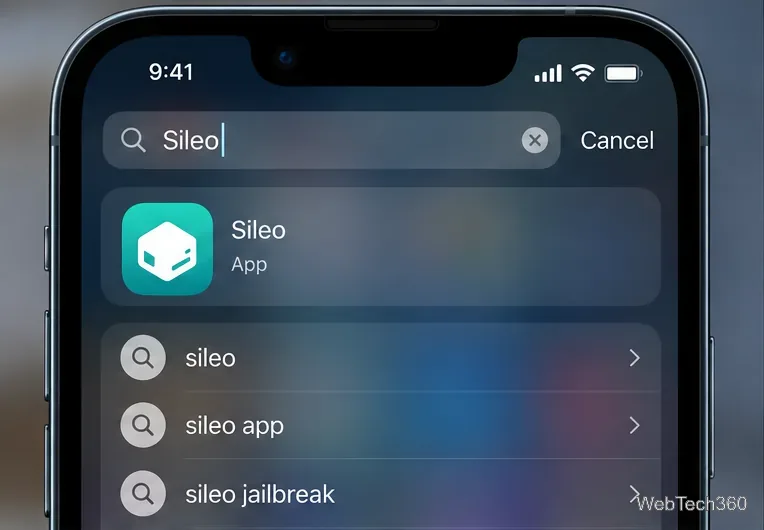
Swipe down on the Home Screen to open Search, then look for common jailbreak tools and package managers. Useful names to check include Sileo, Zebra, Cydia, Installer, Dopamine, and palera1n. Sileo describes itself as an APT package manager for jailbroken iOS devices, while Zebra is also designed for jailbroken iOS devices.
Searching for Sileo is a useful first check, but no search result does not guarantee the iPhone was never jailbroken.
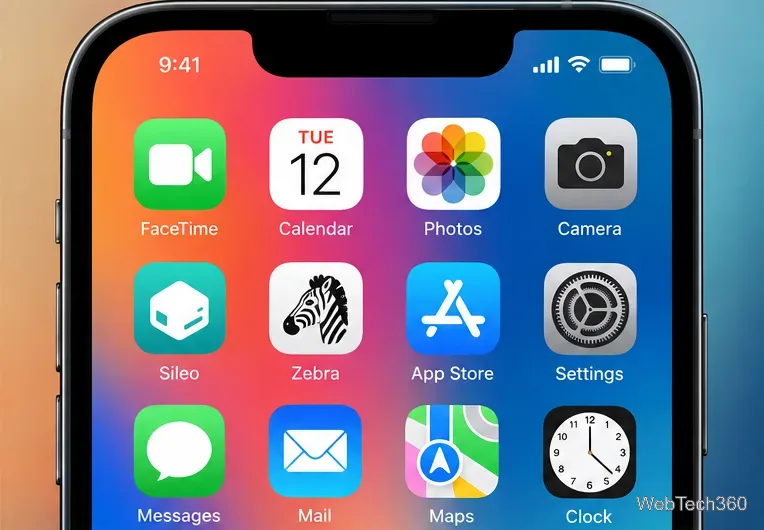
If one of these apps appears and opens normally, treat the phone as jailbroken or previously jailbroken. Do not rely only on Cydia: modern jailbreak setups often use different package managers.
Modern jailbreaks may use package managers such as Sileo or Zebra instead of Cydia.
2. Look for modifications that stock iOS cannot normally make
A jailbroken iPhone may have system-wide changes that cannot be enabled through normal iOS settings. Examples can include third-party system tweaks, unusual package-management apps, or services installed outside Apple’s normal app model. Be careful with appearance alone, though: current iOS releases allow much more Home Screen, Lock Screen, and Control Center customization than older versions did.
Crashes, overheating, fast battery drain, broken Apple services, or unreliable networking are also not proof. Apple lists instability, security vulnerabilities, shorter battery life, service disruption, and update problems as possible consequences of unauthorized iOS modification, but all of those symptoms can have other causes. Apple’s current guidance is in Unauthorized modification of iOS.
3. Check Software Update, but do not use it as the verdict
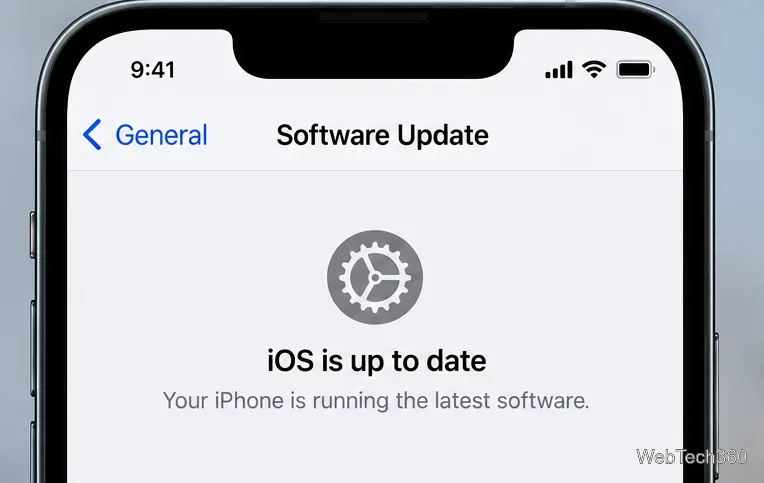
Open Settings > General > Software Update. Apple warns that some unauthorized modifications can interfere with future iOS updates. An update that repeatedly fails can therefore be a clue, especially when combined with other signs.
The Software Update screen can provide supporting context, but it is not a jailbreak detector.
A normal Software Update screen does not prove the phone is untouched. Some jailbreaks become inactive after a restart, and a previously jailbroken device may still appear to work normally.
4. For a used or suspicious iPhone, restore iOS with a computer
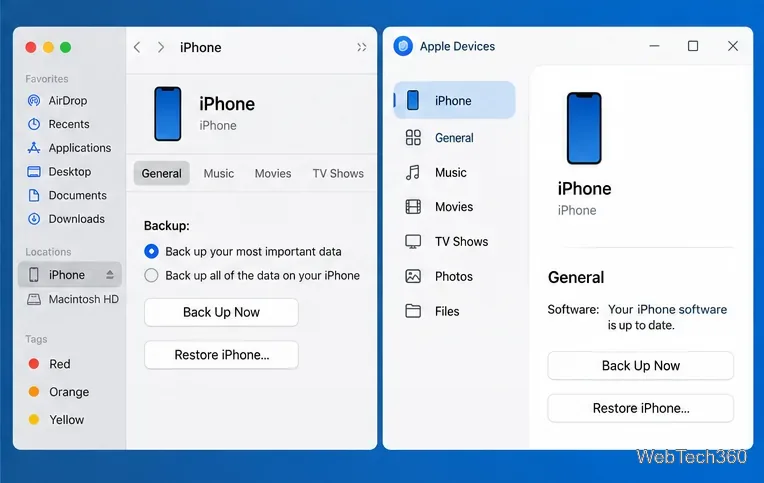
If you need confidence rather than clues, back up any data you legitimately need, then restore the iPhone using a Mac or Windows PC. Apple’s current instructions use Finder on a Mac or the Apple Devices app on Windows. A computer restore erases the device and installs the latest compatible Apple software.
Make sure you know the Apple Account credentials associated with the phone and turn off Find My if required.
Connect the iPhone to the computer with a cable.
Open Finder on Mac or Apple Devices on Windows and select the iPhone.
Choose Restore iPhone and follow the prompts.
If the concern is tampering or malicious software, set the iPhone up as new rather than immediately restoring an old backup.
Finder and Apple Devices provide Apple’s computer-based Restore iPhone option.
Apple documents the full process in Restore your iPhone to factory settings using a computer. Apple’s Personal Safety guide also recommends a factory restore when you are concerned that someone tampered with a device, and advises against restoring from a backup when malicious software is suspected.
What not to rely on
Cydia alone: its absence does not rule out a modern jailbreak.
One third-party “jailbreak detector”: detection methods can miss hidden or inactive jailbreak components.
Battery drain or crashes: these are common iPhone troubleshooting symptoms with many possible causes.
A successful reboot or software update: neither one proves the iPhone was never jailbroken.
If you only need a quick check, search for jailbreak apps and inspect the phone for obvious system modifications. If you are about to trust a second-hand iPhone with personal accounts, payment cards, work data, or passwords, a clean computer restore is the safer endpoint than trying to prove a negative from visual clues alone.