iMessage Is Signed Out on iPhone: How to Fix It

Fix the iMessage Is Signed Out error on iPhone by checking Apple Account sign-in, activation, connectivity, and settings—without erasing your messages.
You can check your Apple Pencil battery percentage on the iPad it is paired with. The quickest options are the Batteries widget on the Home Screen, Today View, or Lock Screen; you can also open Settings > Apple Pencil. The Pencil itself has no screen or battery-light indicator, so the iPad provides the charge reading.
For any of these methods to show the Pencil, the iPad must recognize it as a connected accessory. If you have not paired it yet, use the correct connector for your Pencil model and keep Bluetooth turned on. Apple’s iPad battery guide and Apple Pencil pairing guide list the current options.
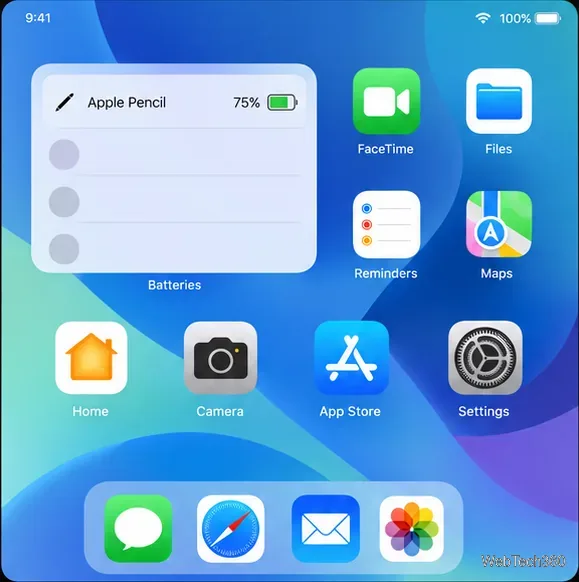
The widget gives you a quick reading without opening Settings. Add it once, then check it whenever you want:
When your Apple Pencil is paired and recognized, its charge appears in the widget with its name and a battery icon. A larger style can show more connected accessories at once. The displayed percentage in the image is an example; your Pencil’s level will be different.
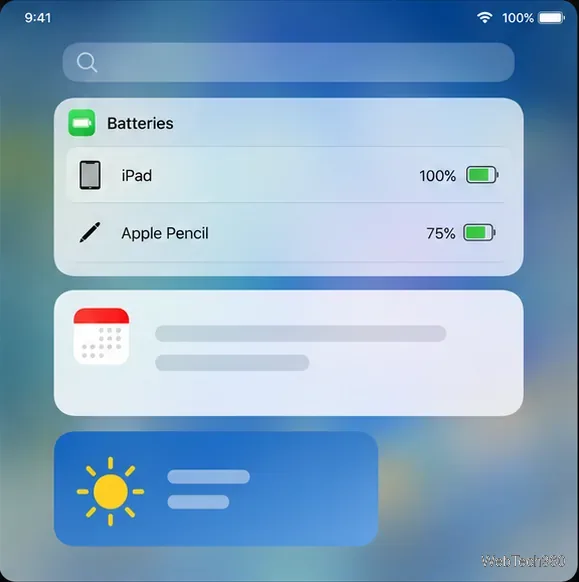
Today View is useful if you want the battery list in a separate panel instead of among your apps. From the Home Screen, swipe right from the left edge of the display to open Today View, then scroll to the Batteries widget. If it is not there, touch and hold an empty space in Today View, tap Edit or Add Widget (the label varies by iPadOS version), and add Batteries. Tap Done to save.
Once it is in Today View, look for the Apple Pencil row and its percentage. Apple documents Today View as a place to view widgets on iPad.
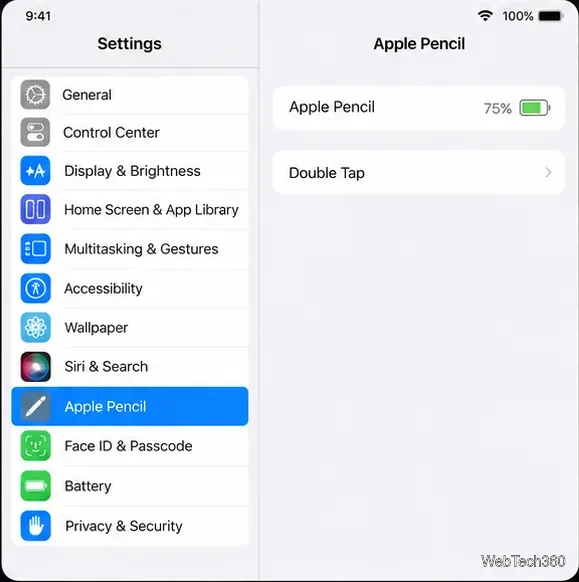
For a direct check, open the Settings app and tap Apple Pencil in the sidebar. The battery level appears near the top of the Apple Pencil settings screen when the stylus is connected. This route works without adding a widget and is listed by Apple for supported Apple Pencil models.
If you do not see an Apple Pencil section or a charge level, confirm Bluetooth is on in Settings > Bluetooth. Then connect or attach the Pencil using the method for its model. If the iPad does not recognize it, the settings page cannot report a current level.
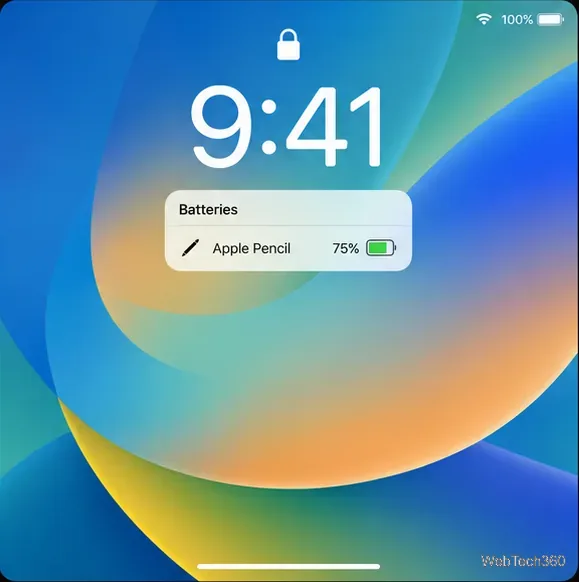
On iPadOS 17 or later, you can put a Batteries widget on the Lock Screen for a glanceable reading. Wake the iPad, touch and hold the Lock Screen, tap Customize, and choose the widget area. Tap Add Widgets, select Batteries, choose a layout, then tap Done. If you are creating a new Lock Screen, add the widget during setup.
Wake the iPad to view the widget. Depending on the layout and available space, it may show the Apple Pencil row alongside the iPad’s own charge. If you cannot fit a useful battery display there, use the Home Screen or Today View widget instead. Apple’s iPad widget instructions explain the Home Screen and Today View, and its Lock Screen guide covers adding widgets.
Apple Pencil models do not all charge the same way. In particular, a Pencil that sticks to the side of an iPad is not always charging there:
| Apple Pencil model | How to connect or charge it |
|---|---|
| Apple Pencil Pro or 2nd generation | Attach it to the magnetic connector on the long side of a compatible iPad. Bluetooth must be on for pairing. |
| Apple Pencil (USB-C) | Slide open the end and connect a USB-C cable to the iPad or a power adapter. Magnetic attachment is for storage. |
| Apple Pencil (1st generation) | Remove the cap and connect it to a compatible Lightning iPad. With iPad (10th generation) or iPad (A16), use the USB-C to Apple Pencil Adapter and a USB-C cable. |
See Apple’s official instructions for Apple Pencil Pro, Apple Pencil (2nd generation), Apple Pencil (USB-C), and Apple Pencil (1st generation).
Fix the iMessage Is Signed Out error on iPhone by checking Apple Account sign-in, activation, connectivity, and settings—without erasing your messages.
Turn off your iPhone VPN in the app or Settings, confirm it disconnected, and stop automatic reconnections without deleting your account.
Learn how to encrypt your iPhone with a strong passcode, protect iCloud and computer backups, and secure your data if your phone is lost or stolen.
Learn how to clear Safari and Chrome cache on iPhone, manage app storage safely, and understand when clearing cached data actually helps.
Learn how to fight Gym Battles in Pokémon GO, pick effective attackers, use Charged Attacks and dodges, and claim a Gym after defeating its defenders.
Explore classic Cydia tweaks for jailbroken iPads, from SwipeSelection to Quasar, with compatibility warnings and modern alternatives.
Stop Apple Music signup prompts in the Music app. Learn where to find Show Apple Music on iOS and what turning it off does—and does not—change.
Set up a Shortcuts automation to text Mom when your iPhone battery gets low. Follow four steps, plus delivery checks and privacy tips.
Save posts on X in a few taps. Learn where to find the Bookmark button on iPhone, Android, and desktop, plus how to view, remove, and organize saved tweets.
Turn on AR mode in Pokémon GO during a wild encounter, find AR settings, and fix camera or device compatibility issues.








