iMessage Is Signed Out on iPhone: How to Fix It

Fix the iMessage Is Signed Out error on iPhone by checking Apple Account sign-in, activation, connectivity, and settings—without erasing your messages.
To connect AirPods Pro, place both earbuds in the open case, put the case in pairing mode, and select the AirPods on your device. On iPhone or iPad, an onscreen setup card is usually the quickest route. Mac, Apple Watch, Apple TV, Android, and other Bluetooth devices have their own menus. The case gesture depends on the AirPods Pro generation, so check that before you start.
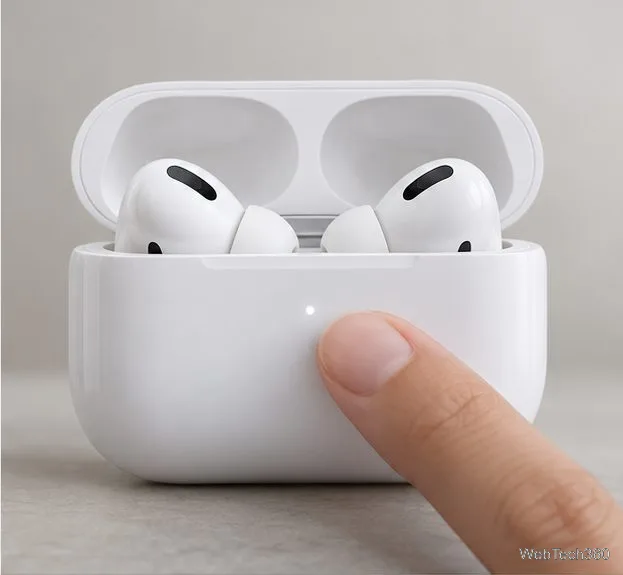
Charge the case, place both earbuds inside, and open the lid. For AirPods Pro 1 or AirPods Pro 2, press and hold the setup button on the back of the case for about five seconds, or until the status light flashes white. For AirPods Pro 3, double-tap the front of the open case until the light flashes white. A flashing white light means the AirPods are discoverable and ready to select. Apple documents the model-specific gestures in its AirPods pairing guide.
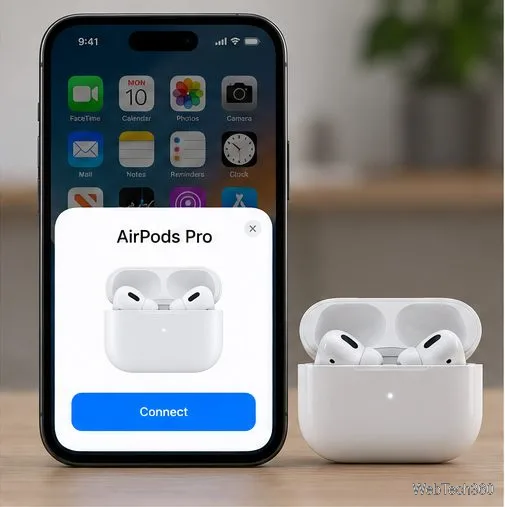
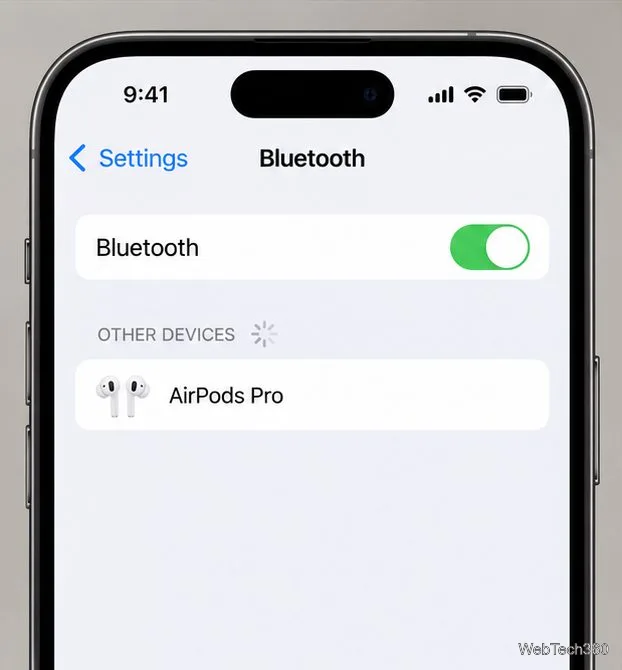
If the setup card does not appear, leave the lid open and put the case into pairing mode using the gesture for your model. On the iPhone or iPad, go to Settings > Bluetooth, then tap AirPods Pro when they appear. This manual route also works when you need to pair with a different Apple device. See Apple’s iPhone and iPad connection instructions for the current setup flow.
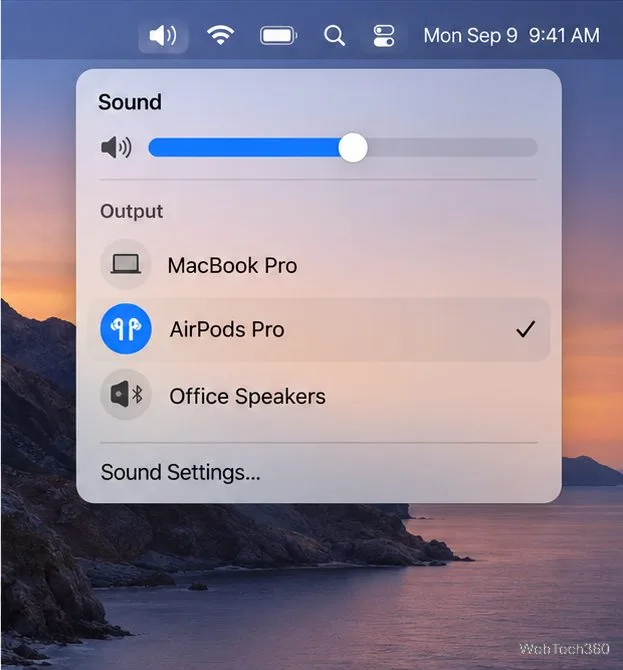
If you already paired AirPods Pro with an iPhone signed in to your Apple Account, they may be available on a Mac signed in to that same account. Put the earbuds in your ears, open Control Center > Sound, and select AirPods Pro.
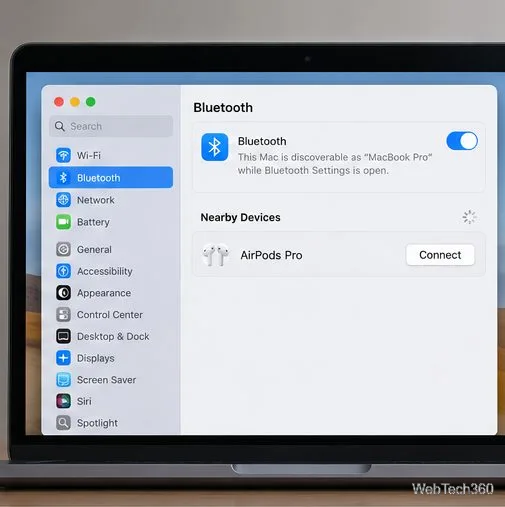
To pair manually, open the Apple menu, choose System Settings > Bluetooth, and make sure Bluetooth is on. Put the AirPods into pairing mode, then click Connect beside AirPods Pro under Nearby Devices. If they connect but audio still comes from the Mac, return to Control Center > Sound and choose AirPods Pro as the output.
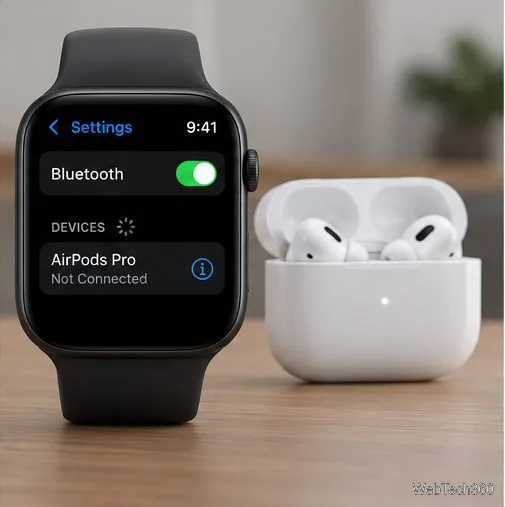
On the watch, open Settings > Bluetooth. Put the AirPods in pairing mode and tap AirPods Pro when they appear in the Bluetooth list. If the earbuds were already set up with your iPhone and the watch uses the same Apple Account, they may already be available without a new pairing. Apple recommends keeping the watchOS software current for full compatibility.
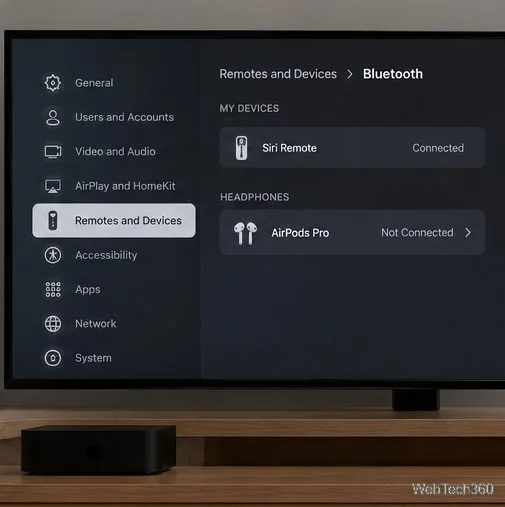
On Apple TV HD or Apple TV 4K, open Settings > Remotes and Devices > Bluetooth. Put AirPods Pro in pairing mode, then select them under Headphones. If you do not see them, keep the case open nearby and wait for the white status light before checking the list again. This current Settings route replaces older instructions that use the remote’s Play button.
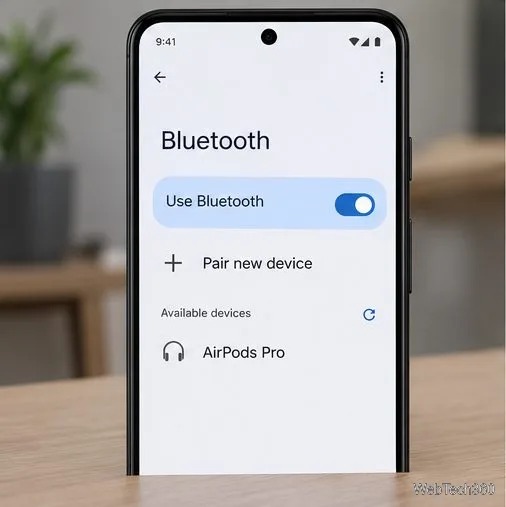
Other Bluetooth computers, TVs, and audio players follow the same general pattern: open Bluetooth settings, make the AirPods discoverable, then choose them from the device list. Apple says AirPods work as a Bluetooth headset on non-Apple devices, so you can listen and talk, but Siri is unavailable. Some AirPods features and automatic switching rely on Apple devices and the same Apple Account. See Google’s Android pairing steps and Apple’s Mac and non-Apple setup guide.
Fix the iMessage Is Signed Out error on iPhone by checking Apple Account sign-in, activation, connectivity, and settings—without erasing your messages.
Turn off your iPhone VPN in the app or Settings, confirm it disconnected, and stop automatic reconnections without deleting your account.
Learn how to encrypt your iPhone with a strong passcode, protect iCloud and computer backups, and secure your data if your phone is lost or stolen.
Learn how to clear Safari and Chrome cache on iPhone, manage app storage safely, and understand when clearing cached data actually helps.
Learn how to fight Gym Battles in Pokémon GO, pick effective attackers, use Charged Attacks and dodges, and claim a Gym after defeating its defenders.
Explore classic Cydia tweaks for jailbroken iPads, from SwipeSelection to Quasar, with compatibility warnings and modern alternatives.
Stop Apple Music signup prompts in the Music app. Learn where to find Show Apple Music on iOS and what turning it off does—and does not—change.
Set up a Shortcuts automation to text Mom when your iPhone battery gets low. Follow four steps, plus delivery checks and privacy tips.
Save posts on X in a few taps. Learn where to find the Bookmark button on iPhone, Android, and desktop, plus how to view, remove, and organize saved tweets.
Turn on AR mode in Pokémon GO during a wild encounter, find AR settings, and fix camera or device compatibility issues.








