iMessage Is Signed Out on iPhone: How to Fix It

Fix the iMessage Is Signed Out error on iPhone by checking Apple Account sign-in, activation, connectivity, and settings—without erasing your messages.
AirPods that you have already set up with your iPhone are ready to use with your Apple Watch. To send watch audio to them, press the watch’s side button to open Control Center, tap the AirPlay button, and select your AirPods. If they do not appear, pair them manually from Settings > Bluetooth. The exact pairing gesture depends on your AirPods model.
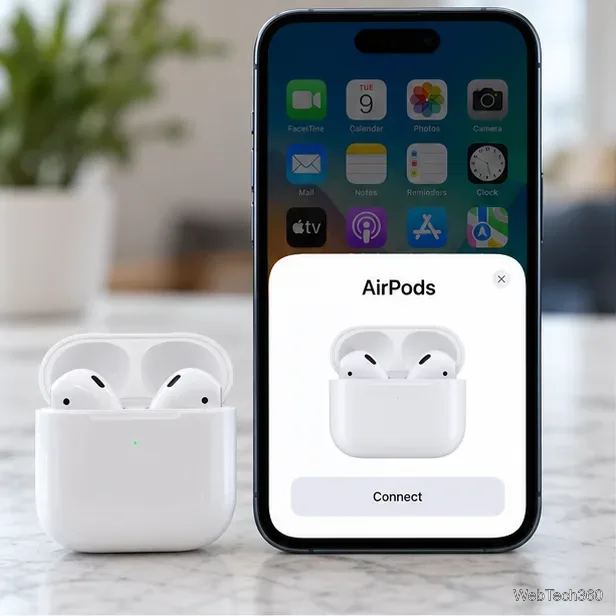
Apple says AirPods set up with an iPhone are connected to both the iPhone and Apple Watch, so you usually do not need to pair them again. For automatic switching among Apple devices, keep them signed in to the same Apple Account. The watch can still show your AirPods as an audio destination even when you want to choose them yourself.
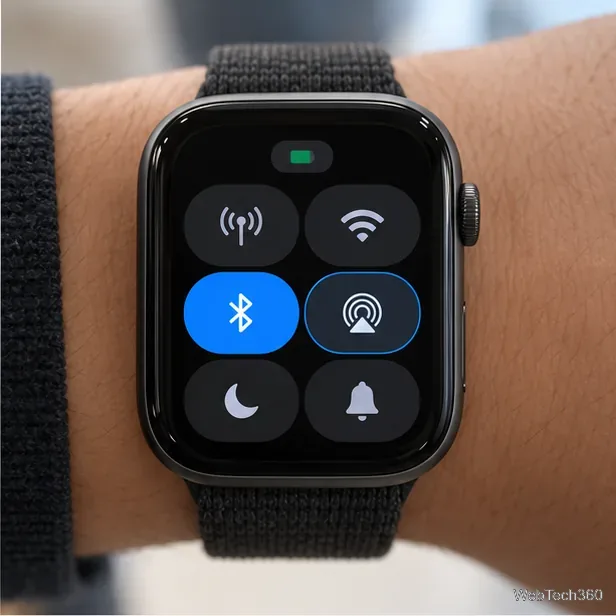
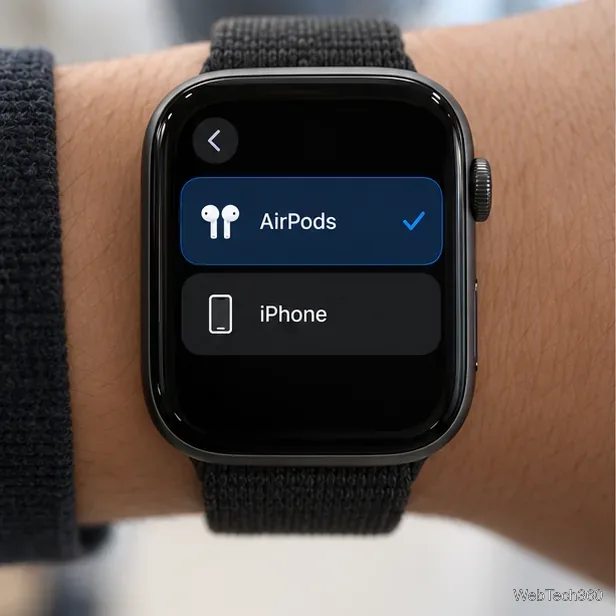
You can also open the AirPlay setting from the playback screen in Music, Podcasts, Audiobooks, or Now Playing. If the iPhone is the current audio destination, choosing AirPods from the watch’s list routes that playback to the earbuds. Automatic switching is convenient, but selecting the destination is the direct fix when another Apple device keeps the audio.
Apple’s current instructions are in Choose an audio destination on Apple Watch and Switch AirPods between Apple devices.
Use manual pairing if your AirPods are not listed, you set them up with a different device, or you want to add them as a Bluetooth accessory. Keep the watch and AirPods near each other and make sure both have charge.
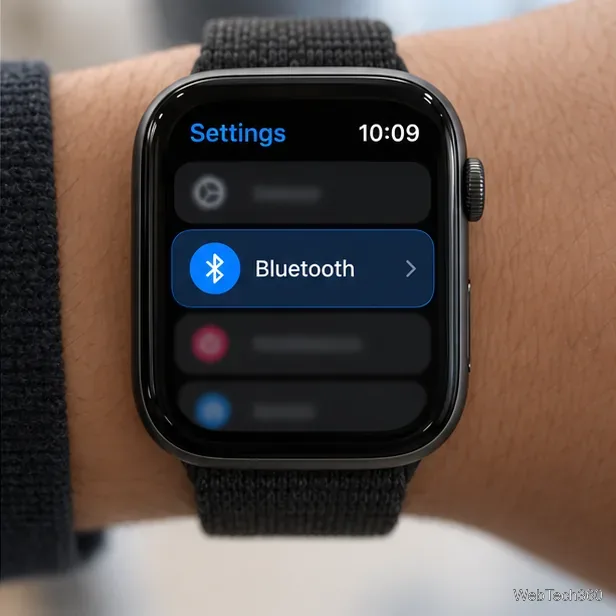
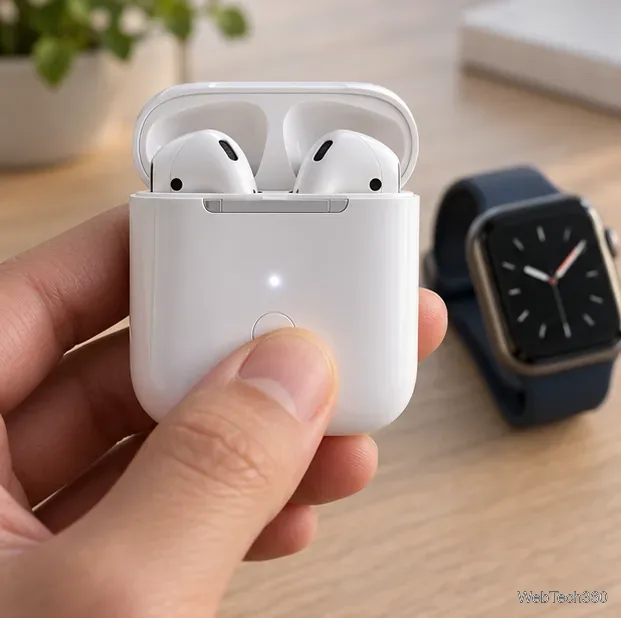
Next, put the AirPods into pairing mode. Keep the earbuds in their case for the case-based models, and use the gesture that matches your model:
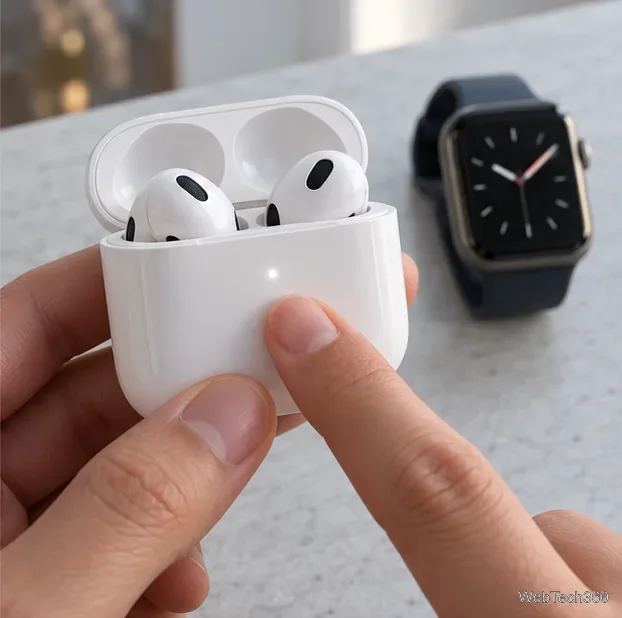

When your AirPods appear in the Bluetooth list on Apple Watch, tap their name. The watch should connect; if prompted for a passcode, follow the accessory’s instructions. Apple’s guide has the current AirPods pairing gestures and Apple Watch Bluetooth pairing steps.
Connecting the earbuds only chooses an audio output; it does not put music on the watch. Before a phone-free walk or workout, make sure the audio itself is available: play music or a playlist stored on Apple Watch, or use a streaming service and network connection supported by your watch and plan. Apple explains how to play stored music and stream supported content in its Apple Watch Music guide.
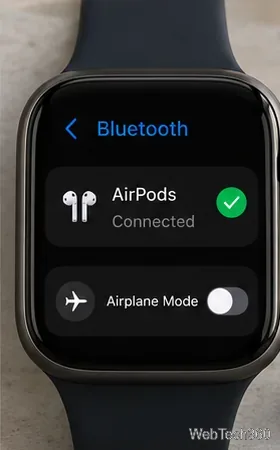
For Apple’s full checklist, see Use AirPods and other Bluetooth accessories with Apple Watch.
Fix the iMessage Is Signed Out error on iPhone by checking Apple Account sign-in, activation, connectivity, and settings—without erasing your messages.
Turn off your iPhone VPN in the app or Settings, confirm it disconnected, and stop automatic reconnections without deleting your account.
Learn how to encrypt your iPhone with a strong passcode, protect iCloud and computer backups, and secure your data if your phone is lost or stolen.
Learn how to clear Safari and Chrome cache on iPhone, manage app storage safely, and understand when clearing cached data actually helps.
Learn how to fight Gym Battles in Pokémon GO, pick effective attackers, use Charged Attacks and dodges, and claim a Gym after defeating its defenders.
Explore classic Cydia tweaks for jailbroken iPads, from SwipeSelection to Quasar, with compatibility warnings and modern alternatives.
Stop Apple Music signup prompts in the Music app. Learn where to find Show Apple Music on iOS and what turning it off does—and does not—change.
Set up a Shortcuts automation to text Mom when your iPhone battery gets low. Follow four steps, plus delivery checks and privacy tips.
Save posts on X in a few taps. Learn where to find the Bookmark button on iPhone, Android, and desktop, plus how to view, remove, and organize saved tweets.
Turn on AR mode in Pokémon GO during a wild encounter, find AR settings, and fix camera or device compatibility issues.








