Home
» IOS
»
How to Customize Modifier Keys for a Keyboard on iPad
How to Customize Modifier Keys for a Keyboard on iPad
You can change what several modifier keys do on an external keyboard connected to your iPad. On current iPadOS versions, the setting is in Settings > General > Keyboard > Hardware Keyboard > Modifier Keys. This is useful if a PC-style keyboard puts important keys in unfamiliar positions, if you want easier access to Escape, or if you simply prefer a different shortcut layout.
Apple documents the same path in the iPad User Guide for external keyboard shortcuts. The menu applies to a physical keyboard that iPadOS recognizes, including compatible Apple keyboards and many Bluetooth keyboards.
How to customize modifier keys on iPad
Connect the keyboard first and confirm that you can type with it. If you use Bluetooth, pair it in Settings > Bluetooth. Apple’s Bluetooth accessory guide for iPad explains the pairing process.
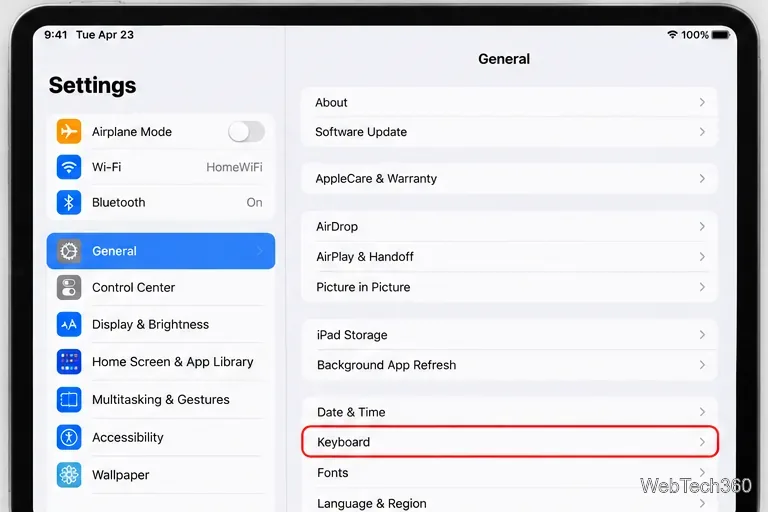
Open Settings and choose General. Scroll to Keyboard and tap it.
Open Settings, select General, and choose Keyboard.
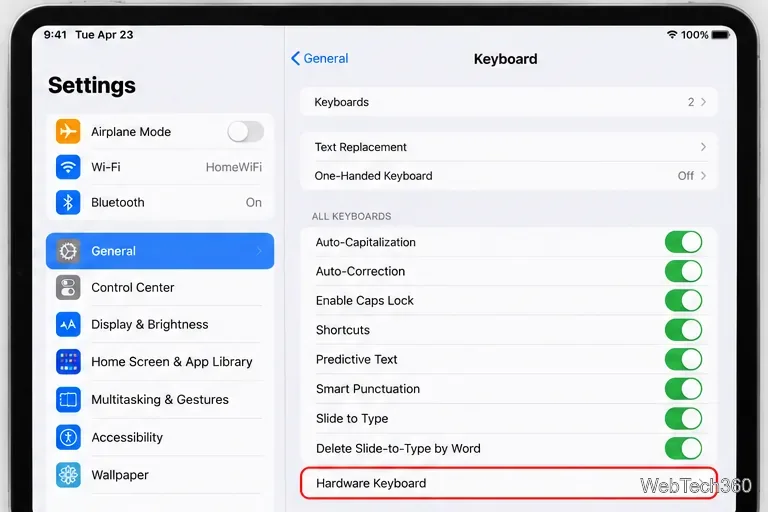
Open Hardware Keyboard. On the Keyboard screen, tap Hardware Keyboard. If that option is not available, make sure the physical keyboard is connected and working, then return to this screen.
Hardware Keyboard contains settings that apply specifically to the connected physical keyboard.
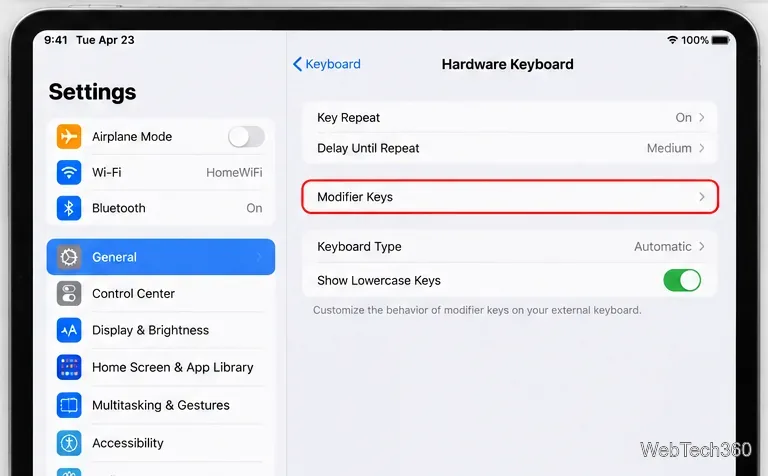
Tap Modifier Keys. iPadOS displays the modifier keys it can customize for the connected keyboard.
Choose Modifier Keys to change how supported modifier keys behave.
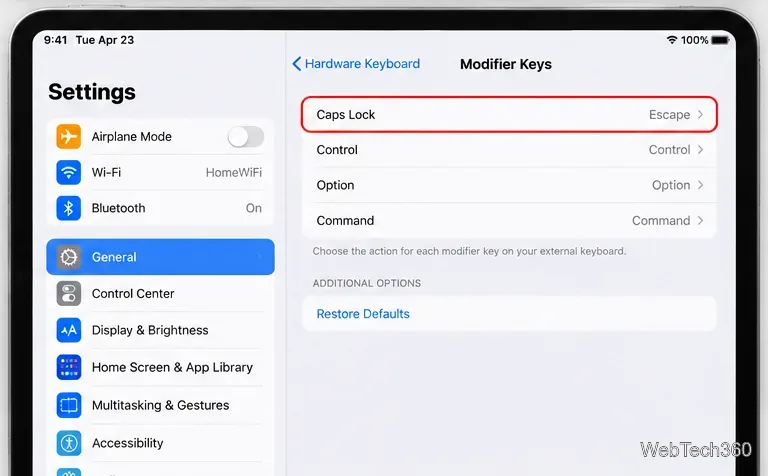
Choose a key, then assign its new action. Tap a modifier such as Caps Lock, Control, Option, or Command, and select the function you want that physical key to perform. Repeat the process for any other modifier keys you want to change.
A modifier key can be reassigned, and Restore Defaults returns the mappings to their original behavior.
Useful remapping ideas
The best layout depends on the keyboard and the apps you use. A few practical examples are worth trying:
Make a PC keyboard feel more Mac-like. If the physical key positions feel awkward, reassign Control, Option, or Command so common iPad shortcuts are easier to reach.
Turn Caps Lock into Escape. This can be convenient in apps where you frequently dismiss menus, dialogs, or modes with Escape.
Preserve Command for iPad shortcuts. Many system and app shortcuts use Command. For example, Apple lists Command-Space for Search and Command-Tab for switching apps.
After remapping, test the shortcuts you use most often. Keyboard behavior can vary by app because each app decides which shortcuts it supports. If you use a shortcut-heavy app, a drastic modifier change may make familiar commands harder to remember.
How to restore the default modifier keys
If the new layout is confusing, you do not have to remember every original assignment. Return to Settings > General > Keyboard > Hardware Keyboard > Modifier Keys, then tap Restore Defaults. Your touchscreen remains available even if the new keyboard mapping makes navigation inconvenient.
Modifier Keys is not a full keyboard remapper
This setting changes the role of supported modifier keys; it does not turn iPadOS into a general-purpose key-remapping utility for every letter, number, or function key. If your goal is to create custom navigation shortcuts across iPadOS, look at Full Keyboard Access instead.
Apple provides Full Keyboard Access under Settings > Accessibility > Keyboards & Typing > Full Keyboard Access. It lets you navigate iPadOS from a physical keyboard and customize commands. See Apple’s Full Keyboard Access guide for the current controls.
If Hardware Keyboard or Modifier Keys is missing
Reconnect the keyboard. For Bluetooth models, confirm that it shows as connected in Settings. For a keyboard that uses the Smart Connector, detach and reconnect it.
Confirm the keyboard can type. Open Notes or another text field and test a few keys before returning to Settings.
Restart the iPad. A restart can clear a temporary accessory or Settings issue.
Update iPadOS. Install the latest compatible version from Settings > General > Software Update if the keyboard or its settings are behaving unexpectedly.
For most users, the built-in Modifier Keys menu is the simplest way to make an external keyboard feel natural on iPad. Change only the keys that improve your workflow, test your common shortcuts, and use Restore Defaults whenever you want to start over.