iMessage Is Signed Out on iPhone: How to Fix It

Fix the iMessage Is Signed Out error on iPhone by checking Apple Account sign-in, activation, connectivity, and settings—without erasing your messages.
To delete an app from an iPad, touch and hold its icon, tap Remove App, choose Delete App, and confirm with Delete. You can also remove an app through iPad Storage or find it with Spotlight first. If your goal is to free space temporarily while keeping the app’s documents and data, choose Offload App instead.
Before removing an app, check for an active subscription. Deleting an app does not cancel its subscription; if you no longer want it, cancel the subscription separately.
These options do different things. Remove from Home Screen hides the icon from the page, but leaves the app installed in the App Library. Choose Delete App to uninstall it from the iPad and remove its related data stored with the app on the device. In Settings, Offload App removes the app itself to free space while keeping its documents and data. If the app remains available in the App Store, reinstalling it can restore that saved data. For a permanent cleanup, delete the app; for a short-term space-saving measure, offload it.
This is usually the quickest option when the app’s icon is visible. You do not need to open the app or visit Settings.
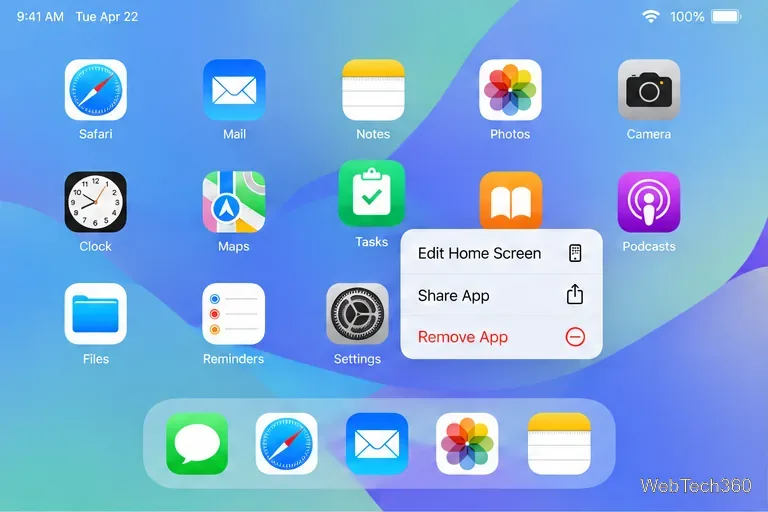
If the icons begin to jiggle instead of showing a shortcut menu, tap the small remove icon on the app, choose Delete App, and confirm. Tap Done when you finish. Deleting the app is a separate confirmation step, which helps prevent an accidental uninstall while rearranging icons.
Use Settings when you want to compare apps by the amount of storage they use before choosing what to remove. The list displays each app and its storage information, so you can focus on large items rather than searching page by page.
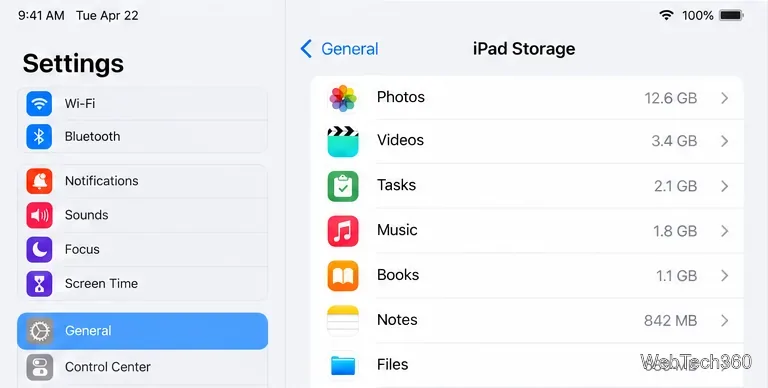
At the app details screen, Delete App removes the app and related device data. Select Offload App to remove the app but retain its documents and data; reinstalling restores them if the app is still available.
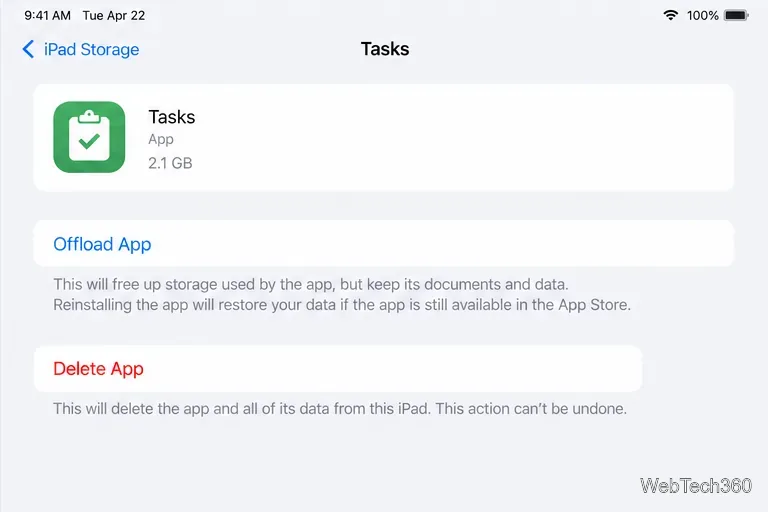
Cached and temporary data may be counted differently, so the space recovered can differ from the listed amount.
Spotlight is useful when you cannot remember which Home Screen page contains an app. Apple also supports deleting an app directly from Spotlight search, so you can skip opening the App Library.
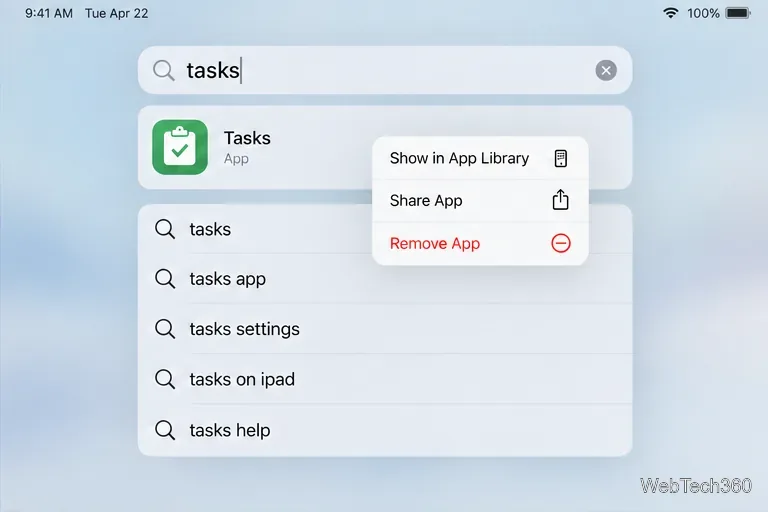
If you tap the result once, the app will open. Touch and hold it to show the removal menu. If the result menu does not offer Delete App, use the Settings method above or check the restrictions described below.
For Apple’s instructions, read Delete apps on your iPhone or iPad or check iPad storage.
Fix the iMessage Is Signed Out error on iPhone by checking Apple Account sign-in, activation, connectivity, and settings—without erasing your messages.
Turn off your iPhone VPN in the app or Settings, confirm it disconnected, and stop automatic reconnections without deleting your account.
Learn how to encrypt your iPhone with a strong passcode, protect iCloud and computer backups, and secure your data if your phone is lost or stolen.
Learn how to clear Safari and Chrome cache on iPhone, manage app storage safely, and understand when clearing cached data actually helps.
Learn how to fight Gym Battles in Pokémon GO, pick effective attackers, use Charged Attacks and dodges, and claim a Gym after defeating its defenders.
Explore classic Cydia tweaks for jailbroken iPads, from SwipeSelection to Quasar, with compatibility warnings and modern alternatives.
Stop Apple Music signup prompts in the Music app. Learn where to find Show Apple Music on iOS and what turning it off does—and does not—change.
Set up a Shortcuts automation to text Mom when your iPhone battery gets low. Follow four steps, plus delivery checks and privacy tips.
Save posts on X in a few taps. Learn where to find the Bookmark button on iPhone, Android, and desktop, plus how to view, remove, and organize saved tweets.
Turn on AR mode in Pokémon GO during a wild encounter, find AR settings, and fix camera or device compatibility issues.








