iMessage Is Signed Out on iPhone: How to Fix It

Fix the iMessage Is Signed Out error on iPhone by checking Apple Account sign-in, activation, connectivity, and settings—without erasing your messages.
If a sticker is covering an iMessage bubble, remove the sticker layer from your iPhone by touching and holding the message bubble, tapping Sticker Details, swiping left on the sticker, and tapping Delete. If you only want to read the covered text, double-tap the bubble instead. These are different actions: deleting removes the overlay on your side; double-tapping reveals the text while leaving the sticker in place. Apple documents both options in its iPhone sticker guide.
Use these steps when a sticker has been placed on top of an existing message bubble. You do not need to delete the whole conversation or the text underneath it.
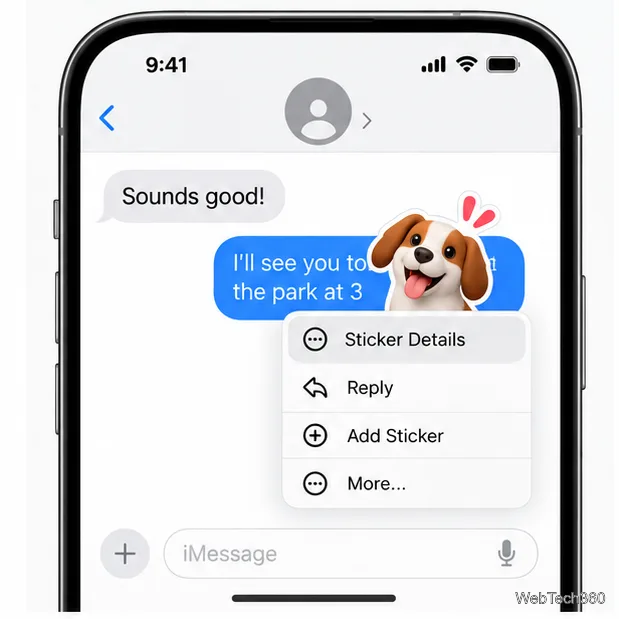
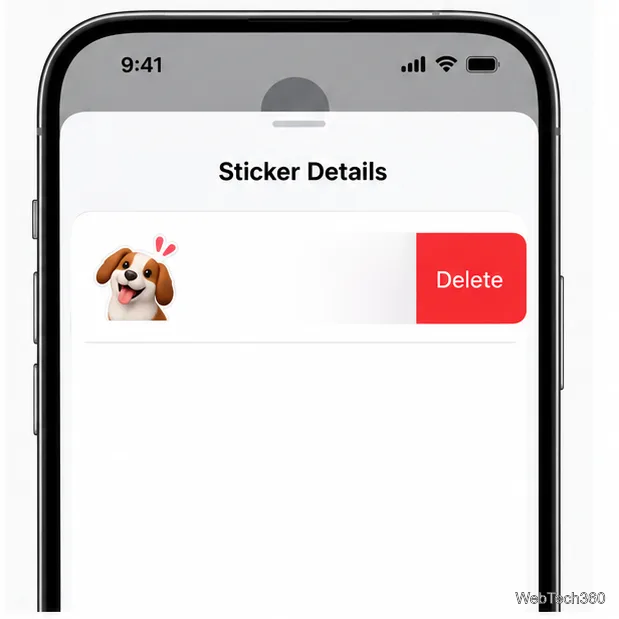
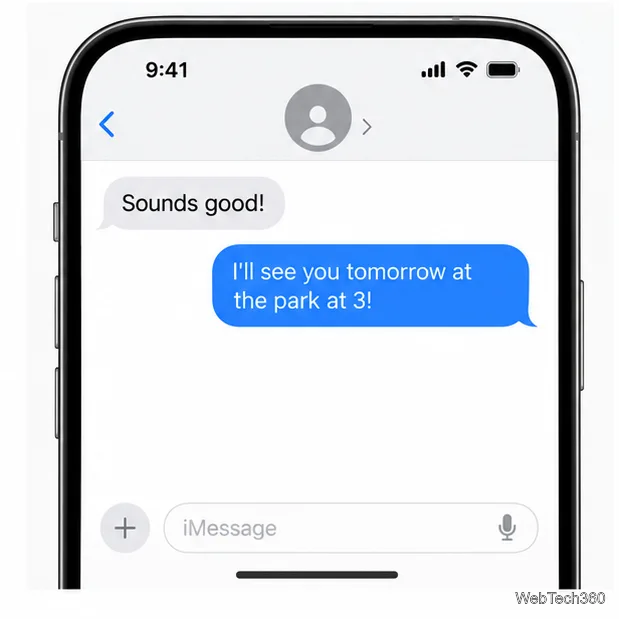
If your immediate goal is to read a sentence, you can skip the deletion steps. Double-tap the message bubble with the sticker on it; Apple says this reveals text that the sticker covers. The sticker remains attached, so use Sticker Details later if you decide to remove it. This is useful when the sticker is part of a conversation you want to leave as sent.
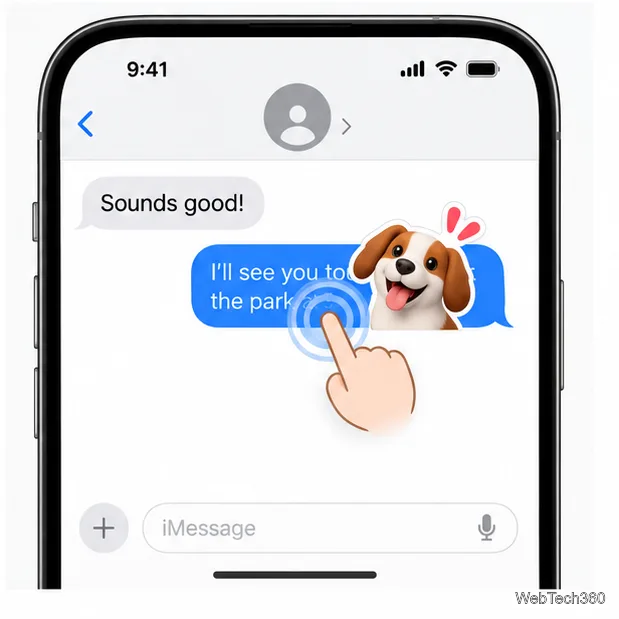
Removing an overlay this way changes the view on your side; it does not erase the sticker from the other person’s conversation. Apple notes that recipients see a sticker when it is placed on a message and describes the removal gesture as applying on your iPhone. If someone else is also bothered by the overlay, they can remove it from their own view. The message text itself is not deleted by Sticker Details.
There is a separate case: a sticker may have been sent as its own message bubble rather than placed on top of an earlier message. In that case, use the normal message controls. Touch and hold the sticker message, tap More, select it, then tap the Delete button. Deleting a message this way removes it from your Apple devices, but not from the recipient’s. If you sent it as an iMessage within the last two minutes, touch and hold it and choose Undo Send to retract it. Apple says both sides need compatible iMessage software; people using older system versions may still see the original. Undo Send is not available for SMS, MMS, or RCS messages. See Apple’s guides to deleting messages and unsending an iMessage.
For an overlay, the short path is press the bubble → Sticker Details → swipe left → Delete. For text you only need to read, double-tap the bubble and leave the sticker untouched.
Fix the iMessage Is Signed Out error on iPhone by checking Apple Account sign-in, activation, connectivity, and settings—without erasing your messages.
Turn off your iPhone VPN in the app or Settings, confirm it disconnected, and stop automatic reconnections without deleting your account.
Learn how to encrypt your iPhone with a strong passcode, protect iCloud and computer backups, and secure your data if your phone is lost or stolen.
Learn how to clear Safari and Chrome cache on iPhone, manage app storage safely, and understand when clearing cached data actually helps.
Learn how to fight Gym Battles in Pokémon GO, pick effective attackers, use Charged Attacks and dodges, and claim a Gym after defeating its defenders.
Explore classic Cydia tweaks for jailbroken iPads, from SwipeSelection to Quasar, with compatibility warnings and modern alternatives.
Stop Apple Music signup prompts in the Music app. Learn where to find Show Apple Music on iOS and what turning it off does—and does not—change.
Set up a Shortcuts automation to text Mom when your iPhone battery gets low. Follow four steps, plus delivery checks and privacy tips.
Save posts on X in a few taps. Learn where to find the Bookmark button on iPhone, Android, and desktop, plus how to view, remove, and organize saved tweets.
Turn on AR mode in Pokémon GO during a wild encounter, find AR settings, and fix camera or device compatibility issues.








