iMessage Is Signed Out on iPhone: How to Fix It

Fix the iMessage Is Signed Out error on iPhone by checking Apple Account sign-in, activation, connectivity, and settings—without erasing your messages.
To stop other people from sharing your Instagram posts to their Stories, open your profile, tap the three-line menu, select Sharing and reuse, and turn off Posts and reels to stories. This blocks future Story reshares through Instagram’s built-in sharing feature without requiring you to make your account private.
Instagram used to call this setting “Resharing to Stories” and place it under older privacy menus. The current label and location are different. Here’s where to find the control and what it actually changes.
Follow these steps in the Instagram app on an iPhone or Android phone. The appearance of menus may vary slightly by app version and account.
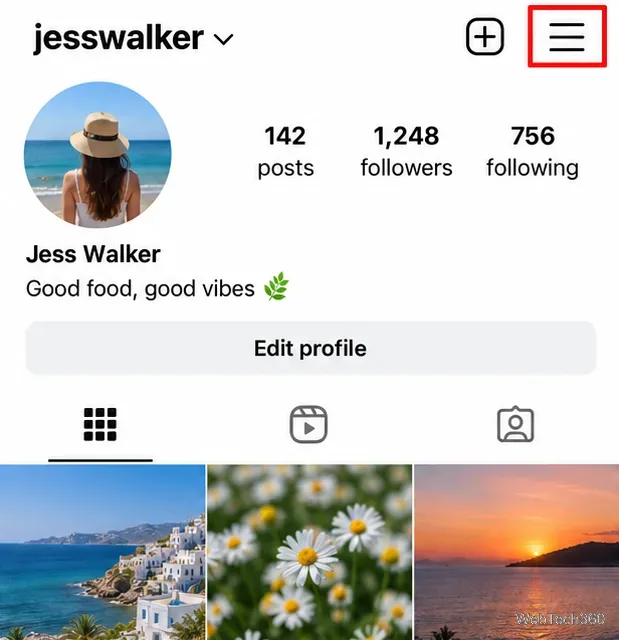
Launch Instagram and tap your profile picture in the bottom-right corner. On your profile, tap the three horizontal lines in the top-right corner to open the settings menu.
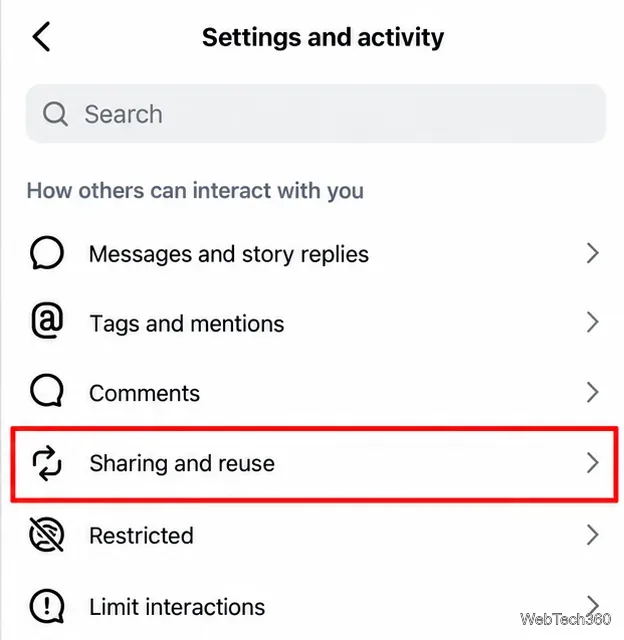
In the settings screen, locate How others can interact with you, then select Sharing and reuse. If your version of Instagram arranges settings differently, look for that exact setting name or use the settings search field when available.
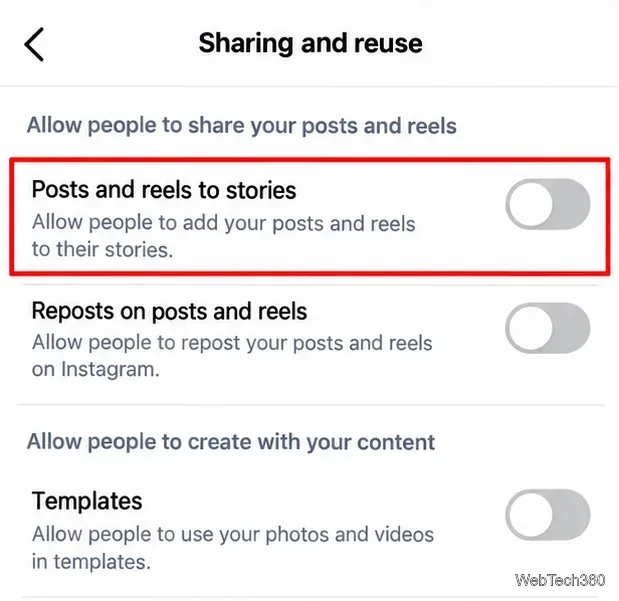
Under the section for sharing your posts and reels, locate Posts and reels to stories. Switch its toggle off (typically gray instead of enabled). You do not need to turn off every other setting on this page to stop Story reshares.
Once disabled, another person should no longer be offered the normal Add to story action for your posts or reels. You can return to the same page at any time and turn the setting back on. If you want to check the result, ask someone using a different account to inspect the sharing options on one of your public posts; the options shown can vary by account and app version.
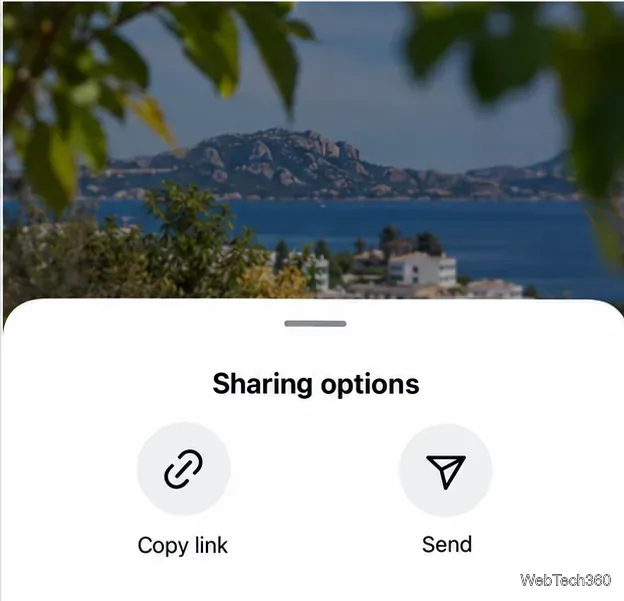
Instagram’s official instructions for stopping post sharing confirm this setting and specify that the change prevents future reshares to Stories.
Turning this switch off removes Instagram’s convenient in-app route for other people to put your feed posts and reels into their Stories. It is not a complete content-copying safeguard.
For the last point, see Instagram’s Help Center explanation of sharing someone’s post to a Story, which says the source account must be public and allow resharing.
The Sharing and reuse page can also include Reposts on posts and reels and settings related to creating with or reusing your content. These are different features. Disable Posts and reels to stories for the specific problem covered here. If you also want to stop Instagram’s native repost feature, review the separate Reposts on posts and reels toggle; turning off only Story sharing is not the same as disabling reposts.
Likewise, a setting about resharing your Stories controls a different type of content. Changing it is not a substitute for disabling the posts-and-reels-to-Stories toggle.
Instagram generally permits a feed post to be reshared to someone else’s Story only when the original account is public and allows resharing. That means posts from a private account do not qualify for the usual Add to story action, even for approved followers. Private status does not prevent someone who can view a post from taking a screenshot or recording their screen.
If you want to restrict who can view your posts in the first place, review Account privacy and consider switching to a private account. This is a broader decision: it changes who can follow and view your account, not merely the Story-sharing button.
First, make sure Instagram is updated through your device’s app store. Then return to your profile menu and look specifically for Sharing and reuse. Older articles mentioning a gear icon, “Options,” or a standalone “Resharing to Stories” menu describe an earlier interface.
If the control still is not visible, menu availability may differ across accounts or app releases. Avoid assuming that an unrelated setting such as Story shares provides the same protection. Check Instagram’s current help page above and try again after an app update.
Bottom line: On a public Instagram account, switching off Posts and reels to stories is the targeted way to prevent new in-app Story reshares of your posts and reels. It improves control over sharing but cannot stop every kind of copying or redistribution.
Fix the iMessage Is Signed Out error on iPhone by checking Apple Account sign-in, activation, connectivity, and settings—without erasing your messages.
Turn off your iPhone VPN in the app or Settings, confirm it disconnected, and stop automatic reconnections without deleting your account.
Learn how to encrypt your iPhone with a strong passcode, protect iCloud and computer backups, and secure your data if your phone is lost or stolen.
Learn how to clear Safari and Chrome cache on iPhone, manage app storage safely, and understand when clearing cached data actually helps.
Learn how to fight Gym Battles in Pokémon GO, pick effective attackers, use Charged Attacks and dodges, and claim a Gym after defeating its defenders.
Explore classic Cydia tweaks for jailbroken iPads, from SwipeSelection to Quasar, with compatibility warnings and modern alternatives.
Stop Apple Music signup prompts in the Music app. Learn where to find Show Apple Music on iOS and what turning it off does—and does not—change.
Set up a Shortcuts automation to text Mom when your iPhone battery gets low. Follow four steps, plus delivery checks and privacy tips.
Save posts on X in a few taps. Learn where to find the Bookmark button on iPhone, Android, and desktop, plus how to view, remove, and organize saved tweets.
Turn on AR mode in Pokémon GO during a wild encounter, find AR settings, and fix camera or device compatibility issues.








