iMessage Is Signed Out on iPhone: How to Fix It

Fix the iMessage Is Signed Out error on iPhone by checking Apple Account sign-in, activation, connectivity, and settings—without erasing your messages.
To enable cookies on an iPhone, open Settings, choose Apps > Safari > Advanced, and turn off Block All Cookies. In Chrome for iPhone, cookies are enabled by default, so you generally do not need to switch them on. Firefox also manages cookies through its tracking-protection features rather than a single global “enable cookies” switch.
Cookies are small pieces of website data that can keep you signed in, remember preferences, and support shopping carts. Blocking them can stop some sites from working, but allowing cookies does not mean you must allow every form of cross-site tracking. Use the steps below to get a site working while keeping privacy protections where possible.
Open the iPhone’s Settings app. On current iOS versions, tap Apps, then find and tap Safari. Depending on your iOS version, Safari may appear directly in the main Settings list.
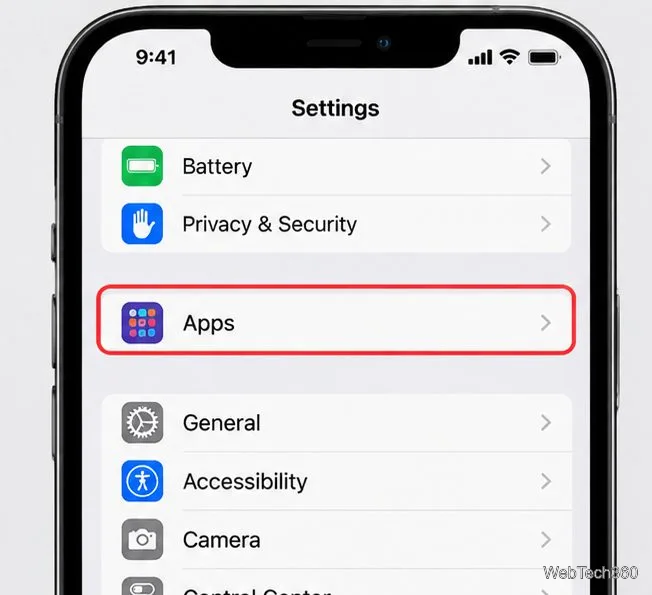
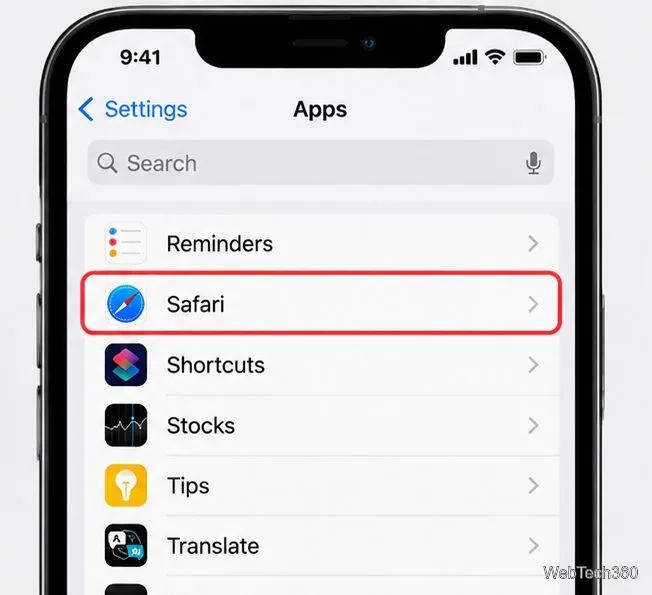
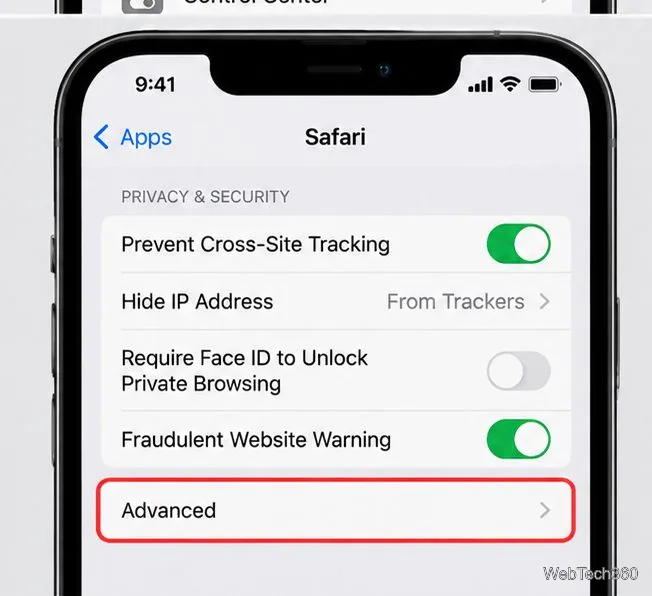
Scroll to the bottom of Safari settings and tap Advanced. Find Block All Cookies. If the switch is on, turn it off. When this option is off, Safari can store the cookies websites need for sign-ins, preferences, and other features.
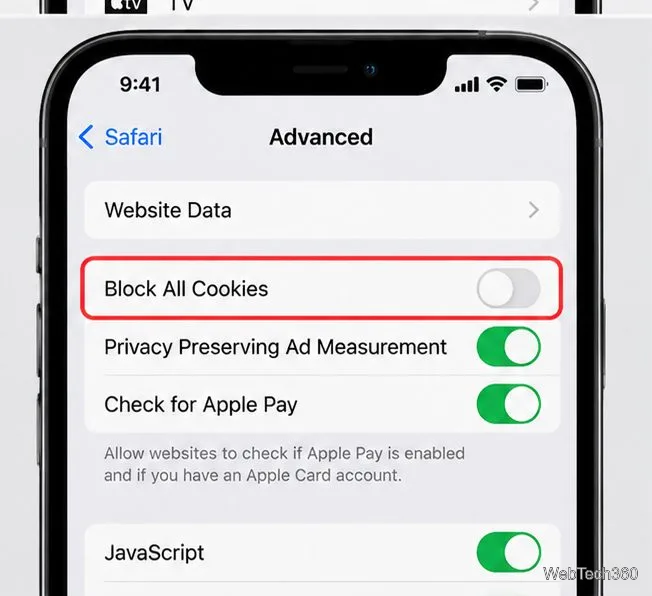
Apple explains this setting in its official guide to enabling cookies on iPhone. If the switch is unavailable or controlled by a restriction, check Screen Time or any device-management profile set by a school or employer.
Enabling cookies does not require turning off Prevent Cross-Site Tracking. Safari limits third-party cookies and cross-site tracking by default. Keep that protection enabled unless a particular site’s feature genuinely requires a change; turning it off allows more cross-site tracking. See Apple’s Safari privacy and security guidance for details.
Google says cookies are automatically enabled in Chrome on iPhone and iPad. There is no general cookie-enable switch to turn on. If a site says cookies are disabled, try closing and reopening Chrome, opening a new tab, or signing in again. You can also check More (…) > Settings > Privacy and Security for options that manage third-party cookies and browsing data; the available controls can vary by app version.
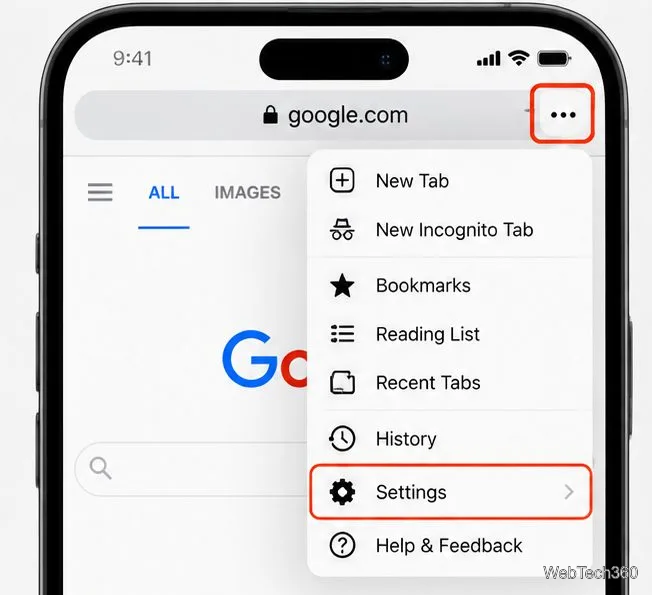
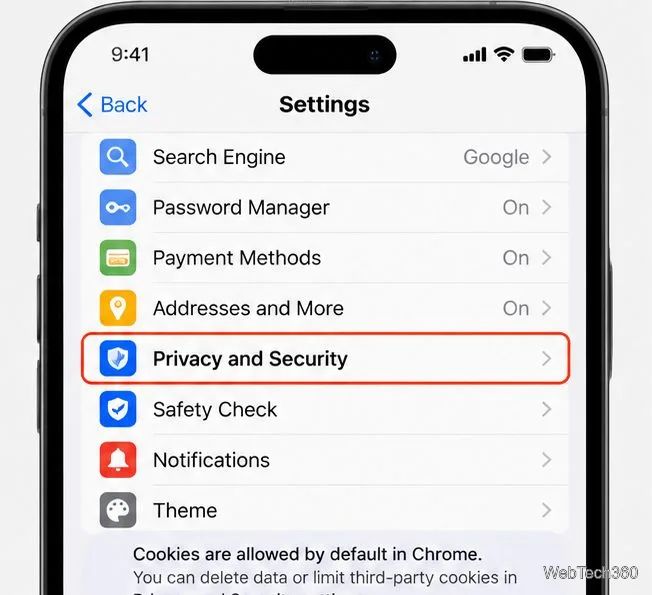
Be careful not to confuse deleting cookies with enabling them. In Chrome, Delete Browsing Data removes stored cookies and site data, which can sign you out and reset site preferences. Google’s official Chrome instructions explain how to clear that data.
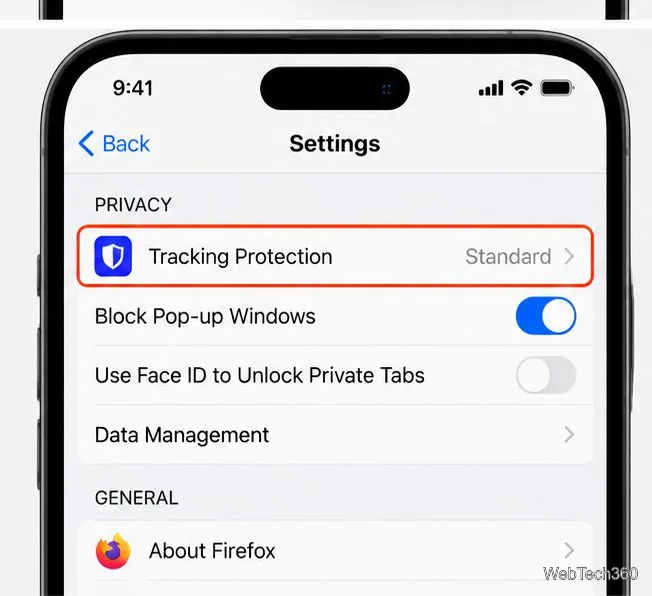
Firefox for iOS focuses on controlling trackers through Enhanced Tracking Protection. To review it, open Firefox, tap the menu button, choose Settings, then Tracking Protection. Standard protection blocks many known trackers while aiming to preserve site functionality; Strict protection blocks more tracking content and may cause some pages or embedded features to fail.
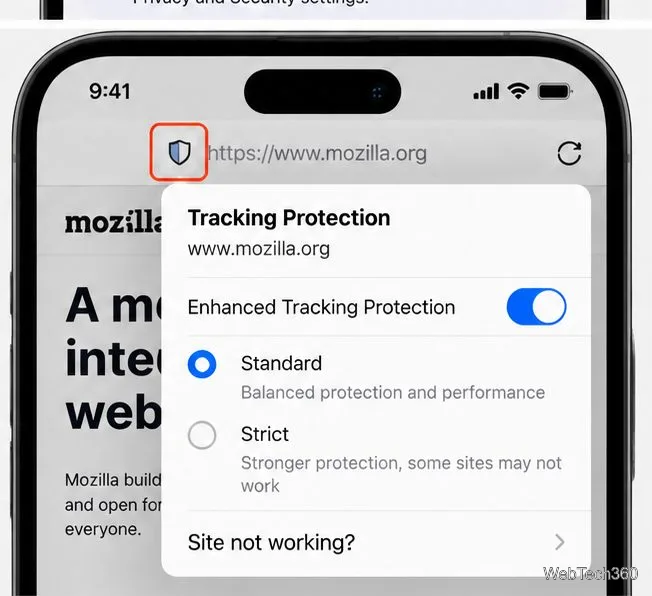
If one website is not working, open it and tap the shield icon near the address bar. Review the site’s Enhanced Tracking Protection control and, if necessary, temporarily disable protection for that site only. Re-enable it afterward if the site works. Firefox’s official iOS tracking-protection guide covers these controls. Firefox’s menus can change between releases, so use the labels shown in your installed version.
For most users, allowing ordinary site cookies is practical because many sign-in and checkout flows depend on them. Keep anti-tracking protections enabled and respond thoughtfully to cookie-consent prompts.
Cookies are not the same as saved passwords. They can contain session identifiers or preferences, so avoid suspicious websites and use a device passcode and current software. Do not assume every cookie is harmless, but blocking all cookies can also break legitimate sites.
It may help if the browser was blocking required cookies. If the problem continues, try a regular tab, reload the page, and follow the website’s own sign-in troubleshooting steps.
Fix the iMessage Is Signed Out error on iPhone by checking Apple Account sign-in, activation, connectivity, and settings—without erasing your messages.
Turn off your iPhone VPN in the app or Settings, confirm it disconnected, and stop automatic reconnections without deleting your account.
Learn how to encrypt your iPhone with a strong passcode, protect iCloud and computer backups, and secure your data if your phone is lost or stolen.
Learn how to clear Safari and Chrome cache on iPhone, manage app storage safely, and understand when clearing cached data actually helps.
Learn how to fight Gym Battles in Pokémon GO, pick effective attackers, use Charged Attacks and dodges, and claim a Gym after defeating its defenders.
Explore classic Cydia tweaks for jailbroken iPads, from SwipeSelection to Quasar, with compatibility warnings and modern alternatives.
Stop Apple Music signup prompts in the Music app. Learn where to find Show Apple Music on iOS and what turning it off does—and does not—change.
Set up a Shortcuts automation to text Mom when your iPhone battery gets low. Follow four steps, plus delivery checks and privacy tips.
Save posts on X in a few taps. Learn where to find the Bookmark button on iPhone, Android, and desktop, plus how to view, remove, and organize saved tweets.
Turn on AR mode in Pokémon GO during a wild encounter, find AR settings, and fix camera or device compatibility issues.








