Home
» IOS
»
How to Extract Full-Resolution Frames from 4K Videos on iPhone
How to Extract Full-Resolution Frames from 4K Videos on iPhone
To save a clean still from a 4K video on iPhone, use Photos on iOS 27 or later: open the video, pause on the moment you want, tap More, then choose Save Video Frame as Photo. The frame is added to your photo library. If you need frame-by-frame control or use an earlier iOS version, Frame Grabber is an alternative; its current App Store listing says it exports frames at the source video’s original resolution.
A screenshot captures the iPhone display, including anything on top of the video, instead of exporting the source frame. For a clean image, use a frame-saving command and verify the output dimensions if exact 4K pixels matter.
Save a video frame in Photos on iOS 27 or later
Apple’s current iPhone guide documents this built-in feature, introduced in iOS 27. The interface can vary slightly by iOS version; the four screens below are illustrative.
1. Open the original video
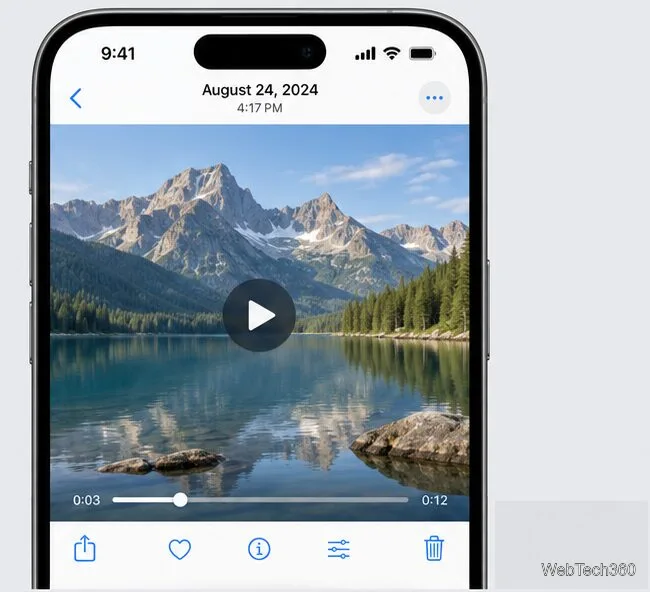
In Photos, find and open the video you want to use. Start with the original file in your library when possible. A copy downloaded from a messaging or social app may have been compressed or resized, so it may no longer contain the original 4K pixels.
Illustration of a video open in Photos with the timeline ready for frame selection.
2. Find the moment and pause
Play the clip or drag the progress bar until the subject is in the position you want, then pause. Photos’ timeline is useful for choosing a moment, but it does not provide the frame-by-frame stepping found in a dedicated extractor. For a fast-moving subject, try a few nearby moments and keep the sharpest one.
3. Save the frame as a photo
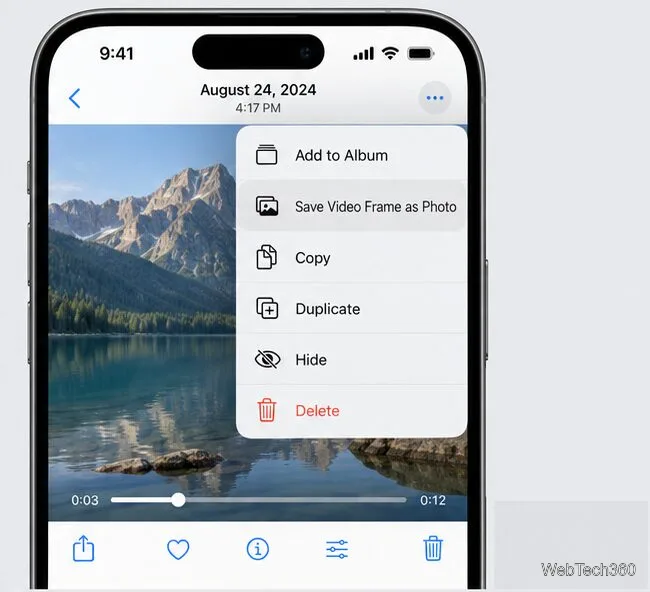
With the video paused, tap the More button (the ellipsis), then tap Save Video Frame as Photo. iOS creates a separate still in Photos; it does not replace or trim the video.
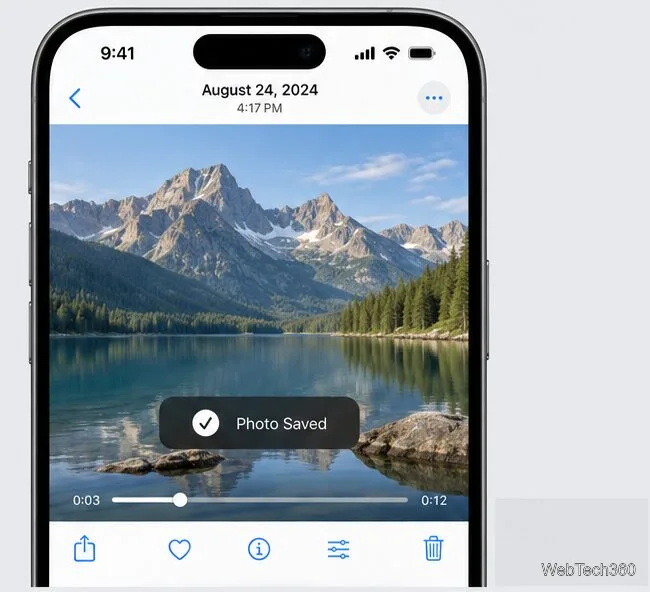
Illustration of the documented Photos menu command for exporting a paused video frame.Illustration of the save confirmation after exporting a frame.
4. Find the new still
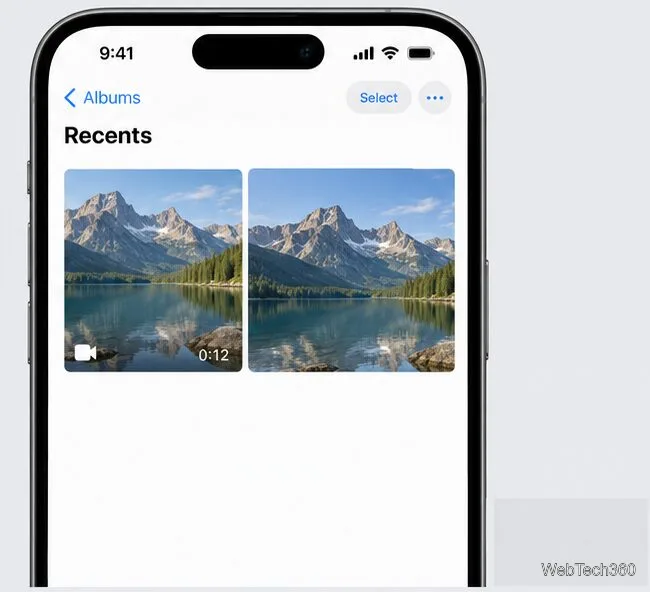
Return to your photo library. Apple says the saved image appears at the bottom when the library is sorted by Added, or beside the source video when it is sorted by Captured. Open the still to check that it shows the intended moment and has no playback controls or other screen elements.
Illustration of the saved still appearing beside its source video in a Photos library.
Check the still’s resolution
4K UHD commonly means 3840 × 2160 pixels. Compare the saved image’s pixel dimensions with those of the source video; do not rely on the 4K label alone. In Photos, open the video or still and swipe up or tap Info to view available metadata. If your iOS version does not show pixel dimensions there, export the original still and inspect its file properties on a Mac or PC.
Apple’s guide explains how to save a video frame but does not specify an exact pixel size for that command. If matching the source dimensions is a firm requirement, verify the saved file. Frame extraction also cannot restore detail that was lost to motion blur, low light, compression, or a lower-resolution source.
Use Frame Grabber for precise frame selection
Use Frame Grabber on the App Store if the Photos command is unavailable on your iOS version or you need more control over the exact moment. The listing says it exports frames in the video’s original resolution, including HD and 4K, and currently labels the app as free with in-app purchases. It requires iOS 15 or later; check the listing for current compatibility and purchase details.
Install Frame Grabber from its App Store listing and allow access to the video in Photos.
Open the clip, use its timeline or frame controls to locate the moment, and confirm the preview.
Use the app’s export or share control to save the selected image to Photos, then check the saved file’s dimensions.
Button names can change between app versions. The original developer’s GitHub repository was archived in June 2023 and contains code only through version 1.4.1, so the current App Store app should not be described as open source on that basis.
When a frame looks soft or too small
Check the source first: confirm that the clip itself is 4K and that you opened the original rather than a compressed copy.
Verify the output file: compare its pixel dimensions with the video before sharing or editing it.
Choose a sharper moment: a frame with subject motion or camera shake can look blurred even when exported at full size.
Avoid screenshots: they capture the displayed image and interface, not a clean source frame.