Home
» IOS
»
How to Find an iPhone’s Serial Number (Even Without the Phone)
How to Find an iPhone’s Serial Number (Even Without the Phone)
The fastest way to find an iPhone’s serial number is to open Settings > General > About and look for Serial Number. If you no longer have the iPhone, you can still find the number through your Apple Account, a Mac or Windows PC that can see the device, or the original packaging.
Find the iPhone serial number in Settings
If the iPhone turns on and you can unlock it, this is the simplest method. Apple lists the serial number with other device identifiers in the About screen.
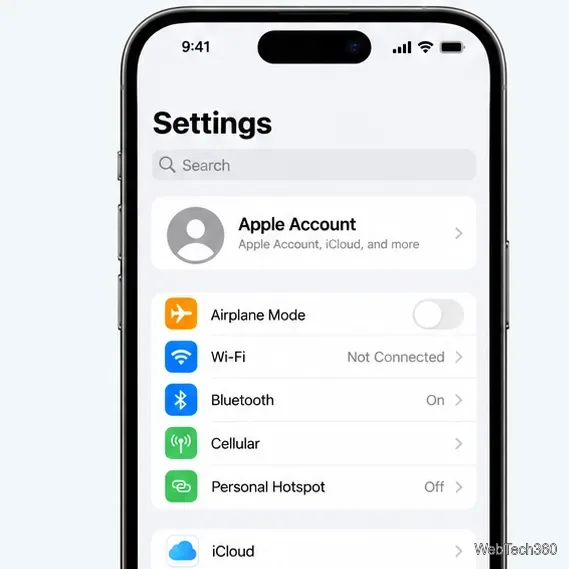
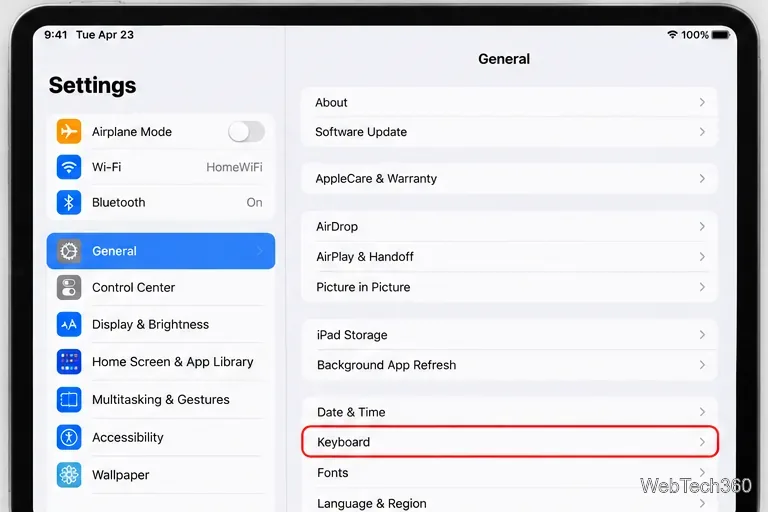
Open Settings.
Tap General.
Tap About.
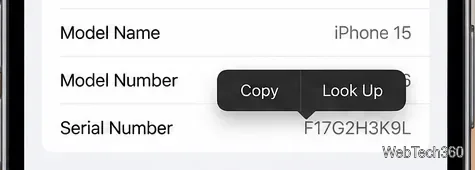
Scroll to Serial Number. Touch and hold the number if you want to copy it.
The Serial Number field appears in Settings > General > About. Touch and hold the number to copy it.
Apple’s current support instructions also show IMEI, EID, and other identifiers on this page. These are different identifiers, so make sure you copy the value labeled Serial Number. See Apple’s official serial number and IMEI guide for the supported methods.
Find the serial number if you do not have the iPhone
You do not necessarily need the phone in your hand. If the iPhone is still associated with your Apple Account, you can usually retrieve its device information from another signed-in Apple device or from the web.
Use another iPhone or iPad signed in to the same Apple Account
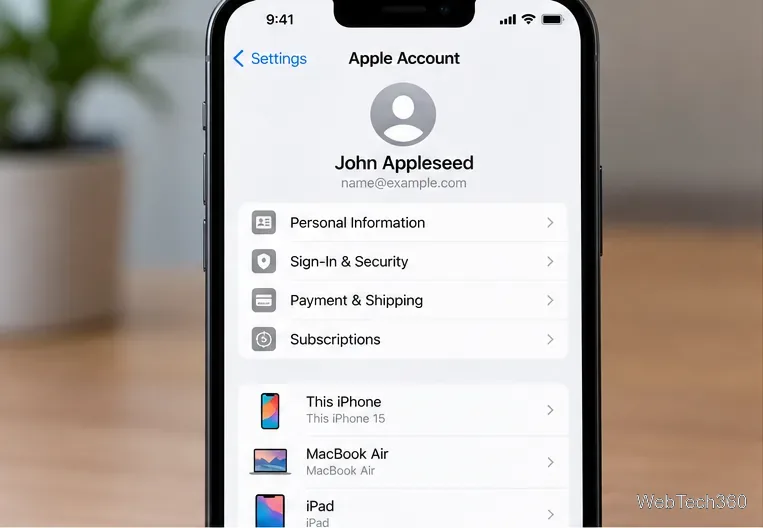
Open Settings on the other iPhone or iPad.
Tap your name at the top.
Scroll down to the list of devices.
Tap the iPhone whose serial number you need.
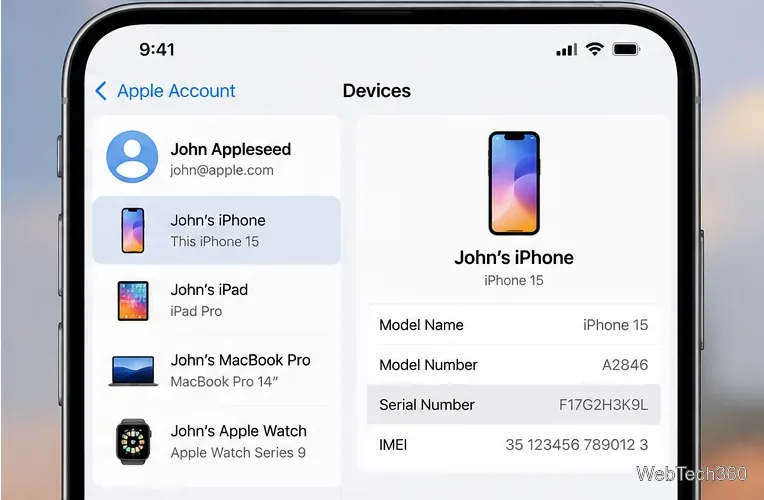
Check the device information for the serial number. You may be asked to authenticate before all details appear.
An Apple Account device entry can show the iPhone model, serial number, and other device information.
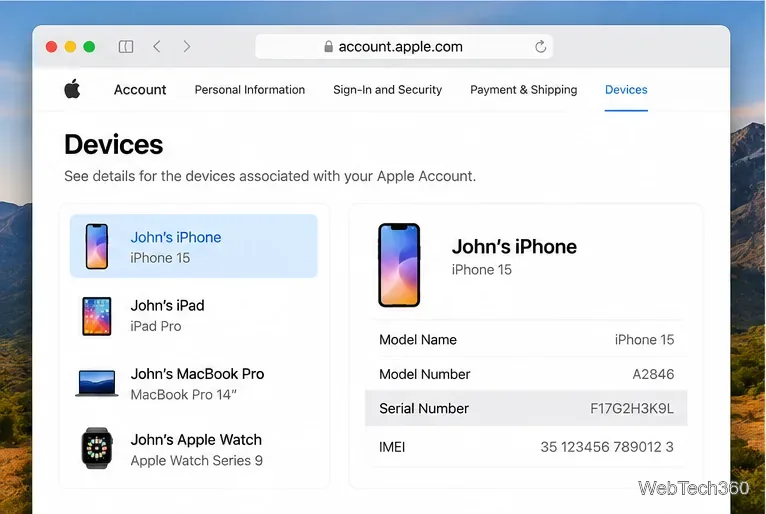
Use the Apple Account website
This method is useful if the iPhone is lost, damaged, sold, or otherwise unavailable.
If you can connect the iPhone to a computer, Apple also provides a computer-based lookup:
Mac: connect the iPhone, open Finder, select the iPhone, and stay on the General tab. Apple says you can click the model name under the device name to reveal the serial number.
Windows PC: connect the iPhone and use the current Apple Devices app or iTunes where applicable, then select the iPhone and view its device information.
This is especially handy when the iPhone’s screen is difficult to use but the computer can still recognize the device.
Check the original iPhone packaging
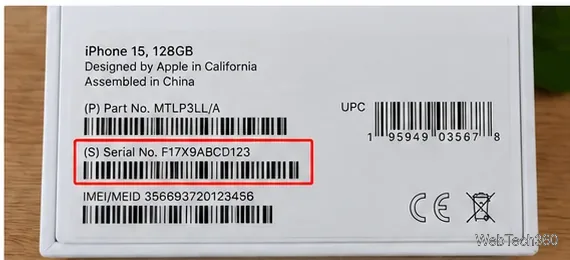
If you kept the box, look for the barcode label on the original packaging. Apple says the label can include the serial number as well as EID and IMEI/MEID information.
The original packaging label is another place to check when the iPhone itself is unavailable.
One small detail can prevent transcription mistakes: Apple notes that a barcode scan may show a leading S before a product serial number, but that leading S is not part of the serial number. Apple also states that its hardware serial numbers use the digits 0 and 1, not the letters O and I. See Apple’s serial-number guidance.
Can you find the serial number before setting up an iPhone?
Yes. On the iPhone setup screen, turn on the device and wait for the multilingual “Hello” screen. Tap the Info button in the lower-right corner to view available device identifiers before completing setup. Apple includes this method in its official iPhone serial number instructions.
Serial number vs. IMEI: do not confuse them
Identifier
What it identifies
Where you may see it
Serial number
The Apple hardware unit
Settings, Apple Account, Finder/Apple Devices, packaging
IMEI/MEID
The cellular device identity
Settings and, on some models, hardware or packaging
Model number
The iPhone model or hardware variant
Settings > General > About
If a support form specifically asks for a serial number, enter the value labeled Serial Number, not the IMEI or model number. It is also sensible to avoid posting your serial number publicly; share it only with a service, insurer, reseller, or support channel that legitimately needs it.