iMessage Is Signed Out on iPhone: How to Fix It

Fix the iMessage Is Signed Out error on iPhone by checking Apple Account sign-in, activation, connectivity, and settings—without erasing your messages.
If your iPhone camera won’t focus, first remove anything covering the lens and clean the camera glass. Open the Camera app and tap the subject you want sharp. If only close-up subjects look blurry, move the phone farther away. If focus remains soft across different subjects, test each camera, restart and update iOS, then contact Apple Support if the problem continues.
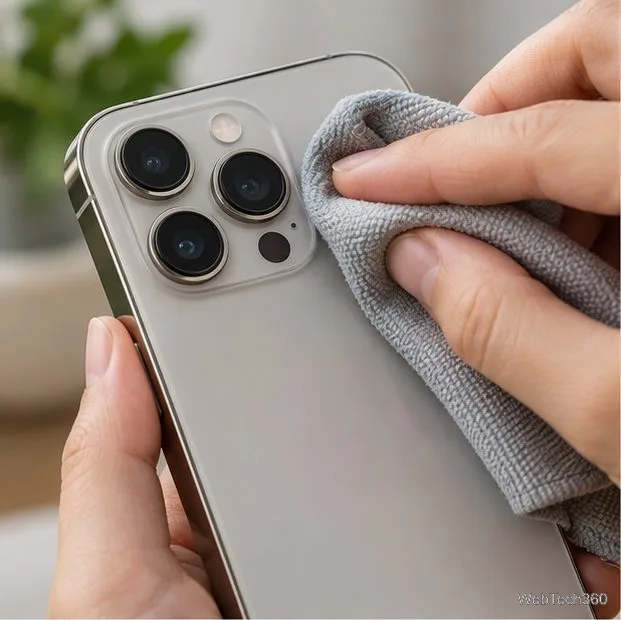
Wipe the front and rear camera lenses with a clean microfiber cloth. Fingerprints and smudges can make a photo look soft or hazy. Don’t use a sharp object or try to clean inside the camera housing. If you see a crack, condensation, or debris behind the glass, stop and arrange service.
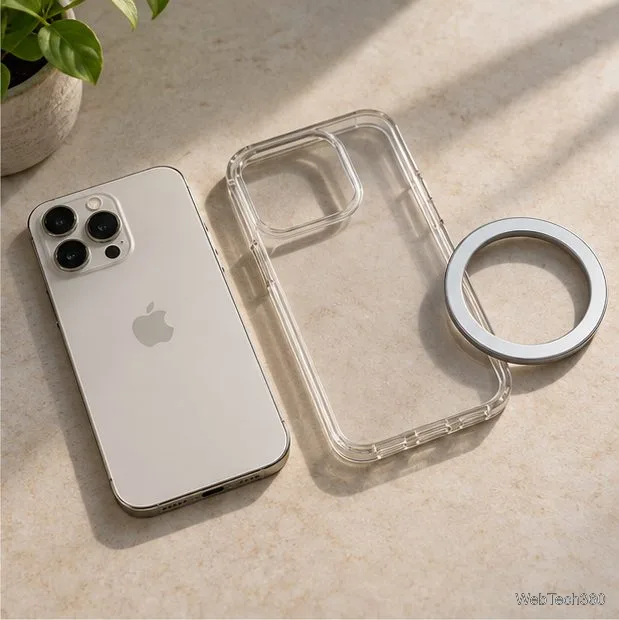
Take off the case, lens cover, film, clip-on lens, or magnetic mount and test again. An accessory can partly cover a camera or interfere with its operation, especially if it has a magnet. If focus returns with the accessory removed, replace or reposition it before using the camera again.
In the Camera app, try the front camera and each rear camera option available on your model. Photograph a still subject several feet away, then something closer. If one camera stays blurry while the others focus, note which one fails. If all views are soft, compare the Camera app with another trusted camera app; this can help identify whether the issue appears limited to one app, but it does not diagnose hardware.
Low light and a moving subject can also look like missed focus. Add light, hold the phone steady, and use a stationary subject for this test. If the subject is sharp in the preview but the saved picture is blurred, motion during capture may be the cause.
Open Camera, frame the shot, and tap the part of the scene you want sharp. A focus box appears in the viewfinder. Wait for the camera to settle, then take the photo. On supported iPhones, a brightness control may appear beside the focus area; dragging it changes exposure, not focus.
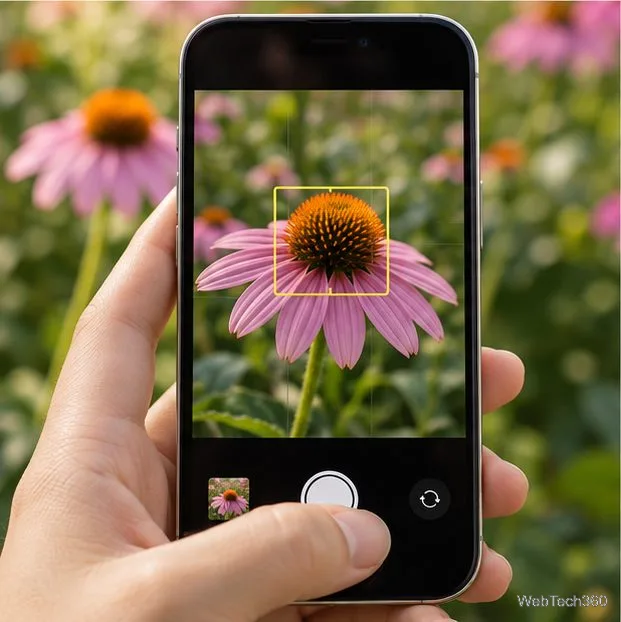
If the camera repeatedly shifts focus between a subject and its background, touch and hold the focus area until AE/AF Lock appears. AE/AF means auto exposure and auto focus. The lock keeps the current focus and exposure while you compose the shot. Tap the viewfinder to unlock it. Apple’s iPhone Camera guide describes tap-to-focus and AE/AF Lock.
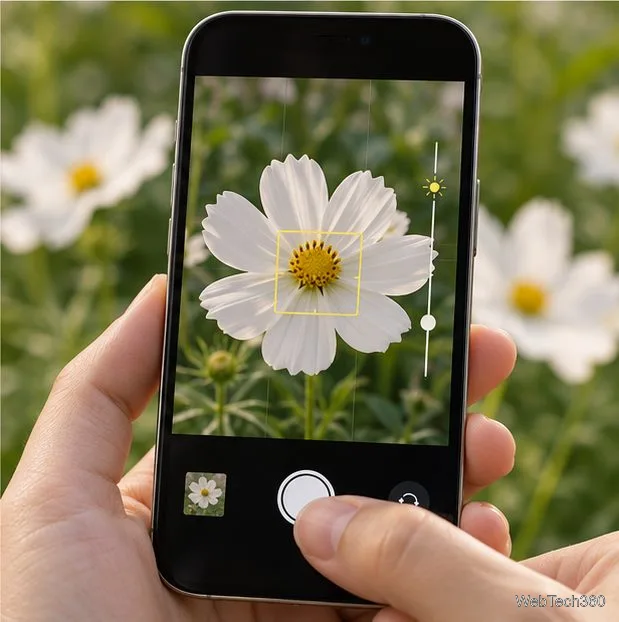
A camera lens can’t focus at every distance. If a flower, document, or small object blurs when it is very close, slowly move the iPhone away and tap the subject again. The closest focusing distance depends on the iPhone model and the camera being used, so there is no single distance that works for every phone.
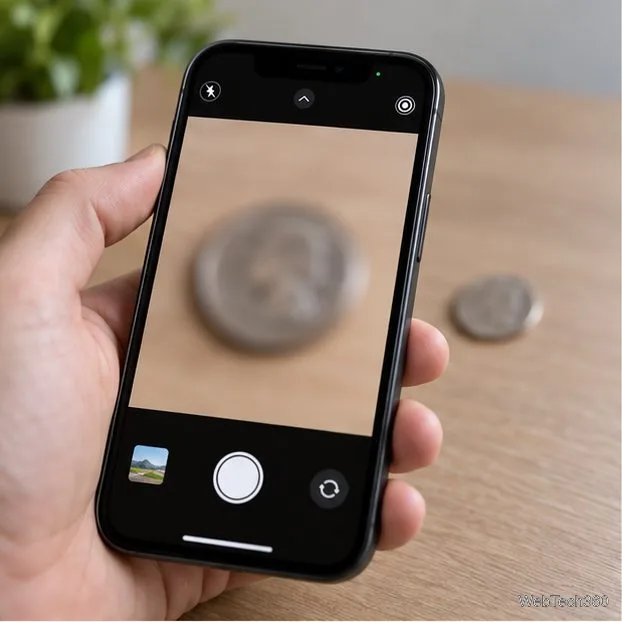
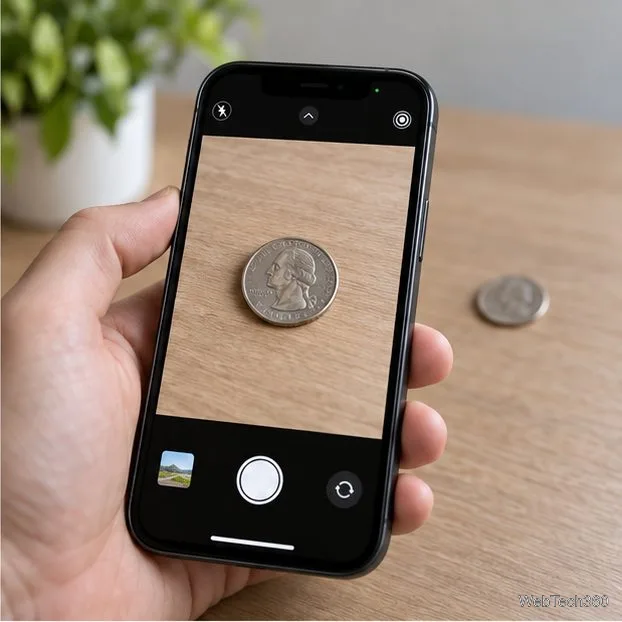
Close the Camera app, restart the iPhone, and test again. If it still won’t focus, go to Settings > General > Software Update and install an update if one is offered. Then test the front and rear cameras again. Apple also recommends removing obstructing accessories, cleaning the lenses, restarting, updating iOS, and checking whether one or both cameras are affected in its camera troubleshooting steps.
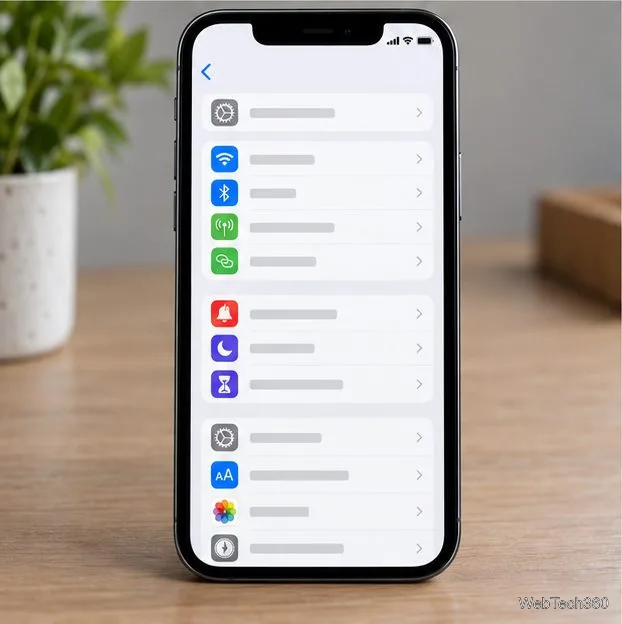
If focus still fails and you’re comfortable re-entering settings afterward, back up the iPhone, then open Settings > General > Transfer or Reset iPhone > Reset > Reset All Settings. This resets system preferences without deleting photos, apps, or other media. It does reset items such as network, privacy, and location settings, and removes Apple Pay cards, so expect to set those up again. Choose Reset All Settings carefully; Erase All Content and Settings is a different option that deletes personal content. See Apple’s guide to resetting iPhone settings.
Contact Apple Support or an Apple Authorized Service Provider if a camera remains blurry after these steps, the lens glass is damaged, the image shakes or clicks unexpectedly, or only one camera consistently fails. A reset cannot repair a damaged lens or focus mechanism. Avoid tapping or striking the back of the phone; it is not an Apple-recommended focus fix and could worsen damage.
Fix the iMessage Is Signed Out error on iPhone by checking Apple Account sign-in, activation, connectivity, and settings—without erasing your messages.
Turn off your iPhone VPN in the app or Settings, confirm it disconnected, and stop automatic reconnections without deleting your account.
Learn how to encrypt your iPhone with a strong passcode, protect iCloud and computer backups, and secure your data if your phone is lost or stolen.
Learn how to clear Safari and Chrome cache on iPhone, manage app storage safely, and understand when clearing cached data actually helps.
Learn how to fight Gym Battles in Pokémon GO, pick effective attackers, use Charged Attacks and dodges, and claim a Gym after defeating its defenders.
Explore classic Cydia tweaks for jailbroken iPads, from SwipeSelection to Quasar, with compatibility warnings and modern alternatives.
Stop Apple Music signup prompts in the Music app. Learn where to find Show Apple Music on iOS and what turning it off does—and does not—change.
Set up a Shortcuts automation to text Mom when your iPhone battery gets low. Follow four steps, plus delivery checks and privacy tips.
Save posts on X in a few taps. Learn where to find the Bookmark button on iPhone, Android, and desktop, plus how to view, remove, and organize saved tweets.
Turn on AR mode in Pokémon GO during a wild encounter, find AR settings, and fix camera or device compatibility issues.








