Home
» IOS
»
How to Fix “Sharing Name and Photo Not Available” on iPhone
How to Fix “Sharing Name and Photo Not Available” on iPhone
If your iPhone says “Sharing name and photo not available,” first check that the same Apple Account is signed in to iCloud and Messages, and that iMessage is active. The message usually points to an account mismatch or a sign-in/activation problem. Confirm those settings before signing out of anything or resetting the phone.
Apple now calls an Apple ID an Apple Account. Menu names can vary slightly by iOS version: on current iOS, app settings are under Settings > Apps; on older versions, open the app directly from the main Settings screen.
1. Check the Apple Account signed in to iCloud
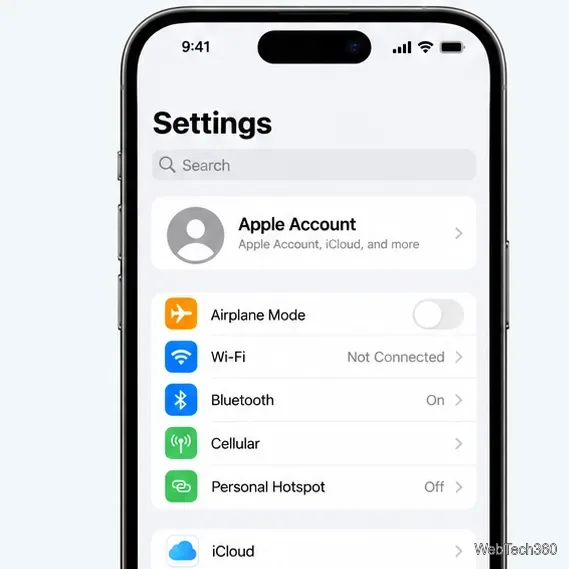
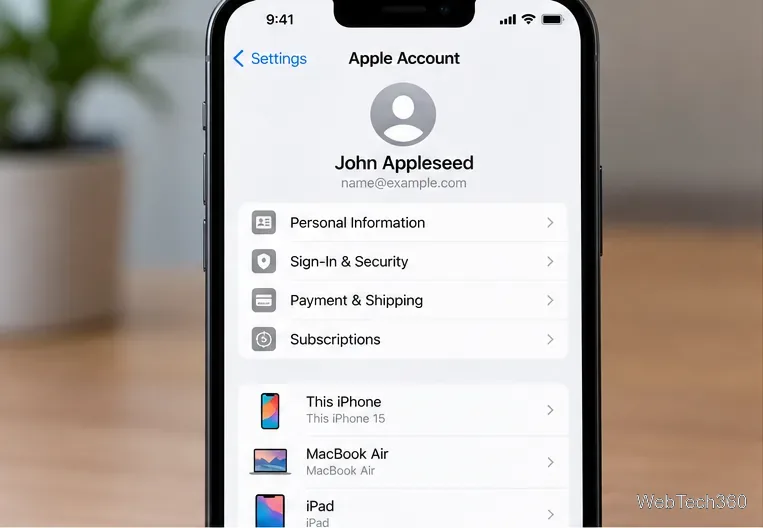
Open Settings and tap your account banner at the top.
Note the Apple Account email address or phone number shown there.
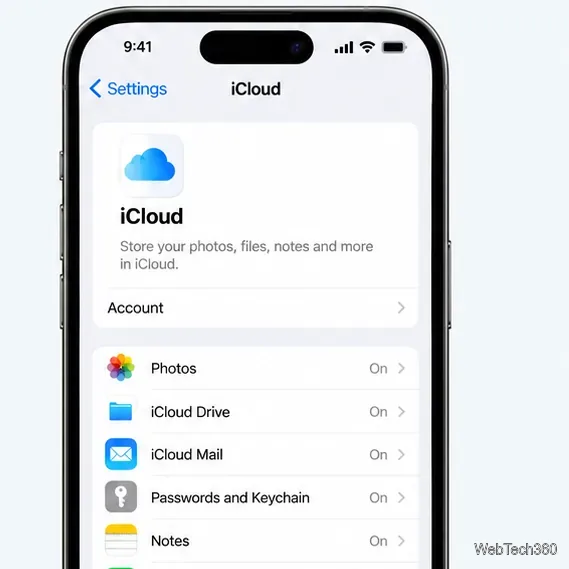
Tap iCloud. If Settings asks you to sign in, complete sign-in with the account you intend to use for Messages.
Open the account banner at the top of Settings, then check the iCloud account.
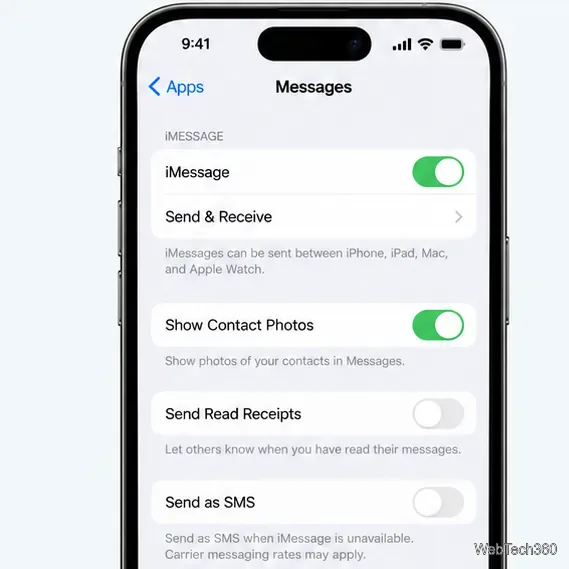
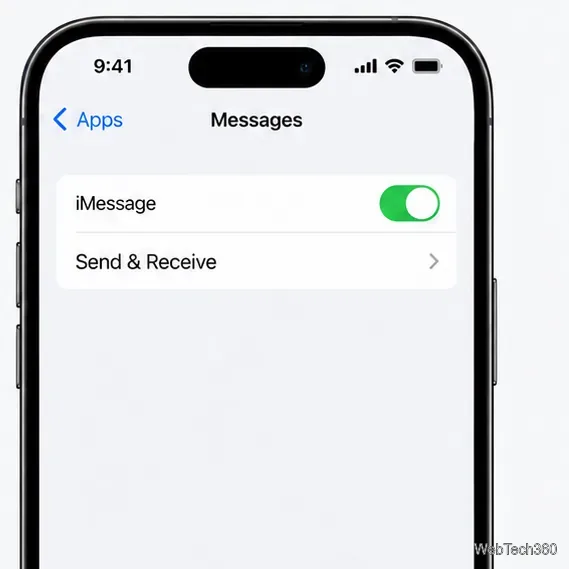
Return to Settings, then tap Apps > Messages. On older iOS versions, tap Messages directly in Settings.
Turn on iMessage if it is off.
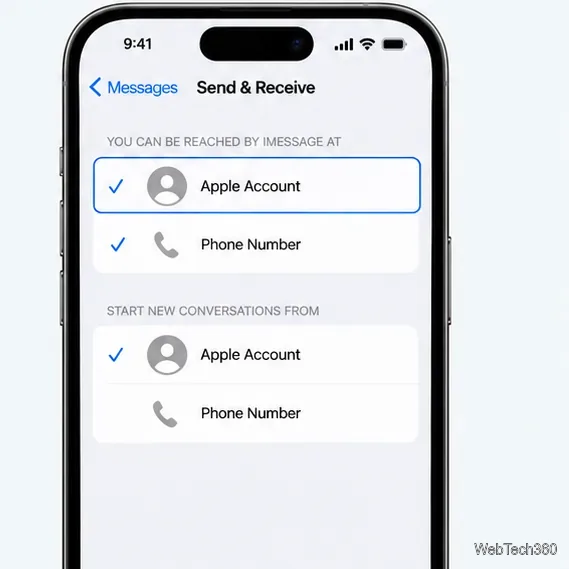
Tap Send & Receive. Check that the Apple Account shown there is the same one you noted in iCloud. If you use your phone number with iMessage, make sure it is selected too.
The iCloud screen is available from the Apple Account banner in Settings.In Messages settings, enable iMessage and open Send & Receive.Confirm the Apple Account is selected under the addresses that can receive and start iMessages.
If the Apple Account is missing, tap Use your Apple Account for iMessage and sign in with the same account used for iCloud. Apple’s instructions for phone-number setup are in Add or remove your phone number in Messages or FaceTime. Avoid signing out of iCloud just to refresh Messages; iCloud sign-out affects other services on the device.
3. Turn on Name & Photo Sharing in Messages
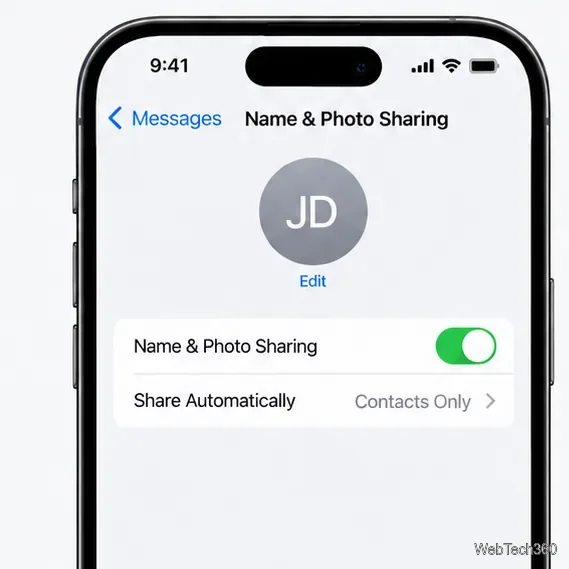
After the account matches and iMessage is active, open the Messages app. At the top of the conversation list, tap Edit > Set Up Name & Photo. If setup is already started, choose Name & Photo or Share Your Name & Photo. Choose a display name and photo, enable Name & Photo Sharing, select Contacts Only or Always Ask, and tap Done.
Turn on sharing and choose whether Messages shares automatically or asks first.
Apple notes that availability varies by region and that your name or photo may not appear as expected for people using non-Apple devices. See Apple’s current Messages setup instructions.
4. If iMessage is stuck activating, refresh it
Check that the iPhone is online, date and time are correct (Settings > General > Date & Time), and iOS is up to date. If your phone number is still waiting for activation, Apple says carrier verification may take up to 24 hours; repeatedly toggling iMessage is not necessary while a verification spinner is showing.
Use the iMessage switch only when activation or sign-in is stuck.
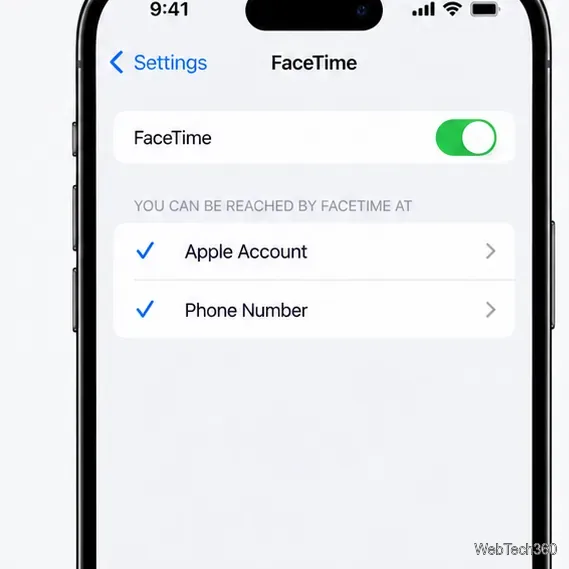
If activation still fails, Apple recommends turning off iMessage and FaceTime, restarting the iPhone, and turning both back on. FaceTime is not documented as a requirement for name and photo sharing, so use this as an activation refresh when those services also have trouble, not as the first fix for the sharing error. Follow Apple’s iMessage and FaceTime activation guide.
For activation troubleshooting, check FaceTime settings and account selection as well.
5. Sign out of Messages only if the account is wrong
If Send & Receive shows a different account and the steps above do not let you correct it, open Settings > Apps > Messages > Send & Receive, tap the Apple Account, and choose Sign Out. Then select Use your Apple Account for iMessage and sign back in with the account already used for iCloud. Older iOS versions place Messages directly in Settings. Recheck the account and reachable addresses afterward. This is a targeted Messages sign-out; there is usually no need to sign out of the device-wide iCloud account.
6. Reset network settings only as a last resort
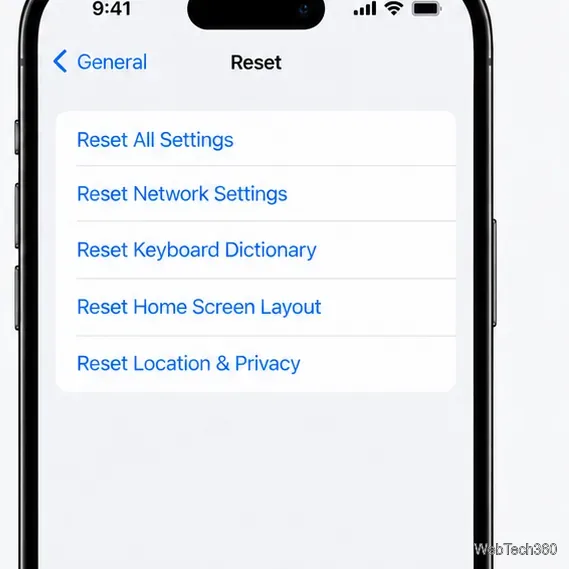
If the accounts match and activation works but the error persists, try another reliable network first. As a final step, go to Settings > General > Transfer or Reset iPhone > Reset > Reset Network Settings. This removes saved Wi-Fi networks and passwords and resets cellular, VPN, and APN settings; it does not erase photos or apps. If your workplace or school manages the network, ask its administrator before resetting. Apple explains the effects in its network troubleshooting guide.
Reset Network Settings is an escalation step because it removes saved network configurations.
Test name and photo sharing again after each change. If iMessage still cannot activate, the account is locked, or the account shown is not yours, contact Apple Support rather than repeatedly signing out or resetting the device.