Home
» IOS
»
How to Fix the com.apple.mobilephone Error 1035 on iPhone
How to Fix the com.apple.mobilephone Error 1035 on iPhone
com.apple.mobilephone error 1035 usually appears in the iPhone Phone app when voicemail setup or a voicemail greeting cannot be completed. Treat it as a voicemail and carrier-connectivity problem first, not as an iPhone backup or computer-sync error. Start with a quick cellular reconnect, confirm voicemail is actually provisioned, install any carrier settings update, and only then reset network settings.
Voicemail, Visual Voicemail, and related features are not identical on every network. Apple notes that voicemail features are available only with select carriers in select countries or regions, so the exact screen you see can vary with your carrier and iOS layout. Apple’s voicemail setup guide is the best reference for the current Phone app behavior.
1. Reconnect your iPhone to the cellular network
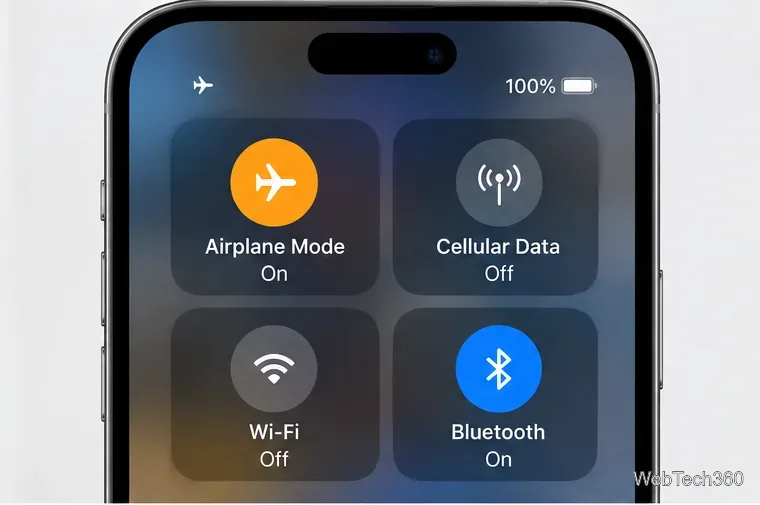
A temporary cellular registration problem can stop voicemail from communicating with the carrier. Apple recommends using Airplane Mode to force a new cellular connection when an iPhone has service problems.
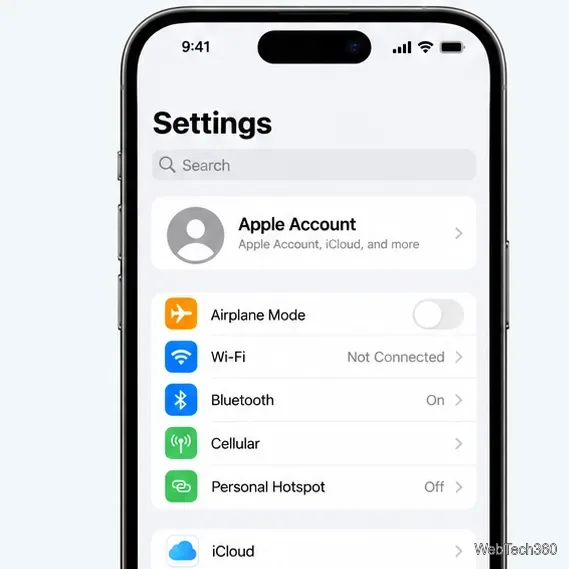
Open Settings and turn on Airplane Mode.
Leave it on for at least 15 seconds.
Turn Airplane Mode off and wait for your carrier name, signal bars, or cellular connection to return.
Open Phone and try voicemail again.
If you use Dual SIM or Dual eSIM, open Settings > Cellular, choose the line that receives calls, and make sure that line is turned on. If the status bar shows SOS, No Service, or Searching, fix that service problem before troubleshooting voicemail. Apple’s cellular service troubleshooting page covers those checks.
Airplane Mode briefly disconnects the radios so the iPhone can register with the cellular network again.
As a diagnostic, you can also turn Wi-Fi off temporarily and retry while cellular service is active. This is not a universal voicemail requirement, but it can show whether the failure is limited to the current Wi-Fi path.
2. Set up or refresh voicemail in the Phone app
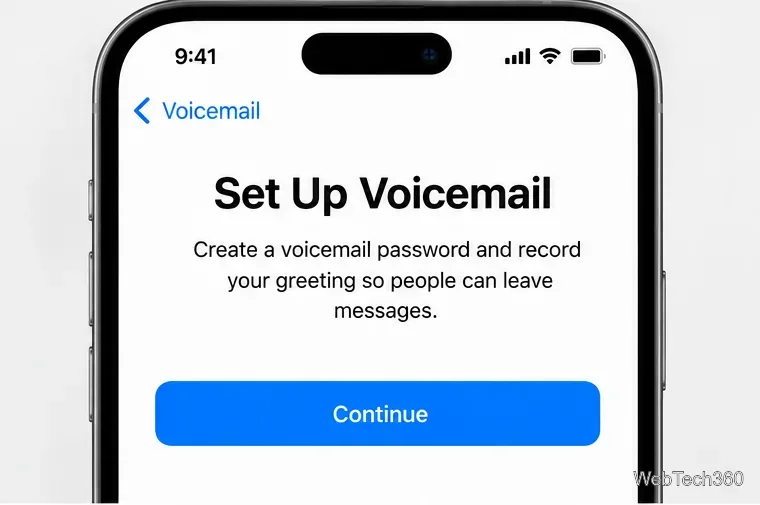
If voicemail was never completed, was reset by the carrier, or stopped working after a SIM/eSIM change, set it up again from the Phone app.
Open the Phone app.
Open Voicemail or Voicemails, depending on your Phone app layout.
If prompted, create a voicemail password and follow the instructions to choose or record a greeting.
If voicemail was already configured, open the greeting controls and try saving the default greeting or recording a new custom greeting.
Complete the carrier voicemail setup before trying to save a custom greeting.
If there is no setup option, the voicemail tab never loads, or basic voicemail is unavailable, skip ahead to the carrier checks below. The service may need to be enabled on your line.
3. Check for a carrier settings update
Carrier settings control how an iPhone connects to the mobile network and can add or update support for carrier features. This is especially important after moving to a new carrier, installing a new SIM, or activating an eSIM.
Connect the iPhone to Wi-Fi or cellular data.
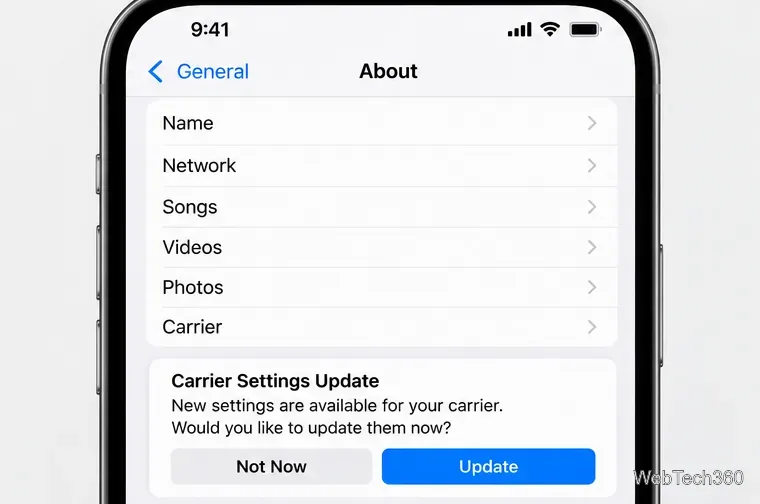
Go to Settings > General > About.
Wait briefly. If a carrier settings update prompt appears, tap Update.
Also install the latest iOS update available for your iPhone, then retry voicemail.
Install a carrier settings update if iPhone offers one in Settings > General > About.
4. Reset network settings if error 1035 still appears
Use this step after the simpler checks because it removes saved network configuration. It does not erase your photos, apps, or other personal media, but it does remove previously used Wi-Fi networks and passwords, cellular settings, and VPN or APN settings that were not installed by a management profile.
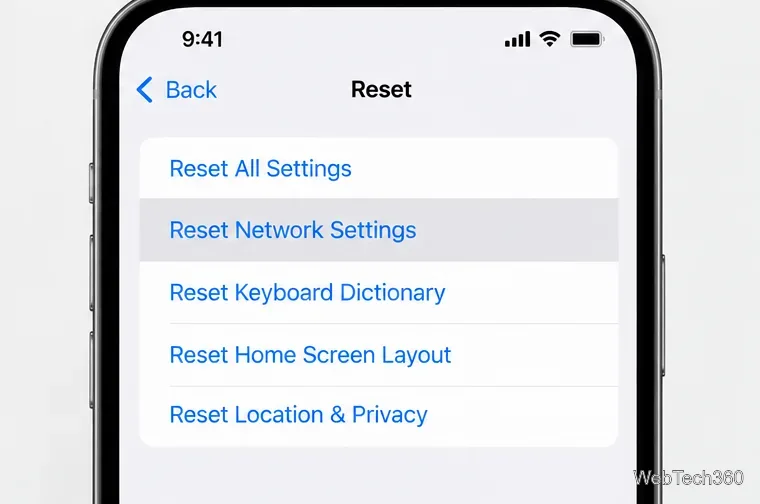
Open Settings > General > Transfer or Reset iPhone.
Tap Reset.
Choose Reset Network Settings and confirm.
After the iPhone reconnects, restore any Wi-Fi connection you need and test voicemail again.
Apple documents what this reset changes in its reset iPhone settings guide. Do not choose Erase All Content and Settings; that is not required for this voicemail error.
Reset Network Settings is the targeted reset to try before considering more disruptive troubleshooting.
When to contact your carrier
If error 1035 remains, contact your wireless carrier before doing a factory reset. Ask the carrier to verify that your account is active, voicemail is provisioned on the correct line, your plan supports the voicemail feature you are trying to use, and there is no local outage or account block. This is especially important after porting a number, changing carriers, or activating a replacement SIM/eSIM.
If the carrier confirms that voicemail and the account are configured correctly, your iPhone is fully updated, and the problem continues even after a network settings reset, contact Apple Support for device-level diagnostics. In most cases, you should not need to erase the iPhone just to resolve com.apple.mobilephone error 1035.