Home
» IOS
»
How to Fix the “Untrusted Developer” Error on iOS
How to Fix the “Untrusted Developer” Error on iOS
The “Untrusted Enterprise Developer” alert means iOS hasn’t yet accepted the signing certificate for an app that was installed manually. If the app came from your employer, school, or another organization you recognize, you can establish trust in Settings. On iOS 18 or later, the current process includes an Allow & Restart step; older versions use a Trust button. If the app or developer is unfamiliar, stop and verify it with the organization before proceeding.
Apple’s current instructions for custom enterprise apps cover this manual trust flow. The steps below apply to an enterprise app installed outside the App Store. Managed apps may be trusted automatically by an organization’s device-management system.
Fix the “Untrusted Developer” error
1. Check the app’s source and dismiss the alert
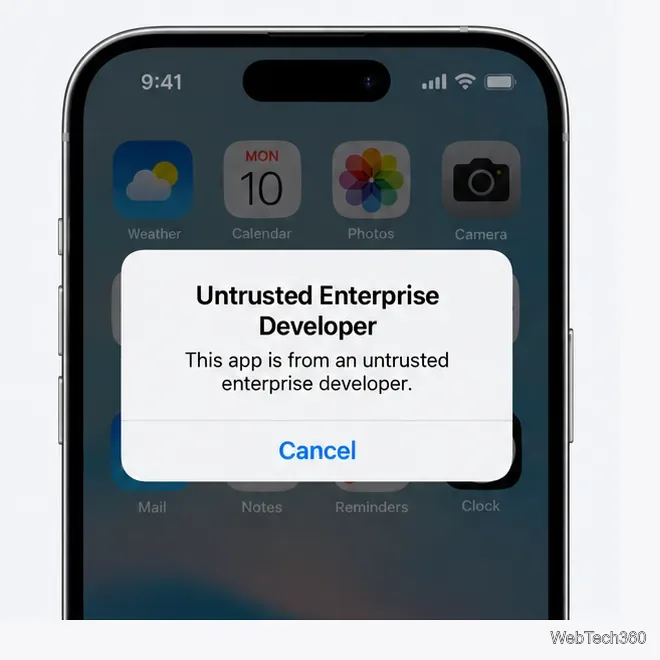
When the warning appears, tap Cancel. Confirm the app was distributed through a channel your organization or vendor actually uses, and that the developer name matches what they provided. A trust prompt is not a recommendation to install software: trusting a developer allows its signed apps to open, but it does not tell you whether the app is appropriate for your device or data.
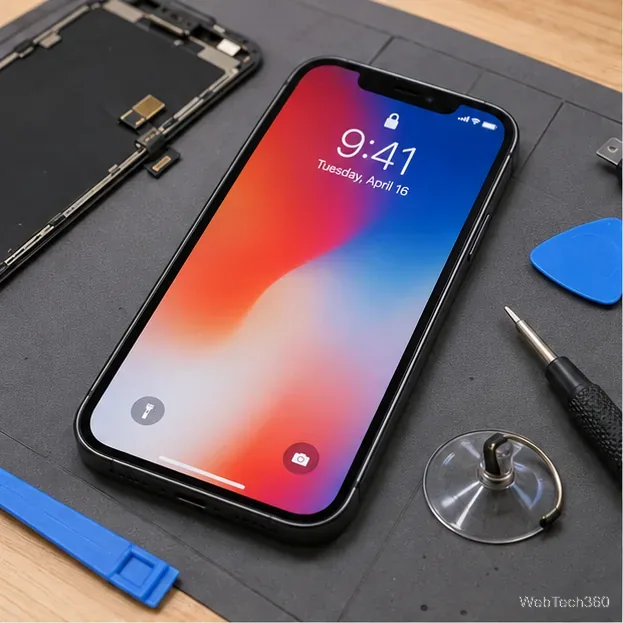
Illustrative alert: cancel it first, then check the app’s source before changing Settings.
2. Open the developer entry in Settings
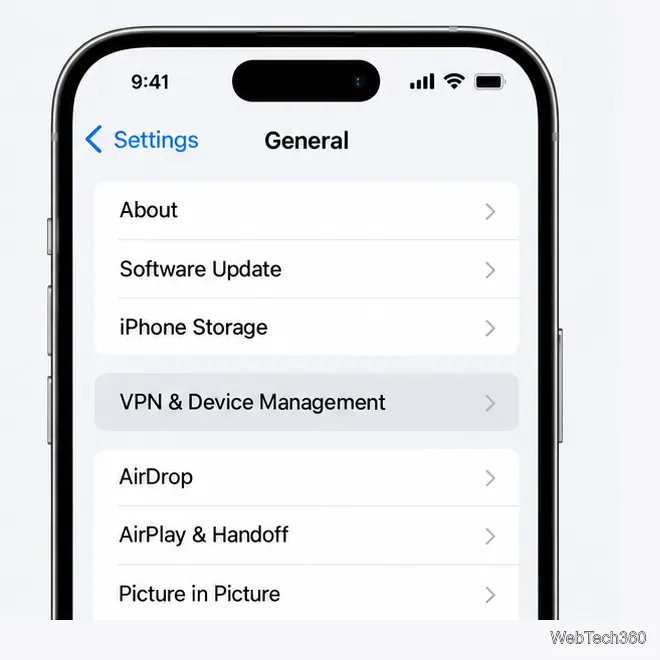
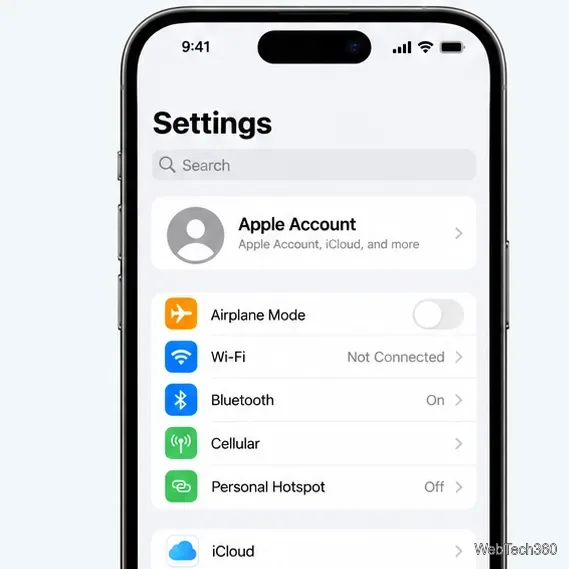
On the iPhone or iPad, open Settings, then go to General > VPN & Device Management. Under Enterprise App, tap the name of the developer associated with the app. The entry may use the organization’s legal name rather than the app’s name.
The current Settings route is General, then VPN & Device Management.
3. Establish trust and complete the restart
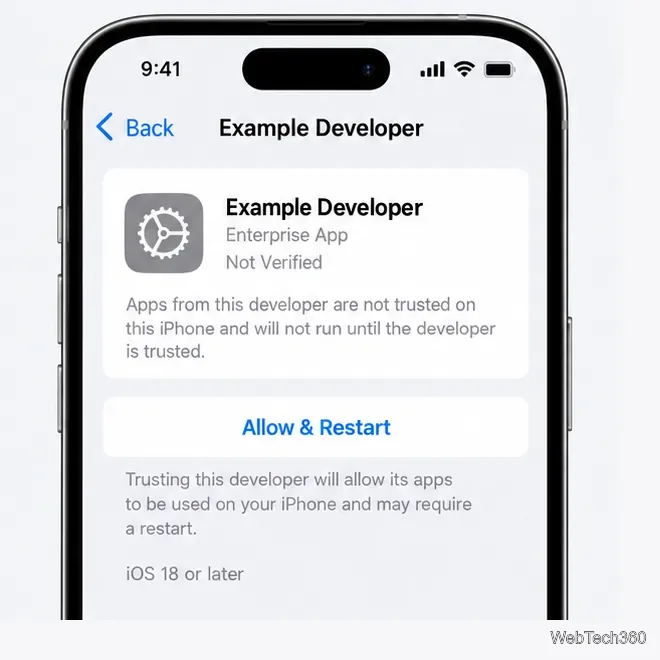
Review the developer name once more. On iOS 18, iPadOS 18, or later, tap Allow & Restart. Your device restarts; follow any onscreen prompt afterward to finish trusting the developer. On earlier versions, tap Trust and confirm the choice. Then return to the Home Screen and open the app again.
On iOS 18 and later, Allow & Restart begins the trust process.
Once a developer is trusted, other manually installed apps signed by that same developer can open without repeating the initial trust step. Only do this for a developer you have independently confirmed.
4. Verify the app if iOS says “Not Verified”
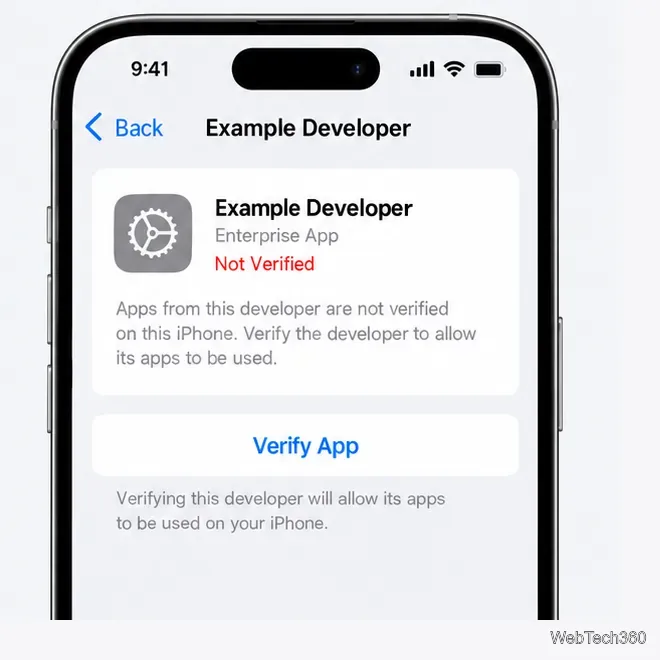
Certificate verification requires an internet connection. If Settings shows Not Verified, connect to Wi-Fi or cellular data, return to the developer entry, and tap Verify App. If you are on a work or school network, its firewall may need to allow connections to ppq.apple.com, Apple’s verification service. Ask the organization’s IT team to check the network if verification still fails.
Connect to the internet, then use Verify App when that status appears.
If the developer is missing or the app still won’t open
No developer appears under Enterprise App: Check that installation finished and that you used the organization’s official instructions. A managed installation may establish trust automatically. If the app is missing or the warning returns, ask the organization that supplied it to confirm the correct installation method.
The Trust or Allow & Restart option is unavailable: A work or school administrator may have restricted trust for in-house apps through device management. Contact IT; don’t remove a management profile or try to bypass its controls. Apple documents the device-management restriction for trusting new in-house app developers.
Verification repeatedly fails: Check the connection, try a trusted network, and ask the app provider whether the signing certificate is still active. Apple notes that a device must periodically reverify a manually installed developer’s certificate. Reinstall only from the organization’s official source if its support team recommends it.
Two settings that solve different problems
Developer Mode is for locally installed development builds, such as apps run from Xcode or installed for testing. It is separate from trusting an enterprise developer; enabling it does not make an unknown app safe. See Apple’s Developer Mode documentation if you are testing your own app.
Likewise, Settings > General > About > Certificate Trust Settings controls full trust for manually installed root certificates used for SSL/TLS connections. It is not the place to approve an enterprise app. Apple explains that separate certificate setting in its certificate-profile guidance.
Use the trust option carefully
Only trust an app when you expected to receive it and can confirm the developer through the organization or vendor that supplied it. Do not approve a profile or developer because an unsolicited message tells you to, and don’t treat the button as proof that an app has passed App Store review. If you can’t confirm who signed the app, delete it and obtain software from an official source instead.