iMessage Is Signed Out on iPhone: How to Fix It

Fix the iMessage Is Signed Out error on iPhone by checking Apple Account sign-in, activation, connectivity, and settings—without erasing your messages.
If your iPhone keeps showing “Update Apple ID Settings,” open Settings, tap the account alert, and enter your current Apple Account password. If asked, complete two-factor authentication with the six-digit code sent to a trusted device or phone number. Apple ID is now called Apple Account; the same email or phone number and password still work. If the prompt returns or sign-in fails, work through the checks below before considering a sign-out or restore.
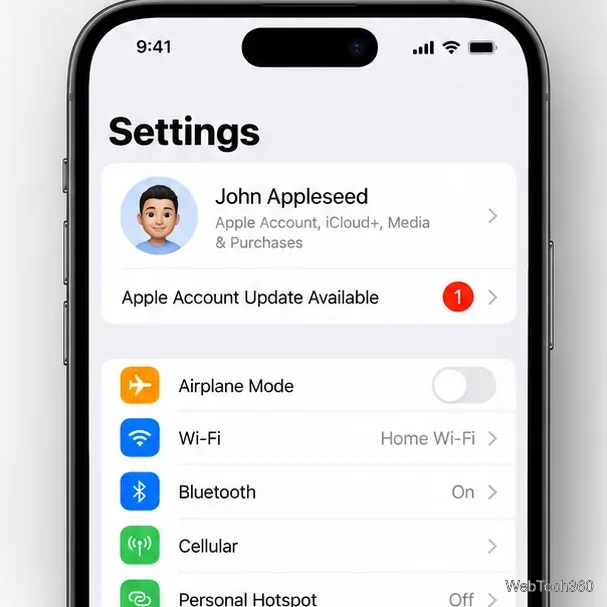
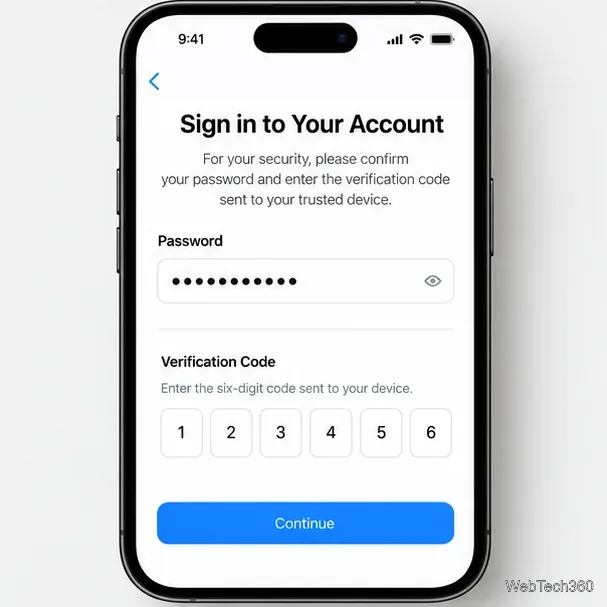
Tap the alert or your name at the top of Settings and follow the on-screen steps. Use the password you currently use for this account, especially if you recently changed it. When prompted, enter the verification code on the iPhone. Don’t share your password or verification code with another person, and don’t enter them on a page opened from an unexpected message.
If you don’t remember the password, stop guessing and reset it from a trusted Apple device: open Settings, tap your name, choose Sign-In & Security, then Change Password. If the alert says the account is locked or disabled, follow Apple’s account-recovery steps instead of repeatedly trying to sign in. Apple’s sign-in instructions, password-change guide, and locked-account guidance explain those paths.
After an iCloud restore, keep the iPhone connected to reliable Wi-Fi and power until the restore finishes.
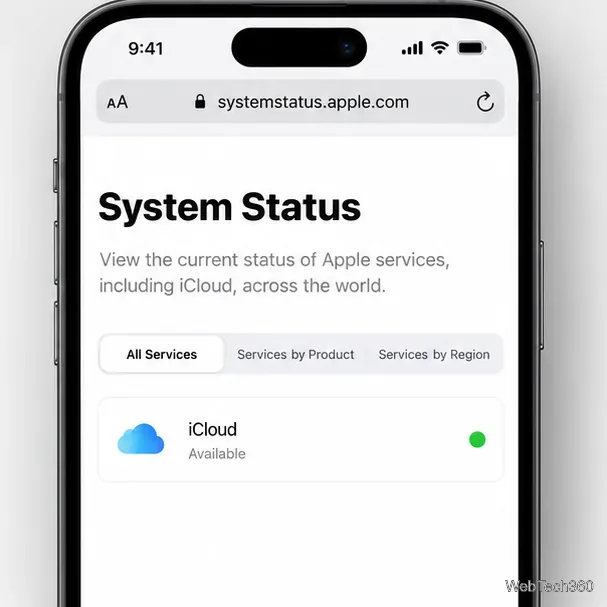
Open Apple System Status and look for issues affecting iCloud or related services. A service outage can prevent sign-in from completing even when your password is correct. If Apple reports an issue, wait and try again after the status changes; changing account settings on the iPhone won’t fix a server-side outage.
Load a page in Safari, then switch from Wi-Fi to cellular or vice versa. Confirm Settings > Cellular or Mobile Data is on when testing cellular; data charges may apply.
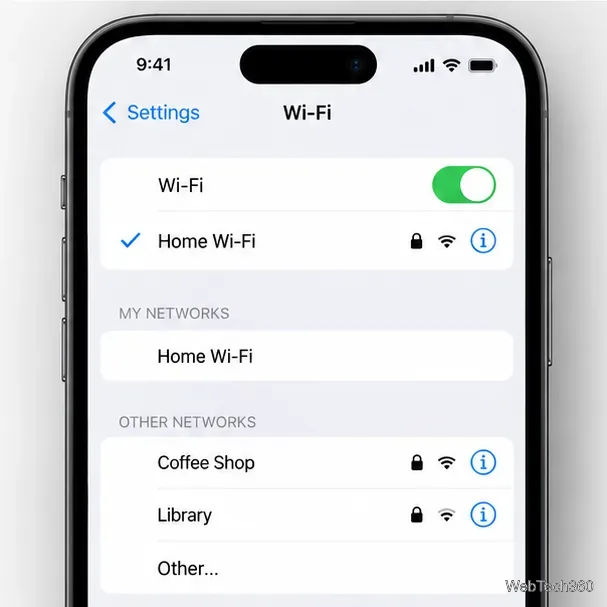
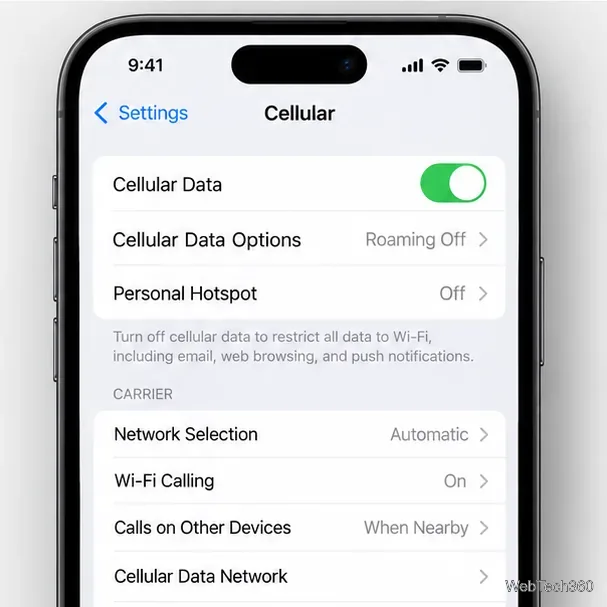
If only one network fails, ask its administrator about filtering. VPNs, firewalls, and content filters can block Apple services; disconnect them temporarily only if allowed. On a managed iPhone, check with your administrator. See Apple’s network troubleshooting guidance.
Restart normally to clear a temporary sign-in state. On iPhone with Face ID, hold the side button and either volume button, drag the power slider, wait 30 seconds, then hold the side button until the Apple logo appears. On iPhone with a Home button, hold the side button (or the top button on older models) and use the same steps.
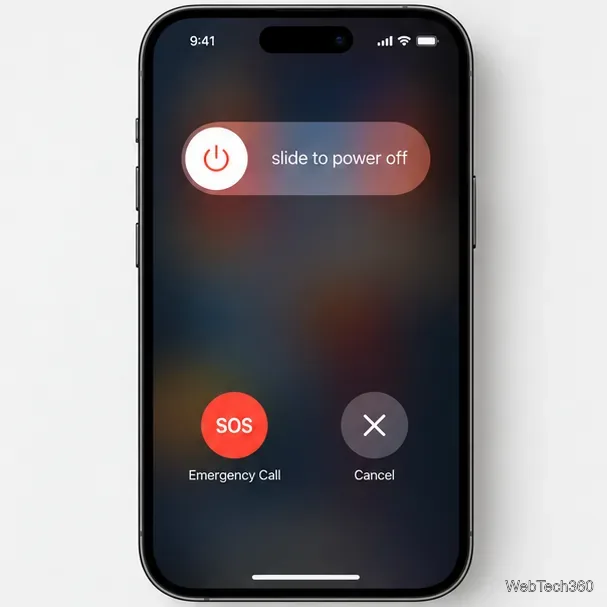
After startup, try the prompt again. Use a force restart only if the iPhone is frozen; Apple’s restart instructions cover each model.
Keep iOS current while troubleshooting iCloud sign-in. Back up the iPhone, connect it to Wi-Fi and power, then open Settings > General > Software Update. If a compatible update appears, tap Download and Install. The offered version depends on the model. A VPN or proxy can block update servers, so try a trusted network if the page won’t load.
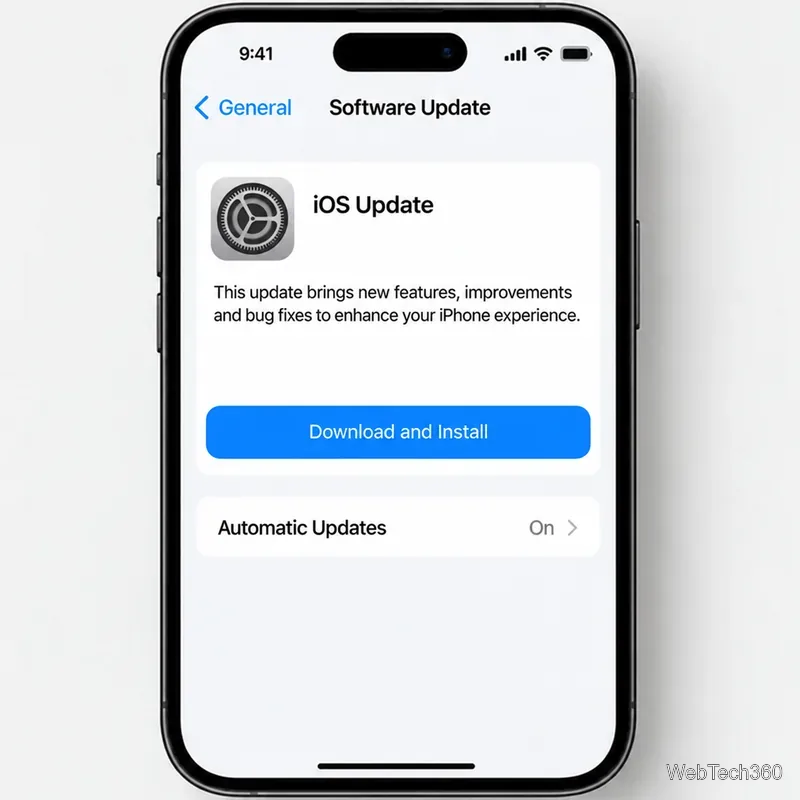
For backup and update details, use Apple’s iPhone update guide.
Signing out also affects iCloud, the App Store, iMessage, and FaceTime. iCloud data remains online, but can be removed from the iPhone unless you choose to keep a copy. Confirm your backup is current, recent changes have synced, and you know the password. Read Apple’s sign-out guidance first.
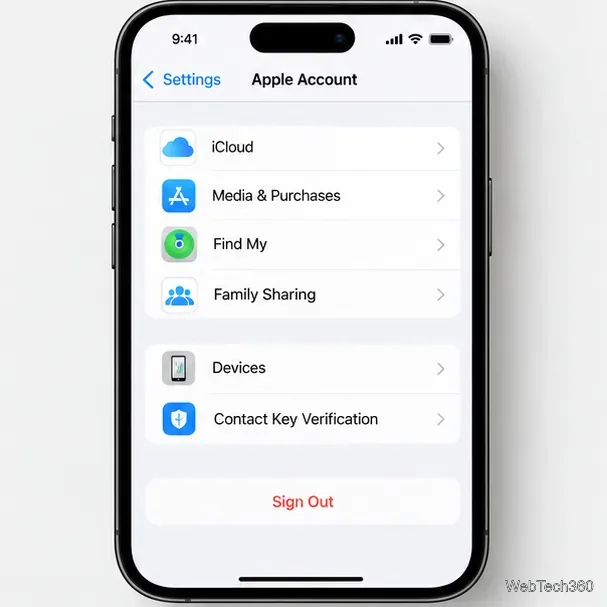
If you proceed, open Settings, tap your name, scroll down, and choose Sign Out. Select the option that doesn’t erase the iPhone, review what to keep, then sign back in with the same Apple Account. This may refresh sign-in information but isn’t guaranteed to solve the issue.
If a restore is complete and Apple reports no outage, contact Apple Support when the prompt persists or you can’t verify a locked account. Share the exact alert and iPhone model, never your password or verification code. Don’t erase or restore the device before identifying the account or service issue.
Fix the iMessage Is Signed Out error on iPhone by checking Apple Account sign-in, activation, connectivity, and settings—without erasing your messages.
Turn off your iPhone VPN in the app or Settings, confirm it disconnected, and stop automatic reconnections without deleting your account.
Learn how to encrypt your iPhone with a strong passcode, protect iCloud and computer backups, and secure your data if your phone is lost or stolen.
Learn how to clear Safari and Chrome cache on iPhone, manage app storage safely, and understand when clearing cached data actually helps.
Learn how to fight Gym Battles in Pokémon GO, pick effective attackers, use Charged Attacks and dodges, and claim a Gym after defeating its defenders.
Explore classic Cydia tweaks for jailbroken iPads, from SwipeSelection to Quasar, with compatibility warnings and modern alternatives.
Stop Apple Music signup prompts in the Music app. Learn where to find Show Apple Music on iOS and what turning it off does—and does not—change.
Set up a Shortcuts automation to text Mom when your iPhone battery gets low. Follow four steps, plus delivery checks and privacy tips.
Save posts on X in a few taps. Learn where to find the Bookmark button on iPhone, Android, and desktop, plus how to view, remove, and organize saved tweets.
Turn on AR mode in Pokémon GO during a wild encounter, find AR settings, and fix camera or device compatibility issues.








