iMessage Is Signed Out on iPhone: How to Fix It

Fix the iMessage Is Signed Out error on iPhone by checking Apple Account sign-in, activation, connectivity, and settings—without erasing your messages.
If Weather shows a stale forecast, blank conditions, or the wrong city, check Apple’s service status and internet first. Then review cellular data, location access, and background refresh. Open Weather after each change. Restart or reinstall only if simpler checks fail. Settings labels vary by iOS version, carrier, and SIM.
Open Apple System Status and look for Weather. If the live page reports an outage, wait and check again later; local settings cannot fix a service interruption. The screen below is an example, not a live status report.
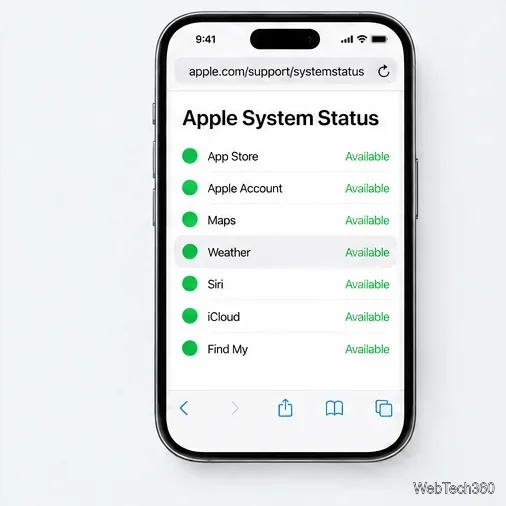
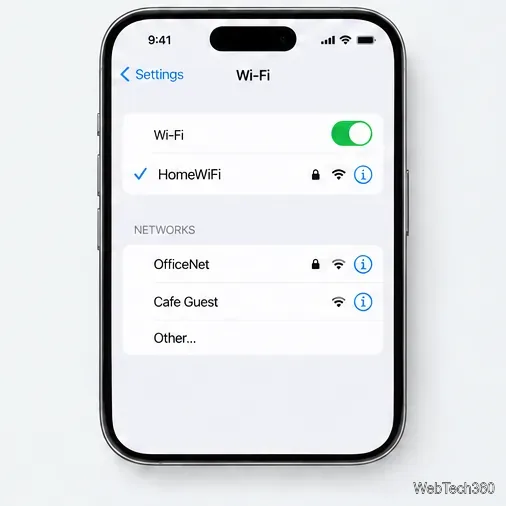
Open Safari and load a site you trust, then try another app. If neither connects, reconnect to Wi-Fi or cellular data. If Weather updates on one network but not another, switch connections to isolate a router, carrier, or network-filter problem; another weather website is not a direct test of Apple’s Weather service.
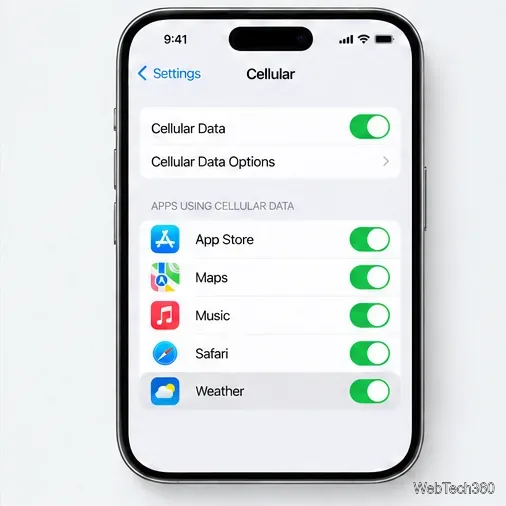
If Weather works on Wi-Fi but not away from home, open Settings > Cellular (or Mobile Data). Turn on Cellular Data and enable Weather in the app list. With Dual SIM, check the line selected for data. Cellular use may incur carrier charges. See Apple’s cellular data settings guide.
Low Data Mode limits background network use and disables Background App Refresh. Temporarily turn it off on the connection you’re testing. For cellular, go to Settings > Cellular > Cellular Data Options and check Data Mode or Low Data Mode. For Wi-Fi, open Settings > Wi-Fi, tap the info button by the connected network, and check Low Data Mode. Menu names vary. Restore your preferred setting after testing. See Apple’s Low Data Mode guide.
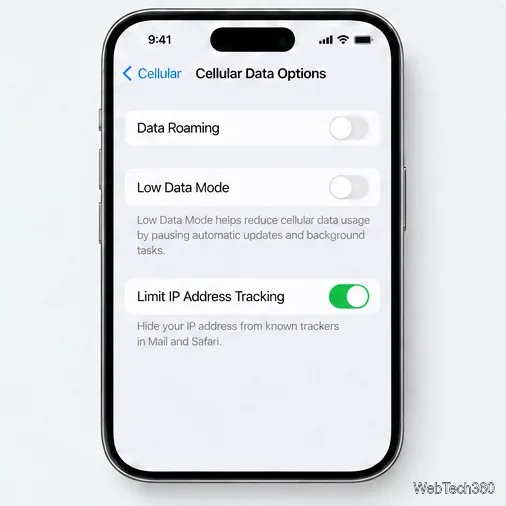
Go to Settings > Privacy & Security > Location Services and turn it on. With Location Services off, apps cannot use location in the foreground or background, so Weather cannot provide your current-location forecast. Saved cities do not require your location.
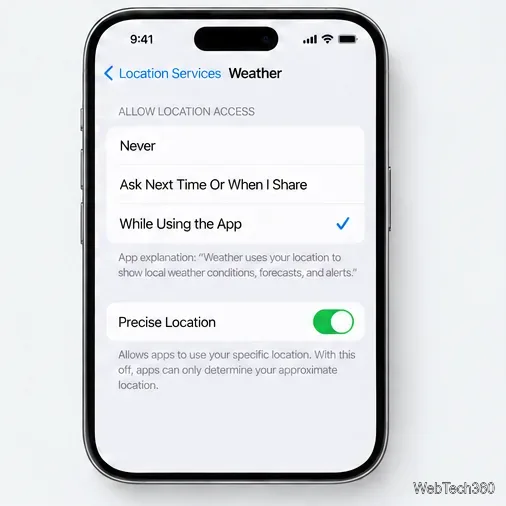
In the Location Services list, tap Weather. Choose While Using the App (some versions mention widgets) and turn on Precise Location. Apple says Weather uses location for the current forecast, and Precise Location improves accuracy. See Apple’s Weather guide.
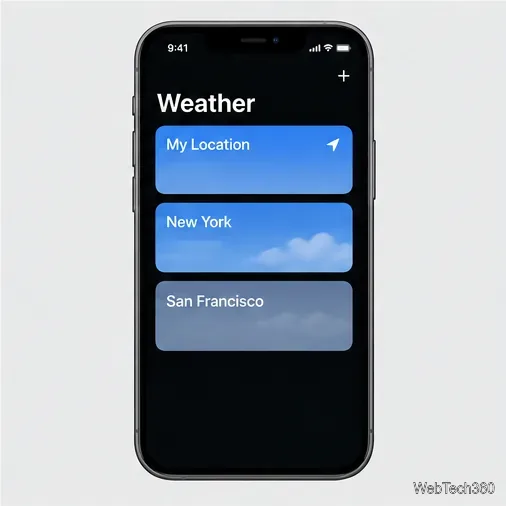
Open Weather, tap the location-list button, and choose My Location. If a saved city is selected, the app may be showing that forecast instead. Tap another saved city to check that the list responds.
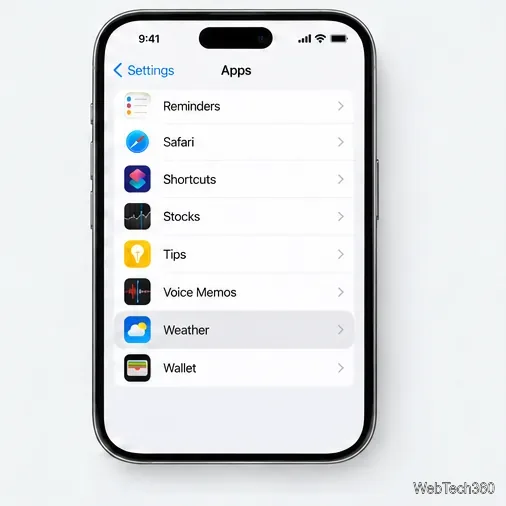
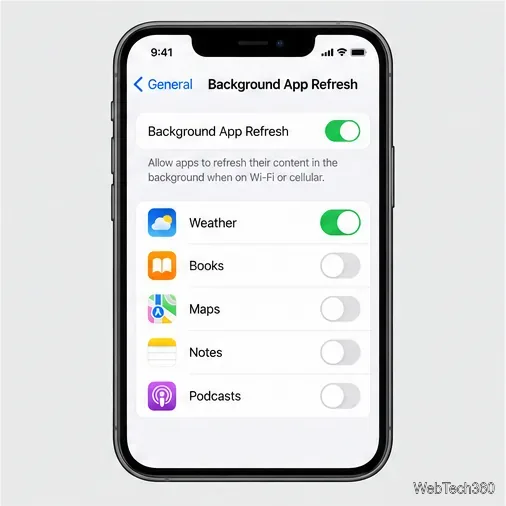
Go to Settings > General > Background App Refresh. Enable the feature, choose Wi-Fi & Cellular Data if desired, and turn on Weather. It lets suspended apps check for new content; it does not promise updates at an exact time. If Weather was force-closed, reopen it. See Apple’s Background App Refresh instructions.
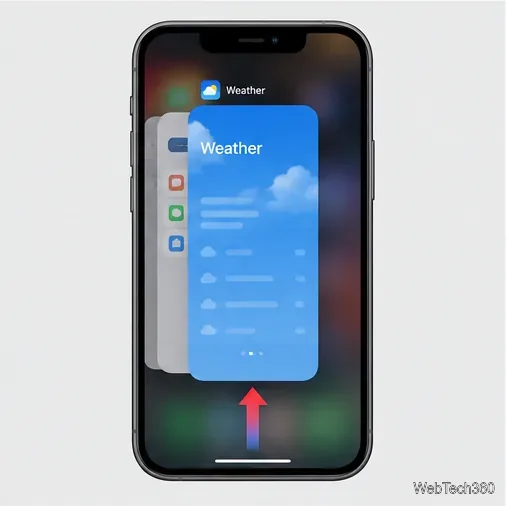
Close only Weather in the app switcher, then reopen it. On Face ID models, swipe up from the bottom and pause; on Home button models, double-click Home. Swipe the Weather preview up. Apple lists closing and reopening an app among its recommended first steps.
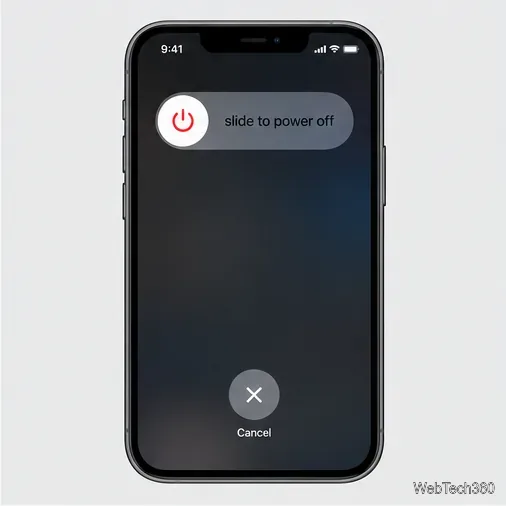
Restart from Settings > General > Shut Down or use the buttons for your model. Turn iPhone back on, reconnect, and open Weather. Apple recommends a restart when an app does not work as expected.
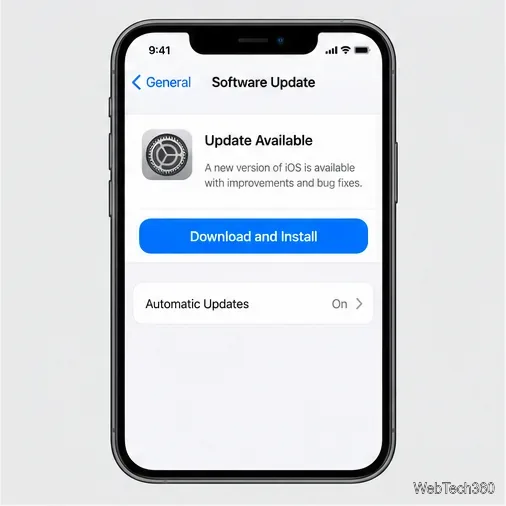
Open Settings > General > Software Update. Back up important data, then install an available update that supports your iPhone. Reopen Weather afterward. See Apple’s iPhone update guide.
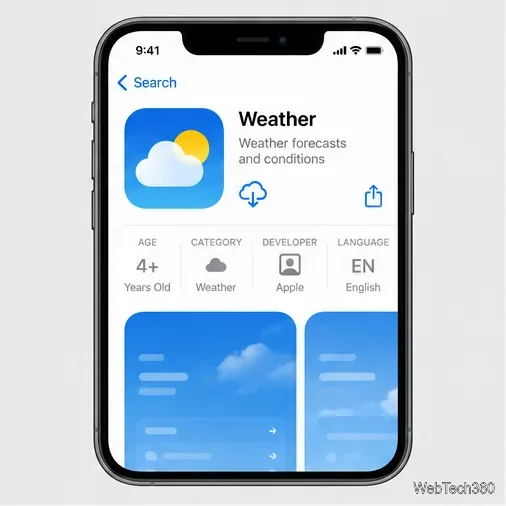
Use this last. Touch and hold Weather, tap Remove App > Delete App, then reinstall it from the App Store by searching Weather and tapping the cloud download control. Apple says deleting a built-in app removes related data and settings; deleting Weather may affect weather information in Notification Center or on a paired Apple Watch. Grant location access again after reinstalling. See Apple’s instructions for restoring built-in apps.
If Apple System Status shows Weather as available, other apps can connect, and a fresh launch still shows stale data, contact Apple Support. Include your iOS version and the checks you tried. If the app loads but its report is inaccurate, open the location list, tap More, and choose Report an Issue; Apple describes this option in its Weather instructions.
Fix the iMessage Is Signed Out error on iPhone by checking Apple Account sign-in, activation, connectivity, and settings—without erasing your messages.
Turn off your iPhone VPN in the app or Settings, confirm it disconnected, and stop automatic reconnections without deleting your account.
Learn how to encrypt your iPhone with a strong passcode, protect iCloud and computer backups, and secure your data if your phone is lost or stolen.
Learn how to clear Safari and Chrome cache on iPhone, manage app storage safely, and understand when clearing cached data actually helps.
Learn how to fight Gym Battles in Pokémon GO, pick effective attackers, use Charged Attacks and dodges, and claim a Gym after defeating its defenders.
Explore classic Cydia tweaks for jailbroken iPads, from SwipeSelection to Quasar, with compatibility warnings and modern alternatives.
Stop Apple Music signup prompts in the Music app. Learn where to find Show Apple Music on iOS and what turning it off does—and does not—change.
Set up a Shortcuts automation to text Mom when your iPhone battery gets low. Follow four steps, plus delivery checks and privacy tips.
Save posts on X in a few taps. Learn where to find the Bookmark button on iPhone, Android, and desktop, plus how to view, remove, and organize saved tweets.
Turn on AR mode in Pokémon GO during a wild encounter, find AR settings, and fix camera or device compatibility issues.








