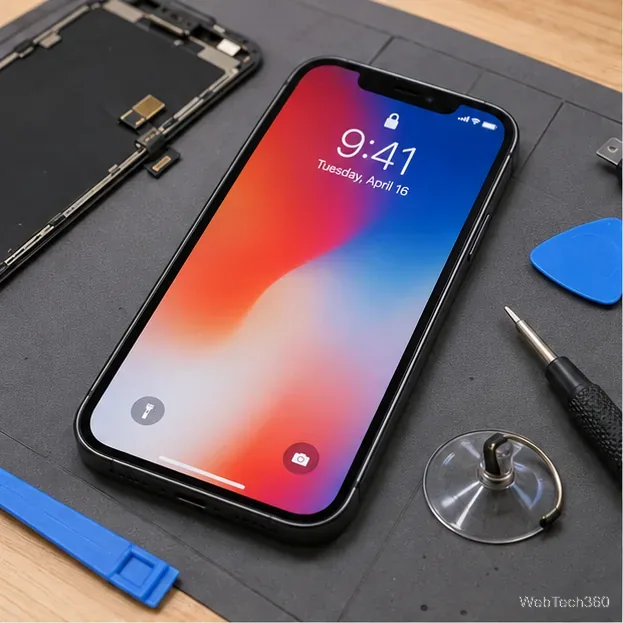
If you see the message “Your Apple ID and phone number are now being used for iMessage and FaceTime on a new iPhone”, first decide whether the new-device activity is yours. If you recently set up, restored, or signed in to an iPhone, iPad, or Mac and enabled iMessage or FaceTime, the alert can be expected. If you do not recognize the device or activity, review your signed-in devices immediately, remove anything unfamiliar, and change your Apple Account password.
Apple now calls Apple ID an Apple Account. This guide uses the current name except when quoting the alert.
Why this iMessage and FaceTime alert appears
iMessage and FaceTime can use your phone number and Apple Account on supported Apple devices. A legitimate setup can therefore trigger account activity when you sign in on a new or erased device or turn those services on. On iPhone, activating a phone number for iMessage or FaceTime can also require an SMS, and Apple notes that your carrier may charge for that activation message. See Apple’s current phone-number setup instructions for Messages and FaceTime.
The important distinction is whether you recognize the device. Apple specifically treats notifications about sign-ins or account activity you do not recognize as a possible sign that an account has been compromised.
1. Check which devices are signed in to your Apple Account
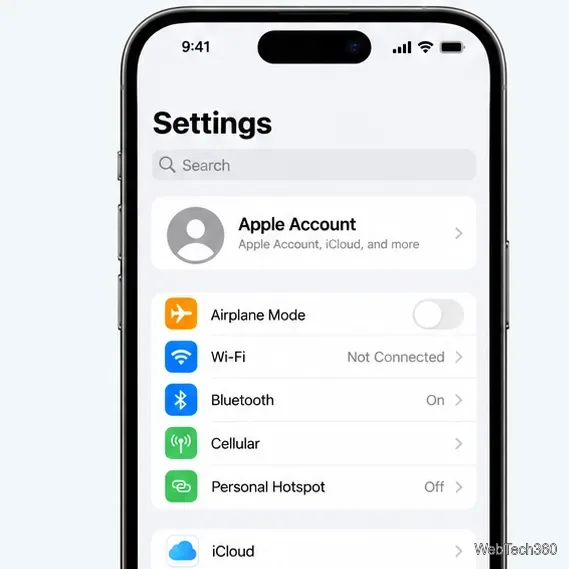
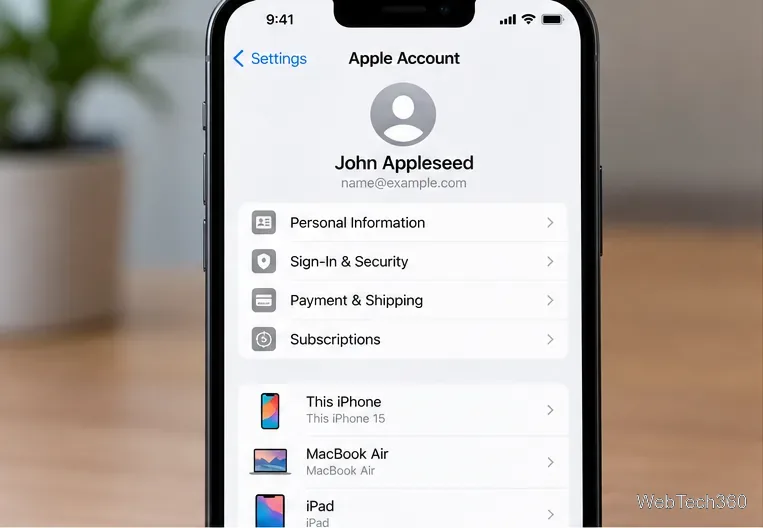
- Open Settings on your iPhone or iPad.
- Tap your name at the top.
- Scroll down to the device list. Tap a device to view details such as its model and whether it is trusted.
Compare the names and device types with hardware you actually own or recently used. Apple’s official Apple Account device-list guide also explains how to review the same list from a Mac or the web.
2. Remove any device you do not recognize
If a listed device is unfamiliar, tap it and choose Remove from Account, then confirm. Removing a device signs that device out remotely and blocks its access to iCloud and other Apple services until someone signs in again.
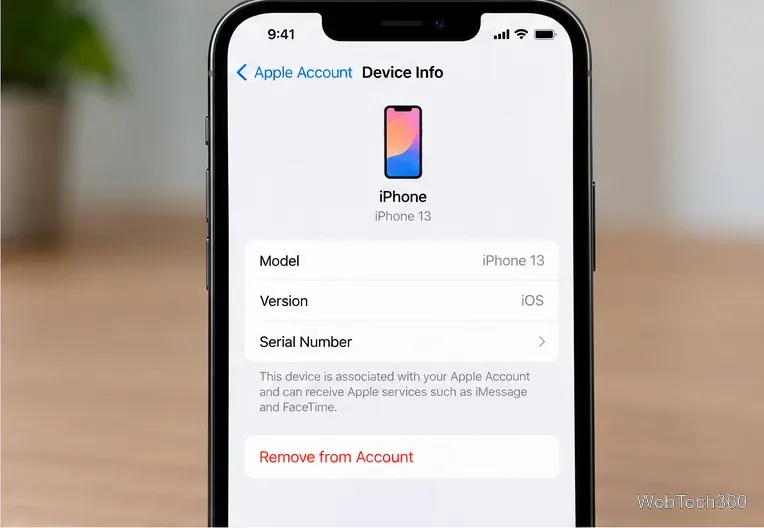
Do not treat account removal as a substitute for Find My if your own iPhone is lost or stolen. Apple recommends using Find My to mark a missing device as lost or erase it when appropriate. If a device remains signed in locally, Apple notes that it can reappear in your account list after reconnecting.
3. Check the device list on the web
You can also verify devices without another Apple device:
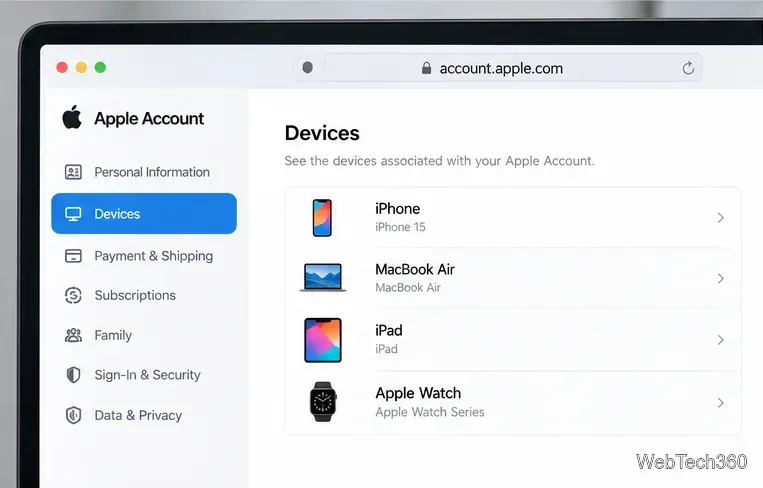
- Go to account.apple.com and sign in.
- Select Devices. If prompted, authenticate to view the list.
- Select each unfamiliar device and choose Remove from Account.
4. Change your Apple Account password if the alert was not yours
If you cannot explain the notification, change the password after removing unknown devices. On a trusted iPhone or iPad, go to Settings > [your name] > Sign-In & Security > Change Password, then follow the prompts. Apple may also offer a choice to keep other devices signed in or require them to sign in again. Apple’s password-change instructions contain the current steps.
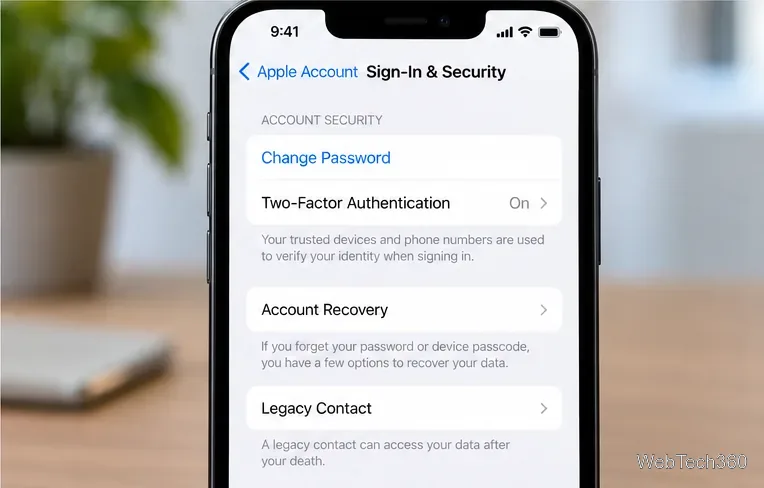
Then review your account information at account.apple.com. Confirm that every email address and phone number belongs to you. If you suspect unauthorized access, Apple also recommends checking with your email provider and mobile carrier to make sure you still control those accounts and that unexpected forwarding has not been configured. Follow Apple’s compromised Apple Account checklist.
If you recognize the device
If every device is yours and the alert followed a recent setup, you usually do not need to remove anything or change your password. You can confirm which addresses are enabled for iMessage under Settings > Apps > Messages > Send & Receive. For FaceTime, go to Settings > Apps > FaceTime and review the phone number and Apple Account address under the contact options.
If you see a phone number that is not yours in Messages or FaceTime, Apple advises changing your Apple Account password. Do not simply ignore an unfamiliar number.
What to do if the alert keeps coming back
- Review the device list again. A device that is still signed in can return to the list after it reconnects.
- Sign out on devices you no longer use. If you still have the old device, sign out of the Apple Account on that device or erase it before selling or giving it away.
- Keep two-factor authentication enabled. Apple says two-factor authentication helps prevent access even when someone knows your password. Review Apple’s two-factor authentication guidance.
- Contact Apple Support if you cannot regain control. If your password no longer works or you cannot remove suspicious access, use Apple’s official account-recovery options rather than links from unexpected texts or emails.
Does this alert always mean your Apple Account was hacked?
No. It can be legitimate after you sign in to a new Apple device or enable iMessage and FaceTime with your account. The warning becomes a security concern when the device, sign-in, phone number, or timing does not match anything you did. In that case, remove unknown devices, change your password, and review the rest of your account security information promptly.