How to Get and Share Your LinkedIn Profile QR Code

To get a QR code for your LinkedIn profile, open the LinkedIn app on your iPhone or Android phone, tap the QR code icon in the search bar, and select My code. You can show the code on your screen, save it to your photos, or use the available sharing options. Anyone who scans it can open your LinkedIn profile and decide whether to connect.

LinkedIn provides a personal QR code for each member through its mobile app. It is especially useful when meeting people at a conference, career fair, or other in-person event because you do not need to spell out your name or profile address.

How to find your LinkedIn profile QR code

  1. Update and open LinkedIn. Install the current version of the official LinkedIn app and sign in to the profile you want to share.
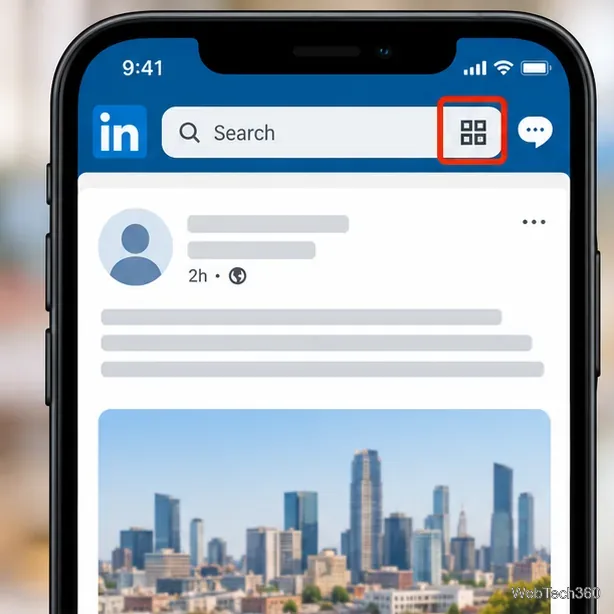
  2. Find the QR code icon. From the Home screen, look toward the right side of the search bar at the top and tap the small square QR icon. Depending on the app version, you may need to tap into the search field to reveal the code option.
LinkedIn mobile home screen with the QR code icon highlighted at the end of the search bar
The QR code icon is located in or near the LinkedIn search field on the mobile home screen.
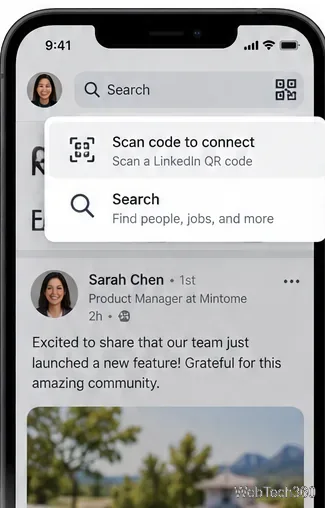
LinkedIn search menu displaying the Scan code to connect option
Some app layouts expose a “Scan code to connect” shortcut after you tap the search field.
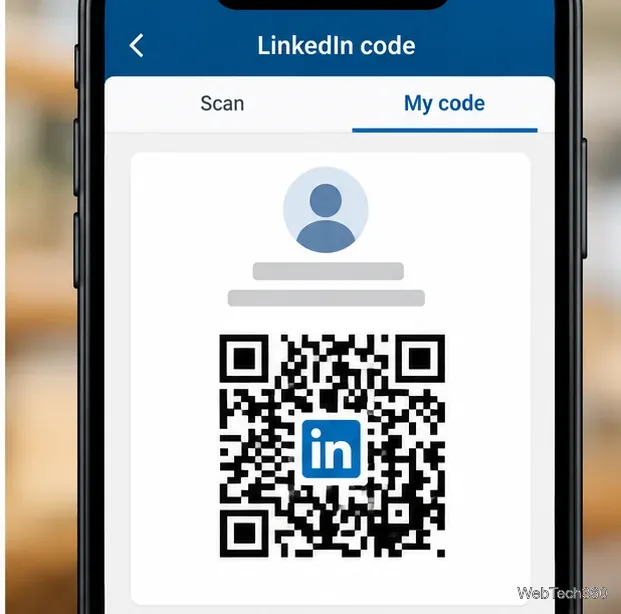
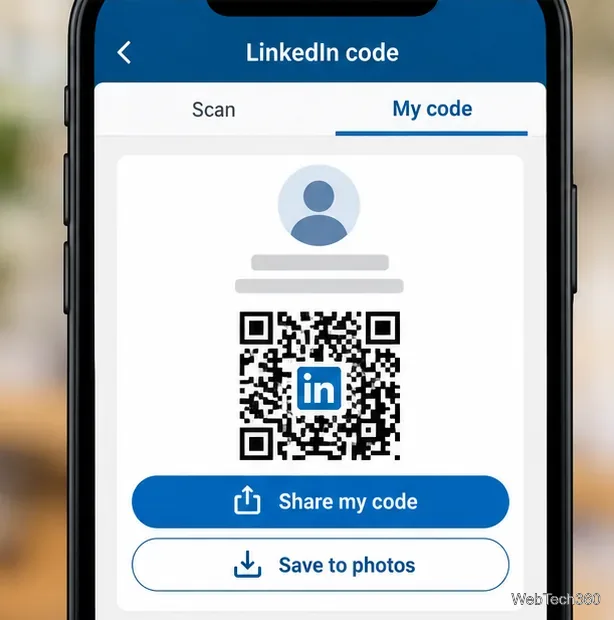
  1. Switch to My code. On the LinkedIn code screen, select My code. Your personal QR code appears alongside identifying profile information.
LinkedIn My code tab showing a profile QR code and a generic avatar
The My code tab is where LinkedIn displays your personal profile QR code.
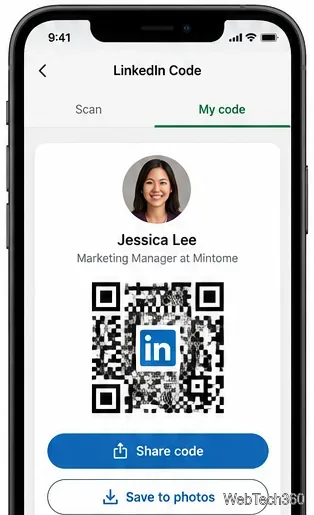
Example LinkedIn My code screen showing a profile card, personal QR code, and sharing buttons
An example of a profile QR card with the sharing controls shown beneath it.
  1. Save or share the code. On supported iPhone layouts, choose Share my code to send it using another app, or Save to photos to keep an image. On Android, look for Save to gallery or the equivalent saving option. The available sharing controls and their exact wording may differ by app version.
LinkedIn My code screen with Share my code and Save to photos options below the QR code
The sharing and saving controls appear beneath the QR code where supported.

After saving, open your phone’s Photos or Gallery app to locate the image. You can then attach it to an email, place it in a presentation, or transfer it to your computer. LinkedIn’s official QR code instructions describe the supported mobile steps for iOS and Android.

How to scan someone else’s LinkedIn QR code

The same LinkedIn screen lets you scan another member’s code. You can scan directly from a phone screen or printed card, or import an image containing the code.

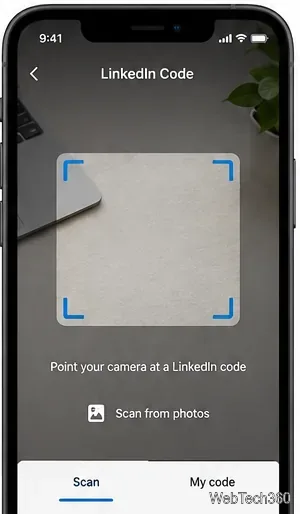
  1. Open the scanner. Tap the QR icon from the LinkedIn search bar and select the Scan tab. If prompted, allow LinkedIn to access your camera.
  2. Position the code. Hold your phone steady with the other person’s QR code clearly visible inside the scanning area. Avoid glare and keep the full code in view.
LinkedIn QR scanner camera screen with empty scanning frame and Scan from photos control
The Scan tab uses the phone camera and may request camera permission the first time.
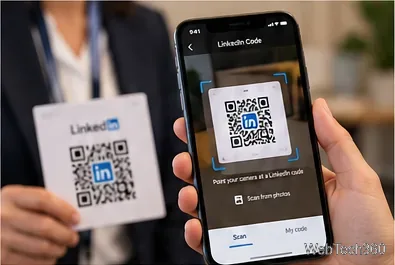
Phone scanning a LinkedIn QR code displayed on another person’s networking card
A networking card can display a LinkedIn QR code for another person to scan.
  1. Open the profile. After a successful scan, LinkedIn directs you to that member’s profile, where you can review the information before choosing to follow or send a connection invitation.
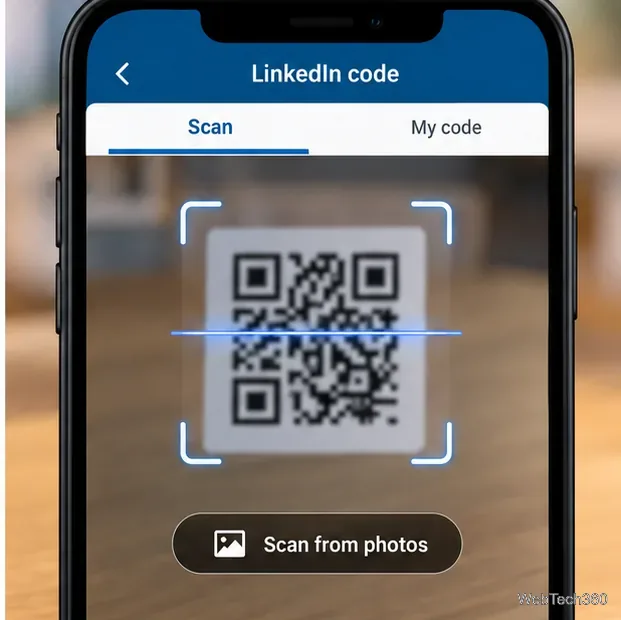
  2. Scan an image instead, if needed. If the code is already saved on your phone, tap Scan from photos or the corresponding gallery option and choose that image.
LinkedIn Scan tab with the camera framing a QR code and the Scan from photos option
The LinkedIn scanner includes an option to read a QR code from a saved picture.

Scanning a code does not automatically make two people connections. It opens the relevant profile; any connection invitation is a separate action. LinkedIn’s announcement of the QR feature also explains the intended networking use.

Can you get a LinkedIn QR code on a computer?

LinkedIn documents its built-in personal QR code and scanner for the iOS and Android apps, rather than as a standard feature in the desktop web interface. If you are preparing a résumé, business card, or slide deck on a computer, save your code in the mobile app first and transfer the image to your computer.

Another option is to share your regular LinkedIn profile link. On desktop, choose Me → View Profile and find Public profile & URL on the right. Copy the address to use as a clickable link in a digital résumé or email signature. If you need a QR image specifically, use the code saved from the mobile app rather than assuming the desktop site has the same controls. See LinkedIn’s guide to finding your public profile URL.

Tips for sharing your code effectively

  • Check what people will see. Review your headline, profile photo, current position, and visibility settings before sharing the code widely. Profile visibility settings can affect which details nonmembers can see.
  • Keep it easy to scan. Use a clear, sufficiently large image on business cards and event signs. Test the printed code with a phone before distributing materials.
  • Provide a text link as a backup. A readable LinkedIn URL helps people on desktops and anyone unable to scan the image.
  • Protect your privacy. Treat the QR code as a convenient link to your profile, not as proof of identity or a private invitation. Anyone who gets the image may be able to use it to find your profile.

What if the QR code button is missing or the scan fails?

First, confirm that you are using the official LinkedIn mobile app rather than a mobile browser, and update the app through your device’s app store. Return to the Home tab and check the search bar again. If the QR feature still does not appear, its placement may differ in your app release; use your profile URL as an immediate alternative.

If the scanner cannot read a code, check LinkedIn’s camera permission in your phone settings, clean the camera lens, increase screen brightness on the device displaying the code, and move the phones a little farther apart. For codes received as pictures, try the scanner’s photo-import option instead. LinkedIn lists camera access among its mobile app permissions.

Leave a Comment

iMessage Is Signed Out on iPhone: How to Fix It

iMessage Is Signed Out on iPhone: How to Fix It

Fix the iMessage Is Signed Out error on iPhone by checking Apple Account sign-in, activation, connectivity, and settings—without erasing your messages.

How to Turn Off VPN on iPhone (App and Settings)

How to Turn Off VPN on iPhone (App and Settings)

Turn off your iPhone VPN in the app or Settings, confirm it disconnected, and stop automatic reconnections without deleting your account.

How to Encrypt an iPhone and Protect Sensitive Information

How to Encrypt an iPhone and Protect Sensitive Information

Learn how to encrypt your iPhone with a strong passcode, protect iCloud and computer backups, and secure your data if your phone is lost or stolen.

How to Clear Cache on iPhone: Safari, Chrome, and Apps

How to Clear Cache on iPhone: Safari, Chrome, and Apps

Learn how to clear Safari and Chrome cache on iPhone, manage app storage safely, and understand when clearing cached data actually helps.

How to Fight Gym Battles in Pokémon GO: Attacks, Dodges, and Taking Control

How to Fight Gym Battles in Pokémon GO: Attacks, Dodges, and Taking Control

Learn how to fight Gym Battles in Pokémon GO, pick effective attackers, use Charged Attacks and dodges, and claim a Gym after defeating its defenders.

Best Cydia Tweaks and Apps for Your Jailbroken iPad: Classic Picks

Best Cydia Tweaks and Apps for Your Jailbroken iPad: Classic Picks

Explore classic Cydia tweaks for jailbroken iPads, from SwipeSelection to Quasar, with compatibility warnings and modern alternatives.

How to Turn Off the Apple Music Splash Screen on iPhone

How to Turn Off the Apple Music Splash Screen on iPhone

Stop Apple Music signup prompts in the Music app. Learn where to find Show Apple Music on iOS and what turning it off does—and does not—change.

Let Mom Know Your iPhone Battery Is Low With an Automatic Text

Let Mom Know Your iPhone Battery Is Low With an Automatic Text

Set up a Shortcuts automation to text Mom when your iPhone battery gets low. Follow four steps, plus delivery checks and privacy tips.

How to Bookmark a Tweet on X (Twitter) on Any Device

How to Bookmark a Tweet on X (Twitter) on Any Device

Save posts on X in a few taps. Learn where to find the Bookmark button on iPhone, Android, and desktop, plus how to view, remove, and organize saved tweets.

How to Enable AR Mode in Pokémon GO on iPhone or Android

How to Enable AR Mode in Pokémon GO on iPhone or Android

Turn on AR mode in Pokémon GO during a wild encounter, find AR settings, and fix camera or device compatibility issues.