iMessage Is Signed Out on iPhone: How to Fix It

Fix the iMessage Is Signed Out error on iPhone by checking Apple Account sign-in, activation, connectivity, and settings—without erasing your messages.
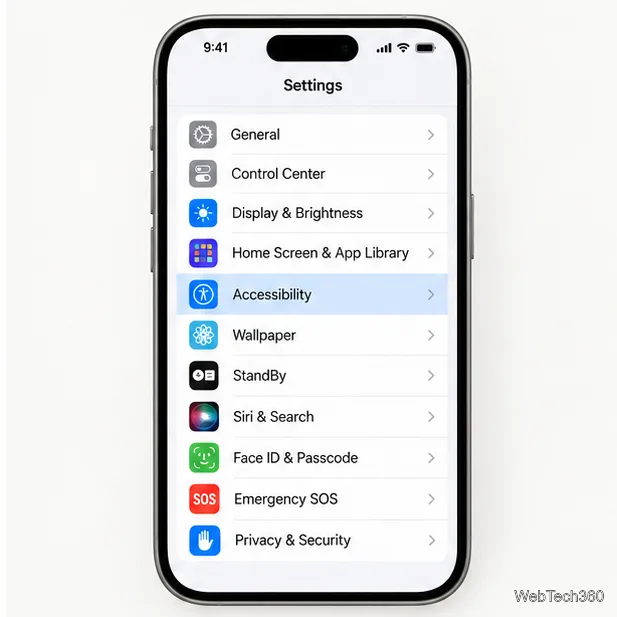
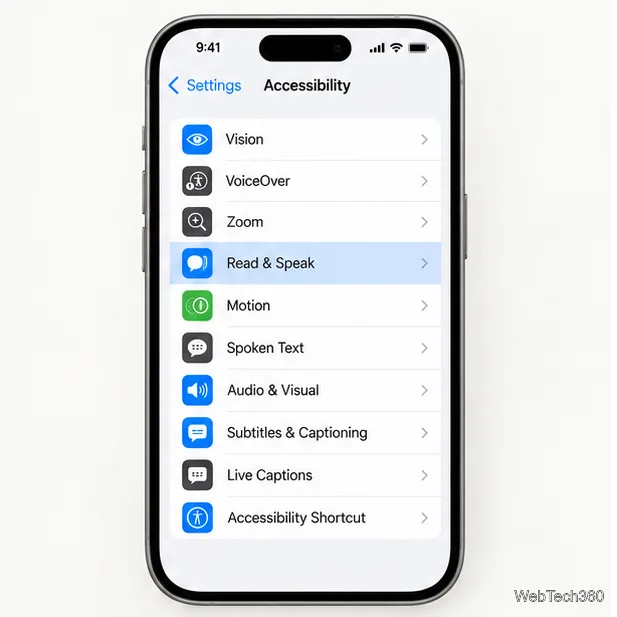
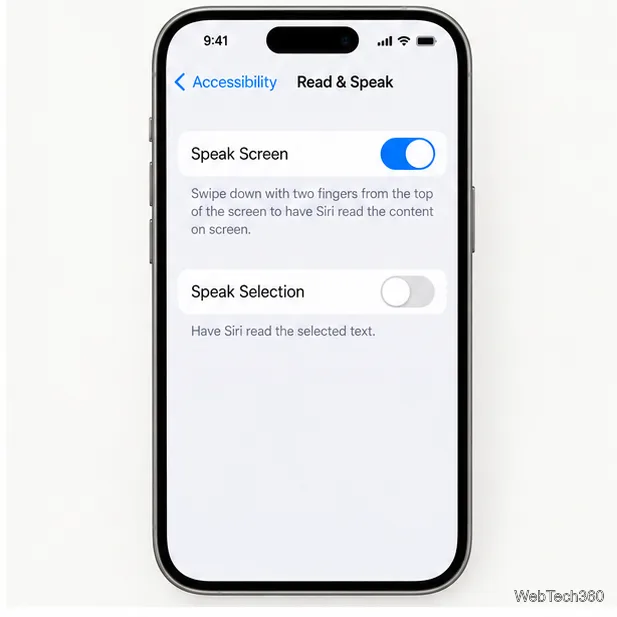
To get Siri to read text on your iPhone or iPad, turn on Speak Screen in Settings. Go to Settings > Accessibility > Read & Speak, switch on Speak Screen, then open the page or message and say, “Siri, speak screen.” You can also swipe down from the top of the display with two fingers. Siri reads text shown on the screen and provides controls to pause, move through the content, and adjust the speaking rate. Apple documents this feature in its iPhone guide and iPad guide.
You only need to enable this accessibility option once. The current iPhone and iPad guides place it under Read & Speak; older instructions may call the area “Spoken Content,” so the label on an older operating system can look different.
Open the Settings app and tap Accessibility. The setting is available on both iPhone and iPad.
On the Accessibility screen, tap Read & Speak. If the menu is long, use the search field in Settings to find “Speak Screen.”
Tap Speak Screen and turn on the Speak Screen switch. You can also turn on Show Controller if you want the playback controls to remain available on screen. The same page includes settings for voices, language detection, and speaking rate.
Open the article, email, note, or other text you want to hear. Activate Siri using the method you normally use, then say “Speak screen.” Siri starts reading the text that the app makes available on the display. You do not need to say the full phrase “read this page,” and you do not need to select the text first.
If you prefer not to use a voice command, swipe down from the very top of the screen with two fingers. Start the gesture near the top edge, not in the middle of the page. This shortcut also works on iPad once Speak Screen is enabled.
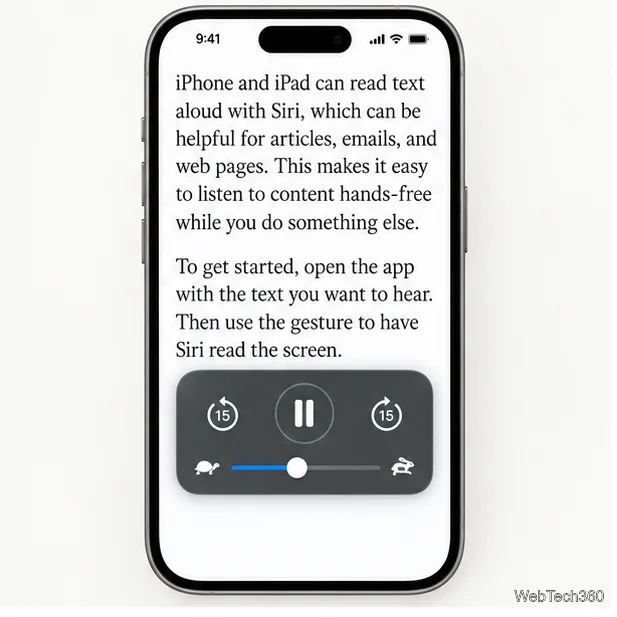
While Siri is speaking, use the floating controller to pause or resume, move forward or back through the content, or change the reading rate. If the controller disappears, tap the small controller tab to bring it back. To keep it visible, enable Show Controller in the Speak Screen settings.
To hear only a paragraph or a few sentences, return to Settings > Accessibility > Read & Speak and turn on Speak Selection. In an app, select the text and tap Speak in the selection menu. This option is useful when you do not want Siri to read the entire page.
For a longer article, Accessibility Reader is another option in Read & Speak. It can show supported text in a full-screen reading view with adjustable layout and background settings; its Autoplay option can begin reading automatically.
Speak Screen reads text that is already open on the display. If you want Siri to read incoming Messages notifications hands-free, use Announce Notifications instead. Apple says this requires compatible AirPods or Beats headphones paired with your iPhone or iPad; the device must be locked, and you need to be wearing the headphones.
To set it up, open Settings > Notifications > Announce Notifications, turn the feature on, then choose Messages and the notification types you want announced. You can reply to an announced message by speaking when Siri prompts you. See Apple’s current Announce Notifications guide for supported headphones and available options. This notification feature is separate from Speak Screen and will not read an open webpage.
Once Speak Screen is enabled, you can use either Siri or the two-finger gesture to listen to on-screen text without reading it line by line.
Fix the iMessage Is Signed Out error on iPhone by checking Apple Account sign-in, activation, connectivity, and settings—without erasing your messages.
Turn off your iPhone VPN in the app or Settings, confirm it disconnected, and stop automatic reconnections without deleting your account.
Learn how to encrypt your iPhone with a strong passcode, protect iCloud and computer backups, and secure your data if your phone is lost or stolen.
Learn how to clear Safari and Chrome cache on iPhone, manage app storage safely, and understand when clearing cached data actually helps.
Learn how to fight Gym Battles in Pokémon GO, pick effective attackers, use Charged Attacks and dodges, and claim a Gym after defeating its defenders.
Explore classic Cydia tweaks for jailbroken iPads, from SwipeSelection to Quasar, with compatibility warnings and modern alternatives.
Stop Apple Music signup prompts in the Music app. Learn where to find Show Apple Music on iOS and what turning it off does—and does not—change.
Set up a Shortcuts automation to text Mom when your iPhone battery gets low. Follow four steps, plus delivery checks and privacy tips.
Save posts on X in a few taps. Learn where to find the Bookmark button on iPhone, Android, and desktop, plus how to view, remove, and organize saved tweets.
Turn on AR mode in Pokémon GO during a wild encounter, find AR settings, and fix camera or device compatibility issues.








