iMessage Is Signed Out on iPhone: How to Fix It

Fix the iMessage Is Signed Out error on iPhone by checking Apple Account sign-in, activation, connectivity, and settings—without erasing your messages.
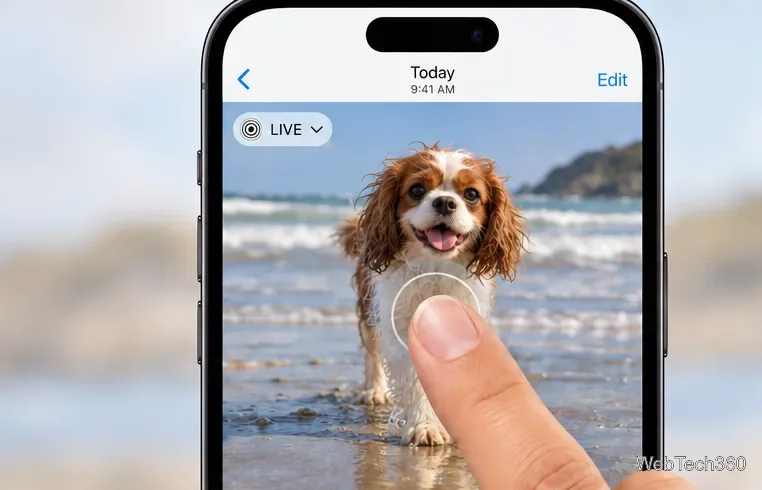
To hear a Live Photo’s recorded sound on an iPhone, open it in Photos and press and hold the image. If it moves but stays silent, check the Live Photo’s own mute control first, then raise media volume and check where audio is playing. You can listen without converting the photo to a video.
Apple says a Live Photo captures the moments around a still image, including audio. Playback is a press-and-hold gesture, so tapping once only opens the photo. See Apple’s instructions for taking and playing Live Photos.
Photos can mute one Live Photo independently of the iPhone’s volume. Open the photo, tap Edit, then tap the Live Photo control in the editor. Find the sound or mute control at the top of the screen. If the photo is muted, tap that control again to unmute it, then tap Done and press and hold the image to test playback. Apple’s Live Photo editing guide confirms that this control can mute or unmute the sound.
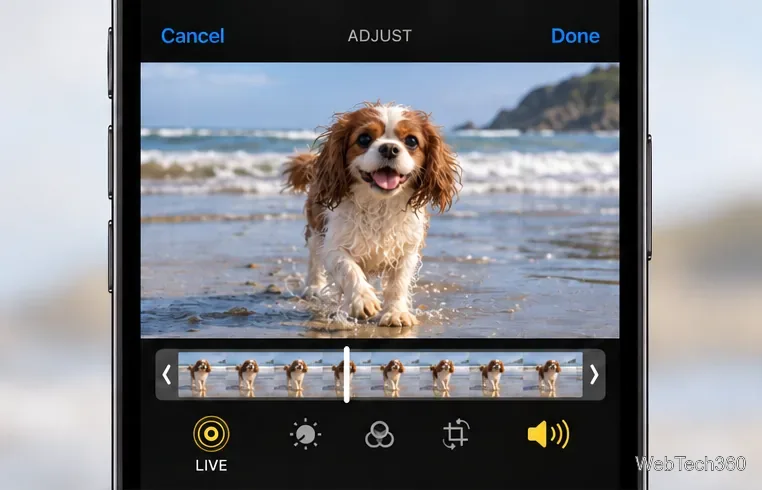
This setting is easy to miss because a Live Photo can still animate while muted. Unmuting restores playback of audio in the Live Photo; it does not make the sound louder, so check the media volume separately.
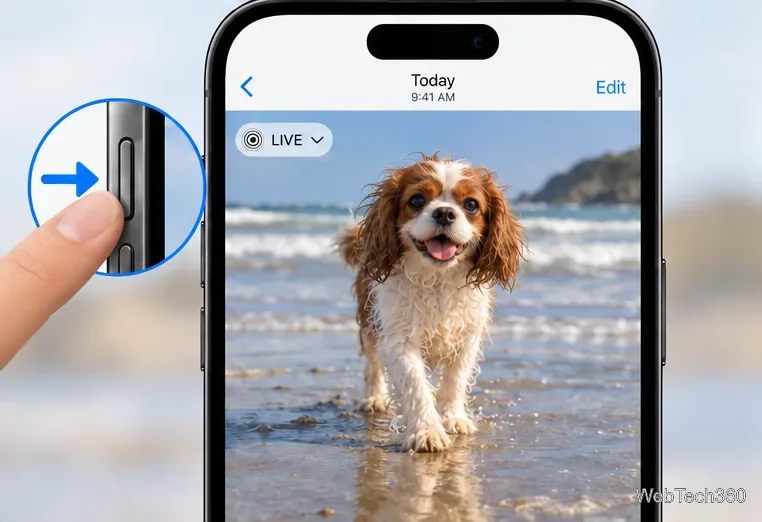
Silent Mode and media volume are separate controls. Apple describes Silent Mode as silencing calls, alerts, and other system sounds, while media has its own volume control. Still, if a Live Photo unexpectedly has no audio, switch Silent Mode off for a quick test and try the press-and-hold gesture again. The control depends on your iPhone: move the Ring/Silent switch toward the front of the phone to turn Silent Mode off; press and hold the Action button if it is assigned to Silent Mode; or use the Silent Mode control in Control Center or Settings > Sounds & Haptics. Apple’s Silent Mode instructions cover the available controls by model.
Start the Live Photo, keep holding the image, and press Volume Up. The side buttons adjust media volume while audio is playing; when nothing is playing, they can adjust ringer and alert volume instead. You can also open Control Center and move its volume slider. For the distinction, see Apple’s guide to adjusting iPhone volume.
Audio may be going to AirPods, a Bluetooth speaker, a car stereo, or an AirPlay device rather than the iPhone speaker. While audio is playing, open Control Center or the Lock Screen media controls and check the playback destination. Select iPhone if you want to hear it through the phone, or connect to the accessory you intended to use. Apple explains how to change audio playback to a Bluetooth accessory.
If the recipient’s phone or computer does not handle Live Photos, save a video copy. In Photos, open the Live Photo, tap the More button (•••), then choose Save as Video. The new clip appears alongside your photos, and the original Live Photo remains available. Play the saved clip once before sending it to confirm that it includes the sound you expect. Apple documents the Save as Video option.
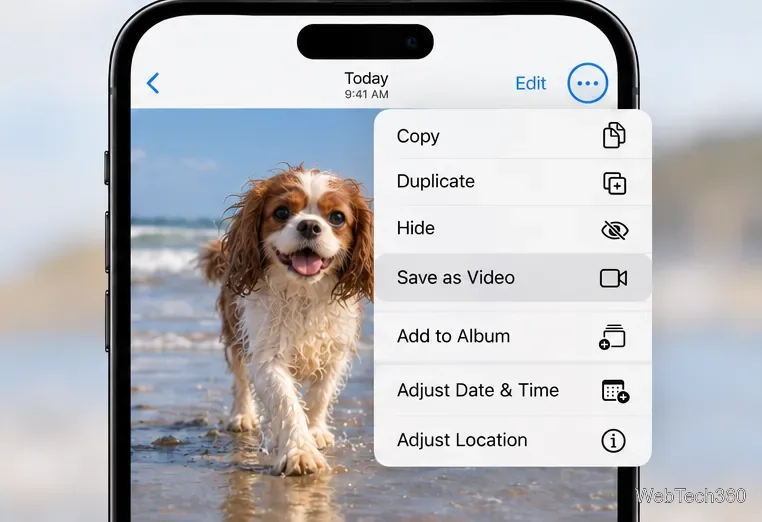
Sharing format matters: Apple notes that a Live Photo sent through Mail is delivered as a still image. A video copy is the more dependable option when you need the motion and audio to work on a wider range of devices. If you keep the Live Photo format, compatibility depends on the recipient’s app and device.
Try another Live Photo and a regular video. If other media also has no sound, check the iPhone’s volume and audio destination. If other media works but only one Live Photo is silent, return to that photo’s Edit screen and check its mute setting. A file that was shared as a still image, edited by an app that removed Live Photo data, or saved without usable audio cannot play sound that is no longer in the file. In that case, ask for the original Live Photo or a video copy.
Fix the iMessage Is Signed Out error on iPhone by checking Apple Account sign-in, activation, connectivity, and settings—without erasing your messages.
Turn off your iPhone VPN in the app or Settings, confirm it disconnected, and stop automatic reconnections without deleting your account.
Learn how to encrypt your iPhone with a strong passcode, protect iCloud and computer backups, and secure your data if your phone is lost or stolen.
Learn how to clear Safari and Chrome cache on iPhone, manage app storage safely, and understand when clearing cached data actually helps.
Learn how to fight Gym Battles in Pokémon GO, pick effective attackers, use Charged Attacks and dodges, and claim a Gym after defeating its defenders.
Explore classic Cydia tweaks for jailbroken iPads, from SwipeSelection to Quasar, with compatibility warnings and modern alternatives.
Stop Apple Music signup prompts in the Music app. Learn where to find Show Apple Music on iOS and what turning it off does—and does not—change.
Set up a Shortcuts automation to text Mom when your iPhone battery gets low. Follow four steps, plus delivery checks and privacy tips.
Save posts on X in a few taps. Learn where to find the Bookmark button on iPhone, Android, and desktop, plus how to view, remove, and organize saved tweets.
Turn on AR mode in Pokémon GO during a wild encounter, find AR settings, and fix camera or device compatibility issues.








