iMessage Is Signed Out on iPhone: How to Fix It

Fix the iMessage Is Signed Out error on iPhone by checking Apple Account sign-in, activation, connectivity, and settings—without erasing your messages.
To loop a video with Bounce on Snapchat, record a video Snap, choose the Bounce playback mode on the preview, and use its slider to select the moment you want to repeat. Bounce plays a short movement back and forth. It's different from a regular video loop, which repeats playback without reversing the selected action.
Snapchat's official Bounce instructions confirm these controls. The exact icon placement can change with app updates, so follow the control's function rather than relying on an older screenshot.
Open Snapchat on your phone and switch to the camera. Press and hold the capture button to record a video rather than taking a photo. Choose an action with a visible change in direction, such as a ball rising and falling, a wave, or a quick head turn. Hold the camera steady.
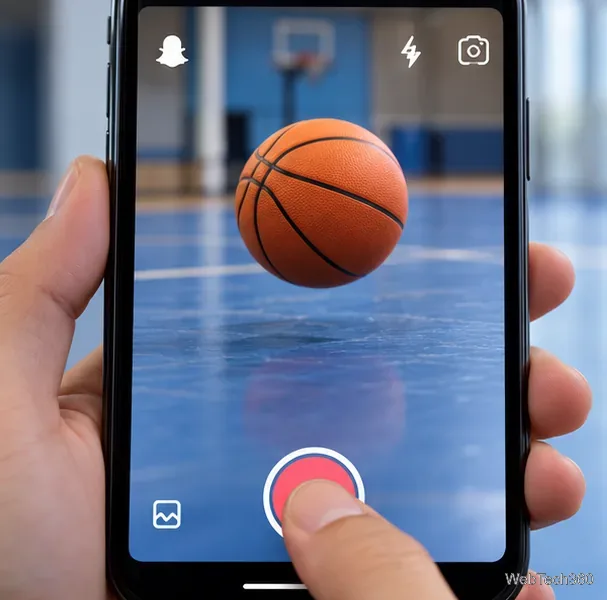
Release the button to finish recording and open the video preview. Bounce only needs a short portion of the video.
On the video preview, find the Bounce playback mode control among Snapchat's editing tools and tap it. This is the mode that lets you choose a segment for back-and-forth playback. Don't mistake it for the ordinary repeat setting that switches a video between playing once and looping.
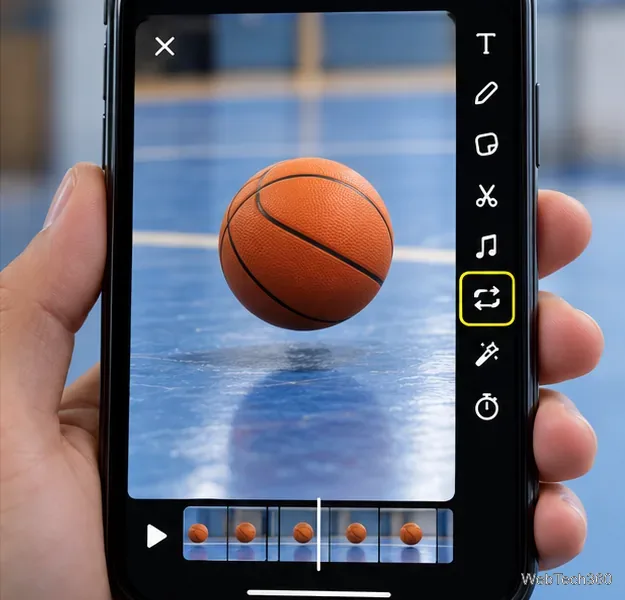
Some older tutorials say to tap the standard loop icon twice. That isn't the clearest current instruction: Snapchat now describes selecting the Bounce playback mode directly. Use Snapchat's current help article if the controls look different.
When Bounce is selected, a slider lets you choose which part of the recorded Snap will bounce. Move the selection until it covers the motion you want to emphasize. For example, with a bouncing ball, select the moment just before and after it changes direction.
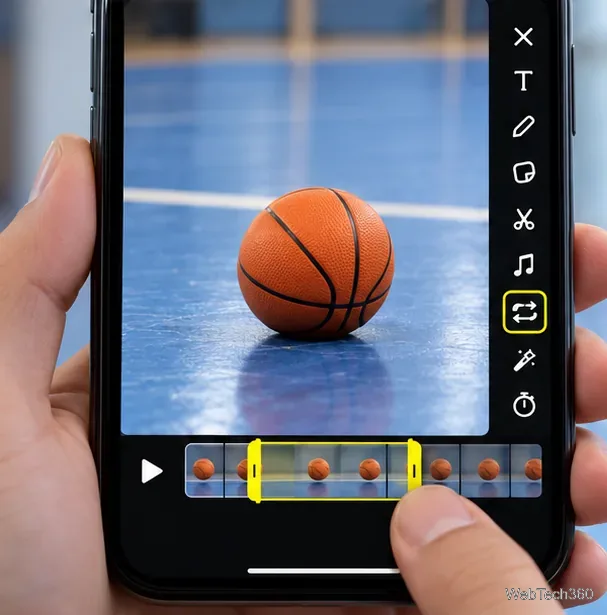
Avoid sections where the camera jerks or the subject leaves the frame. Snapchat notes that Bounce has a maximum segment length; if your recording is longer, only a portion of it is used. Its help page does not state a universal maximum duration, so don't depend on a specific number of seconds.
Watch the result in the editor. The back-and-forth motion should feel intentional rather than like a jump between unrelated frames. If it doesn't, move the slider to a cleaner section or record the action again. Once you're satisfied, send the Snap to a friend or share it through the normal Snapchat sharing options.
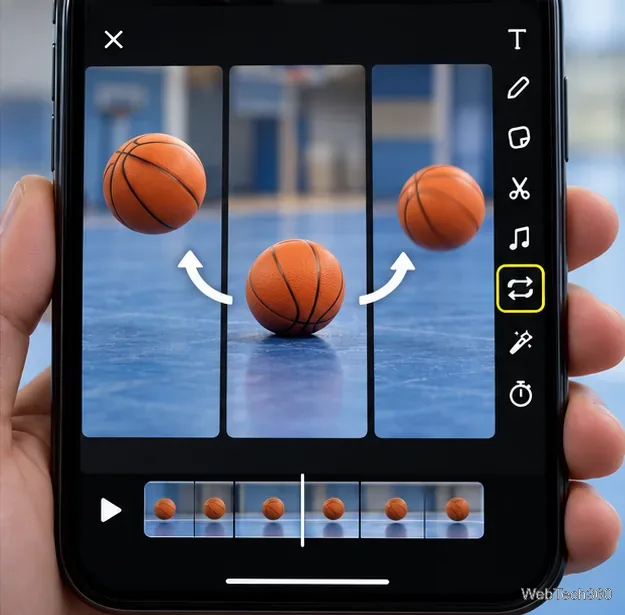
Review the full preview before posting, especially if the original recording contains anything private or distracting. Check exactly what your finished Snap shows.
The two features solve slightly different problems:
The repeat icon controls the once-versus-loop behavior. The Bounce playback mode is for making a short part of the recording move back and forth. Check the preview to confirm the playback mode.
If you recorded a video but cannot find the Bounce option, work through these checks:
These troubleshooting steps come from Snapchat Support and its feature rollout guidance. The current Bounce support article does not promise identical availability or placement across all devices and accounts.
Snapchat's published Bounce walkthrough specifically starts by recording a new video Snap. It does not document a guaranteed method to apply Bounce to every saved or imported video. If your imported clip lacks the button, try recording a fresh Snap rather than assuming the app is broken.
If your goal is to trim or rearrange a longer recording, that's a separate task. Snapchat's Timeline Editor guide explains how to trim clips, split footage, and manage multiple segments. They serve a different purpose from Bounce.
For the cleanest Bounce, capture one clear action, choose a short section that reverses well, then preview it. That simple sequence is usually all you need.
Fix the iMessage Is Signed Out error on iPhone by checking Apple Account sign-in, activation, connectivity, and settings—without erasing your messages.
Turn off your iPhone VPN in the app or Settings, confirm it disconnected, and stop automatic reconnections without deleting your account.
Learn how to encrypt your iPhone with a strong passcode, protect iCloud and computer backups, and secure your data if your phone is lost or stolen.
Learn how to clear Safari and Chrome cache on iPhone, manage app storage safely, and understand when clearing cached data actually helps.
Learn how to fight Gym Battles in Pokémon GO, pick effective attackers, use Charged Attacks and dodges, and claim a Gym after defeating its defenders.
Explore classic Cydia tweaks for jailbroken iPads, from SwipeSelection to Quasar, with compatibility warnings and modern alternatives.
Stop Apple Music signup prompts in the Music app. Learn where to find Show Apple Music on iOS and what turning it off does—and does not—change.
Set up a Shortcuts automation to text Mom when your iPhone battery gets low. Follow four steps, plus delivery checks and privacy tips.
Save posts on X in a few taps. Learn where to find the Bookmark button on iPhone, Android, and desktop, plus how to view, remove, and organize saved tweets.
Turn on AR mode in Pokémon GO during a wild encounter, find AR settings, and fix camera or device compatibility issues.








