iMessage Is Signed Out on iPhone: How to Fix It

Fix the iMessage Is Signed Out error on iPhone by checking Apple Account sign-in, activation, connectivity, and settings—without erasing your messages.
You can make a group voice or video call on WhatsApp by opening a group chat and tapping the phone or video icon, or by starting a new group call from the Calls tab. WhatsApp supports up to 32 participants in either type of group call, rather than the four-person limit shown in older guides. The steps below work on iPhone and Android, although button placement can vary by app version.
Update WhatsApp, check your internet connection, and allow microphone access. Video calls also require camera permission. Calls use Wi-Fi or mobile data, so your carrier may charge for cellular data. WhatsApp says personal calls are end-to-end encrypted. Its WhatsApp calling update confirms 32-person video calls across supported devices.
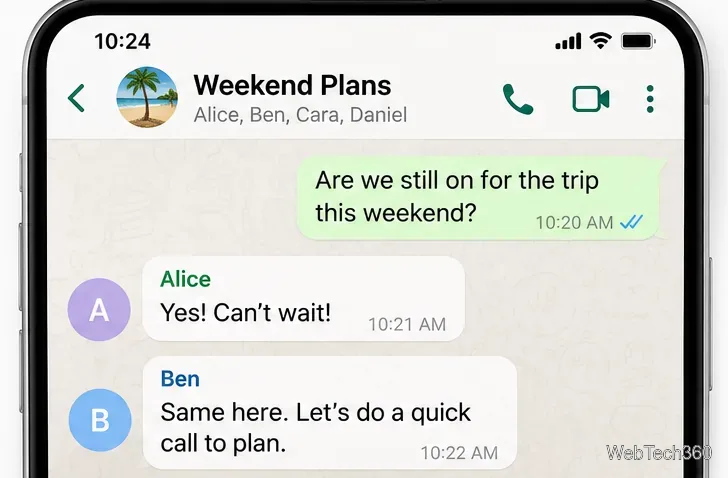
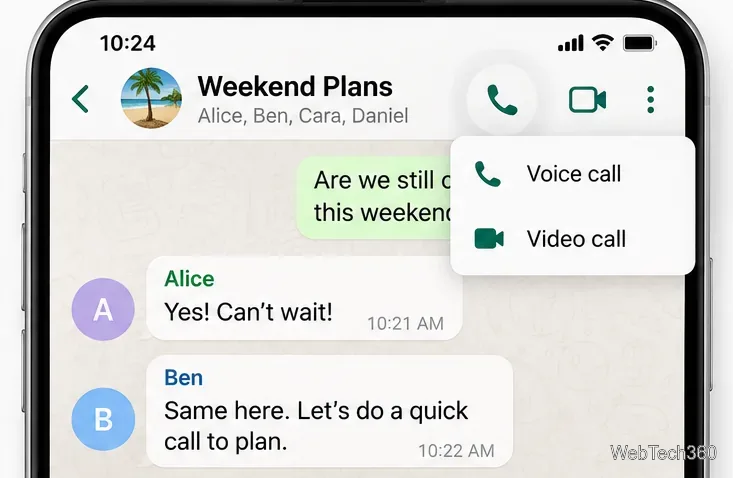
In larger group chats, selecting specific participants helps avoid ringing everyone. The in-chat option calls group members; to invite contacts outside that group, start a separate group call or use a call link.
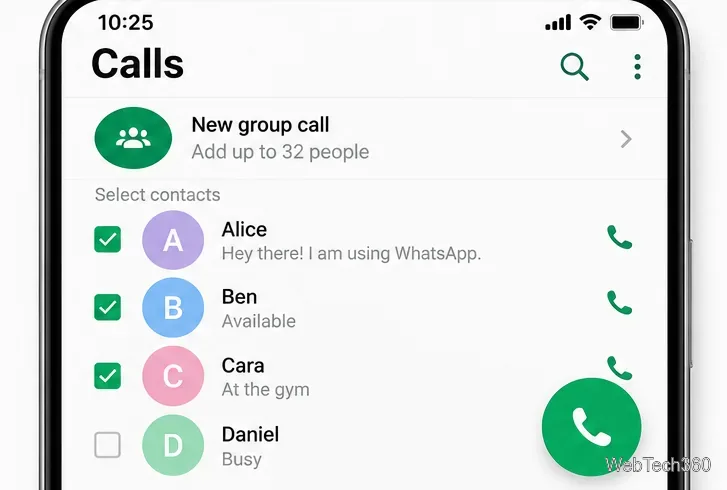
If you began with a one-on-one call, wait for it to connect, then tap the add participant icon (a person with a plus sign). Search for a contact, select them, and confirm the invitation. Repeat as needed. In a group call, everyone can see the participant list, so tell someone before adding them unexpectedly.
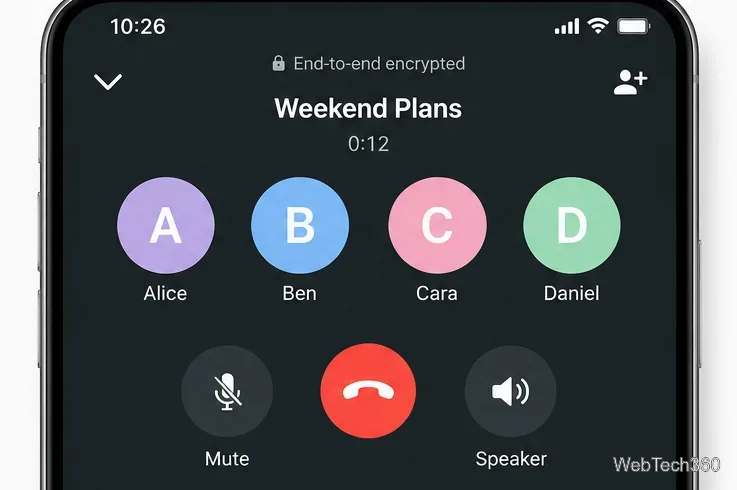
In a video call, tap the microphone to mute yourself, the camera to turn video on or off, or the red phone button to leave. Your screen may show a grid of participants and highlight whoever is speaking. You can continue using WhatsApp while the call is active. You generally cannot convert an already established group voice call into a group video call; start a video call instead if that is what you need. See the official WhatsApp video calling guide.

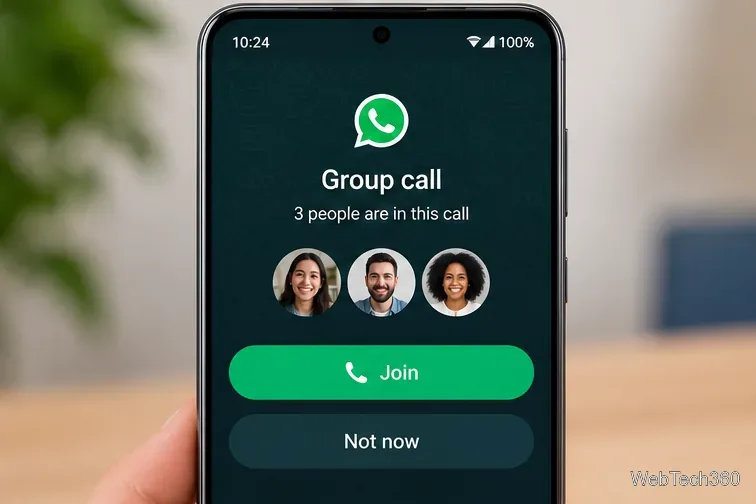
If a group call is still in progress, you do not necessarily have to wait for someone to call again. Open the relevant group chat or the Calls tab, select the active call, review who is participating, and tap Join. You can leave and rejoin while the call is active. WhatsApp documents this behavior in its group voice calling instructions.
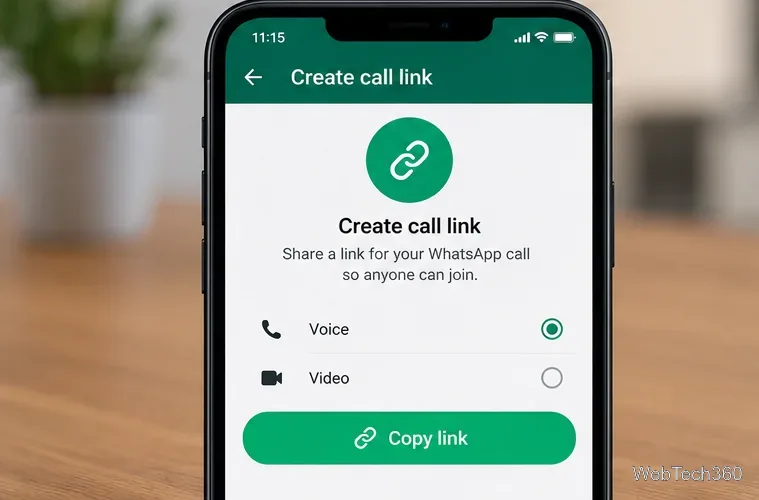
WhatsApp's call link instructions notes that links can expire after 30 days without use. In an guest calling announcement dated October 14, 2026, WhatsApp also introduced browser-based guest access for people without an account, subject to host approval. Guest availability may vary during rollout; an account is still needed to create a link.
WhatsApp Web and supported desktop apps offer calling features, but the available controls can differ by platform and version. Open Calls or a chat, select the calling option, and allow microphone and camera access if prompted. A headset can reduce echo. Check WhatsApp's group voice calling instructions for the current web calling steps.

WhatsApp calling is internet-based, not a replacement for emergency phone service. For urgent assistance, use your local emergency calling method.
Fix the iMessage Is Signed Out error on iPhone by checking Apple Account sign-in, activation, connectivity, and settings—without erasing your messages.
Turn off your iPhone VPN in the app or Settings, confirm it disconnected, and stop automatic reconnections without deleting your account.
Learn how to encrypt your iPhone with a strong passcode, protect iCloud and computer backups, and secure your data if your phone is lost or stolen.
Learn how to clear Safari and Chrome cache on iPhone, manage app storage safely, and understand when clearing cached data actually helps.
Learn how to fight Gym Battles in Pokémon GO, pick effective attackers, use Charged Attacks and dodges, and claim a Gym after defeating its defenders.
Explore classic Cydia tweaks for jailbroken iPads, from SwipeSelection to Quasar, with compatibility warnings and modern alternatives.
Stop Apple Music signup prompts in the Music app. Learn where to find Show Apple Music on iOS and what turning it off does—and does not—change.
Set up a Shortcuts automation to text Mom when your iPhone battery gets low. Follow four steps, plus delivery checks and privacy tips.
Save posts on X in a few taps. Learn where to find the Bookmark button on iPhone, Android, and desktop, plus how to view, remove, and organize saved tweets.
Turn on AR mode in Pokémon GO during a wild encounter, find AR settings, and fix camera or device compatibility issues.








