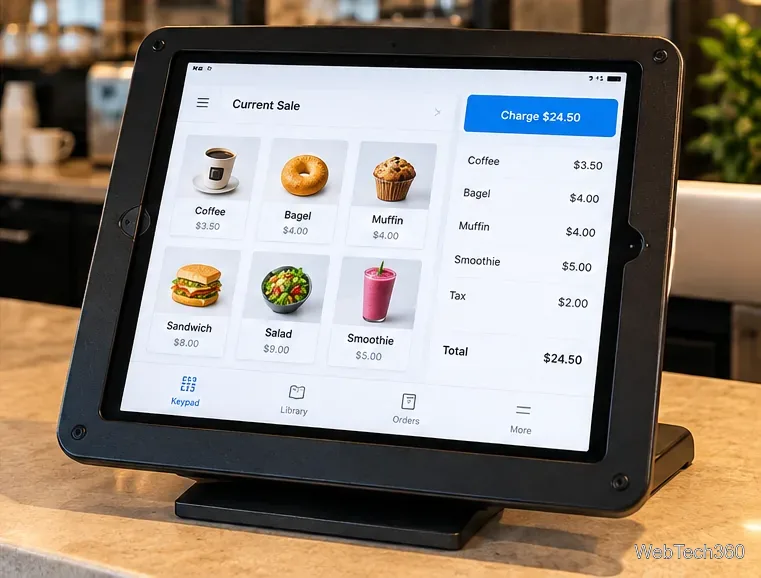
To put an iPad in kiosk mode, use Guided Access for a quick, temporary one-app lock, or Single App Mode for a supervised iPad used as a point-of-sale terminal, check-in station, display, or other dedicated device. Guided Access can be configured directly on the iPad. Single App Mode is stronger and is intended for managed devices.
Which iPad kiosk mode should you use?
| Method | Best for | What you need |
|---|
| Guided Access | Temporary kiosk use, classrooms, demos, children, focus | Only the iPad |
| Single App Mode | Dedicated POS, reception, display, or shared business iPad | A supervised iPad plus Apple Configurator on a Mac, or device management |
| MDM App Lock | Multiple remotely managed kiosks | Supervised/managed devices and a device management service |
Method 1: Lock an iPad to one app with Guided Access
Apple describes Guided Access as a way to temporarily restrict iPad to a single app while controlling buttons, touch, motion, the software keyboard, and time limits. This is the simplest option when you do not need full device management. See Apple's Guided Access instructions.
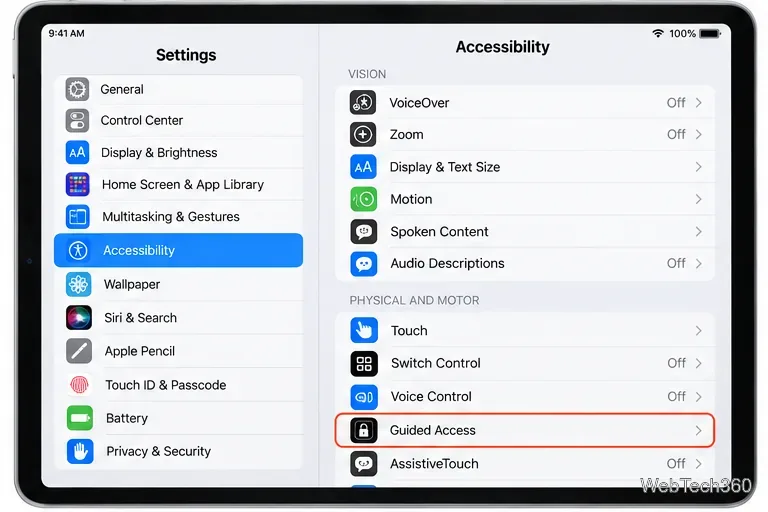
- Turn on Guided Access. Open Settings > Accessibility > Guided Access, then enable Guided Access.
- Set an exit method. Open Passcode Settings and set a Guided Access passcode. You can also allow Face ID or Touch ID on supported models.
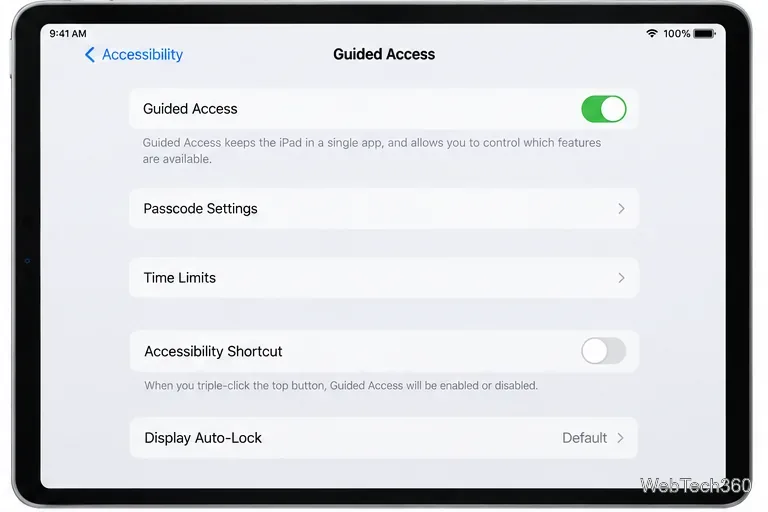
- Open the kiosk app. Launch the app you want people to use, then start Guided Access with Siri, Control Center if you added the control, or the Accessibility Shortcut.
- Choose what users can touch. If needed, circle areas of the screen that should not respond. Tap Session Settings to allow or block the Top button, volume buttons, motion, software keyboard, touch, or a time limit.
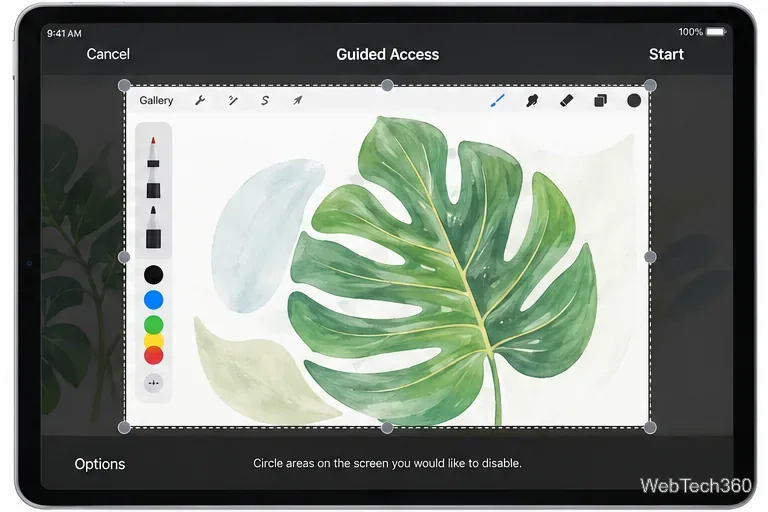
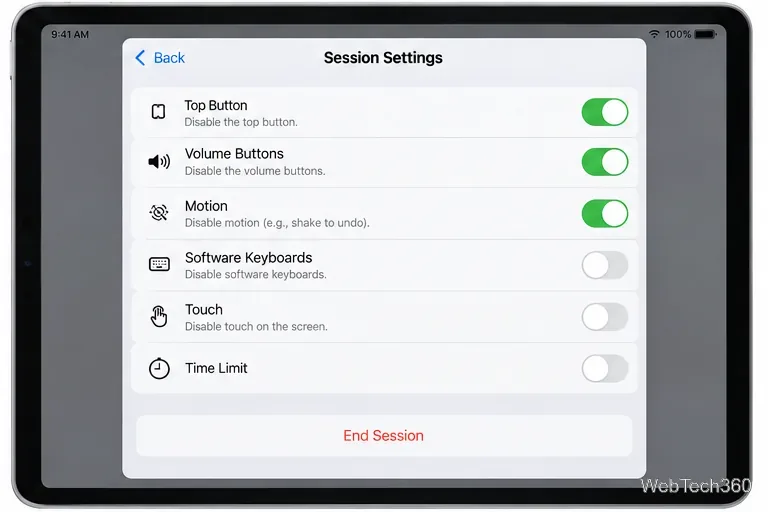
- Start the session. Tap Done, then Start.
How to exit Guided Access
Triple-click the Top button on an iPad with Face ID, or the Home button on models that have one. Enter the Guided Access passcode or authenticate with Face ID/Touch ID, depending on the options you enabled.
Method 2: Use Single App Mode for a dedicated iPad kiosk
Single App Mode forces the selected app to stay open on a supervised device and prevents users from switching to other apps. Apple also states that the chosen app reopens after a restart. That makes it a better fit for unattended or continuously used kiosks. The current Apple Configurator workflow is documented in Apple's Single App Mode guide.
Important: iPads are not supervised by default. Apple says supervision is normally enabled during device setup on a new or fully erased device. If you are converting an already-configured personal iPad, back it up and review Apple's supervision guidance before proceeding. Removing supervision later erases the device.
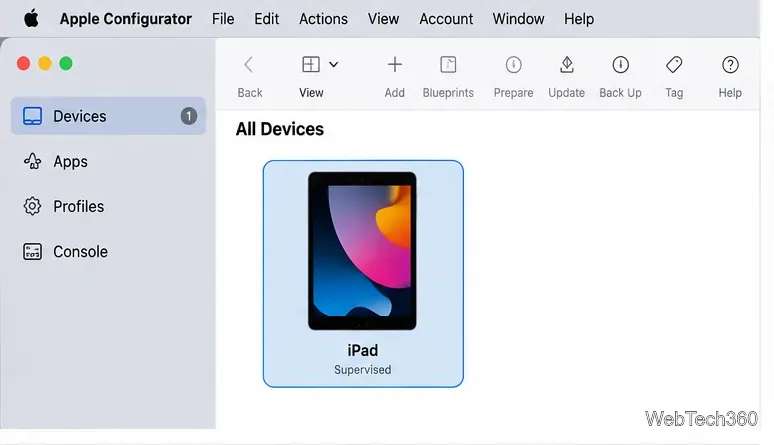
- Connect the supervised iPad to your Mac and open Apple Configurator. Select the iPad in the device window.
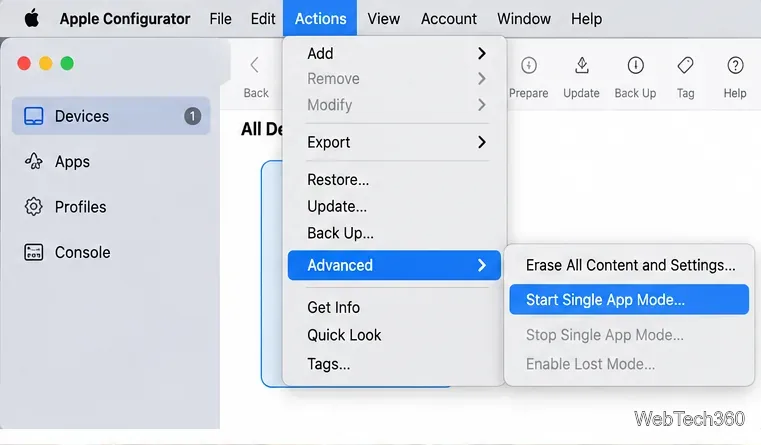
- Choose Actions > Advanced > Start Single App Mode.
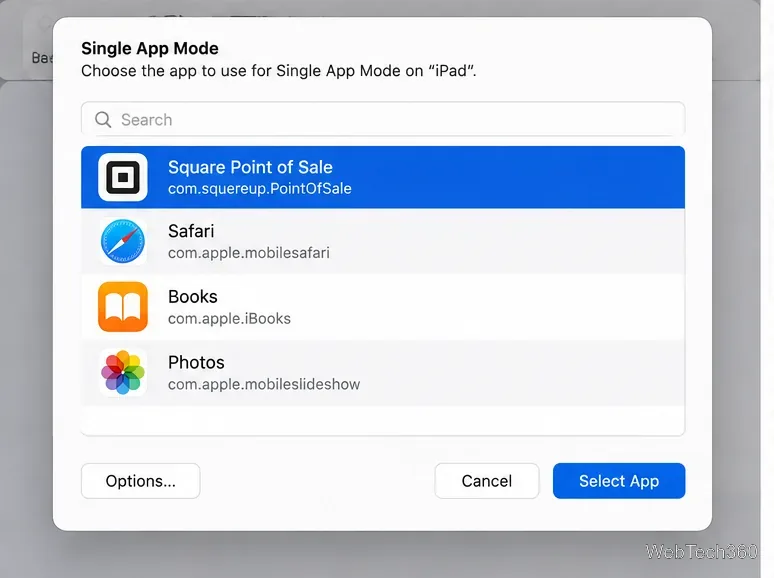
- Select the app that should be available. Use Options if you need to change which device features remain available.
- Click Apply, then Select App.
To stop Single App Mode later, reconnect the iPad to the Mac, select it in Apple Configurator, and use Actions > Advanced > Stop Single App Mode.
For multiple kiosks, use device management
If you manage a fleet of iPads, a device management service is more practical than connecting each unit to one Mac. Apple's App Lock payload can restrict a managed iPad to a single app and define additional kiosk-related controls. This approach is designed for organizational deployments and remote administration.
Before you leave the iPad unattended
- Test the exit method first. Confirm the Guided Access passcode or administrator workflow before mounting the iPad where its buttons or cable may be hard to reach.
- Decide whether touch should stay fully enabled. Guided Access can disable specific screen areas or all touch input, which is useful for displays that should not be changed by visitors.
- Check power and network access. A kiosk app may depend on continuous charging or internet connectivity even though kiosk mode itself does not provide either.
- Use Single App Mode for unattended business use. Guided Access is convenient, but supervised Single App Mode gives organizations a more controlled configuration and automatically returns the selected app after restart.
Bottom line
Use Guided Access when you need a quick one-app session without extra hardware. Use Single App Mode when the iPad is a supervised, dedicated kiosk that should return to the same app after restart. For many devices, manage Single App Mode through MDM instead of configuring each iPad manually.