iMessage Is Signed Out on iPhone: How to Fix It

Fix the iMessage Is Signed Out error on iPhone by checking Apple Account sign-in, activation, connectivity, and settings—without erasing your messages.
To reply privately to a message in a WhatsApp group, press and hold the message, open its options, and choose Reply privately. WhatsApp takes you to a one-on-one chat with the person who posted it, so your response does not appear in the group. The feature works on Android, iPhone, and WhatsApp Web, although the menus look slightly different.
Use these four steps when you want to answer just one participant instead of everyone in a family, school, or work group.
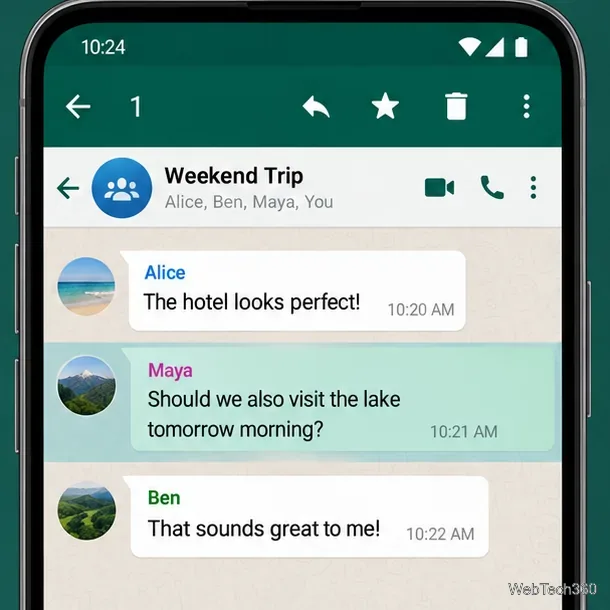
After selecting a group message, use the three-dot More options control near the top of the screen and tap Reply privately. The direct conversation opens, with the selected group message attached as a quotation. If the menu is laid out differently on your phone, look for the same command in the selected message's additional actions.
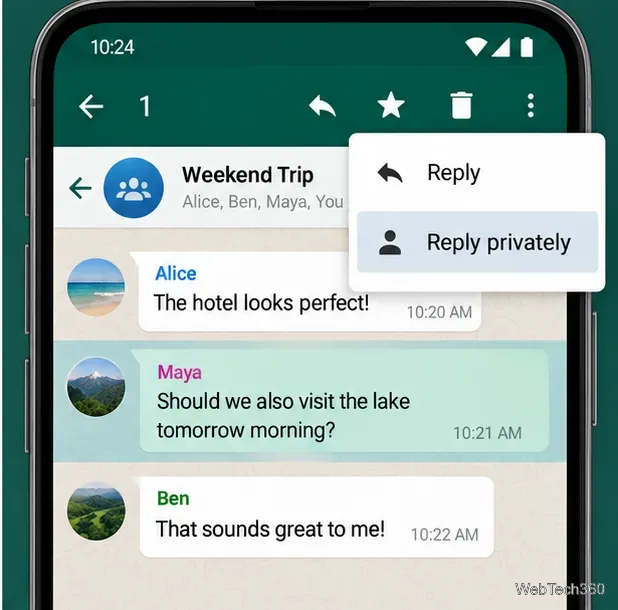
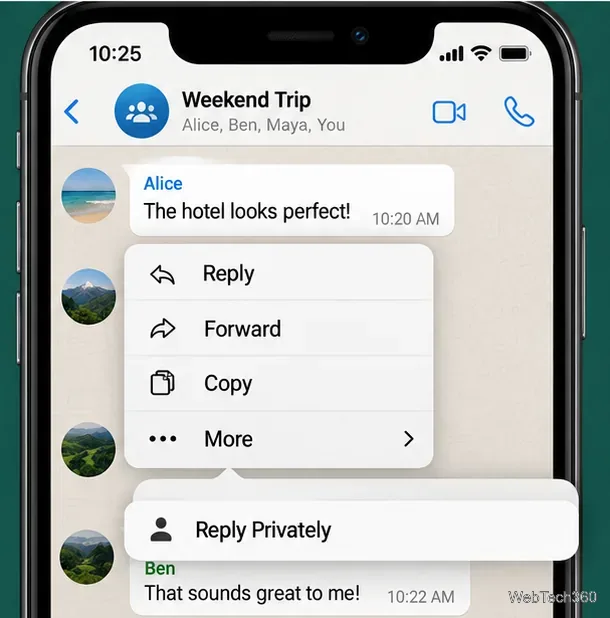
Touch and hold the group message to show its context menu. Depending on the WhatsApp version, you may see Reply Privately immediately or need to tap More first. Select the private action, then send your response from the one-to-one chat. Swiping right on a group message typically starts a regular reply inside the group; it is not a substitute for the private command.
Open the group at WhatsApp Web. Hover over the specific message, open its menu, and click Reply privately. Type your response in the individual chat that appears. WhatsApp's official message-reply guide documents this workflow.
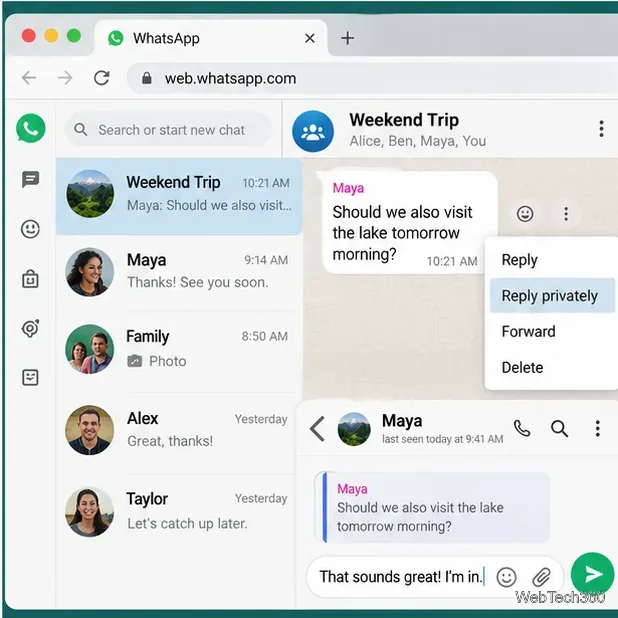
A private reply is a direct message to the group participant who wrote the original message. It includes a quoted reference to the selected group message, providing context for your answer. The new reply does not appear as a new message in the group chat, and the other participants are not automatically notified about your one-on-one conversation.
That does not make the exchange invisible to the recipient: the person you contacted can still read, copy, screenshot, or share what you send. WhatsApp says personal chats and groups are protected by end-to-end encryption, but encryption does not prevent a participant from sharing the messages they receive. See WhatsApp's privacy explanation.
These commands have different outcomes. Reply privately begins or continues a conversation with the original sender. Reply posts a quoted response in the same group, where group members can see it. Forward lets you choose other recipients, but sends the selected content as a forwarded message rather than creating a direct reply to its author.
For example, if Maya posts a meeting location in a team group and you need to ask her about an accessibility concern, a private reply keeps the question between the two of you. If everyone needs the answer, reply in the group instead so no one misses the information.
Not with that message's Reply privately command: it targets the sender of the selected group post. To discuss the message with someone else, start a separate chat with that person. You can share relevant information manually, or use Forward if appropriate, keeping in mind that a forward is not the same as a private reply and may expose content to another recipient.
Before you send, double-check the name at the top of the conversation. That quick check is the simplest way to avoid sending a sensitive response to the entire group—or to the wrong individual.
Fix the iMessage Is Signed Out error on iPhone by checking Apple Account sign-in, activation, connectivity, and settings—without erasing your messages.
Turn off your iPhone VPN in the app or Settings, confirm it disconnected, and stop automatic reconnections without deleting your account.
Learn how to encrypt your iPhone with a strong passcode, protect iCloud and computer backups, and secure your data if your phone is lost or stolen.
Learn how to clear Safari and Chrome cache on iPhone, manage app storage safely, and understand when clearing cached data actually helps.
Learn how to fight Gym Battles in Pokémon GO, pick effective attackers, use Charged Attacks and dodges, and claim a Gym after defeating its defenders.
Explore classic Cydia tweaks for jailbroken iPads, from SwipeSelection to Quasar, with compatibility warnings and modern alternatives.
Stop Apple Music signup prompts in the Music app. Learn where to find Show Apple Music on iOS and what turning it off does—and does not—change.
Set up a Shortcuts automation to text Mom when your iPhone battery gets low. Follow four steps, plus delivery checks and privacy tips.
Save posts on X in a few taps. Learn where to find the Bookmark button on iPhone, Android, and desktop, plus how to view, remove, and organize saved tweets.
Turn on AR mode in Pokémon GO during a wild encounter, find AR settings, and fix camera or device compatibility issues.








