iMessage Is Signed Out on iPhone: How to Fix It

Fix the iMessage Is Signed Out error on iPhone by checking Apple Account sign-in, activation, connectivity, and settings—without erasing your messages.
To reset all app permissions on iOS, use Reset Location & Privacy. The option returns your iPhone’s location and privacy settings to their defaults, so apps may request access again when they next need information such as your location, photos, camera, microphone, or contacts. It does not erase your apps, photos, messages, or other personal content.
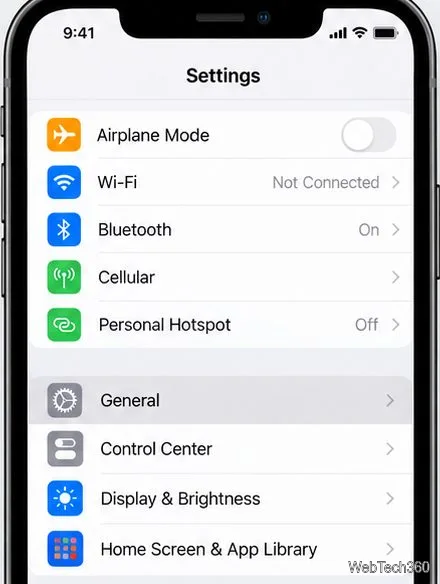
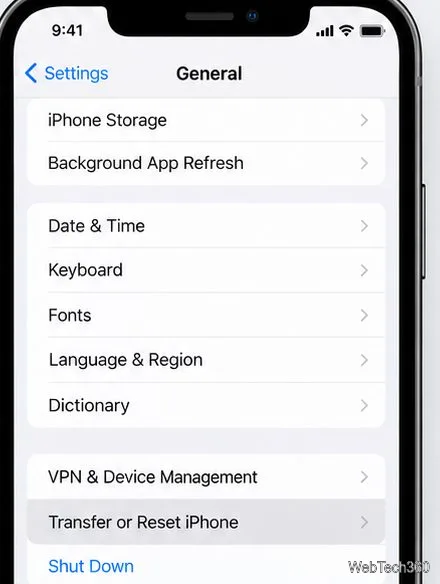
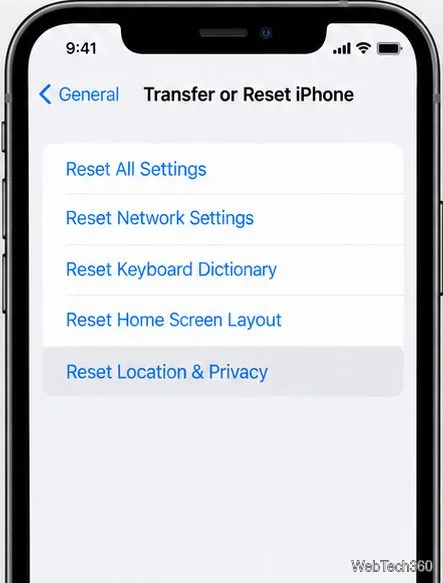
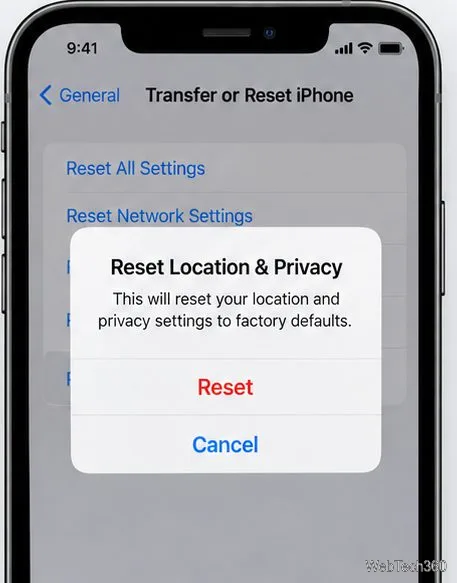
On current iOS versions, open Settings > General > Transfer or Reset iPhone > Reset > Reset Location & Privacy. Confirm the reset when prompted. This resets privacy choices across apps; iOS does not provide a single per-app “reset all permissions” button.
Open Settings, tap General, then scroll down to Transfer or Reset iPhone.
Tap Transfer or Reset iPhone, then tap Reset. This opens a list of reset options. Do not choose Reset All Settings unless you intend to reset a much broader set of iPhone preferences.
Select Reset Location & Privacy. Check the label before continuing: it is the option for restoring the location and privacy controls used by apps.
Enter your iPhone passcode if requested, then confirm Reset Location & Privacy. Wait for Settings to finish before closing it.
Apple documents this path in its guide to resetting iPhone settings. The exact layout can vary slightly across iOS releases, but the reset option remains under General and Transfer or Reset iPhone.
When an app next tries to use information protected by an iOS privacy control, it may ask for permission again. The request appears when the app reaches the feature that needs access, not necessarily as soon as you reset the phone. Review each request and allow only the access you want. For example, a map app may need location while you use it, while a photo editor may work with selected photos instead of your entire library.
If an app does not show a new prompt, or you want to change one permission without resetting everything, manage it in Settings. Go to Settings > Privacy & Security, choose a category such as Location Services, Photos, Contacts, Camera, or Microphone, then change that app’s access. Apple’s instructions for controlling app access explain how category-level controls work. Some categories offer more than an on/off switch, such as choosing which photos an app can see.
Revoking access controls what an app can use from the iPhone going forward. It does not delete information the app already copied, uploaded, or stored on its own servers. To remove account data or cloud-stored content, use the app or service’s privacy and account-deletion controls.
Use this reset when you want to review permission decisions across multiple apps at once. It will not display a checklist or ask you to approve every app on one screen; each app’s choice returns to its default, and a request comes later when that app uses protected information. You can decline access or choose a limited option when available, then adjust it later in Privacy & Security.
Reset Location & Privacy is not a reset for every setting associated with installed apps. Notification alerts are controlled separately in Settings > Notifications; sign-ins, subscriptions, and preferences saved inside an app are handled by that app or service. To audit recent access before changing permissions, turn on App Privacy Report under Settings > Privacy & Security > App Privacy Report. Apple says the report shows how often apps access information such as location, camera, and microphone; it reports activity rather than changing permissions. See Apple’s guide to App Privacy Report and notification settings.
| Option | What it changes |
|---|---|
| Reset Location & Privacy | Restores location and privacy settings to their defaults. |
| Reset All Settings | Resets a wider group of settings, including network, keyboard, location, and privacy settings. Apple says this does not delete data or media. |
| Erase All Content and Settings | Removes your personal content and settings. This is a device-erasing action, not a permissions reset. |
If you only want to stop one app from using a particular feature, change that permission under Privacy & Security instead of resetting the privacy choices for every app. For more detail on Apple’s privacy controls, see its overview of privacy and Location Services.
Fix the iMessage Is Signed Out error on iPhone by checking Apple Account sign-in, activation, connectivity, and settings—without erasing your messages.
Turn off your iPhone VPN in the app or Settings, confirm it disconnected, and stop automatic reconnections without deleting your account.
Learn how to encrypt your iPhone with a strong passcode, protect iCloud and computer backups, and secure your data if your phone is lost or stolen.
Learn how to clear Safari and Chrome cache on iPhone, manage app storage safely, and understand when clearing cached data actually helps.
Learn how to fight Gym Battles in Pokémon GO, pick effective attackers, use Charged Attacks and dodges, and claim a Gym after defeating its defenders.
Explore classic Cydia tweaks for jailbroken iPads, from SwipeSelection to Quasar, with compatibility warnings and modern alternatives.
Stop Apple Music signup prompts in the Music app. Learn where to find Show Apple Music on iOS and what turning it off does—and does not—change.
Set up a Shortcuts automation to text Mom when your iPhone battery gets low. Follow four steps, plus delivery checks and privacy tips.
Save posts on X in a few taps. Learn where to find the Bookmark button on iPhone, Android, and desktop, plus how to view, remove, and organize saved tweets.
Turn on AR mode in Pokémon GO during a wild encounter, find AR settings, and fix camera or device compatibility issues.








