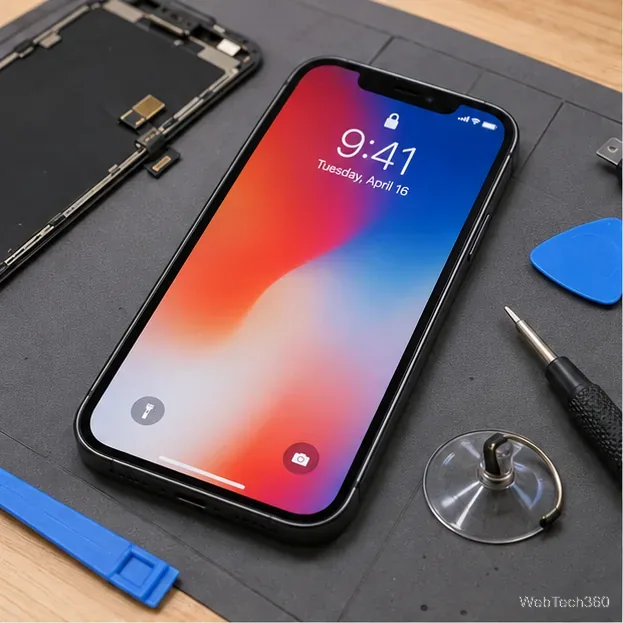
To reset Face ID on your iPhone, open Settings, go to Face ID & Passcode, enter your passcode, and tap Reset Face ID. The enrolled face data is removed, so Face ID will not unlock the iPhone again until you set it up again. If Face ID has simply become inconsistent, Apple recommends checking the camera, settings, software, and restarting the iPhone before you reset it.
How to reset Face ID on iPhone
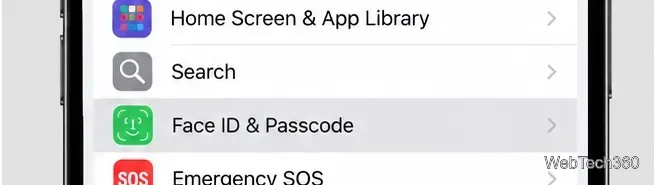
- Open Settings and tap Face ID & Passcode. This menu appears only on iPhone models that support Face ID.
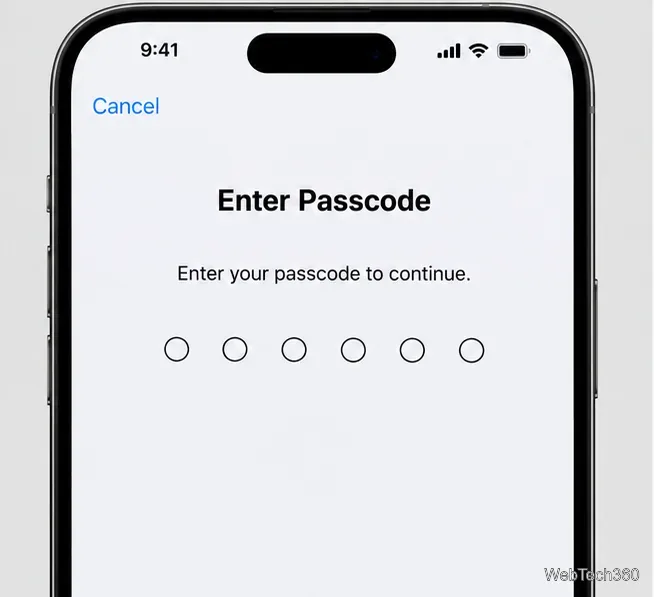
- Enter your iPhone passcode. Apple requires the passcode before you can change Face ID security settings.
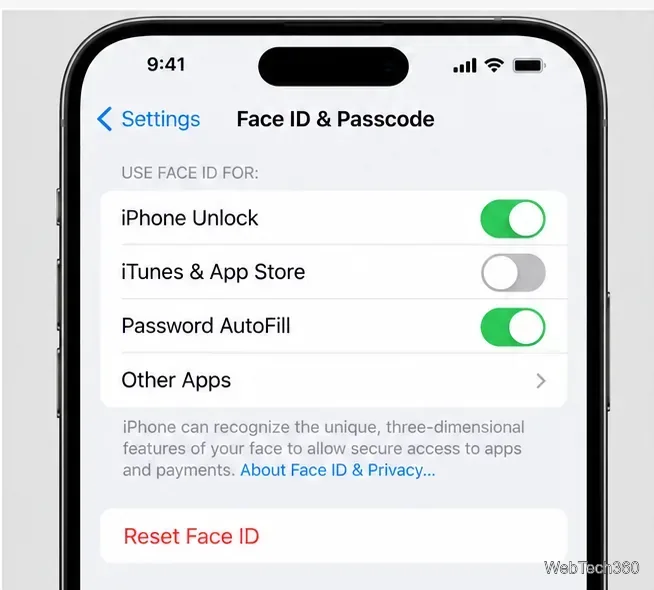
- Scroll through the Face ID settings and tap Reset Face ID. There is no separate confirmation step in the normal reset flow, so use the button only when you are ready to remove the enrolled face.
- After the reset, the same screen shows Set Up Face ID. Until you enroll your face again, use your passcode to unlock and authenticate on the iPhone.
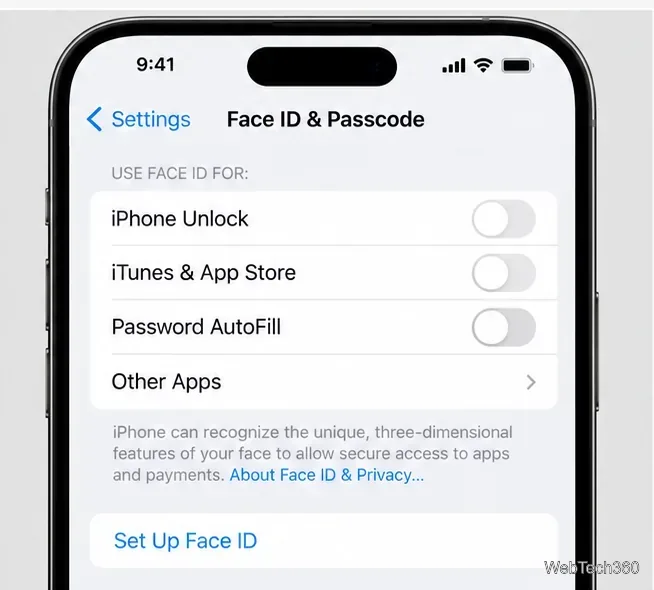
Apple documents the same reset path in its current Face ID troubleshooting guide.
Set up Face ID again after the reset
- In Settings > Face ID & Passcode, tap Set Up Face ID, then tap Get Started. Hold the iPhone in portrait orientation and position your face in front of the TrueDepth camera.
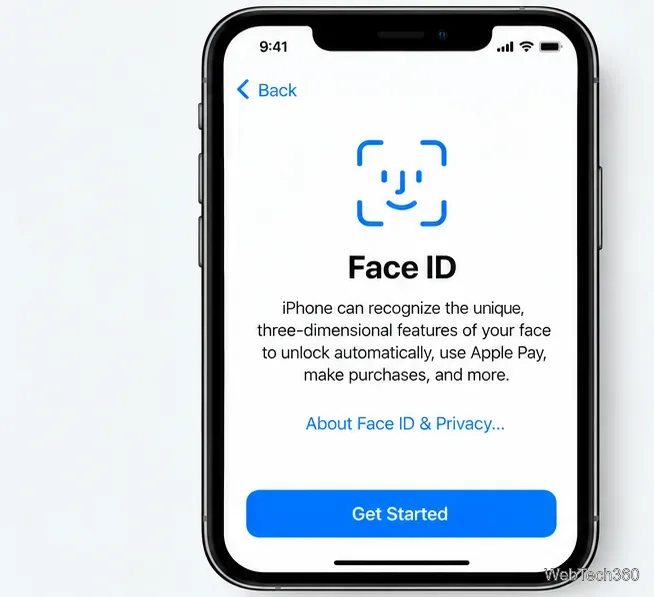
- Place your face inside the on-screen frame. Gently move your head so the circular indicator fills. If you cannot complete the normal head movement, use the accessibility option offered during setup.
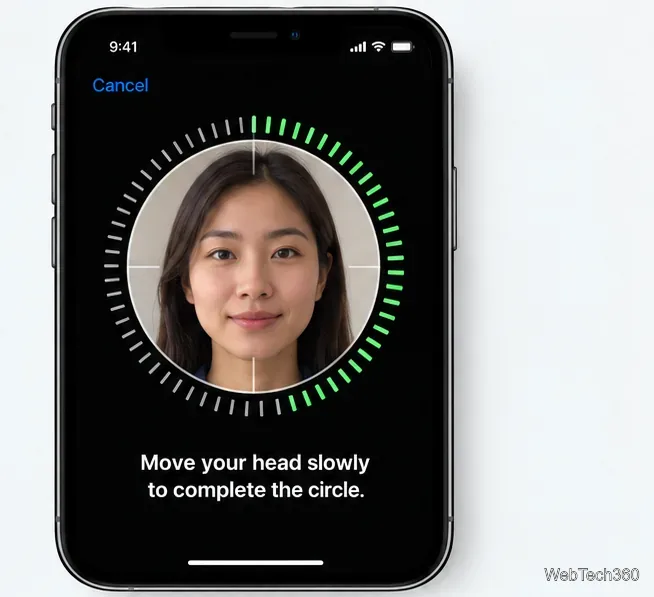
- When the first scan finishes, continue to the second scan and repeat the head movement. Keep the camera area clear and keep your face fully visible while the scan runs.
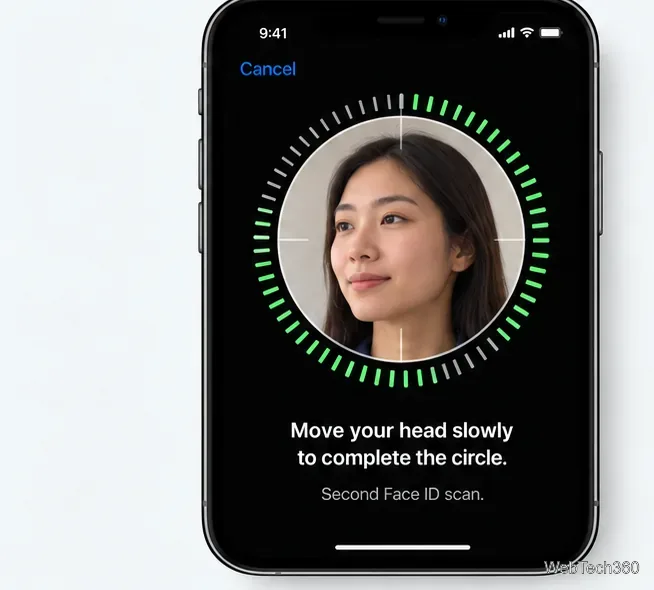
- After the second scan completes, tap Done. You can then choose which features may use Face ID, such as iPhone Unlock, purchases, password autofill, and supported apps.
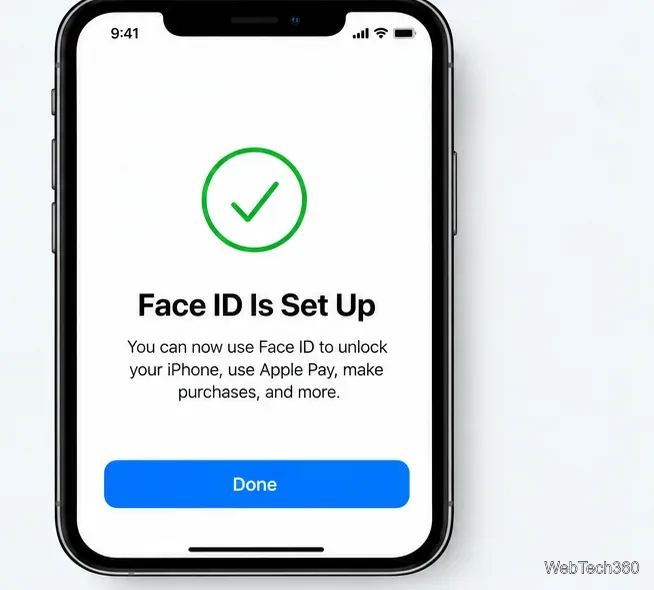
For Apple's current enrollment instructions, see Use Face ID on your iPhone or iPad Pro.
Should you reset Face ID when recognition gets worse?
Not necessarily. The older advice that you should reset Face ID whenever you grow a beard, shave, change your hair, or start wearing glasses is too broad. Apple says Face ID can continue learning as your appearance changes. If you have an appearance that is substantially different, you can use Set Up an Alternate Appearance instead of deleting your existing enrollment.
Before resetting Face ID, try these checks:
- Install the latest iOS update available for your iPhone.
- Confirm Face ID is enabled for the feature that is failing.
- Clean the TrueDepth camera area and make sure a case or screen protector is not blocking it.
- Make sure your eyes, nose, and mouth are visible to the camera.
- Restart the iPhone, enter the passcode once, and test Face ID again.
Apple also notes that the TrueDepth camera works best when the iPhone is roughly an arm's length or closer from your face. On supported newer iPhones, Face ID can work in both portrait and landscape orientation, while older models have more limited orientation support.
When you may be asked for the passcode instead
A passcode prompt does not always mean Face ID is broken. iPhone periodically requires the device passcode for security, including after a restart. Enter the passcode when asked, then test Face ID again before assuming the face enrollment needs to be deleted.
What resetting Face ID actually changes
A Face ID reset removes the face enrollment stored on that iPhone, including an alternate appearance if one was added. Face ID data is encrypted on the device, is not saved to iCloud, and does not leave the iPhone. Resetting it does not erase photos, apps, messages, your Apple Account, or the device passcode.
If Face ID will not set up again
If the setup repeatedly stops, the camera does not work, or the iPhone cannot complete enrollment after the checks above, do not keep resetting Face ID. Apple says the device may need service. This is especially important after physical damage or a repair involving the front-camera system, because the TrueDepth components are part of the security hardware.
In that situation, use Apple's Face ID troubleshooting and service guidance rather than trying unsupported hardware fixes.