iMessage Is Signed Out on iPhone: How to Fix It

Fix the iMessage Is Signed Out error on iPhone by checking Apple Account sign-in, activation, connectivity, and settings—without erasing your messages.
You can send a fax from an iPhone through an online fax app, without a fax machine or phone line. Scan or attach your document, enter the recipient’s fax number, review the pages, and send. iFax, WeFax, and FAX.PLUS use different sign-in and payment models, so check local terms before uploading a file.
These are options to compare, not a ranking. Availability, introductory offers, page allowances, and international rates vary by region.
Scan paper in the fax app or use Apple’s scanner in Notes or Files: choose Scan Documents, frame the page, adjust the crop, and save the PDF. Follow Apple’s iPhone and iPad scanning guide covers the current steps. Use even light and check that every page and signature is legible.
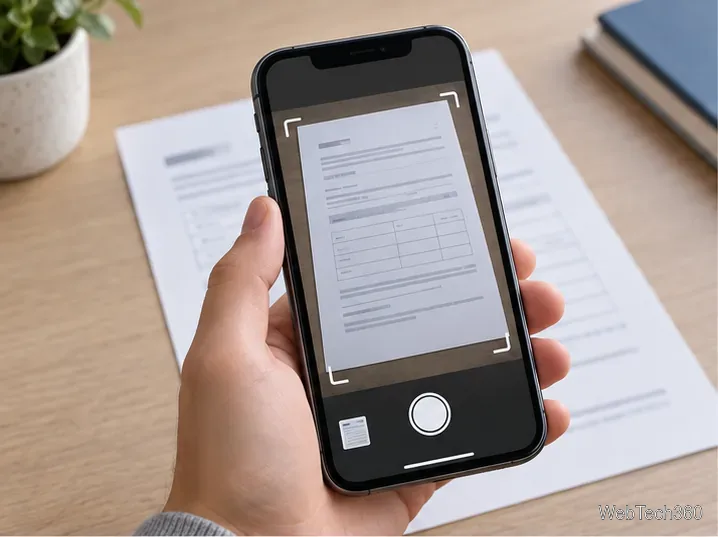
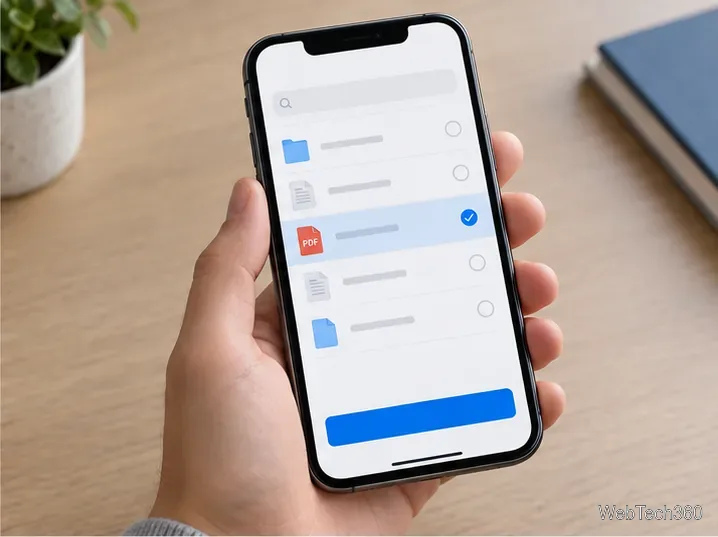
Install an app and open its send-fax screen. Sign in if required; WeFax advertises a no-account option. Scan a page or attach the PDF from Files, iCloud Drive, or another supported location. Look for controls such as Scan, Add file, or Attach. Arrange multiple documents in the intended page order.
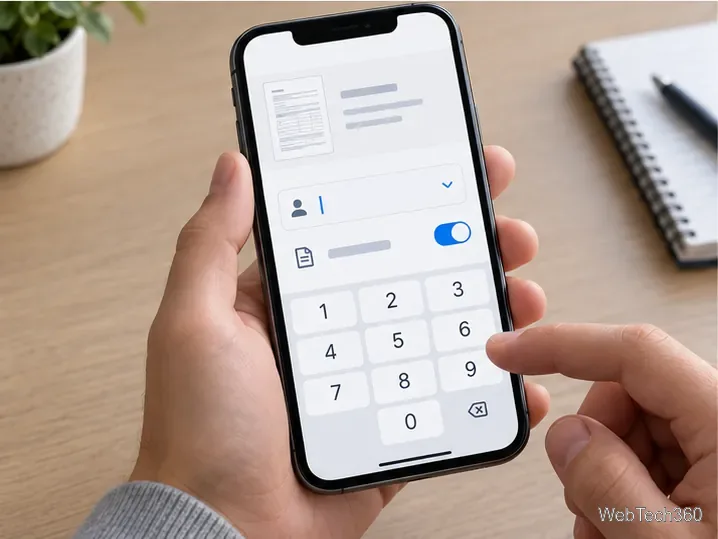
Copy the fax number from the recipient’s current form or official instructions; it may differ from the office phone number. For an international destination, include the country code as the app requests. A cover sheet can help route a fax to a shared office line, but include only the details needed.
Preview the pages for order, orientation, and readability. Check page limits and any fee or subscription notice before tapping Send. Then look for a status report or confirmation email and keep it until the recipient confirms receipt. If the fax fails, check its final status before retrying to avoid a duplicate.
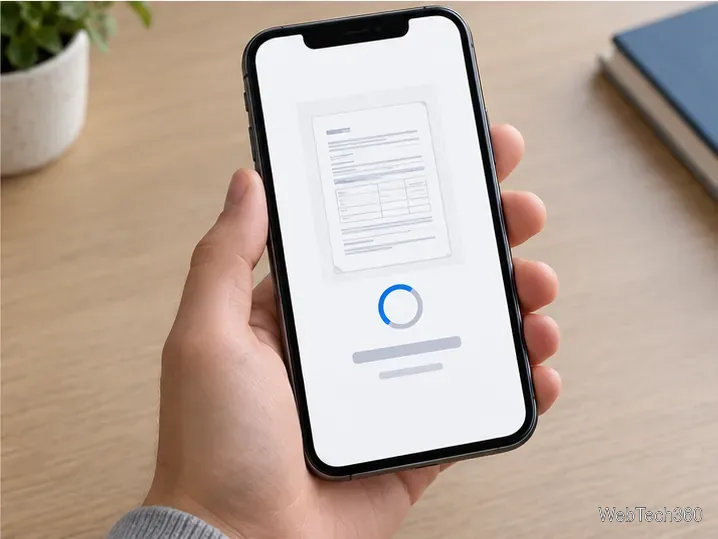
The phone screens shown here are generic examples. Buttons and layouts differ among fax apps and iOS versions.
A free download may still charge for sending. Check whether you pay by page, credit, destination, or subscription, and whether a cover page uses part of the allowance. Confirm the renewal date of any trial; for a one-time fax, compare the total cost before entering payment details.
Fax apps process documents through an online service, so avoid uploading sensitive records to an app you have not approved. For electronic protected health information handled on behalf of a healthcare organization, HHS says the organization generally needs an appropriate business associate agreement with the service provider and must meet the applicable HIPAA requirements. A marketing statement that a fax app is “HIPAA compliant” alone does not confirm that your specific account, plan, and workflow are covered. Follow your organization’s approved process and see HHS guidance on HIPAA and cloud services.
Online faxing still depends on the receiving service accepting the transmission. Keep the confirmation report for time-sensitive documents.
Fix the iMessage Is Signed Out error on iPhone by checking Apple Account sign-in, activation, connectivity, and settings—without erasing your messages.
Turn off your iPhone VPN in the app or Settings, confirm it disconnected, and stop automatic reconnections without deleting your account.
Learn how to encrypt your iPhone with a strong passcode, protect iCloud and computer backups, and secure your data if your phone is lost or stolen.
Learn how to clear Safari and Chrome cache on iPhone, manage app storage safely, and understand when clearing cached data actually helps.
Learn how to fight Gym Battles in Pokémon GO, pick effective attackers, use Charged Attacks and dodges, and claim a Gym after defeating its defenders.
Explore classic Cydia tweaks for jailbroken iPads, from SwipeSelection to Quasar, with compatibility warnings and modern alternatives.
Stop Apple Music signup prompts in the Music app. Learn where to find Show Apple Music on iOS and what turning it off does—and does not—change.
Set up a Shortcuts automation to text Mom when your iPhone battery gets low. Follow four steps, plus delivery checks and privacy tips.
Save posts on X in a few taps. Learn where to find the Bookmark button on iPhone, Android, and desktop, plus how to view, remove, and organize saved tweets.
Turn on AR mode in Pokémon GO during a wild encounter, find AR settings, and fix camera or device compatibility issues.








