iMessage Is Signed Out on iPhone: How to Fix It

Fix the iMessage Is Signed Out error on iPhone by checking Apple Account sign-in, activation, connectivity, and settings—without erasing your messages.
To pair Apple Pencil with an iPad, confirm they’re compatible, turn on Bluetooth in Settings > Bluetooth, then connect using the Pencil’s method: magnetic attachment, USB-C cable, or Lightning. Apple Pencil Pro, USB-C, 2nd generation, and 1st generation use different steps, so identify your model first.
Apple Pencils are not interchangeable across every iPad. Apple’s compatibility list includes these models:
| Apple Pencil | Compatible iPad models |
|---|---|
| Apple Pencil Pro | iPad Pro 11-inch or 13-inch (M4 or M5); iPad Air 11-inch or 13-inch (M2, M3, or M4); iPad mini (A17 Pro). Requires iPadOS 17.5 or later. |
| Apple Pencil (USB-C) | iPad mini (6th generation or A17 Pro); iPad (10th generation or A16); iPad Air (4th or 5th generation) or 11-inch/13-inch Air (M2, M3, or M4); iPad Pro 11-inch (1st–4th generation, M4, or M5) or 12.9-inch (3rd–6th generation) or 13-inch (M4 or M5). Requires iPadOS 17.1.1 or later. |
| Apple Pencil (2nd generation) | iPad mini (6th generation); iPad Air (4th or 5th generation); iPad Pro 11-inch (1st–4th generation); iPad Pro 12.9-inch (3rd–6th generation). |
| Apple Pencil (1st generation) | iPad mini (5th generation); iPad (6th–10th generation or A16); iPad Air (3rd generation); iPad Pro 9.7-inch, 10.5-inch, or 12.9-inch (1st or 2nd generation). iPad (10th generation) and iPad (A16) also need a USB-C to Apple Pencil adapter and USB-C cable. |
Apple Pencil (USB-C) has a sliding end that reveals a USB-C port; 1st generation has a removable cap over its Lightning connector. Pro and 2nd generation both attach magnetically and look similar. Check the product packaging or Apple’s Apple Pencil compatibility list if unsure. For a paired Pencil, check its name under Settings > Bluetooth > My Devices.
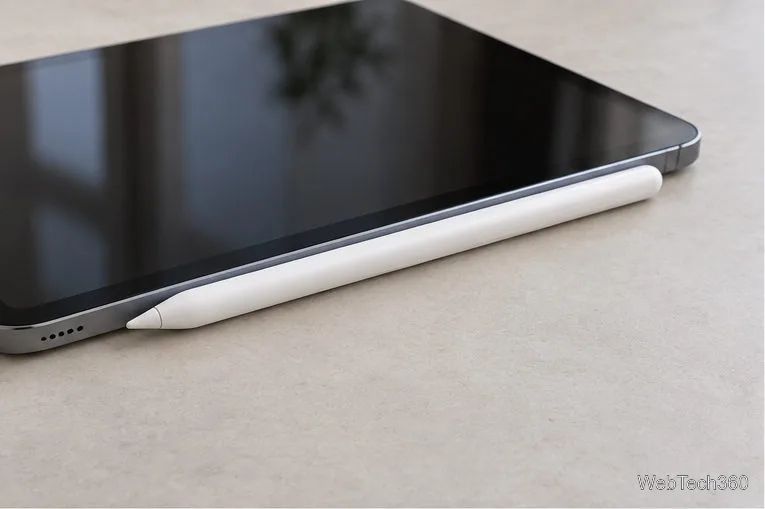
These two models pair and charge by attaching to the magnetic connector on the compatible iPad. On most supported models, the connector is along the long edge of the iPad.
If it does not connect, remove a thick case or cover and try again. Apple Pencil (USB-C) can attach magnetically for storage, but it pairs and charges over a USB-C cable instead.
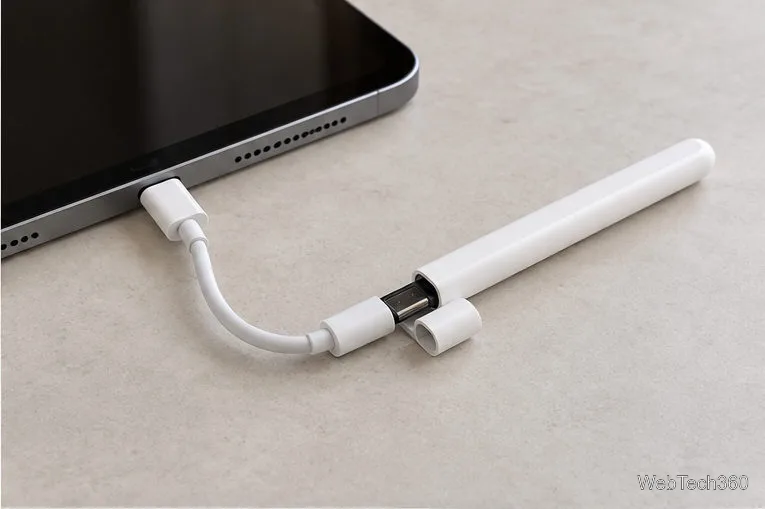
Apple Pencil (USB-C) charges while connected by cable. If you need to charge it separately, use a USB-C charge cable and a compatible power adapter. For exact model and iPadOS requirements, check Apple’s compatibility list first.
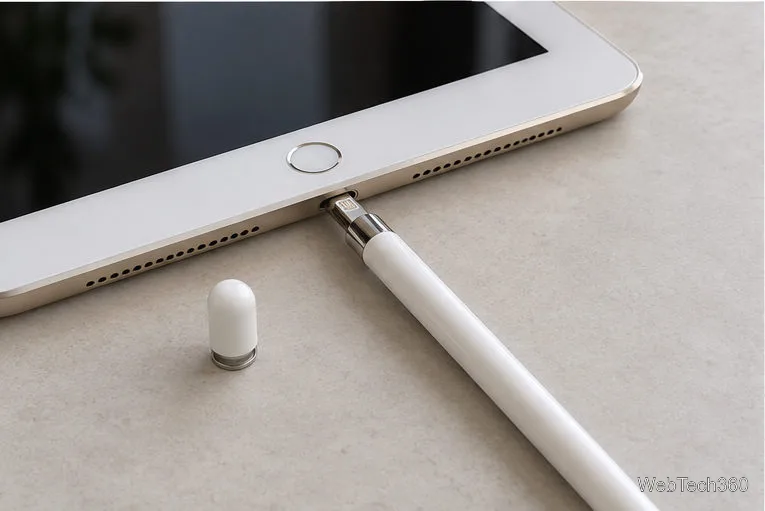
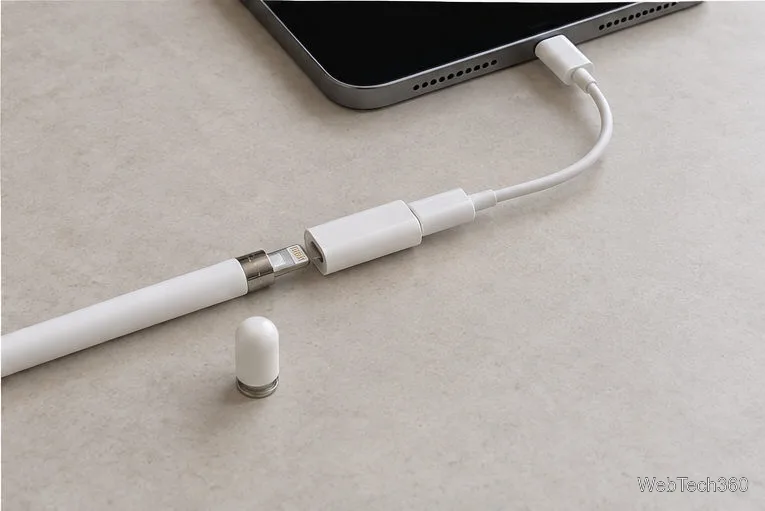
These iPads have USB-C ports, so a 1st-generation Apple Pencil needs Apple’s USB-C to Apple Pencil Adapter plus a USB-C charge cable. Remove the Pencil cap, plug the Pencil into the adapter, and connect the adapter to the iPad with the cable. Tap Pair when prompted. The Pencil charges while connected. The adapter is required for this pairing method; a standard USB-C cable alone will not connect the Pencil directly.
Apple says the Pencil may need service if the prompt still does not appear. Its Apple Pencil pairing troubleshooting guide has the full checklist.
Check the battery in the Batteries widget or Settings > Apple Pencil. After restarting the iPad, turning Bluetooth off, or pairing with another iPad, you may need to reconnect and pair again. Apple’s official instructions cover each method: Apple Pencil Pro, 2nd generation, USB-C, and 1st generation.
Fix the iMessage Is Signed Out error on iPhone by checking Apple Account sign-in, activation, connectivity, and settings—without erasing your messages.
Turn off your iPhone VPN in the app or Settings, confirm it disconnected, and stop automatic reconnections without deleting your account.
Learn how to encrypt your iPhone with a strong passcode, protect iCloud and computer backups, and secure your data if your phone is lost or stolen.
Learn how to clear Safari and Chrome cache on iPhone, manage app storage safely, and understand when clearing cached data actually helps.
Learn how to fight Gym Battles in Pokémon GO, pick effective attackers, use Charged Attacks and dodges, and claim a Gym after defeating its defenders.
Explore classic Cydia tweaks for jailbroken iPads, from SwipeSelection to Quasar, with compatibility warnings and modern alternatives.
Stop Apple Music signup prompts in the Music app. Learn where to find Show Apple Music on iOS and what turning it off does—and does not—change.
Set up a Shortcuts automation to text Mom when your iPhone battery gets low. Follow four steps, plus delivery checks and privacy tips.
Save posts on X in a few taps. Learn where to find the Bookmark button on iPhone, Android, and desktop, plus how to view, remove, and organize saved tweets.
Turn on AR mode in Pokémon GO during a wild encounter, find AR settings, and fix camera or device compatibility issues.








