iMessage Is Signed Out on iPhone: How to Fix It

Fix the iMessage Is Signed Out error on iPhone by checking Apple Account sign-in, activation, connectivity, and settings—without erasing your messages.
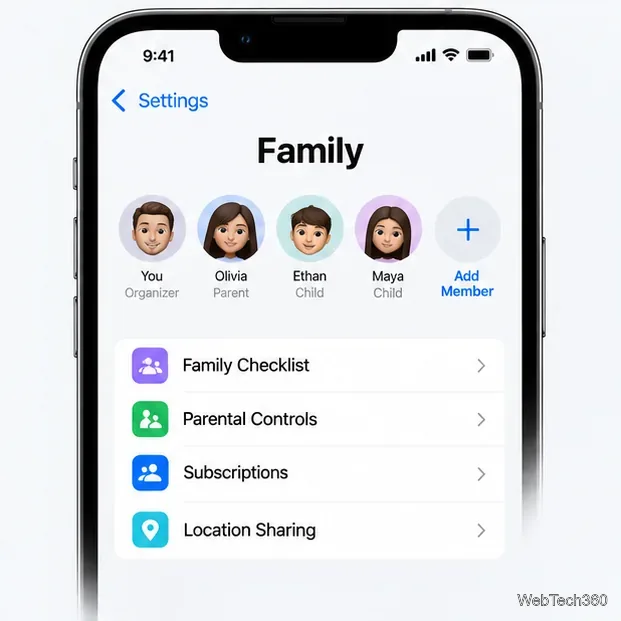
To share iCloud storage with your family, set up a Family Sharing group and turn on sharing for your iCloud+ subscription. On an iPhone or iPad, go to Settings > Family > Subscriptions > iCloud+ and follow the prompts. On a Mac, open Apple menu > System Settings > Family > Subscriptions > iCloud+, then click Share with Family. Up to five other family members can use the plan, and each person keeps their own Apple Account and private files.
Family Sharing lets everyone use the storage capacity in one iCloud+ subscription. Members draw from the same plan, but they do not get access to one another’s photos, documents, or backups. Sharing a storage plan is different from sharing a folder or photo library; you still choose separately when to share specific files or pictures.
Apple’s current iCloud guide lists shareable plans with 50 GB, 200 GB, 2 TB, 6 TB, or 12 TB, subject to availability in your region. The older claim that you need at least 200 GB is no longer accurate: Apple documents Family Sharing for the 50 GB plan too. Pick a capacity that can cover the group’s combined use. The person who shares iCloud+ does not have to be the Family Sharing organizer.
If your family group already exists, skip this step. Otherwise, on an iPhone or iPad open Settings > Family, tap Continue, and follow the setup prompts to invite relatives using their Apple Accounts. On a Mac, open Apple menu > System Settings > Family and follow the onscreen setup. A group can include you and up to five other people. If Family does not appear, make sure you are signed in to your Apple Account.
If you do not have an iCloud+ subscription yet, or the group needs more room, buy or upgrade a plan in Settings. Apple’s upgrade steps vary by software version, so use the official instructions to buy or upgrade iCloud+. Afterward, return to Family > Subscriptions > iCloud+ to enable sharing.
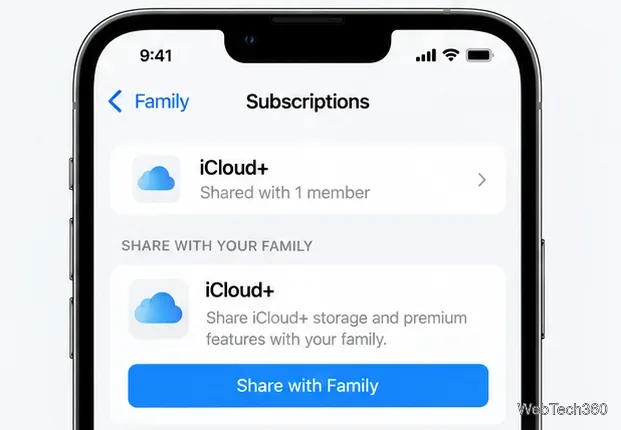
These are Apple’s current menu labels. Older macOS versions may arrange Family Sharing and account settings differently; if you do not see Family, confirm that you are signed in and that Family Sharing is set up.
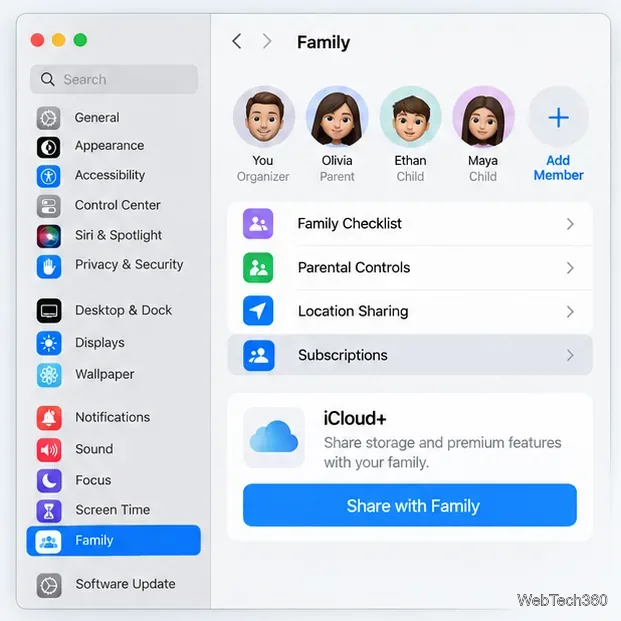
Members using the free 5 GB plan are added to the family’s shared storage automatically after the plan is shared. A member who already pays for iCloud+ can decide whether to switch to the shared plan or keep their own subscription.
To switch on iPhone or iPad, open Settings > Family > Subscriptions > iCloud+ and tap Use Family Storage. On a Mac, open System Settings > Family > Subscriptions > iCloud+ and choose Use Shared Plan. If someone switches, Apple says they receive a refund for the unused portion of their personal plan. They cannot use their personal iCloud+ plan and the family plan at the same time, but they can keep their own plan instead and remain in the Family Sharing group.
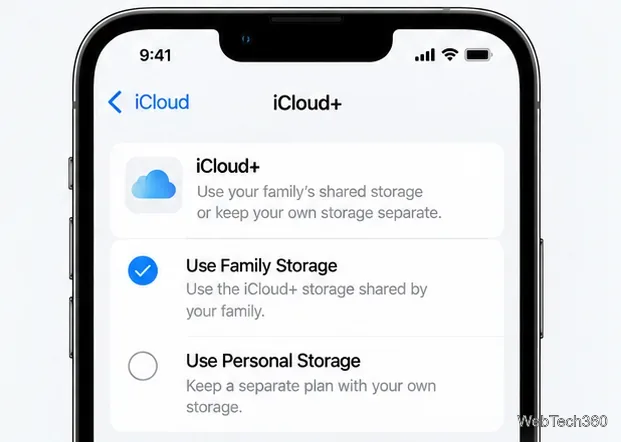
To see the family’s iCloud storage use on an iPhone or iPad, go to Settings > Family > Subscriptions > iCloud+. If the shared space is nearly full, Apple says family members receive a notification. The organizer or the person who purchased the iCloud+ plan can upgrade it; everyone then shares the larger capacity.
If a member cannot see the plan, first make sure they accepted the Family Sharing invitation and are signed in to the Apple Account used for that group. Then reopen the iCloud+ page under Family subscriptions. Someone with a personal paid plan may need to select Use Family Storage before their device uses the shared capacity. For Apple’s full setup, switching, and storage guidance, see Share iCloud+ with your Family Sharing group and the iCloud User Guide.
Fix the iMessage Is Signed Out error on iPhone by checking Apple Account sign-in, activation, connectivity, and settings—without erasing your messages.
Turn off your iPhone VPN in the app or Settings, confirm it disconnected, and stop automatic reconnections without deleting your account.
Learn how to encrypt your iPhone with a strong passcode, protect iCloud and computer backups, and secure your data if your phone is lost or stolen.
Learn how to clear Safari and Chrome cache on iPhone, manage app storage safely, and understand when clearing cached data actually helps.
Learn how to fight Gym Battles in Pokémon GO, pick effective attackers, use Charged Attacks and dodges, and claim a Gym after defeating its defenders.
Explore classic Cydia tweaks for jailbroken iPads, from SwipeSelection to Quasar, with compatibility warnings and modern alternatives.
Stop Apple Music signup prompts in the Music app. Learn where to find Show Apple Music on iOS and what turning it off does—and does not—change.
Set up a Shortcuts automation to text Mom when your iPhone battery gets low. Follow four steps, plus delivery checks and privacy tips.
Save posts on X in a few taps. Learn where to find the Bookmark button on iPhone, Android, and desktop, plus how to view, remove, and organize saved tweets.
Turn on AR mode in Pokémon GO during a wild encounter, find AR settings, and fix camera or device compatibility issues.








