iMessage Is Signed Out on iPhone: How to Fix It

Fix the iMessage Is Signed Out error on iPhone by checking Apple Account sign-in, activation, connectivity, and settings—without erasing your messages.
To tag a place on Snapchat, take a photo or video, tap the sticker icon, choose Location, and select a place. Move the sticker where you want it, then send the Snap to a friend or add it to your Story. The same basic steps work on iPhone and Android. You can also use a location-based Filter when one is available.
A place tag identifies a location in one Snap. It is not the same as sharing your ongoing position on Snap Map. Here is how to use each feature without confusing the two.
The Location sticker is the most direct way to show where a picture or video was taken. Snapchat confirms that its sticker drawer includes stickers that display the location of a Snap. Follow these steps:
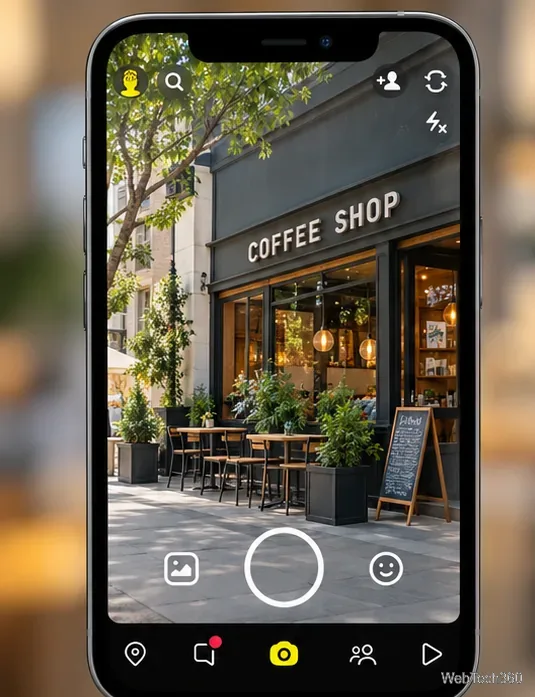
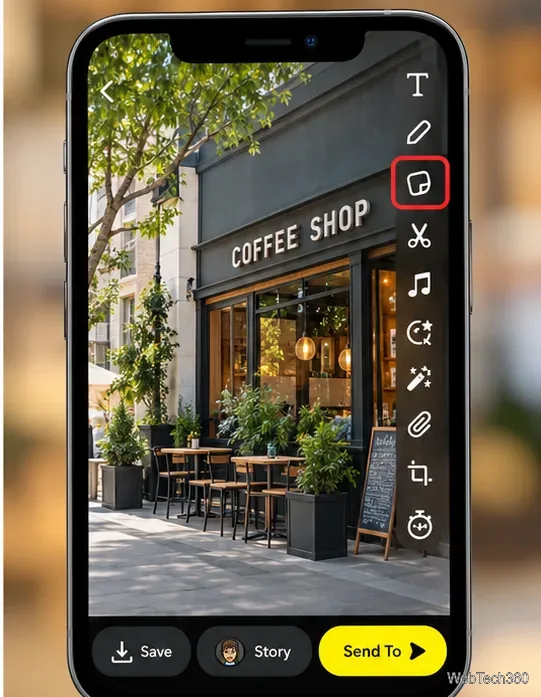
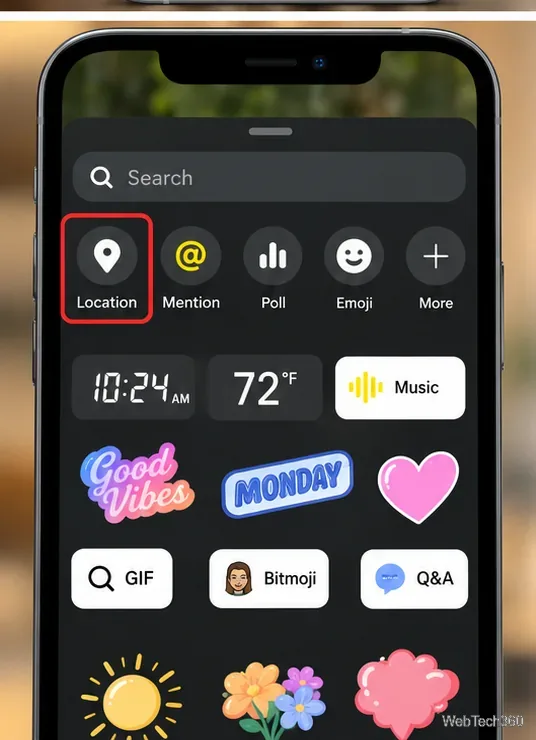
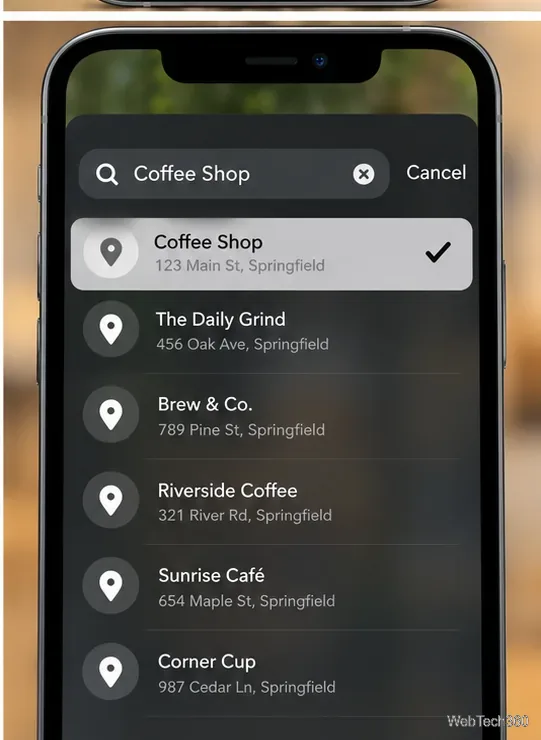
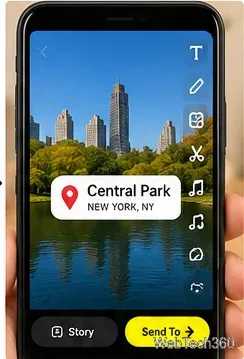
Snapchat’s official sticker instructions explain how to move, resize, and remove stickers. To remove one before sending, press and hold it, then drag it to the trash.
Some Filters show venue information or place names directly over a Snap. Unlike a Location sticker, a location-based Filter may not be available at every place or on every Snap.
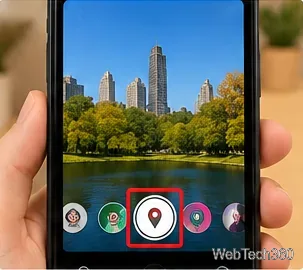
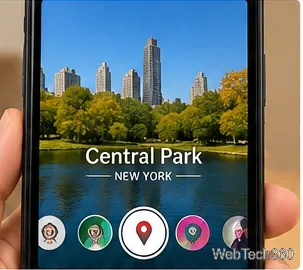

Snapchat says Filters are overlays, separate from Lenses, and that you may combine supported Filters. Its Filter guide also notes that custom event Filters are no longer available to create; this does not mean every existing location-based Filter has disappeared.
First confirm that Snapchat can access your phone’s location. You usually need location access while using the app for nearby-place features, not permanent background tracking.
Open Settings > Privacy & Security > Location Services > Snapchat. Select While Using the App. If location stickers or venue Filters still do not appear, check Precise Location; Snapchat warns that turning it off can make some of these features unavailable.
Open your phone’s Settings > Apps > Snapchat > Permissions > Location, then allow access while using the app. On supported Android versions, check the precise-location option as well. Menu wording can differ between phone manufacturers.
If location access is already on, restart Snapchat, check for an app update, and try a different Snap. A particular venue may simply have no matching sticker or Filter. See Snapchat’s iPhone permission guidance for details.
Snapchat has a current process for suggesting missing map locations. Open Snap Map, tap the settings gear, choose Suggest a Place, and submit the requested place information. This is a suggestion for review, not a guarantee that the business will appear immediately. The steps come from Snapchat’s Place submission instructions.
A Location sticker travels with a specific Snap. Snap Map is a separate setting that lets selected friends see your location over time. Snapchat says Map location sharing is off by default. To manage it, open Snap Map, tap the gear icon, and choose My Friends, My Friends, Except…, Only These Friends…, or Ghost Mode. See Snap Map location settings.
To send a location directly in a one-to-one Chat, tap the smiley face to open the sticker picker, then tap the location option. Snapchat provides options such as sending your current location or a meetup point; this is different from adding a place sticker to a photo.
Privacy reminder: Ghost Mode hides your position from other people on Snap Map but does not remove location text you deliberately post in a Snap. Snaps submitted to Snap Map may still appear there regardless of your personal location-sharing setting. Snapchat explains these distinctions in its Map privacy and safety guidance.
No. Tagging a Snap and choosing who can see your location on Snap Map are separate actions. Still, consider whether a shared Snap reveals somewhere you would rather keep private.
It depends on permissions. Snapchat says a location shared only while using the app expires from the Map after 24 hours; background permission may keep updating it until sharing ends or expires. See its location-duration explanation.
Fix the iMessage Is Signed Out error on iPhone by checking Apple Account sign-in, activation, connectivity, and settings—without erasing your messages.
Turn off your iPhone VPN in the app or Settings, confirm it disconnected, and stop automatic reconnections without deleting your account.
Learn how to encrypt your iPhone with a strong passcode, protect iCloud and computer backups, and secure your data if your phone is lost or stolen.
Learn how to clear Safari and Chrome cache on iPhone, manage app storage safely, and understand when clearing cached data actually helps.
Learn how to fight Gym Battles in Pokémon GO, pick effective attackers, use Charged Attacks and dodges, and claim a Gym after defeating its defenders.
Explore classic Cydia tweaks for jailbroken iPads, from SwipeSelection to Quasar, with compatibility warnings and modern alternatives.
Stop Apple Music signup prompts in the Music app. Learn where to find Show Apple Music on iOS and what turning it off does—and does not—change.
Set up a Shortcuts automation to text Mom when your iPhone battery gets low. Follow four steps, plus delivery checks and privacy tips.
Save posts on X in a few taps. Learn where to find the Bookmark button on iPhone, Android, and desktop, plus how to view, remove, and organize saved tweets.
Turn on AR mode in Pokémon GO during a wild encounter, find AR settings, and fix camera or device compatibility issues.








